









ClickHouse query performance monitoring is the practice of continuously tracking query execution metrics, resource consumption, and system behavior to identify slow queries, optimize data layout, and prevent production incidents before they impact users. Without it, a poorly designed primary key or an inefficient join can silently degrade performance for hours until customer complaints surface.
According to the 2025 CNCF Annual Survey, 63% of organizations now run analytics workloads in production Kubernetes clusters, and ClickHouse has become one of the most deployed columnar databases in cloud native environments. As query volumes grow and data scales to trillions of rows, query performance monitoring shifts from nice to have to mission critical.
This guide covers what ClickHouse query performance monitoring actually measures, how to use system tables and query logs for troubleshooting, what metrics matter most, and how to choose monitoring tools that give you full visibility without adding operational burden.
What Is ClickHouse Query Performance Monitoring?
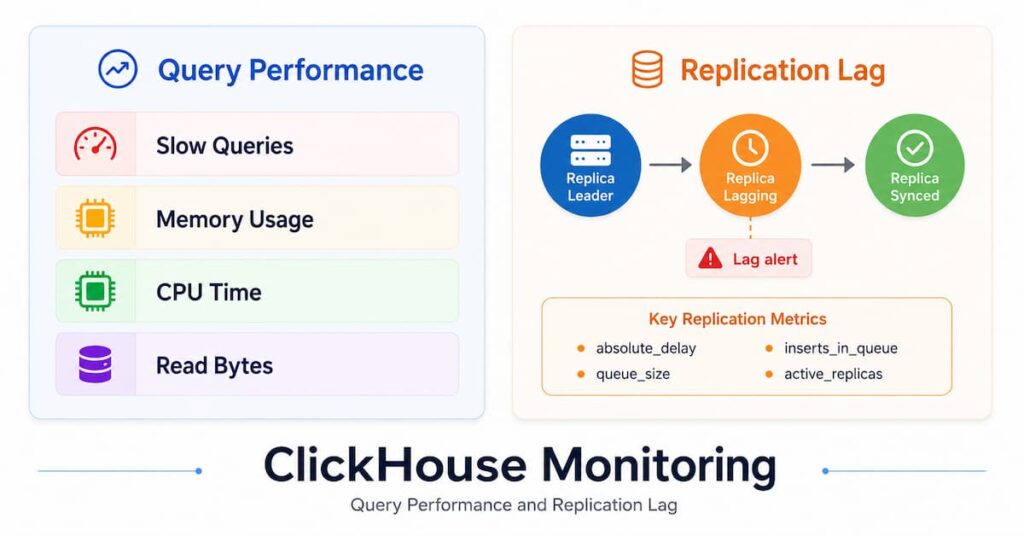
ClickHouse query performance monitoring is the continuous collection, analysis, and visualization of query execution metrics to understand how queries behave in production. It answers three core questions: which queries are slow, why they are slow, and what changed to cause the slowdown.
Unlike traditional database monitoring that focuses on CPU and memory at the host level, ClickHouse monitoring requires tracking query specific signals like rows read, granules processed, memory allocated per query, and execution pipeline stages. ClickHouse’s columnar storage and sparse primary index architecture mean that a single poorly filtered query can read billions of unnecessary rows while returning only a handful of results.
ClickHouse exposes rich telemetry through system tables including system.query_log, system.processes, system.parts, and system.metrics. These tables capture every query execution with microsecond precision, log which tables and columns were accessed, record ProfileEvents counters for CPU cycles and disk reads, and surface exceptions with full stack traces when queries fail.
Monitoring ClickHouse query performance means instrumenting these system tables, correlating query patterns with infrastructure metrics, and building dashboards that surface the right signals at the right time. The goal is not just to know that a query is slow but to understand whether the root cause is a missing index, an inefficient join order, or unexpected data skew in a specific partition.
How ClickHouse Executes Queries: Understanding the Performance Model
To monitor query performance effectively, you need to understand how ClickHouse processes queries under the hood. Every optimization decision and every metric you track ties back to ClickHouse’s execution model.
Columnar Storage and Granule Based Reading
ClickHouse stores data in columns, not rows. When you execute SELECT user_id, revenue FROM sales WHERE date = '2026-01-15', ClickHouse reads only the user_id, revenue, and date columns, skipping every other column in the table. This is why SELECT * queries are expensive in ClickHouse compared to row oriented databases where reading all columns versus specific columns makes little practical difference.
Data is organized into granules, which are blocks of 8,192 rows by default. Granules are the smallest unit ClickHouse reads during query execution. You cannot read half a granule. If a single row in a granule matches your filter, the entire granule must be read into memory.
Sparse Primary Index and Granule Skipping
ClickHouse uses a sparse primary index that stores the first value of every granule, not every row. For a table with 8.87 million rows, a traditional B tree index would create 8.87 million entries. ClickHouse creates only 1,083 index entries, one per granule, which fits entirely in memory even for petabyte scale tables.
When you query WHERE user_id = 12345, ClickHouse performs binary search over the sparse index to identify which granules might contain matching rows. It then streams only those granules from disk, skipping potentially terabytes of irrelevant data. In the worst case, if your target value falls at a granule boundary, ClickHouse reads two granules totaling 16,384 rows when only one matches. This overhead is negligible compared to the benefit of keeping the entire index in memory.
The primary key determines physical sort order on disk. If your queries filter on town but the primary key is (postcode, address), ClickHouse cannot skip granules and must scan the entire table. Monitoring tools that surface granules processed and rows read per query immediately reveal whether your primary key is working.
Query Execution Pipeline and Parallelism
ClickHouse executes queries through a multi stage pipeline: parsing and analysis, optimization and pruning, parallel pipeline execution across CPU cores, and final result merging. By default, ClickHouse uses as many threads as CPU cores available. Each thread processes an independent data range in parallel, then results merge.
The EXPLAIN PIPELINE output shows how many parallel threads process data simultaneously, indicated by × N notation where N equals CPU core count. This parallelism level directly affects memory usage because each thread maintains its own buffers. You can control this with the max_threads setting if memory is constrained.
Key Metrics for ClickHouse Query Performance Monitoring
Effective query performance monitoring requires tracking the right metrics. ClickHouse surfaces hundreds of counters through system tables, but a dozen core metrics reveal 90% of performance problems.
Query Duration and Throughput
Query duration measures end to end execution time from query start to result delivery. Track both average duration and P95 or P99 latency to catch tail latency issues that affect a small percentage of queries but still degrade user experience.
Query throughput counts queries per second, broken down by query type (SELECT, INSERT, ALTER) and by table. A sudden drop in throughput often precedes user visible incidents. Correlating throughput drops with deployment events or infrastructure changes helps identify root causes faster.
Rows Read vs Rows Returned
Rows read counts the total number of rows ClickHouse processed during query execution. Rows returned counts how many rows the query actually returned to the client. A query that reads 27 million rows to return 3 rows indicates a missing or ineffective primary key.
The ratio of rows read to rows returned is one of the most actionable metrics in ClickHouse monitoring. A healthy ratio for filtered queries is typically under 100:1. Ratios above 1,000:1 suggest that ClickHouse is scanning far more data than necessary.
Granules Processed and Index Efficiency
Granules processed shows how many 8,192 row blocks ClickHouse read during query execution. Since granules are the smallest unit of data access, fewer granules processed means better index efficiency and faster queries.
Compare granules processed to total granules in the table. If a query processes 10,000 granules out of 10,000 total, the sparse primary index provided no benefit and ClickHouse performed a full table scan. If it processes 10 granules out of 10,000, the index worked exactly as designed.
Memory Usage Per Query
ClickHouse allocates memory per query for aggregation buffers, join tables, sorting operations, and intermediate results. Memory usage spikes often correlate with expensive joins, large GROUP BY operations, or queries that sort massive result sets.
Monitoring peak memory per query helps you set appropriate max_memory_usage limits to prevent a single runaway query from consuming all available RAM and triggering OOM kills. The system.query_log table records memory usage for every completed query.
Read Bytes and Disk IO
Read bytes measures the volume of data ClickHouse read from disk during query execution. High read bytes with low rows returned suggests that data is poorly compressed, the primary key does not align with query patterns, or the query is scanning wide tables unnecessarily.
Correlating read bytes with query duration reveals IO bottlenecks. If read bytes are high but query duration is reasonable, your disk throughput is adequate. If read bytes are moderate but duration is slow, the bottleneck is likely CPU or network.
Query Errors and Exceptions
ClickHouse logs every query exception with a full stack trace in system.query_log. Common exceptions include MEMORY_LIMIT_EXCEEDED, TOO_MANY_SIMULTANEOUS_QUERIES, TIMEOUT_EXCEEDED, and syntax errors. Tracking exception rates by type helps you prioritize which issues to fix first.
A spike in MEMORY_LIMIT_EXCEEDED errors indicates queries hitting memory caps, often after a schema change or an increase in data cardinality. TOO_MANY_SIMULTANEOUS_QUERIES errors suggest your concurrency limits are too low or queries are taking longer than expected to complete.
Using ClickHouse System Tables for Query Performance Analysis
ClickHouse system tables are the foundation of query performance monitoring. They expose every query execution, every running process, and every table part in real time without requiring external instrumentation.
system.query_log: Historical Query Performance
The system.query_log table records every completed query with full execution metadata including query text, duration, memory usage, rows read, bytes read, exception messages, and ProfileEvents counters. It is the primary source for historical query analysis and troubleshooting.
To identify the most expensive queries by duration:
SELECT
    type,
    query_start_time,
    formatReadableTimeDelta(query_duration_ms / 1000) AS query_duration,
    query_id,
    user,
    query,
    read_rows,
    formatReadableSize(read_bytes) AS read_size,
    result_rows,
    formatReadableSize(memory_usage) AS memory,
    exception
FROM system.query_log
WHERE type != 'QueryStart'
  AND query_kind = 'Select'
  AND event_date >= today() - 1
  AND event_time >= now() - INTERVAL 1 DAY
ORDER BY query_duration_ms DESC
LIMIT 20;This query surfaces the slowest SELECT queries in the past 24 hours with full context on how much data was read, how much memory was used, and whether any exceptions occurred.
system.processes: Real Time Query Monitoring
The system.processes table shows all currently running queries with live progress updates. It includes elapsed time, memory usage, rows read so far, and estimated query progress percentage. This is the first place to look when users report slow queries or when system load spikes unexpectedly.
To view currently running queries ordered by duration:
SELECT
    elapsed,
    query_id,
    user,
    address,
    formatReadableSize(memory_usage) AS memory,
    query
FROM system.processes
WHERE query NOT LIKE '%system.processes%'
ORDER BY elapsed DESC;If a query has been running for an unusually long time, you can terminate it with KILL QUERY WHERE query_id = ‘abc123’.
system.parts: Table and Partition Visibility
The system.parts table tracks every data part on disk including row counts, bytes on disk, primary key size, and modification times. Monitoring parts helps you understand data distribution across partitions, identify tables with too many small parts causing merge overhead, and detect partition skew.
To see the largest tables by data size and primary key size:
SELECT
    table,
    sum(rows) AS total_rows,
    formatReadableSize(sum(bytes)) AS data_size,
    formatReadableSize(sum(primary_key_bytes_in_memory)) AS pk_size,
    count() AS part_count
FROM system.parts
WHERE active
GROUP BY table
ORDER BY sum(bytes) DESC
LIMIT 20;A table with hundreds or thousands of parts indicates a merge backlog, which can slow query performance. ClickHouse merges parts in the background, but if inserts outpace merges, query performance degrades as ClickHouse must read from more parts per query.
system.metrics and system.events: Real Time System State
The system.metrics table exposes real time counters for background merges in progress, queries running, memory usage, disk IO, and network activity. The system.events table provides cumulative counters since server start for executed queries, disk reads, network sends, and cache hits.
These tables help correlate query performance with system resource utilization. If query durations increase while BackgroundPoolTask metrics spike, background merges may be consuming IO bandwidth and starving queries.
Optimizing ClickHouse Query Performance
Monitoring reveals slow queries. Optimization fixes them. The three highest impact optimizations are improving primary key design, using materialized views for precomputation, and tuning query execution settings.
Primary Key Optimization: Align Keys with Query Filters
The primary key determines physical sort order on disk and directly controls how many granules ClickHouse reads per query. If your queries filter on user_id and event_date, but the primary key is (event_date, user_id), queries filtering by user_id alone will scan the entire table.
To optimize the primary key, identify the most common query filters from system.query_log. Extract WHERE clause patterns and verify that the primary key columns match those filters in order. A table with ORDER BY (postcode, address) performs poorly for queries filtering on town. Rebuilding the table with ORDER BY (town, postcode) can reduce query time by 10× to 100×.
Changing the primary key requires recreating the table. Use CREATE TABLE new_table AS old_table ORDER BY (new_key) then INSERT INTO new_table SELECT * FROM old_table. Test the new key on a subset of data first to verify performance gains before migrating production.
Materialized Views: Precompute Aggregations
Materialized views compute and store aggregated results during data insert rather than at query time. This shifts expensive GROUP BY and JOIN operations from query time to write time, dramatically accelerating read queries.
For example, if you frequently query SELECT user_id, sum(revenue) FROM sales GROUP BY user_id, create a materialized view that maintains this aggregation:
CREATE MATERIALIZED VIEW sales_by_user
ENGINE = SummingMergeTree()
ORDER BY user_id
AS SELECT
    user_id,
    sum(revenue) AS total_revenue
FROM sales
GROUP BY user_id;Now queries against sales_by_user return results instantly because the aggregation is precomputed. The tradeoff is increased storage and slightly slower inserts. For tables with infrequent inserts and frequent aggregations, this tradeoff is almost always worth it.
Query Execution Settings: max_threads, max_memory_usage, and More
ClickHouse provides dozens of query execution settings that control parallelism, memory limits, and timeout behavior. The most impactful settings are max_threads, max_memory_usage, and max_execution_time.
max_threadscontrols how many parallel threads execute a query. The default equals the number of CPU cores. Reducingmax_threadsfor memory intensive queries prevents OOM errors. Increasing it for IO bound queries can improve throughput if CPU headroom exists.max_memory_usagecaps memory per query. The default is 10 GB. Queries that exceed this limit fail withMEMORY_LIMIT_EXCEEDED. Set this lower to prevent runaway queries from consuming all available RAM. Set it higher for known expensive queries that need more memory.max_execution_timekills queries that run longer than a specified duration. This prevents long running queries from blocking resources during high load. Set this to a value slightly above your P99 query duration to catch runaway queries without killing legitimate slow queries.
Tools for ClickHouse Query Performance Monitoring
Monitoring ClickHouse with system tables works, but querying system.query_log every time you need to troubleshoot is tedious. ClickHouse monitoring tools aggregate query metrics, visualize trends, and alert on anomalies automatically.
CubeAPM: Unified Observability for ClickHouse
CubeAPM provides full stack observability for ClickHouse deployments including query performance monitoring, infrastructure metrics, and log aggregation in a single platform. It runs on your infrastructure, keeping ClickHouse telemetry within your VPC with zero external data egress.
CubeAPM connects to ClickHouse via OpenTelemetry or Prometheus, automatically surfaces query duration, rows read, memory usage, and error rates, and correlates query performance with infrastructure metrics like CPU, memory, and disk IO. Dashboards show query performance trends over time, slowest queries by duration or rows read, and query error rates grouped by exception type.
Because CubeAPM is self hosted, it fits data residency requirements out of the box. Pricing is $0.15/GB of telemetry ingested with unlimited retention and no per seat fees. For teams running ClickHouse at scale, CubeAPM’s predictable pricing eliminates the surprise bills common with SaaS observability platforms.
Grafana with Prometheus and ClickHouse Exporter
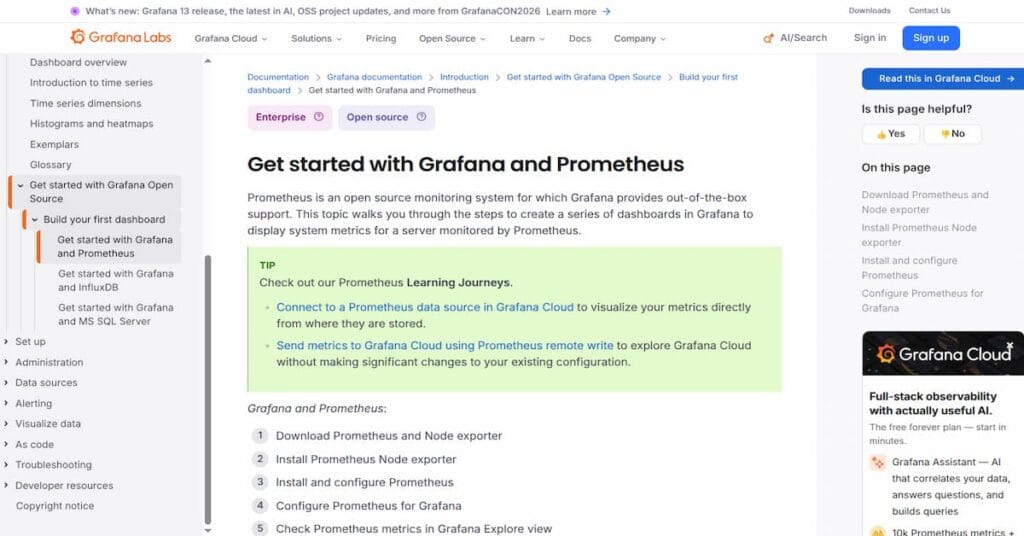
Grafana remains the most widely deployed open source monitoring stack. The ClickHouse exporter for Prometheus scrapes metrics from system.metrics and system.events and exposes them in Prometheus format. Grafana then visualizes these metrics in dashboards.The
Grafana plus Prometheus approach gives you full control over data storage, dashboard design, and alert configuration. The tradeoff is operational overhead. You manage Prometheus retention, Grafana upgrades, and alert routing yourself. For teams already running Grafana for infrastructure monitoring, adding ClickHouse metrics is straightforward.
Datadog ClickHouse Integration

Datadog Database Monitoring for ClickHouse provides query performance visibility in a managed SaaS platform. It collects query samples, aggregates metrics by query pattern, and visualizes query activity in Datadog’s unified observability interface.
Datadog pricing for Database Monitoring starts at $70 per host per month for ClickHouse instances. For a 10 node ClickHouse cluster, this totals $700 per month before APM, logs, or infrastructure monitoring. Data egress fees apply when sending telemetry from your VPC to Datadog’s SaaS, typically around $0.10 per GB. For teams already on Datadog, the integration is convenient. For teams evaluating ClickHouse monitoring from scratch, the cost compounds quickly.
ClickHouse Query Performance Monitoring Best Practices
Effective monitoring requires more than setting up dashboards. It requires structured processes, clear ownership, and proactive alerting that catches problems before users notice.
Define Query Performance SLOs
Service Level Objectives quantify acceptable query performance. For example, “95% of SELECT queries must complete in under 2 seconds” or “No query should process more than 1 million rows when returning fewer than 100 results.” SLOs turn subjective “this feels slow” complaints into objective metrics you can track and alert on.
Define SLOs based on actual usage patterns from system.query_log. Calculate P50, P95, and P99 query durations over a 30 day baseline period, then set SLOs slightly above P95 to allow headroom while still catching regressions. Review SLOs quarterly as usage patterns evolve.
Alert on Query Anomalies, Not Static Thresholds
Static threshold alerts like “alert when query duration exceeds 10 seconds” fire constantly during normal load variations and condition teams to ignore them. Anomaly based alerts detect deviations from expected patterns and fire only when query performance degrades unexpectedly.
Track rolling averages for query duration, rows read, and memory usage over 7 day windows. Alert when current values exceed rolling averages by 2× or more. This approach adapts to traffic patterns automatically and reduces alert noise by 60% to 80% compared to static thresholds.
Correlate Query Performance with Deployments
Most query performance regressions trace back to schema changes, application deployments, or infrastructure updates. Correlating query performance metrics with deployment events surfaces root causes faster than analyzing metrics in isolation.
Tag queries in system.query_log with application version or deployment IDs using query comments. ClickHouse preserves these comments in query logs. When query duration spikes after a deployment, filter system.query_log by the new version tag to identify which queries regressed.
Review Slowest Queries Weekly
Schedule a weekly query performance review with your engineering team. Review the 10 slowest queries from the past week, identify root causes using system.query_log and EXPLAIN output, and prioritize optimization work. A 30 minute weekly review prevents small performance issues from compounding into production incidents.
Use the “most expensive queries” query from the system tables section above as your starting point. Focus on queries with high rows read to rows returned ratios, queries consuming excessive memory, and queries that fail frequently with exceptions.
Troubleshooting Common ClickHouse Query Performance Issues
Some performance problems appear repeatedly across ClickHouse deployments. Recognizing these patterns speeds up troubleshooting.
High Rows Read, Low Rows Returned
This is the most common performance issue in ClickHouse. A query reads millions or billions of rows but returns only a handful of results. The root cause is almost always an ineffective primary key that does not align with query filters.
Check the primary key with SHOW CREATE TABLE table_name. Compare the primary key columns to the WHERE clause filters in your slow query. If the primary key is (date, user_id) but the query filters on (user_id, date), ClickHouse cannot skip granules efficiently and scans the entire table.
Fix this by recreating the table with a primary key that matches your query filters in order. Test the new key on a subset of data first to confirm the rows read metric drops significantly.
TOO_MANY_SIMULTANEOUS_QUERIES Errors
ClickHouse limits concurrent query execution to prevent resource exhaustion. The default limit is 100 concurrent queries. When this limit is reached, new queries fail with TOO_MANY_SIMULTANEOUS_QUERIES.
This error indicates one of two problems: queries are taking longer than expected to complete, causing a backlog, or your application is sending more concurrent queries than ClickHouse can handle.
Check system.processes to see how many queries are currently running and how long they have been running. If queries are stuck, identify and optimize the slow queries. If query volume genuinely exceeds capacity, increase max_concurrent_queries in ClickHouse configuration or scale your cluster horizontally by adding more nodes.
Memory Limit Exceeded Errors
ClickHouse kills queries that exceed the max_memory_usage limit, typically 10 GB per query. MEMORY_LIMIT_EXCEEDED errors indicate queries are allocating too much memory for joins, aggregations, or sorting operations.
Identify which queries hit memory limits by querying system.query_log for exceptions containing MEMORY_LIMIT_EXCEEDED. Review those queries for expensive operations like large JOINs, high cardinality GROUP BY, or ORDER BY on unsorted columns.
Optimize these queries by reducing JOIN cardinality, using materialized views for precomputation, or increasing max_memory_usage for specific queries if they legitimately need more memory. Adding more RAM to ClickHouse nodes also helps, but optimizing queries is usually more cost effective.
Disclaimer: The information in this article reflects the latest details available at the time of publication and may change as technologies and products evolve. Features, pricing, and plan limits can change over time. Always verify the latest information directly with the vendor before making purchasing or deployment decisions.
Frequently Asked Questions
What is the best way to monitor ClickHouse query performance?
Use ClickHouse system tables like system.query_log and system.processes for query analysis, then visualize metrics with tools like CubeAPM, Grafana, or Datadog to track trends and set alerts.
How do I find slow queries in ClickHouse?
Query system.query_log and order by query_duration_ms DESC to find the slowest queries. Filter by event_date and query_kind to narrow results to specific time windows or query types.
What does rows read vs rows returned mean in ClickHouse?
Rows read counts total rows ClickHouse processed during query execution. Rows returned counts rows sent to the client. A high read to returned ratio indicates an ineffective primary key.
Why are my ClickHouse queries slow after a schema change?
Schema changes often affect primary key efficiency or introduce new columns that increase read overhead. Review queries filtering on new columns and verify the primary key aligns with those filters.
How do I reduce memory usage for ClickHouse queries?
Optimize queries by reducing JOIN cardinality, using materialized views for aggregations, or limiting result set size. Increase max_memory_usage only if queries legitimately need more memory.
What is the TOO_MANY_SIMULTANEOUS_QUERIES error in ClickHouse?
This error means ClickHouse hit its concurrent query limit. Check system.processes for long running queries, optimize slow queries, or increase max_concurrent_queries in configuration.
How do I monitor ClickHouse with OpenTelemetry?
Use the OpenTelemetry Collector with the ClickHouse receiver to export metrics from system tables to OpenTelemetry compatible backends like CubeAPM, Grafana, or Prometheus.