









Valkey is a fork of Redis designed to maintain compatibility while offering an open governance model. According to the 2024 Linux Foundation survey, 67% of organizations now prioritize vendor-neutral open source projects when selecting infrastructure components, a shift that directly explains Valkey’s growing adoption.
Without monitoring, a Valkey cluster can hit memory pressure, slow queries, or connection exhaustion without triggering any alerts until user-facing transactions fail. With monitoring, those same issues surface as metrics violations 10 minutes before impact, giving teams time to scale, debug, or reroute traffic.
This guide covers what Valkey monitoring is, how it works, what metrics matter most, best practices for production deployments, and how to implement monitoring using tools like CubeAPM, Prometheus, Grafana, and other platforms.
What Is Valkey Monitoring?
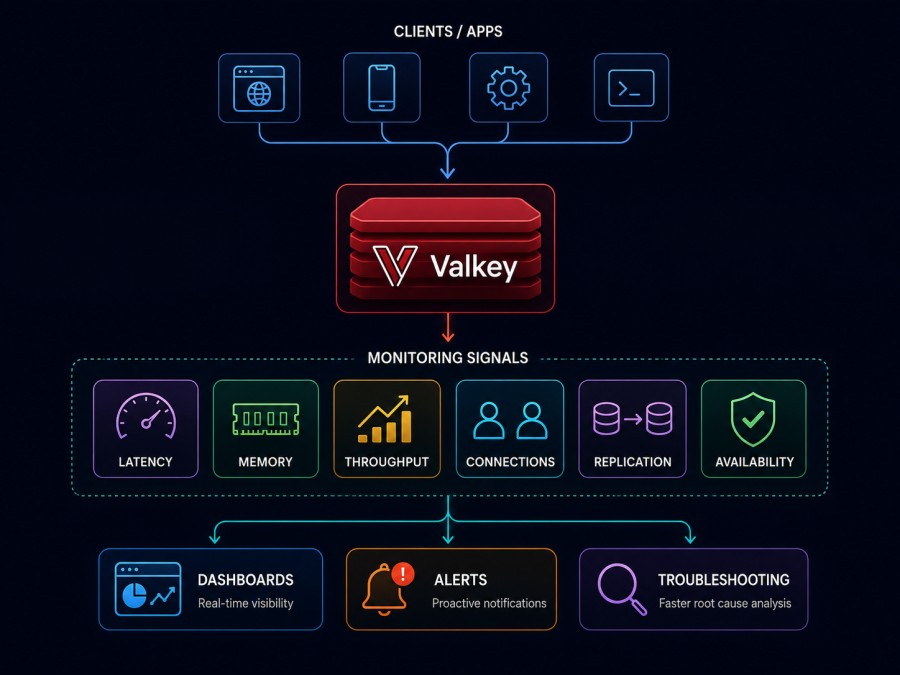
Valkey monitoring is the practice of continuously tracking the performance, availability, and resource consumption of Valkey instances in production. It involves collecting metrics about memory usage, command latency, hit rates, replication lag, and connection counts, then using those signals to detect issues, optimize performance, and maintain uptime.
Monitoring answers three core questions: Is Valkey healthy right now?
Is performance degrading?
What specifically is causing the problem?
Valkey exposes its internal state through the INFO command, which returns over 100 metrics covering memory, CPU, persistence, replication, clients, and command execution. These metrics form the foundation of all Valkey monitoring implementations.
Unlike black box monitoring that only tracks whether a service is up or down, Valkey monitoring provides deep visibility into how the cache layer behaves under load, revealing slow commands, memory fragmentation, eviction patterns, and replication delays that can degrade application performance long before an outage occurs.
How Valkey Monitoring Works
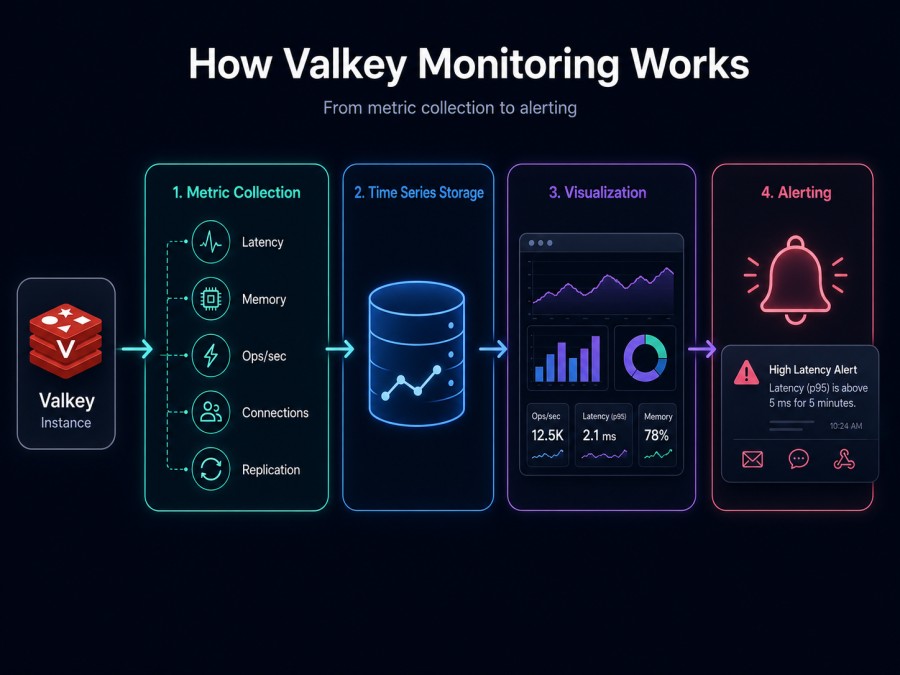
Valkey monitoring operates by periodically querying each Valkey instance for its current operational state, exporting that data to a time series database, and building dashboards and alerts on top of those metrics.
The standard monitoring flow has four components: metric collection, time series storage, visualization, and alerting.
Metric Collection
The primary method for extracting metrics from Valkey is the INFO command. Running INFO ALL returns the complete metric set. Tools like Prometheus exporters, Telegraf agents, or OpenTelemetry collectors connect to each Valkey instance, execute INFO, parse the response, and convert it into structured metric data.
For distributed Valkey clusters, each node must be scraped separately. A cluster with 6 nodes requires 6 separate scrape targets. Sentinel deployments add another layer: you monitor sentinel instances separately to track failover events, quorum status, and master election timing.
Time Series Storage
Once metrics are collected, they are written to a time series database like Prometheus, InfluxDB, or a managed backend like Datadog or CubeAPM. Time series storage enables historical queries — answering questions like “what was the memory usage pattern over the past 3 hours” or “when did eviction rate spike.”
Retention policies determine how long metrics are kept. A 30-day retention window is common for operational metrics. Longer retention is necessary for capacity planning and historical analysis.
Visualization
Dashboards visualize metrics in real time. Grafana is the most common choice for self-hosted setups. Managed platforms like CubeAPM provide pre-built Valkey dashboards that track memory, latency, hit rates, and replication health without manual configuration.
Good dashboards group related metrics: one panel for memory and evictions, another for command latency percentiles, another for replication lag across replicas. Dashboards should answer “is Valkey healthy” within 3 seconds of opening them.
Alerting
Alerts trigger when metrics cross predefined thresholds. Common alert conditions include memory usage above 85%, replication lag above 5 seconds, or eviction rate spiking above baseline. Alerts route to PagerDuty, Slack, email, or webhook endpoints.
Alert fatigue is the biggest operational problem. Poorly tuned thresholds generate noise. Well-tuned alerts fire only when action is required: memory pressure means scale up, replication lag means investigate network or load, connection spike means check for connection leaks.
Key Valkey Metrics to Monitor
Valkey exposes over 100 metrics. Not all are equally important. The following metrics are the minimum set required to detect production issues before they cascade.
Memory Usage and Eviction
Memory metrics reveal whether Valkey is approaching capacity and how it handles memory pressure.
used_memory: Total memory consumed by Valkey data. Compare this to maxmemory to understand headroom. If used_memory exceeds 90% of maxmemory, evictions start or writes fail depending on policy.
maxmemory: The memory limit configured for the instance. This is a hard cap. Exceeding it triggers eviction or blocks writes.
mem_fragmentation_ratio: The ratio of operating system allocated memory to used_memory. A value of 1.5 means 50% of allocated memory is fragmented. Values above 1.5 indicate inefficient memory use. Values below 1.0 indicate swapping — a critical problem.
evicted_keys: Number of keys evicted due to memory pressure. A non-zero eviction rate under sustained load is normal if maxmemory-policy is set to an eviction policy like allkeys-lru. Sudden spikes indicate unexpected memory pressure.
Alert if used_memory exceeds 85% of maxmemory, or if evicted_keys rate increases unexpectedly.
Command Latency
Latency metrics show how long Valkey takes to execute commands. Slow commands directly impact application response time.
instantaneous_ops_per_sec: Commands executed per second. This is the throughput metric. Sudden drops can indicate blocking commands, network issues, or client connection problems.
total_commands_processed: Cumulative count of all commands. Use rate of change to calculate ops per second over time.
slowlog: Valkey maintains a log of slow commands. Configure slowlog-log-slower-than to log commands exceeding a threshold, typically 10ms for cache workloads. The slowlog is retrieved via the SLOWLOG GET command and shows which commands are taking too long.
Monitor average command latency using Prometheus histogram metrics from redis_exporter or equivalent. Alert if p99 latency exceeds 10ms for cache hits or 50ms for complex queries.
Cache Hit Rate
Hit rate measures how often requested keys are found in Valkey. A low hit rate means the application is frequently querying the database instead of the cache, defeating the purpose of caching.
keyspace_hits: Number of successful key lookups.
keyspace_misses: Number of failed key lookups.
Hit rate formula: keyspace_hits / (keyspace_hits + keyspace_misses)
A hit rate above 90% is typical for well-designed caching layers. Below 80% suggests incorrect TTLs, cache warming issues, or query patterns that do not benefit from caching.
Alert if hit rate drops below 80% sustained over 10 minutes.
Replication Health
Replication metrics track the state of master replica synchronization. Replication lag means replicas serve stale data — a problem for read-heavy workloads.
master_repl_offset: The replication offset on the master. This is the position in the replication stream.
slave_repl_offset: The replication offset on each replica. Compare this to master_repl_offset to calculate lag.
repl_backlog_size: The size of the replication backlog buffer. If a replica falls behind by more than this buffer size, a full resync is required, a costly operation.
connected_slaves: Number of replicas currently connected. If this drops unexpectedly, replication is broken.
Alert if replication lag exceeds 5 seconds, or if connected_slaves count drops.
Connection Metrics
Connection metrics reveal how clients are interacting with Valkey and whether connection limits are being approached.
connected_clients: Current number of active client connections. Compare to maxclients, the configured connection limit. If connected_clients approaches maxclients, new connections are rejected.
blocked_clients: Number of clients blocked waiting on commands like BLPOP or BRPOPLPUSH. High blocked client counts are normal for queue workloads. Sudden increases can indicate application bugs.
rejected_connections: Number of connections rejected due to maxclients limit being reached. Any non-zero value here is a problem.
Alert if connected_clients exceeds 80% of maxclients, or if rejected_connections is non-zero.
Persistence Metrics
Persistence metrics track RDB snapshots and AOF log writes. These determine data durability and recovery time.
rdb_last_save_time: Unix timestamp of the last successful RDB snapshot. If this is too old, you risk data loss on a crash.
rdb_changes_since_last_save: Number of write operations since the last snapshot. High values mean more data at risk.
aof_rewrite_in_progress: Whether an AOF rewrite is currently running. AOF rewrites are CPU and disk intensive.
Alert if rdb_last_save_time is more than 24 hours old for workloads requiring durability.
Best Practices for Valkey Monitoring in Production
Monitoring alone does not prevent outages. How you configure monitoring, set thresholds, and respond to alerts determines whether monitoring is useful or noise.
Monitor Every Node in the Cluster
Each Valkey instance of master, replica, and sentinel must be monitored separately. Cluster health is not visible by monitoring only the master. Replicas can fall behind, sentinels can lose quorum, and individual nodes can experience CPU or memory pressure invisible to the rest of the cluster.
Set Alerts Based on Rate of Change, Not Absolute Values
Alerting when memory usage hits 80% is better than alerting at 95%, but it still generates false positives if memory usage normally sits at 75%. A better alert fires when memory usage increases by 20% in 10 minutes, catching unexpected growth while avoiding noise.
Track Latency at Percentiles, Not Averages
Average latency hides outliers. An average of 5ms can include 99% of requests at 2ms and 1% at 500ms. Monitor p50, p95, p99 latency. Alert on p99 breaches; those are the requests your users complain about.
Use Separate Dashboards for Each Concern
Do not combine memory, replication, and latency into one dashboard. Operators need to see memory status at a glance during a memory pressure incident without scrolling past replication graphs. Build focused dashboards: one for memory and eviction, one for replication health, one for latency and throughput.
Correlate Valkey Metrics with Application Traces
Valkey latency alone does not explain why an endpoint is slow. Correlating Valkey command duration with distributed traces shows whether Valkey is the bottleneck or just one factor. Tools like CubeAPM and Datadog link Valkey spans to upstream service traces, making root cause analysis faster.
Test Alerts in Staging Before Production
An untested alert is as bad as no alert. Trigger memory pressure in staging by filling keys until eviction starts. Verify the alert fires and routes to the correct channel. Do the same for replication lag, connection limits, and latency thresholds.
Tools and Implementations for Valkey Monitoring
Valkey monitoring can be implemented using open source tools, SaaS platforms, or self-hosted observability stacks. The right choice depends on deployment model, team size, and whether you already have infrastructure monitoring in place.
CubeAPM

CubeAPM provides full-stack observability including Valkey monitoring with no data leaving your infrastructure. It runs on premises or inside your VPC, making it suitable for regulated industries and teams with data residency requirements.
CubeAPM correlates Valkey command latency with APM traces, logs, and infrastructure metrics in one view. When a slow query is detected, you see the full context: which service called it, what the database was doing at the same time, and whether the host was under CPU or memory pressure.
Pricing is $0.15/GB ingested with unlimited retention and no per-user fees. For a growing team running 50 hosts and ingesting 10TB monthly, CubeAPM costs approximately $1,750 per month, 60% to 75% less than enterprise SaaS platforms.
CubeAPM supports OpenTelemetry, Prometheus exporters, and Datadog agents, making migration from existing tools straightforward. Customers like Delhivery and Mamaearth completed migration in under an hour with zero downtime.
Prometheus and Grafana
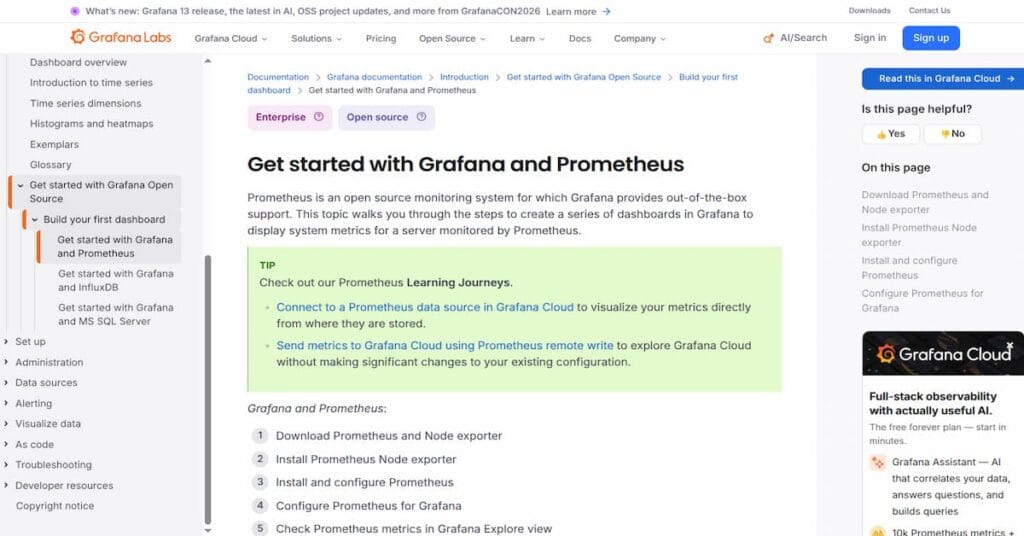
Prometheus with redis_exporter is the most common open source stack for Valkey monitoring. The exporter scrapes Valkey metrics and exposes them in Prometheus format. Grafana visualizes those metrics using pre-built Valkey dashboards from the community.
This stack is free and powerful but requires managing Prometheus storage, Grafana hosting, and exporter deployment across all Valkey nodes. For teams already running Prometheus, adding Valkey monitoring is a 20-minute task. For teams starting from scratch, it is a multi-day project.
Datadog

Datadog provides managed Valkey monitoring with out-of-the-box dashboards and integration across 700+ other services. It scrapes Valkey metrics via the Datadog agent and correlates them with logs, APM traces, and infrastructure data.
Datadog pricing is host-based at $18 per host per month for infrastructure monitoring plus APM at $31 per host per month. A 50-host deployment costs $2,450 per month before logs, custom metrics, or synthetic monitoring. Data egress fees add approximately $0.10/GB when sending telemetry to Datadog, a hidden cost that grows with scale.
Elastic Stack

Elastic APM and Metricbeat support Valkey monitoring as part of the broader ELK stack. Metricbeat collects Valkey metrics and ships them to Elasticsearch. Kibana provides visualization.
The open source version is free but requires managing Elasticsearch cluster sizing, retention, and index lifecycle policies. Elastic Cloud starts at $95 per month for a small cluster, scaling with data volume and node count.
Disclaimer: The information in this article reflects the latest details available at the time of publication and may change as technologies and products evolve. Features, pricing, and plan limits can change over time. Always verify the latest information directly with the vendor before making purchasing or deployment decisions.
Frequently Asked Questions
1. What is Valkey monitoring and why is it important?
Valkey monitoring is the practice of tracking metrics like memory usage, throughput, latency, and replication status to ensure database performance and availability. It matters because Valkey often powers caching and session layers where slowdowns or evictions can cascade into application-wide failures. Tools like CubeAPM help teams catch these issues before they impact users.
2. How do you monitor Valkey performance metrics?
You can monitor Valkey using the built-in INFO and LATENCY commands for quick checks, or connect an OpenTelemetry-native platform like CubeAPM for continuous dashboards and alerting. Key metrics to track include commands processed per second, connected clients, cache hit ratio, memory fragmentation, and key eviction counts across primary and replica nodes.
3. What is the best tool to monitor Valkey?
CubeAPM is a strong option for teams wanting self-hosted, OpenTelemetry-native monitoring with per-GB pricing and no per-host fees. Other common choices include Prometheus with the Valkey exporter and Grafana dashboards, Percona Monitoring and Management, and cloud-native options like DigitalOcean’s built-in Insights tab for managed Valkey clusters.
4. How do you check Valkey memory usage and eviction rate?
Run the INFO memory command to view used memory, fragmentation ratio, and peak usage, or check the key evictions metric if you’ve enabled an eviction policy other than noeviction. Consistently high eviction counts usually signal memory pressure. Platforms like CubeAPM can graph this trend over time and alert before evictions affect the cache hit ratio.
5. How is Valkey monitoring different from Redis monitoring?
Since Valkey is a Redis fork with a compatible command set, most monitoring approaches carry over directly, including exporters and the INFO command. The difference lies in Valkey-specific features like COMMANDLOG and async I/O threading visibility, which tools such as CubeAPM and BetterDB are beginning to support alongside standard Redis-compatible metrics.