










A failed DAG run in Cloud Composer often means delayed dashboards, broken ETL pipelines, or revenue reports that never arrive. The real question is how quickly you find out. If you are checking the Airflow UI manually every morning, you are already hours behind. According to the CNCF Annual Survey 2024, 67% of organizations now run Kubernetes in production, and many rely on orchestration tools like Airflow for data pipelines across those environments. Proper alerting ensures you know about DAG failures within minutes, not hours.
This guide covers how to configure Cloud Composer DAG failure alerts using Cloud Monitoring, Airflow callbacks, log-based alerting, notification channels, and practical patterns for reducing alert noise while maintaining fast detection.
What Are Cloud Composer DAG Failure Alerts?
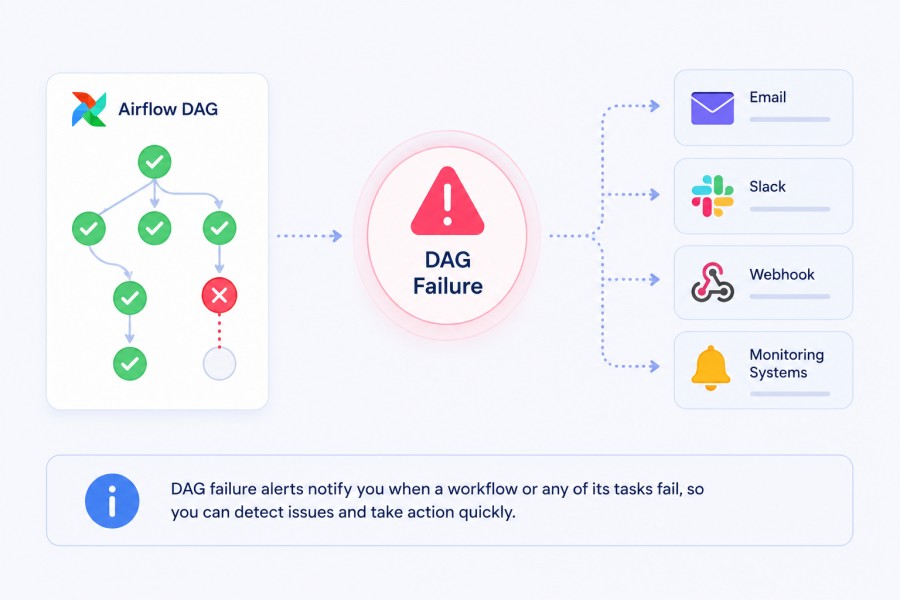
Cloud Composer DAG failure alerts are automated notifications triggered when an Airflow DAG run enters a failed state inside a Cloud Composer environment. These alerts fire based on metrics exported to Cloud Monitoring, callback functions written in DAG code, or log entries generated during task execution.
A DAG failure can mean many things. A single task failed and was not retried successfully. An upstream dependency timed out. An API returned an unexpected status code. A database query deadlocked. Without alerting, the only way to know is by manually inspecting the Airflow UI or waiting for downstream systems to break.
Cloud Composer automatically exports telemetry to Cloud Monitoring under the composer.googleapis.com namespace. This includes DAG run counts labeled by state (success, failed), task instance counts, environment health metrics, and scheduler heartbeat signals. These metrics form the foundation of most alerting strategies.
Why DAG Failure Alerts Matter in Production
DAG failures are not just operational noise. They represent broken data flows. A failed revenue ETL means finance cannot close the books on time. A failed customer export means marketing campaigns run on stale data. A failed ML training pipeline means models drift without retraining.
The cost of late detection compounds fast. A DAG that fails at 2 AM and gets discovered at 9 AM means seven hours of missing data. If that DAG runs hourly, seven runs are now backlogged. Some data may be unrecoverable if source systems have already rotated logs or dropped events.
Fast alerting shortens detection windows. Detecting a failure within five minutes instead of five hours changes the entire incident response dynamic. Teams can rerun failed tasks, fix configuration bugs, or reroute dependencies before downstream systems cascade into failures.
How Cloud Composer Exposes DAG Run Metrics
Cloud Composer automatically exports metrics to Cloud Monitoring without requiring additional agents or custom exporters. As soon as your Composer environment is running, metrics begin flowing.
The most important metric for DAG failure alerting is composer.googleapis.com/workflow/run_count. This metric tracks the total count of DAG runs, labeled by the final state of each run. The state label includes values like success, failed, and running. By filtering on state = failed, you can build an alert policy that triggers whenever any DAG run fails.
Another useful metric is composer.googleapis.com/workflow/task/run_count, which tracks task level execution. This metric helps catch cases where individual tasks fail repeatedly even if the overall DAG eventually succeeds due to retry logic. High task failure rates often signal underlying instability.
For environment health, composer.googleapis.com/environment/healthy tracks whether the Composer environment itself is operational. This boolean metric drops to false when the scheduler stops responding, the database becomes unavailable, or the Kubernetes cluster backing Composer experiences resource exhaustion.
Metric Labels and Filtering
Cloud Monitoring metrics include resource labels that allow precise filtering. For DAG run metrics, the workflow_name label identifies which DAG produced the metric. The environment_name label identifies which Composer environment it came from. This allows you to create targeted alerts. You can alert on all DAG failures across an environment, or only on failures from specific high priority DAGs.
Task level metrics include additional labels like task_id and operator. This granularity helps pinpoint which operators are failing most often. If a specific operator like BigQueryOperator or PubSubPublishOperator shows elevated failure rates, that signals a problem with the integration or configuration rather than the DAG logic itself.
Setting Up Notification Channels in Cloud Monitoring
- Before creating alert policies, you need at least one notification channel. Notification channels define where alerts get sent when they fire. Cloud Monitoring supports email, Slack, PagerDuty, SMS, webhooks, and Pub/Sub.
- To create a notification channel, navigate to Cloud Monitoring in the Google Cloud Console, then go to Alerting and select Edit Notification Channels. From there you can configure multiple channel types.
- Email is the simplest option but also the slowest. Email alerts can take minutes to arrive and are easy to miss in a busy inbox. Email works well for low priority alerts or summary reports but is not ideal for critical production failures.
- Slack and PagerDuty are better for operational alerting. Slack channels provide instant visibility to the entire team. PagerDuty escalates to on call engineers and tracks acknowledgment and resolution. Many teams use both. Slack for informational alerts that do not require immediate action, PagerDuty for critical alerts that need a response within minutes.
You can also create notification channels using the gcloud CLI:
gcloud beta monitoring channels create \
  --type=email \
  --display-name="Data Platform Team Email" \
  [email protected]
For Slack, you need to configure a webhook URL in your Slack workspace and provide that to Cloud Monitoring. PagerDuty requires an integration key from your PagerDuty account.
Creating Alert Policies for DAG Run Failures
The most critical alert policy to configure is one that fires whenever any DAG run fails. This alert catches all failures regardless of which DAG triggered them. It ensures no failure goes unnoticed.
To create this policy in the Cloud Console, go to Cloud Monitoring, select Alerting, and click Create Policy. For the metric, search for composer.googleapis.com/workflow/run_count. Add a filter for state = failed. Set the aggregation to sum with a five-minute alignment period. This sums all failed DAG runs in each five-minute window.
Set the condition to trigger when the value is above zero. This means any failure in the alignment window will fire the alert. Set the duration to the most recent value so the alert fires immediately rather than waiting for the condition to persist over multiple windows.
Add your notification channels. If you have both Slack and PagerDuty configured, you can send to both or route critical DAGs to PagerDuty and less critical ones to Slack only.
Here is the same alert policy defined in Terraform:
resource "google_monitoring_alert_policy" "composer_dag_failure" {
  display_name = "Cloud Composer - DAG Run Failed"
  combiner     = "OR"
  conditions {
    display_name = "DAG run failure detected"
    condition_threshold {
      filter = <<-EOT
        resource.type = "cloud_composer_workflow"
        AND metric.type = "composer.googleapis.com/workflow/run_count"
        AND metric.labels.state = "failed"
      EOT
      aggregations {
        alignment_period   = "300s"
        per_series_aligner = "ALIGN_SUM"
      }
      comparison      = "COMPARISON_GT"
      threshold_value = 0
      duration        = "0s"
      trigger {
        count = 1
      }
    }
  }
  notification_channels = [
    google_monitoring_notification_channel.slack.name,
    google_monitoring_notification_channel.pagerduty.name,
  ]
  alert_strategy {
    auto_close = "1800s"
  }
  documentation {
    content   = "A DAG run has failed in Cloud Composer. Check the Airflow UI for details."
    mime_type = "text/markdown"
  }
}This alert fires immediately when any DAG fails, sends notifications to both Slack and PagerDuty, and auto-closes after 30 minutes if no further failures occur.
Alerting on Specific High Priority DAGs
Not all DAG failures are equally urgent. A development DAG that someone left running in production can fail every hour without impacting the business. A revenue-critical ETL pipeline failing at 2 AM deserves a PagerDuty page.
You can create separate alert policies for high-priority DAGs by filtering on the workflow_name label. Use a regex to match multiple DAGs if needed.
resource "google_monitoring_alert_policy" "critical_dag_failure" {
  display_name = "Critical DAG Failure - Revenue Pipeline"
  combiner     = "OR"
  conditions {
    display_name = "Critical DAG failure"
    condition_threshold {
      filter = <<-EOT
        resource.type = "cloud_composer_workflow"
        AND metric.type = "composer.googleapis.com/workflow/run_count"
        AND metric.labels.state = "failed"
        AND resource.labels.workflow_name = monitoring.regex.full_match("(revenue_etl|billing_sync|customer_export)")
      EOT
      aggregations {
        alignment_period   = "300s"
        per_series_aligner = "ALIGN_SUM"
      }
      comparison      = "COMPARISON_GT"
      threshold_value = 0
      duration        = "0s"
      trigger {
        count = 1
      }
    }
  }
  notification_channels = [
    google_monitoring_notification_channel.pagerduty.name,
  ]
}This policy fires only when specific DAGs fail and routes alerts directly to PagerDuty, bypassing Slack entirely. This ensures critical failures wake someone up immediately.
Alerting on Task Level Failures
Sometimes a DAG run succeeds overall because retry logic eventually recovered a failed task. But if tasks are failing repeatedly before succeeding, that signals an underlying problem. High task failure rates often indicate flaky external dependencies, misconfigured retries, or resource contention.
You can alert on task failure rates using the composer.googleapis.com/workflow/task/run_count metric:
resource "google_monitoring_alert_policy" "task_failure_rate" {
  display_name = "Cloud Composer - High Task Failure Rate"
  combiner     = "OR"
  conditions {
    display_name = "Task failure rate too high"
    condition_threshold {
      filter = <<-EOT
        resource.type = "cloud_composer_workflow"
        AND metric.type = "composer.googleapis.com/workflow/task/run_count"
        AND metric.labels.state = "failed"
      EOT
      aggregations {
        alignment_period   = "3600s"
        per_series_aligner = "ALIGN_SUM"
      }
      comparison      = "COMPARISON_GT"
      threshold_value = 10
      duration        = "0s"
      trigger {
        count = 1
      }
    }
  }
  notification_channels = [
    google_monitoring_notification_channel.slack.name,
  ]
}This alert fires if more than 10 task failures occur in any one hour window. It helps catch instability before it compounds into full DAG failures.
Log-Based Alerting with Airflow Callbacks
Cloud Monitoring alert policies work well for broad coverage, but they lack context. An alert tells you a DAG failed, but not why. Log-based alerting combined with Airflow callbacks gives you both detection speed and diagnostic context.
Airflow callbacks are Python functions that execute when specific DAG or task events occur. The most useful callbacks for alerting are on_failure_callback and sla_miss_callback. You define these functions in your DAG code, and Airflow calls them automatically.
Here is a DAG that uses a failure callback to write a structured log message:
import logging
from datetime import datetime, timedelta
from airflow import models
from airflow.operators.python_operator import PythonOperator
from airflow import AirflowException
ON_DAG_FAILURE_ALERT = "Airflow DAG Failure:"
def log_on_dag_failure(context):
    dag = context.get('dag')
    log_msg = f"""
    {ON_DAG_FAILURE_ALERT}
    DAG: {dag.dag_id}
    Description: {dag.description}
    Tags: {dag.tags}
    Context: {context}
    """
    logging.info(log_msg)
with models.DAG(
    "log_alert_demo",
    schedule="*/5 * * * *",
    default_args={
        "owner": "DataPlatform",
        "depends_on_past": False,
        "retries": 1,
        "retry_delay": timedelta(minutes=1),
    },
    is_paused_upon_creation=True,
    catchup=False,
    max_active_runs=1,
    dagrun_timeout=timedelta(minutes=60),
    on_failure_callback=log_on_dag_failure,
) as dag:
    def run_task():
        if random.randint(0, 9) % 3 == 0:
            raise AirflowException("Simulated failure")
    task = PythonOperator(
        task_id='task_with_failure',
        python_callable=run_task,
)When this DAG fails, the callback logs a message starting with Airflow DAG Failure:. You can create a log based alerting policy in Cloud Monitoring that triggers whenever that specific message appears in Cloud Logging.
To create a log based alert, go to Cloud Monitoring, select Alerting, and choose Create Policy. For the condition type, select Log match. In the log filter field, enter:
resource.type="cloud_composer_environment"
textPayload=~"Airflow DAG Failure:"
This filter matches any log entry from a Cloud Composer environment that contains the string Airflow DAG Failure:. When the filter matches, the alert fires and sends notifications to your configured channels.
The advantage of this approach is flexibility. Your callback function can include any context you want in the log message. DAG ID, task ID, execution date, error message, log URL, and custom metadata. All of that context appears in the alert notification, making triage faster.
Implementing Callback Based Alerts with Pub/Sub
For even more control, you can send alerts directly from DAG callbacks to Pub/Sub, then route those messages to external systems like Slack, PagerDuty, or a custom alerting service.
Here is a callback function that publishes a structured alert message to Pub/Sub:
from google.cloud import pubsub_v1
import json
PROJECT_ID = "your-project-id"
TOPIC_ID = "airflow-alerts"
def on_failure_callback(context):
    dag_id = context['dag'].dag_id
    task_id = context['task_instance'].task_id
    logical_date = str(context['logical_date'])
    exception = str(context.get('exception', 'Unknown error'))
    message = {
        'severity': 'ERROR',
        'dag_id': dag_id,
        'task_id': task_id,
        'logical_date': logical_date,
        'error': exception,
        'log_url': context['task_instance'].log_url,
    }
    publisher = pubsub_v1.PublisherClient()
    topic_path = publisher.topic_path(PROJECT_ID, TOPIC_ID)
    future = publisher.publish(topic_path, json.dumps(message).encode('utf-8'))
future.result()This callback serializes the failure context into JSON and publishes it to a Pub/Sub topic. You can then subscribe to that topic with a Cloud Function or Cloud Run service that formats the message and forwards it to Slack, sends it to a webhook, or writes it to a database for trend analysis.
This pattern gives you full control over alert routing, formatting, and enrichment. You can add custom logic like suppressing alerts during maintenance windows, grouping repeated failures, or enriching alerts with links to runbooks.
Monitoring Cloud Composer Environment Health
Beyond individual DAG failures, you should monitor the overall health of the Composer environment itself. If the scheduler stops responding, no DAGs will run, and no alerts will fire from DAG callbacks. You need a separate signal that detects infrastructure failures.
Cloud Composer exports the composer.googleapis.com/environment/healthy metric for this purpose. This boolean metric is true when the environment is healthy and false when it is not.
Here is an alert policy that fires when the environment becomes unhealthy:
resource "google_monitoring_alert_policy" "composer_unhealthy" {
  display_name = "Cloud Composer - Environment Unhealthy"
  combiner     = "OR"
  conditions {
    display_name = "Environment health check failed"
    condition_threshold {
      filter = <<-EOT
        resource.type = "cloud_composer_environment"
        AND metric.type = "composer.googleapis.com/environment/healthy"
      EOT
      aggregations {
        alignment_period   = "300s"
        per_series_aligner = "ALIGN_FRACTION_TRUE"
      }
      comparison      = "COMPARISON_LT"
      threshold_value = 1
      duration        = "300s"
    }
  }
  notification_channels = [
    google_monitoring_notification_channel.pagerduty.name,
  ]
  documentation {
    content   = "The Cloud Composer environment is unhealthy. Check the environment details page and related scheduler, database, and worker metrics."
    mime_type = "text/markdown"
  }
}This alert fires if the environment remains unhealthy for five consecutive minutes. It routes directly to PagerDuty because an unhealthy environment is a critical incident.
Best Practices for Reducing Alert Noise
Alert fatigue is real. If your team receives 50 alerts per day and 48 of them are false positives or low-priority events, people start ignoring all alerts. The two critical alerts get lost in the noise.
Here are patterns that help reduce noise while maintaining fast detection:
Group by DAG or namespace. Instead of alerting on every task failure, alert when a DAG fails or when task failure rate exceeds a threshold. This reduces the number of alerts while still catching real problems.
Use auto-close windows. Configure alert policies to auto-close after 30 minutes if the condition resolves. This prevents old alerts from cluttering notification channels.
Separate critical from informational. Route critical DAG failures to PagerDuty. Route informational alerts like high task retry rates to Slack. This ensures the right alerts reach the right people.
Suppress known maintenance windows. Use Cloud Monitoring’s snooze feature or custom logic in callbacks to suppress alerts during planned maintenance.
Alert on trends, not single events. A single task failure may not matter. Ten task failures in an hour signal instability. Alert on the rate of failures, not individual failures.
Monitoring DAG Execution Time and SLA Misses
Beyond failures, DAG execution time is another critical signal. A DAG that runs successfully but takes three times longer than usual often indicates performance degradation. Slow execution can violate SLAs even if the DAG eventually completes.
Airflow supports SLA definitions at the task level. You set an sla parameter in the task’s default_args, and Airflow tracks whether the task completes within that time window. If it does not, Airflow fires the sla_miss_callback.
Here is a DAG with an SLA defined:
from datetime import timedelta
from airflow import models
def log_on_sla_miss(dag, task_list, blocking_task_list, slas, blocking_tis):
    log_msg = f"""
    SLA Miss Alert
    DAG: {dag.dag_id}
    Tasks: {task_list}
    Blocking: {blocking_task_list}
    """
    logging.info(log_msg)
with models.DAG(
    "sla_demo",
    schedule="@hourly",
    default_args={
        "owner": "DataPlatform",
        "sla": timedelta(minutes=10),
    },
    sla_miss_callback=log_on_sla_miss,
) as dag:
passWhen a task exceeds its SLA, the callback logs a message that can trigger a log-based alert in Cloud Monitoring.
You can also alert on DAG execution duration using the composer.googleapis.com/workflow/run_duration metric. This metric tracks how long each DAG run takes. By setting a threshold based on historical averages, you can detect performance regressions before they cause SLA violations.
Tools and Platforms for Cloud Composer Monitoring
Cloud Monitoring is the native solution for Composer alerting and integrates directly with Composer metrics. But some teams use third-party observability platforms for broader coverage across multiple services.
Platforms like CubeAPM support OpenTelemetry and Prometheus-compatible metrics, making it possible to ingest Composer metrics alongside APM traces, logs, and infrastructure telemetry. CubeAPM runs on premises or inside your VPC, keeping all telemetry data within your infrastructure. This matters for teams with data residency requirements or compliance mandates that restrict sending telemetry to external SaaS platforms. CubeAPM uses predictable usage-based pricing at $0.20 per GB with unlimited retention, avoiding per-host or per-user fees.
Other teams use Datadog or New Relic for Composer monitoring. Both platforms support custom metric ingestion and can visualize Composer metrics alongside application traces. However, both charge per host and per feature, which can make costs unpredictable as infrastructure scales.
For teams already invested in the Elastic stack, Elastic APM can ingest Composer logs and metrics, correlate them with application traces, and provide unified dashboards. Elastic is self-hosted, giving you full control over data, but requires operational overhead to maintain the cluster.
Practical Migration Considerations
If you are migrating from another orchestration platform to Cloud Composer, alerting is often an afterthought. Teams focus on migrating DAGs, rewriting operators, and testing execution. But alerting is critical. A DAG that runs successfully in a new environment but fails silently is worse than one that does not run at all.
Start by replicating your existing alert logic in Cloud Monitoring. If you had PagerDuty alerts for specific DAGs in your old platform, create equivalent alert policies in Cloud Monitoring before switching traffic. Test each alert by intentionally failing a DAG and confirming that notifications arrive in the expected channels.
If you relied heavily on email alerts, migrate to Slack or PagerDuty. Email is too slow for production incidents. Slack provides instant visibility. PagerDuty ensures alerts escalate if not acknowledged.
Consider implementing callback-based alerting for high-priority DAGs from day one. Callbacks give you more control over alert content and routing than metric-based alerts alone.
Disclaimer: The information in this article reflects the latest details available at the time of publication and may change as technologies and products evolve. Features, pricing, and plan limits can change over time. Always verify the latest information directly with the vendor before making purchasing or deployment decisions.
Frequently Asked Questions
How do I set up alerts for DAG failures in Cloud Composer?
Create an alert policy in Cloud Monitoring that triggers when `composer.googleapis.com/workflow/run_count` with `state = failed` exceeds zero. Add notification channels like Slack or PagerDuty to receive alerts when DAGs fail.
What is the difference between DAG level and task level alerting?
DAG level alerts fire when an entire DAG run fails. Task level alerts fire when individual tasks fail, even if the DAG eventually succeeds due to retries. Task level alerts help catch instability before it compounds into full DAG failures.
Can I send DAG failure alerts to Slack or PagerDuty?
Yes. Configure notification channels in Cloud Monitoring for Slack, PagerDuty, email, SMS, or webhooks. You can route different alert policies to different channels based on severity.
How do I alert on specific high priority DAGs only?
Filter your alert policy by the `workflow_name` resource label. Use a regex to match multiple DAG names if needed. This lets you route critical DAG failures to PagerDuty while sending less urgent failures to Slack.
What are Airflow callbacks and how do they help with alerting?
Airflow callbacks are Python functions that execute when specific events occur, like DAG failures or SLA misses. You can use callbacks to write structured log messages, publish alerts to Pub/Sub, or send notifications directly to external systems.
How do I monitor Cloud Composer environment health?
Use the `composer.googleapis.com/environment/healthy` metric. Create an alert policy that triggers when this metric is false for more than five minutes. This catches scheduler failures, database outages, or Kubernetes cluster issues.
What is log based alerting in Cloud Monitoring?
Log based alerting triggers when a specific log message appears in Cloud Logging. You define a log filter that matches the message pattern, and Cloud Monitoring sends notifications when the filter matches. This works well with Airflow callbacks that write structured log messages on failure.