










BigQuery jobs fail for reasons that range from straightforward syntax errors to obscure resource exhaustion issues that only surface at scale. A query that worked fine at 10 GB can hit internal resource limits at 10 TB, returning cryptic error codes with little context. According to Google’s service health dashboard, BigQuery has experienced at least 15 distinct outage incidents in the past two years, including streaming API failures, elevated latency, and job execution errors affecting customers globally.
This guide covers the most common BigQuery job failure scenarios, what each error code means, how to diagnose the root cause using job metadata and execution stats, and proven fixes that work in production. Whether you are debugging backendError 500s, billingTierLimitExceeded warnings, or unexplained query slowdowns, this article gives you a structured troubleshooting framework and the monitoring tools that help you catch failures before they cascade.
What Is a BigQuery Job and Why Do Jobs Fail?
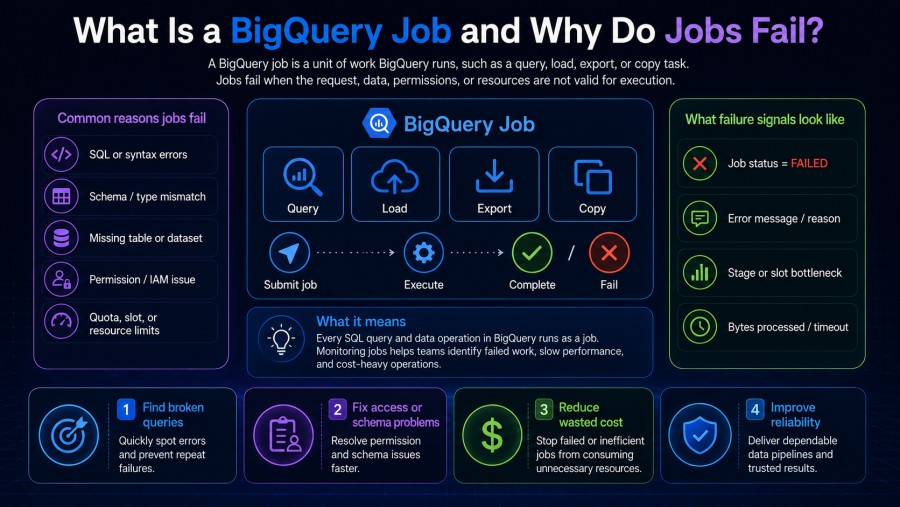
A BigQuery job is any operation that runs asynchronously on the BigQuery service, like query jobs, load jobs, extract jobs, and copy jobs. When you execute a SQL query in the BigQuery console, call the jobs.insert API, or trigger a scheduled query, BigQuery creates a job object that tracks execution state, resource consumption, and errors.
Jobs fail when BigQuery cannot complete the requested operation within its resource constraints, quota limits, or execution timeouts. Some failures are transient, network blips, temporary service overload, or internal retries that eventually succeed. Others are deterministic, like bad SQL syntax, insufficient IAM permissions, or queries that exceed billing tier limits; they will fail every time until the underlying issue is fixed.
Understanding job metadata is the first step in troubleshooting any failure. Every BigQuery job generates detailed execution statistics accessible via the jobs.get API or the BigQuery console job details page. These stats include bytes processed, slot milliseconds consumed, query stages, cache hits, quota deferments, and error objects with reason codes and messages.
The most common failure scenarios fall into five categories: permission errors, quota and resource limits, query execution issues, data integrity problems, and transient service errors.
Common BigQuery Error Codes and What They Mean
BigQuery returns error codes in the reason field of the ErrorProto object. Each reason maps to a specific failure mode. Below are the most frequently encountered error codes and what they indicate.
accessDenied (403)
This error returns when your service account or user identity lacks the required IAM permissions to access a dataset, table, or job. It also fires when you attempt to modify a read-only resource.
The fix is straightforward — grant the missing IAM role. If you are querying a table in another project, you need at least bigquery.dataViewer or bigquery.user on that dataset. If you are submitting jobs, you need bigquery.jobUser on the project.
Check the principalEmail field in the error’s audit log to confirm which identity was denied access, then update IAM bindings accordingly.
backendError (500, 502, 503, 504)
A backendError indicates a service-side issue, BigQuery could not process your request due to internal resource exhaustion, load shedding, or transient infrastructure failures. These errors are not caused by your query or data.
Google’s official guidance is to retry using truncated exponential backoff. Most backendError failures resolve within seconds to minutes as BigQuery’s autoscaling systems redistribute load.
Two special cases require different handling. If you receive a 503 error when polling jobs.get, wait a few seconds and poll again — the job may still be running. If the job completes but includes a backendError in its error object, the job definitively failed and you can safely retry it without risking duplicate data writes.
If backendError persists across multiple retries even after exponential backoff and workflow restarts, calculate your failure rate and contact Google Cloud support with clear business impact details.
billingTierLimitExceeded (400)
This error fires when an on-demand query exceeds 100 billing tiers, meaning it consumed too much CPU relative to the amount of data scanned. It almost always results from inefficient cross joins, either explicit Cartesian products or implicit joins caused by inexact join conditions.
On-demand queries are billed by bytes scanned, but BigQuery still enforces CPU limits to prevent runaway queries from monopolizing cluster resources. If your query hits this limit, you have two options: optimize the query to reduce CPU usage, or switch to capacity-based pricing (slots) where this limit does not apply.
Common optimizations include adding WHERE filters before joins, using approximate aggregation functions, and breaking large joins into smaller steps with intermediate tables. For detailed query optimization patterns, see Google’s guide on avoiding SQL anti-patterns.
duplicate (409)
A duplicate error returns when you attempt to create a job, dataset, or table with an identifier that already exists. This also fires when a job’s writeDisposition is set to WRITE_EMPTY, but the destination table already contains data.
The fix depends on intent. If you are rerunning a failed job, check whether the original job actually succeeded despite returning an error; query the destination table to confirm. If the table exists and you want to append data, change writeDisposition to WRITE_APPEND. If you want to replace the table, use WRITE_TRUNCATE.
For job IDs, BigQuery requires each job to have a unique ID within the project. If you are using client-generated job IDs for idempotency, ensure your retry logic generates a new job ID on each attempt or uses the same ID only when the original job definitively failed.
internalError (500)
An internalError signals an unexpected failure inside BigQuery’s execution engine. Unlike backendError, which typically relates to load or resource pressure, internalError suggests a bug or edge case in query processing.
Retry the query. If it fails again with the same internalError, simplify the query, remove complex subqueries, reduce the number of joined tables, or break the query into smaller parts. If the error persists, file a support case with the job ID and query text.
invalidQuery (400)
This error fires when your SQL contains syntax errors, references nonexistent tables or columns, or uses unsupported functions. The error message usually includes the specific line and character position where parsing failed.
Read the error message carefully; it often tells you exactly what is wrong. Common causes include typos in table names, missing FROM clauses, incorrect use of window functions, and attempting to use features not supported in your SQL dialect (legacy SQL vs. standard SQL).
If you recently migrated queries from another database system, check for dialect differences; BigQuery standard SQL diverges from PostgreSQL, MySQL, and Oracle SQL in subtle ways, especially around date functions, string handling, and JOIN syntax.
quotaExceeded (403)
A quotaExceeded error indicates you hit a project-level or user-level quota limit. BigQuery enforces multiple quota types — concurrent queries per project, query rate per user, slots per reservation, and API requests per second.
Check the quota name in the error message to identify which limit you exceeded. You can view current quota usage in the Google Cloud console under IAM & Admin > Quotas. If you consistently hit quota limits, request a quota increase or refactor your workload to spread queries across more projects or time windows.
Slot quota issues are common in reservation-based pricing. If your queries are queued because your reservation is fully utilized, you will see quotaDeferments in the job metadata but not a hard error. Monitor the quotaDeferments field to detect capacity bottlenecks before they cause user-facing delays.
rateLimitExceeded (403)
This error fires when you exceed the API rate limit for jobs.insert, jobs.get, or other BigQuery API methods. The default limit is 100 requests per second per user.
Implement client-side rate limiting and exponential backoff. If you are polling job status, increase the polling interval; most jobs take seconds to minutes to complete, so polling every 100ms wastes quota and adds no value. A reasonable polling strategy is 1-second intervals for the first 10 seconds, then 5-second intervals thereafter.
resourcesExceeded (400)
A resourcesExceeded error means your query attempted to use more memory, shuffle capacity, or temporary storage than BigQuery allows for a single query execution. This commonly happens with extremely large joins, unpartitioned aggregations over billions of rows, or queries that generate massive intermediate result sets.
The fix depends on the specific resource exceeded. For memory errors, reduce the number of rows processed by adding WHERE filters or processing data in batches. For shuffle errors, break the query into stages using intermediate tables. For queries that hit sort memory limits, reduce the number of columns in ORDER BY clauses or avoid sorting entirely if row order does not matter.
Monitoring tools designed for cloud databases can surface resource consumption patterns before they cause query failures, helping you identify queries that approach BigQuery’s resource limits.
How to Diagnose BigQuery Job Failures Using Job Metadata
Every BigQuery job generates detailed metadata accessible via the jobs.get API or the BigQuery console. This metadata is your primary diagnostic tool when troubleshooting failures. Below is a step-by-step process for extracting the information that matters.
Step 1: Retrieve the Job Object
Use the bq command-line tool with the –format=prettyjson flag to view the full job object, including error details.
bq --format=prettyjson show -j <job_id>Alternatively, query the INFORMATION_SCHEMA.JOBS view to retrieve job metadata for multiple jobs at once.
SELECT
  job_id,
  state,
  error_result.reason,
  error_result.message,
  total_bytes_processed,
  total_slot_ms
FROM `region-us`.INFORMATION_SCHEMA.JOBS
WHERE creation_time > TIMESTAMP_SUB(CURRENT_TIMESTAMP(), INTERVAL 24 HOUR)
  AND state = 'DONE'
  AND error_result IS NOT NULL
ORDER BY creation_time DESC
LIMIT 100;This query returns all failed jobs in the past 24 hours with their error codes, giving you a quick view of failure patterns across your project.
Step 2: Examine the Error Object
The error object in a failed job contains three critical fields: reason, location, and message. The reason field maps to the error code table in the previous section. The location field indicates which part of the query caused the error (useful for syntax errors). The message field provides human-readable context.
If the job includes multiple error objects in the errors array, the first error is usually the root cause. Subsequent errors are often cascading failures triggered by the initial problem.
Step 3: Check Quota Deferments and Cache Hits
Even if a job succeeds, it may have been delayed by quota limits or may have retrieved results from cache instead of executing the query. Check the quotaDeferments field to see if your job was queued due to slot exhaustion. Check the cacheHit field to determine whether the query actually ran or returned cached results from a previous execution.
High quota deferments indicate you need more slot capacity or need to spread query load across time. Unexpected cache hits can mask performance problems; a query that seems fast because it hit cache may be slow when executed fresh after a schema change or partition update.
Step 4: Analyze Query Execution Stages
For queries that succeed but run slower than expected, examine the query stages in the job statistics. Each stage represents a phase of query execution — read, join, aggregate, write. The ExplainQueryStage object includes metrics like input rows, output rows, shuffle bytes, and wait time.
Look for stages with unusually high shuffle bytes or long wait times. Shuffle-heavy stages indicate the query is moving large amounts of data between workers, often caused by unoptimized joins or GROUP BY operations on high-cardinality columns. Long wait times suggest slot contention or downstream bottlenecks.
Compare slow query execution stats with a faster baseline execution of the same query to identify which stage changed. This comparison is often more useful than absolute metrics because it isolates the variable that caused the slowdown.
Troubleshooting Slow BigQuery Queries That Do Not Fail
Not all BigQuery problems result in hard failures. Many queries succeed but take far longer than expected, degrading user experience and wasting slot capacity. Below are the most common causes of slow queries and how to fix them.
Partition and Cluster Pruning Failures
BigQuery partitioned tables let you divide data by date, timestamp, or integer range, so queries only scan relevant partitions. Clustered tables physically sort data by specified columns, improving query performance when filtering or aggregating by those columns.
If your query scans the entire table despite using a partition filter, check whether your WHERE clause matches the partition column type and format exactly. Using a function on the partition column, such as DATE(timestamp_column), prevents partition pruning and forces a full table scan.
Verify partition pruning by checking the totalBytesProcessed field in job metadata. If it matches the total table size, your partition filter did not work.
High Cardinality Joins
Joining on columns with millions of distinct values shuffles massive amounts of data across workers. If both sides of the join have high cardinality, BigQuery must broadcast or shuffle the entire dataset, consuming memory and slots.
The fix is to reduce cardinality before joining. Apply WHERE filters to both tables before the join, aggregate data to a coarser granularity, or split the join into multiple steps using intermediate tables.
BigQuery’s query performance insights will flag high cardinality joins explicitly if detected during execution.
Insufficient Shuffle Quota
Shuffle quota limits the amount of data BigQuery can move between workers during query execution. If your query exceeds this limit, it will slow down or fail with a resourcesExceeded error.
You can increase shuffle quota by requesting a quota increase from Google Cloud support or by optimizing the query to reduce shuffle volume. Reducing the number of joined tables, filtering data earlier in the query, and avoiding SELECT * all reduce shuffle requirements.
Slot Contention
If your project shares a slot pool with other queries, slot contention can delay execution. Check the quotaDeferments field in job metadata to see if your query was queued waiting for available slots.
The solution depends on your pricing model. On-demand queries share a project-level slot pool and cannot be prioritized individually. Capacity-based pricing lets you allocate dedicated slots to specific workloads, eliminating contention but requiring upfront capacity planning.
Monitoring slot utilization over time helps you identify peak contention windows and decide whether you need more capacity or need to shift non-urgent queries to off-peak hours.
How to Monitor BigQuery Jobs for Failures and Performance Issues
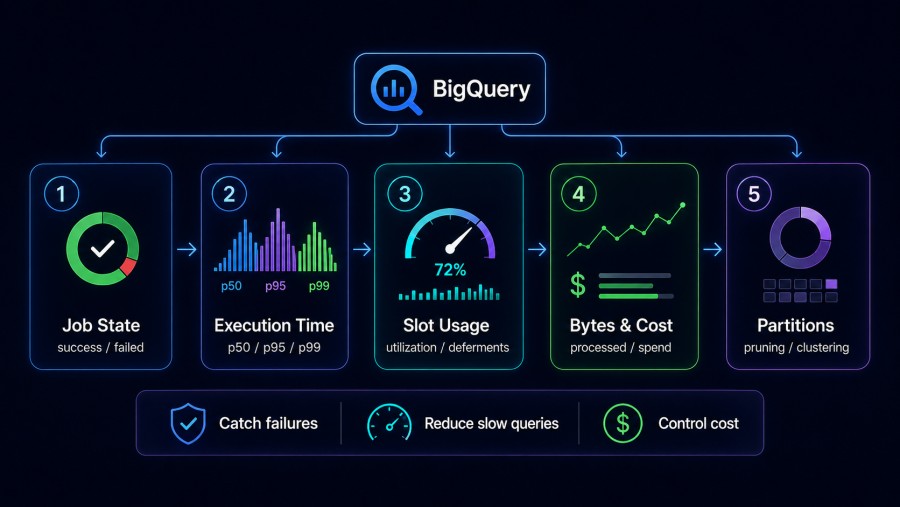
Reactive troubleshooting after a job fails is necessary but insufficient. Production systems need proactive monitoring that detects failures, slow queries, and quota exhaustion before they impact end users. Below are the key signals to monitor and how to instrument them.
Job State and Error Rate
Track the percentage of jobs that fail over time. Query INFORMATION_SCHEMA.JOBS hourly to calculate success rate by job type (query, load, export) and surface error reason distributions.
A sudden spike in accessDenied errors suggests an IAM policy change broke a service account’s permissions. A spike in backendError failures indicates a BigQuery service issue beyond your control. Monitoring error rates by reason code lets you distinguish between problems you can fix and problems you need to escalate to Google support.
Query Execution Time Distribution
Measure query execution time at the 50th, 95th, and 99th percentiles. A jump in the 95th percentile signals that some queries are slowing down even if the median remains stable. This often precedes user complaints and is easier to fix before it becomes a widespread problem.
Use the finalExecutionDurationMs field from job statistics to measure actual execution time, excluding quota deferment delays. This gives you a clean signal of query performance independent of slot availability.
Slot Utilization and Quota Deferments
If you use reservation-based pricing, monitor slot utilization across all reservations. High utilization (above 80%) indicates you are approaching capacity limits. Check for quotaDeferments in job metadata to detect when queries are queued due to insufficient slots.
On-demand queries do not expose slot utilization directly, but you can infer contention by tracking query start time vs. creation time. A growing gap between these timestamps suggests your queries are waiting for slots.
Bytes Processed and Cost Trends
Track totalBytesProcessed per job and aggregate it daily by user, dataset, or query pattern. Queries that suddenly start processing 10x more data than usual often indicate missing WHERE clauses, broken partition filters, or accidental full table scans after a schema change.
BigQuery’s on-demand pricing charges $6.25 per TB scanned (as of April 2026). A query that processes 10 TB costs $62.50 every time it runs. If that query runs hourly due to a misconfigured scheduled query, it costs $45,000 per month. Monitoring bytes processed catches these cost explosions early.
Partition and Cluster Effectiveness
For partitioned and clustered tables, monitor the ratio of bytes processed to table size. If queries consistently scan the full table despite having partition filters in the WHERE clause, your partitioning strategy is not working.
Check the partitionsPruned and partitionsQueried fields in query statistics to verify pruning effectiveness. A low ratio of pruned partitions to total partitions indicates your queries are not taking advantage of partitioning.
Centralized observability platforms designed for cloud infrastructure can aggregate BigQuery job metrics alongside application traces and logs, giving you full context when a slow query cascades into user-facing latency.
Best Practices for Preventing BigQuery Job Failures
Preventing failures is cheaper and faster than debugging them in production. Below are the operational practices that reduce failure rates and improve query reliability.
Use Explicitly Typed Job IDs for Idempotency
Generate deterministic job IDs based on query hash and timestamp. If a job fails with a transient error and you retry it with the same job ID, BigQuery will reject the duplicate without rerunning the query. This prevents accidental data duplication when retrying load jobs or INSERT queries.
If you receive a duplicate error on retry, query the job status to confirm whether the original job succeeded. If it did, treat the retry as successful. If it failed, generate a new job ID and retry.
Set Reasonable Query Timeouts
BigQuery allows queries to run indefinitely by default, but runaway queries consume slots and block other work. Set a maximum execution time using the timeoutMs parameter in the query job configuration.
A reasonable timeout depends on your workload. Interactive dashboards should time out after 30 to 60 seconds. Batch ETL jobs may need hours. Setting a timeout ensures that broken queries fail fast instead of consuming resources indefinitely.
Test Queries Against Sampled Data Before Running at Scale
Before running a new query on a 10 TB table, test it on a 1 GB sample using WHERE RAND() < 0.01 or a date filter that limits rows. This catches syntax errors, incorrect joins, and resource exhaustion issues before they consume production quota.
BigQuery’s query dry run feature estimates bytes processed without executing the query, helping you catch full table scans before they cost money. Use –dry_run with the bq command line tool or set dryRun: true in the API request.
Monitor Schema Changes That Break Existing Queries
Adding, removing, or renaming columns can break queries that reference those columns explicitly. If you use SELECT * in production queries, schema changes will not break them but may cause unexpected behavior if new columns are added.
Maintain a query registry that tracks which queries depend on which tables, and test queries against the new schema in a development project before applying the change to production. Automated schema validation in CI/CD pipelines catches breaking changes before deployment.
Implement Exponential Backoff for Transient Errors
Any BigQuery API call can fail transiently due to network issues, service overload, or internal retries. Implement exponential backoff with jitter for all API requests: wait 1 second after the first failure, 2 seconds after the second, 4 seconds after the third, up to a maximum of 60 seconds.
Google’s client libraries implement exponential backoff automatically, but if you are calling the BigQuery API directly via HTTP, you must implement it yourself. Without backoff, retry storms can worsen service degradation during incidents.
Tools for Monitoring BigQuery Job Health and Performance
Below are the tools teams use to monitor BigQuery in production, listed from basic to advanced.
Google Cloud Console Job Explorer
The BigQuery console includes a job explorer that shows recent job history, execution time, bytes processed, and error details. It is useful for ad hoc debugging but lacks alerting, historical trend analysis, and integration with other observability signals.
For operational monitoring, you need something programmatic.
INFORMATION_SCHEMA Views
BigQuery exposes job metadata through INFORMATION_SCHEMA.JOBS views. Query these views to aggregate failure rates, track slow queries, and analyze resource consumption over time. You can schedule queries that run hourly to export job stats to a separate monitoring table, then visualize them in Data Studio or another BI tool.
This approach requires you to build your own monitoring dashboard and alerting logic. It works well for teams that already have a data warehouse workflow but adds operational overhead.
Cloud Monitoring and Logging
Google Cloud Monitoring tracks BigQuery metrics like slot utilization, query count, and execution time. You can create alerting policies that fire when error rates spike or when slot utilization exceeds a threshold.
Cloud Logging captures all BigQuery API calls and job state changes. You can export logs to BigQuery itself for analysis or stream them to an external SIEM for security monitoring.
The limitation of Cloud Monitoring is that it does not correlate BigQuery metrics with application traces or user sessions. If a slow BigQuery query causes API latency, you need to manually correlate job IDs with application logs to trace the impact.
CubeAPM for Unified Observability Across BigQuery and Application Layers
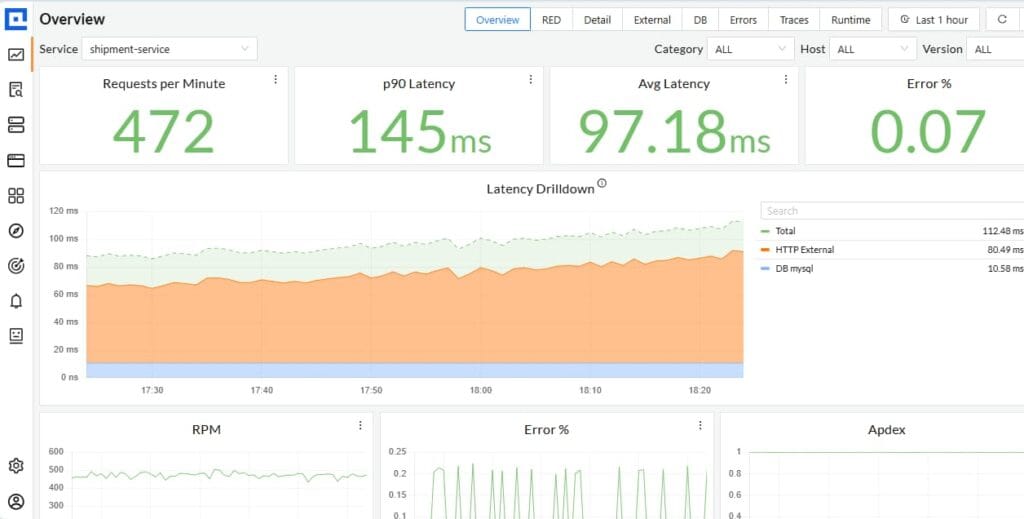
CubeAPM provides full-stack observability that connects BigQuery job metrics with application traces, logs, and infrastructure monitoring in a single platform. When a BigQuery job fails or slows down, CubeAPM automatically correlates it with the API request that triggered the query, showing you the full user journey from frontend click to database query execution.
CubeAPM ingests BigQuery job metadata via OpenTelemetry or the BigQuery API and indexes it alongside your application telemetry. You can create alerts that fire when job failure rates exceed thresholds, when specific error codes appear repeatedly, or when query execution time degrades compared to historical baselines.
Because CubeAPM runs inside your own cloud or on premises, all telemetry data stays within your infrastructure, meeting data residency and compliance requirements that cloud-only SaaS tools cannot satisfy. It uses predictable $0.15/GB pricing with no per-user or per-host fees, making it cost-effective even at scale.
For teams running BigQuery as part of a larger observability stack that includes application tracing and log aggregation, CubeAPM provides the unified view that standalone monitoring tools lack.
Conclusion
BigQuery job failures stem from a wide range of causes: permission errors, quota limits, inefficient queries, transient service issues, and resource exhaustion. Effective troubleshooting starts with understanding error codes, analyzing job metadata, and using query execution statistics to pinpoint the root cause.
Proactive monitoring is the difference between reacting to failures after they impact users and catching issues early when they are still isolated. Track job error rates, query execution time, slot utilization, and bytes processed to detect patterns before they escalate. Use INFORMATION_SCHEMA views, Cloud Monitoring, or a unified observability platform to aggregate signals across your entire stack.
For teams that need to monitor BigQuery alongside application traces, logs, and infrastructure metrics, centralized platforms that correlate job failures with user sessions provide the context that standalone tools cannot. Whether you build monitoring on top of INFORMATION_SCHEMA, use Google’s native tools, or adopt a third-party observability platform, the key is to instrument early and iterate based on real failure patterns.
Disclaimer: The information in this article reflects the latest details available at the time of publication and may change as technologies and products evolve. Features, pricing, and plan limits can change over time. Always verify the latest information directly with the vendor before making purchasing or deployment decisions.
Frequently Asked Questions
What is the most common cause of BigQuery job failures?
The most common cause is accessDenied errors due to missing IAM permissions, followed by invalidQuery errors from SQL syntax mistakes. Both are fixable by granting the correct roles or correcting the query.
How do I retry a failed BigQuery job?
Resubmit the job using the same job ID if the failure was transient. If the failure was deterministic (syntax error, missing permissions), fix the underlying issue before retrying with a new job ID.
What does backendError 503 mean in BigQuery?
A 503 backendError indicates a temporary service issue on Google’s side. Retry the job using exponential backoff. Most 503 errors resolve within seconds to minutes.
How can I reduce BigQuery query costs?
Reduce bytes scanned by using partition filters, clustering columns, and WHERE clauses that prune data early. Avoid SELECT * and query only the columns you need. Use query dry run to estimate costs before execution.
What is the difference between quotaExceeded and rateLimitExceeded?
quotaExceeded means you hit a project level resource limit like concurrent queries or total slots. rateLimitExceeded means you exceeded the API call rate limit. Both require throttling or requesting a quota increase.
How do I monitor BigQuery job failures in production?
Query INFORMATION_SCHEMA.JOBS to track failure rates and error codes over time. Use Cloud Monitoring to create alerts on error rate spikes. For unified observability, use a platform that correlates BigQuery metrics with application traces.
Can I prevent BigQuery jobs from running too long?
Yes, set a timeout using the timeoutMs parameter in the job configuration. This ensures runaway queries fail fast instead of consuming resources indefinitely.