










Azure Container Apps (ACA) has emerged as Microsoft’s fully managed serverless container platform, abstracting Kubernetes complexity while promising auto-scaling, zero-downtime deployments, and tight Azure ecosystem integration. But without proper monitoring, that promise falls apart the moment a pod crashes, a cold start drags past 10 seconds, or your app quietly burns through revision replicas without alerting anyone. According to the CNCF’s 2025 Annual Survey, 73% of respondents report observability as the top operational challenge in container environments, a number that climbs higher in serverless scenarios where infrastructure visibility is intentionally obscured.
This guide covers what Azure Container Apps monitoring actually means in production: the native tools Microsoft gives you, what they miss, where third-party APM fits, and how to set up end-to-end observability across metrics, logs, traces, and real user sessions without letting costs spiral out of control.
What Is Azure Container Apps Monitoring?
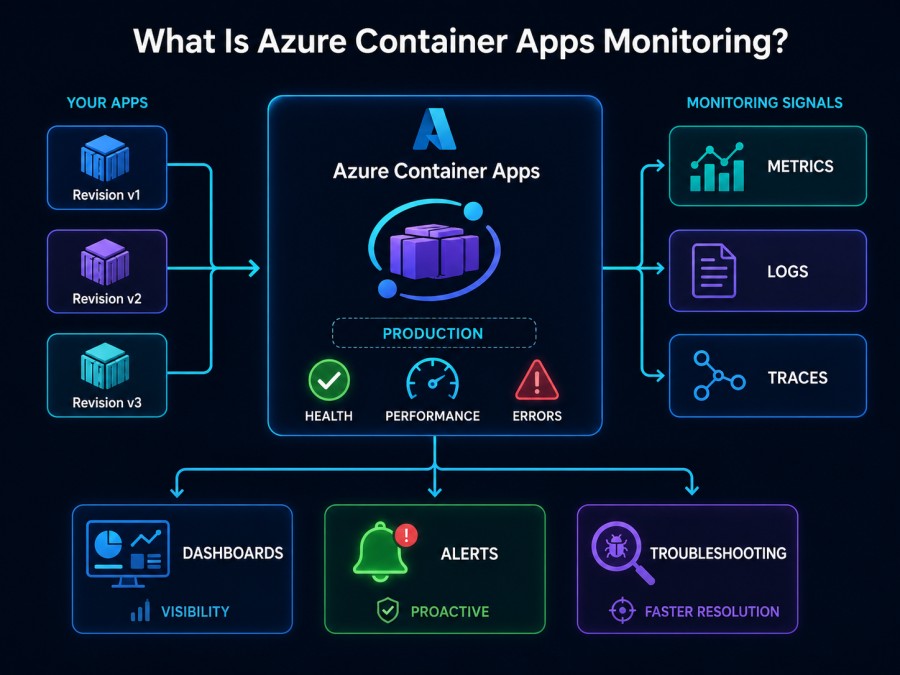
Azure Container Apps monitoring is the practice of continuously tracking the health, performance, and behavior of containerized applications running on Microsoft’s serverless ACA platform. Unlike traditional infrastructure monitoring where you track VMs or Kubernetes nodes directly, ACA abstracts the underlying compute layer, which means your monitoring focus shifts to application-level signals: HTTP request latency, replica count changes, cold start duration, error rates, and how traffic flows across revisions during blue-green deployments.
The challenge with ACA monitoring is that Microsoft’s serverless abstraction hides most infrastructure metrics by default. You do not see node CPU pressure, pod eviction reasons, or kubelet health signals that would be visible in a standard AKS cluster. Instead, you rely on Azure Monitor’s built-in metrics (replica count, HTTP request count, CPU/memory percentage), Application Insights for distributed tracing, and Log Analytics for querying structured logs. This works well for teams that stay entirely within Azure’s ecosystem, but it creates blind spots for anyone trying to correlate ACA performance with external services, on-prem dependencies, or non-Azure cloud resources.
In production, effective ACA monitoring means tracking three layers simultaneously: the container app layer (request success rates, revision health, ingress latency), the environment layer (resource quota usage, scaling events, environment-wide failures), and the application code layer (distributed traces, exception stack traces, database query latency). Missing any one of these layers leaves you troubleshooting in the dark.
How Azure Container Apps Monitoring Works
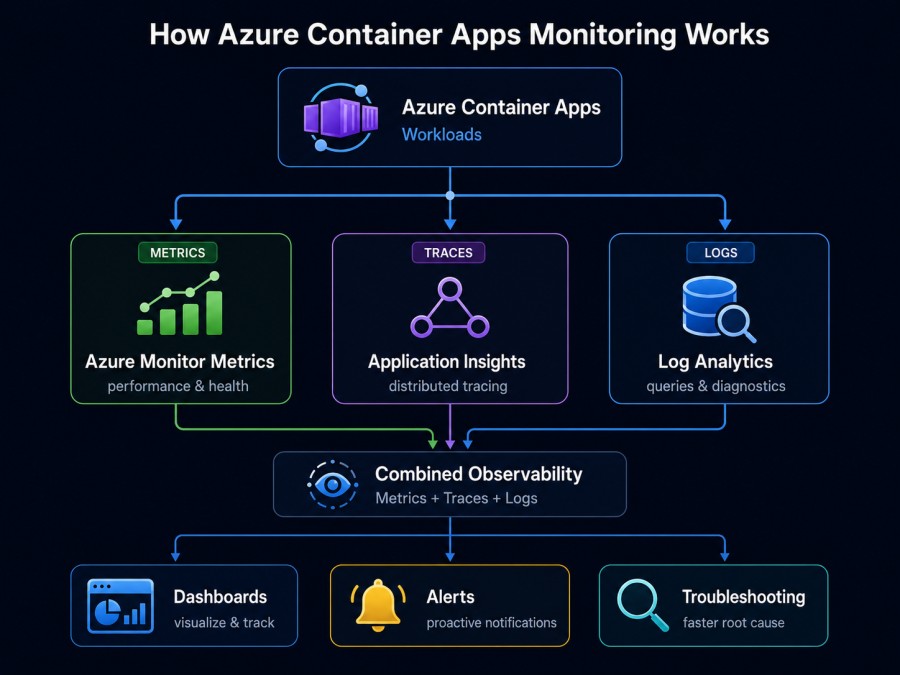
Azure Container Apps monitoring operates through a combination of Azure Monitor metrics, Application Insights telemetry, and Log Analytics queries. Each component captures a different signal type, and together they form the observability foundation for ACA workloads.
Azure Monitor Metric Collection
Azure Monitor automatically collects platform metrics from every container app without requiring instrumentation. These metrics include CPU usage (measured in nanocores), memory working set (measured in bytes), network bytes in/out, replica count, and HTTP request count. Metrics are emitted at one-minute intervals by default and retained for 93 days in the standard tier. You access these through the Azure Portal’s Metrics blade or query them programmatically via the Azure Monitor REST API.
The metrics are useful for tracking resource consumption trends and setting up basic alerts (for example, alerting when replica count exceeds a threshold or when memory usage crosses 80%). But they are coarse-grained. You see aggregate CPU usage across all replicas of a revision, not per-replica breakdowns. You see total HTTP request count, but not which endpoints are slow or which status codes dominate failures. This is where Application Insights and Log Analytics fill the gaps.
Application Insights for Distributed Tracing
Application Insights is Azure’s APM service and the recommended way to instrument ACA workloads for deep observability. It captures distributed traces across HTTP requests, dependency calls (database queries, Redis lookups, external API calls), exceptions, and custom events. Unlike Azure Monitor metrics, Application Insights requires code-level instrumentation; you add the Application Insights SDK to your application code (available for .NET, Java, Node.js, Python) or inject OpenTelemetry instrumentation and export telemetry to Application Insights using the OTLP exporter.
When configured, Application Insights gives you end-to-end request tracing: you can see a single HTTP request flow from the ingress controller through your frontend container app, into a backend API call, and finally to a database query, with latency broken down at every hop. This visibility is critical in microservice architectures where a slow response could originate from any of a dozen services.
However, Application Insights has a cost and retention limitation. Standard tier pricing is $2.76/GB for ingestion, and telemetry is retained for 90 days by default. High-traffic apps generating 50 GB of telemetry per day would incur $4,140 monthly in ingestion costs alone before factoring in query costs or extended retention. This makes sampling strategies necessary; Azure’s default is adaptive sampling at 5 events per second, which means you lose 95% of trace data during traffic spikes unless you increase the sampling rate and accept higher costs.
Log Analytics Workspaces
Log Analytics is where Azure Container Apps send structured logs: console output (stdout/stderr), system logs (environment-level events like scaling decisions or deployment failures), and any custom logs you emit from application code. Logs are queryable using Kusto Query Language (KQL), Azure’s log query syntax. A typical query might filter logs by container app name, time range, and log level to isolate error messages during a specific incident window.
Log retention in Log Analytics is configurable (30 to 730 days), but costs scale with data volume. Interactive log retention (the first 31 days) costs $2.99/GB, while long-term retention drops to $0.12/GB for archived logs. For a workload generating 10 GB of logs daily, that is $897 monthly in interactive retention costs alone, before any queries are run. Query costs are additional, charged per GB scanned.
One common mistake teams make is enabling verbose logging in production without realizing Log Analytics ingestion costs will compound quickly. A single debugging session that emits per-request trace logs for an hour during peak traffic can generate gigabytes of log data, translating to hundreds of dollars in unplanned log ingestion charges.
Key Metrics to Monitor in Azure Container Apps
Monitoring Azure Container Apps effectively means tracking metrics across four categories: resource utilization, replica scaling behavior, HTTP request health, and cold start latency. Each category surfaces a different type of production issue.
CPU and Memory Usage
Azure Container Apps exposes CPU usage in nanocores (1 billion nanocores equals one full CPU core) and memory usage in bytes. These metrics are aggregated across all replicas of a given revision. You set resource requests and limits when you deploy a container app (for example, 0.5 CPU cores and 1 GB memory per replica), and Azure Monitor tracks actual consumption against those limits.
Sustained CPU usage above 80% typically indicates your app is CPU-bound, either from inefficient code (hot loops, blocking I/O in async runtimes) or from underprovisioned resource limits. Memory usage climbing steadily over time without leveling off suggests a memory leak. In ACA, memory leaks are especially dangerous because the platform cannot reclaim memory from a running container; it must wait for a replica restart, which may not happen if the app is not crashing but just slowly bloating.
One specific signal to watch: memory percentage hitting 90% or higher. At this threshold, the Linux kernel’s OOM killer may terminate your container, resulting in a restart. Azure Monitor records restarts in the RestartCount metric, but it does not surface OOM kill reasons by default; you need to cross-reference container logs to confirm whether restarts were triggered by out-of-memory conditions.
Replica Count and Scaling Events
Azure Container Apps automatically scales replicas based on HTTP traffic, CPU/memory utilization, or custom KEDA-based scaling rules (for example, scaling based on Azure Queue length or Kafka lag). The Replicas metric shows the current number of running replicas for a revision. Tracking this metric over time reveals scaling patterns and helps you identify whether your scaling rules are configured correctly.
A common issue: replica count oscillating rapidly between minimum and maximum bounds. This “flapping” behavior usually means your scaling thresholds are too sensitive (for example, scaling up at 60% CPU and back down at 55% CPU leaves only a 5% buffer, causing constant scale-up and scale-down cycles). Flapping wastes resources and can degrade request latency because newly started replicas take time to warm up.
Another signal: replica count hitting the maximum allowed replicas and staying there for extended periods. This indicates your app is capacity-constrained. If your max replicas setting is 10 and Azure is consistently running all 10, you are likely dropping requests or experiencing high latency because the platform cannot scale further.
HTTP Request Metrics
Azure Monitor tracks total HTTP requests, requests by status code (2xx, 4xx, 5xx), and request latency percentiles. The Requests metric gives you aggregate request count across all replicas. Breaking this down by status code category reveals whether failures are client errors (4xx) or server errors (5xx). A sudden spike in 5xx errors during a deployment suggests the new revision introduced a bug. A gradual climb in 4xx errors might indicate clients are hitting deprecated endpoints or sending malformed requests.
Request latency percentiles (P50, P95, P99) are more useful than average latency because they surface tail latency, the slow requests that affect a small percentage of users but disproportionately damage user experience. For example, an API with P50 latency of 100ms and P99 latency of 5 seconds has a latency problem affecting 1% of requests, even though the median looks healthy.
One metric gap in Azure Monitor: you cannot break down request latency by individual endpoint or URL path. You see aggregate latency for the entire container app, but not whether /checkout is slow while /healthcheck is fast. This requires Application Insights request telemetry, which tags each trace with the requested URL path and allows you to query latency by endpoint.
Cold Start Duration
Cold starts occur when Azure Container Apps needs to provision a new replica from zero, pulling the container image, starting the container, and waiting for the application process to signal readiness. Cold start duration is not exposed as a built-in metric in Azure Monitor, but you can infer it by correlating the Replicas metric (replica count increasing) with request latency spikes in the same time window. A sudden latency spike coinciding with a replica count increase usually indicates a cold start event.
Cold starts are especially painful in serverless workloads that scale to zero during idle periods. The first request after scale-to-zero must wait for a cold start, which can range from 2 seconds (for lightweight Node.js apps with small images) to 30+ seconds (for Java apps with large Spring Boot images). This is why many production ACA workloads set minimum replicas to 1 or 2, accepting the cost of always-on replicas to avoid cold start latency.
Application Insights Integration with Azure Container Apps
Application Insights is the primary tool for deep application-level monitoring in Azure Container Apps. It captures distributed traces, exceptions, dependency calls, and custom telemetry, giving you the context needed to diagnose complex issues that metrics alone cannot reveal.
How to Enable Application Insights
Enabling Application Insights for an Azure Container App requires two steps: creating an Application Insights resource in Azure and configuring your container app to send telemetry to it. You can instrument your app using the Application Insights SDK (available for .NET, Java, Node.js, Python) or OpenTelemetry with the OTLP exporter pointed at Application Insights.
For SDK-based instrumentation, you add the Application Insights NuGet package (for .NET) or npm package (for Node.js) to your project, then configure the instrumentation key or connection string in your app’s environment variables. Azure Container Apps reads this configuration and automatically starts sending telemetry when the app starts. For OpenTelemetry instrumentation, you configure the OTLP exporter to send traces to the Application Insights OTLP endpoint, which is a standard OTLP-compatible ingestion path introduced in 2024.
One operational detail: Application Insights incurs ingestion costs immediately upon enablement. If you enable it on a high-traffic app without configuring sampling, you may see thousands of dollars in telemetry charges within days. Azure’s default adaptive sampling caps ingestion at 5 events per second per server instance, which helps contain costs but means you lose most trace data during peak traffic. For production workloads that need full trace fidelity, you must either accept the higher ingestion costs or implement intelligent sampling strategies (for example, sampling 100% of errors and slow requests, 1% of fast successful requests).
Distributed Tracing Across Services
One of Application Insights’ strongest features is distributed tracing across multiple services. In a microservice architecture running on ACA, a single user request might flow through five services: an ingress controller, a frontend web app, a backend API, a background worker, and a database. Application Insights automatically correlates these spans into a single end-to-end trace, showing latency contribution at each hop.
This correlation works through propagated trace context headers (W3C Trace Context or Application Insights’ legacy correlation headers). When your frontend service calls your backend API, it includes a trace ID and parent span ID in the HTTP headers. The backend service reads these headers and continues the trace, linking its spans to the original request. As long as every service in the chain is instrumented with Application Insights or OpenTelemetry, the trace remains connected.
A common failure mode: a service in the middle of the chain is not instrumented, breaking trace continuity. For example, if your frontend calls an external payment gateway that does not propagate trace headers, the trace ends at the gateway call, and you lose visibility into what happens downstream. This is why instrumenting all services, including external dependencies where possible, is critical for complete observability.
Exception Tracking and Error Diagnosis
Application Insights automatically captures unhandled exceptions from your application code and logs them with full stack traces. In Azure Container Apps, this means when a container throws an exception that crashes the request handler, Application Insights records the exception type, message, stack trace, and the distributed trace context showing which request triggered it. This is far more useful than reading raw container logs, where you might see an error message but not the full context of which API call or user action caused it.
One limitation: Application Insights does not automatically capture error logs written to stdout/stderr unless you explicitly log them using the Application Insights SDK’s logger. If your app writes errors using a standard logging framework (like Serilog in .NET or Winston in Node.js), you need to configure that logger to send entries to Application Insights, not just to console output. Otherwise, Application Insights will miss error logs that do not manifest as unhandled exceptions.
Log Management and Analytics for Azure Container Apps
Azure Container Apps send logs to Azure Monitor Log Analytics, where you can query them using Kusto Query Language (KQL). Logs fall into two categories: system logs (environment-level events like replica scaling, deployment failures, ingress routing errors) and application logs (stdout/stderr output from your container).
Querying Logs with KQL
Kusto Query Language (KQL) is Azure’s log query syntax. A basic query to retrieve container app logs looks like this:
ContainerAppConsoleLogs_CL
| where ContainerAppName_s == "my-app"
| where TimeGenerated > ago(1h)
| where Log_s contains "error"
| project TimeGenerated, Log_s
| order by TimeGenerated descThis query filters logs from the past hour for a specific container app, searches for lines containing “error”, and returns them in reverse chronological order. KQL supports aggregations, joins, and time-series operators, making it powerful for trend analysis. For example, you can count error logs per minute to detect error rate spikes:
ContainerAppConsoleLogs_CL
| where ContainerAppName_s == "my-app"
| where Log_s contains "error"
| summarize ErrorCount = count() by bin(TimeGenerated, 1m)
| render timechartOne query cost trap: KQL queries are charged per GB scanned. A query that scans 100 GB of logs costs $0.50 to run (at $5 per TB scanned). If you run diagnostic queries frequently during an incident, costs accumulate. Setting explicit time ranges (TimeGenerated > ago(1h)) reduces the amount of data scanned and keeps query costs manageable.
Structuring Logs for Efficient Querying
Azure Container Apps ingest logs as plain text by default. If your application emits structured JSON logs, Log Analytics can parse them automatically, making fields queryable without manual string parsing. For example, instead of logging:
ERROR: Failed to connect to database, retries exhaustedLog structured JSON:
{"level":"error","message":"Failed to connect to database","retries":3,"database":"postgres-prod"}Log Analytics detects JSON structure and indexes the level, message, retries, and database fields as separate columns, allowing queries like:
ContainerAppConsoleLogs_CL
| where ContainerAppName_s == "my-app"
| extend Parsed = parse_json(Log_s)
| where Parsed.level == "error"
| where Parsed.retries > 2
| project TimeGenerated, Parsed.message, Parsed.databaseThis approach is faster and cheaper than using KQL’s parse or extract operators on unstructured text.
Log Retention and Cost Management
Log Analytics retention is configurable from 30 days to 730 days. Interactive retention (the first 31 days) costs $2.99/GB, while archived retention (days 31-730) costs $0.12/GB. Archived logs are queryable but with higher query latency and additional restore costs.
For high-volume ACA workloads, the best cost management strategy is selective log ingestion. Configure your application to log at INFO level in production, not DEBUG or TRACE, unless actively troubleshooting. Verbose logging can generate 10x more log data than necessary. For example, a backend API logging every database query and HTTP request at DEBUG level might emit 50 GB of logs daily, costing $1,495 monthly in interactive retention alone. Switching to INFO level could reduce this to 5 GB daily ($448 monthly), a 70% cost reduction with minimal observability loss.
Best Practices for Monitoring Azure Container Apps
Effective monitoring of Azure Container Apps requires more than enabling default metrics and logs. Production teams need proactive alerting, cost-aware telemetry strategies, and cross-service correlation to catch issues before users are affected.
Set Up Proactive Alerts
Azure Monitor alerts notify your team when metrics cross thresholds or log patterns indicate problems. The most critical alerts for ACA workloads are:
- 5xx error rate exceeds 1% of total requests: This catches backend failures immediately.
- Replica count hits maximum allowed replicas: This signals capacity exhaustion.
- Memory usage exceeds 85% for more than 5 minutes: This flags potential memory leaks.
- Cold start latency exceeds 5 seconds: This indicates slow container startup affecting user experience.
- Application Insights dependency failure rate exceeds 5%: This catches database or external API failures.
Route alerts to Slack, PagerDuty, or Microsoft Teams using Azure Monitor Action Groups. Avoid email-only alerts; production incidents require immediate visibility, not messages buried in inboxes.
Use Health Probes to Prevent Bad Deployments
Azure Container Apps support liveness probes and readiness probes. Liveness probes determine whether a replica is healthy; if a probe fails repeatedly, ACA restarts the container. Readiness probes determine whether a replica should receive traffic; if a probe fails, ACA removes the replica from the load balancer pool but does not restart it.
Configure both probe types to catch issues early. For example, a liveness probe hitting /health every 10 seconds ensures the app is responsive. A readiness probe hitting /ready every 5 seconds ensures the app has completed initialization (database connection pool ready, caches warmed up) before receiving user traffic. This prevents new revisions from serving traffic before they are fully operational.
Correlate Metrics, Logs, and Traces
The most effective troubleshooting happens when you correlate signals across metrics, logs, and traces. For example, if you see a latency spike in Azure Monitor metrics, you should:
- Query Log Analytics for error logs during the same time window.
- Open Application Insights and filter distributed traces by high latency.
- Identify which dependency (database, external API) contributed most to the slow requests.
- Check if replica count was scaling up during the incident (indicating cold starts).
This cross-signal analysis surfaces root causes faster than investigating any single signal type alone. Tools that unify metrics, logs, and traces in one interface (like infrastructure monitoring platforms) reduce the context-switching overhead that slows down incident response.
Tools and Implementation: Native Azure vs. Third-Party APMs
Azure provides a complete observability stack for Container Apps through Azure Monitor, Application Insights, and Log Analytics. However, this stack has limitations that drive some teams toward third-party APM platforms or self-hosted alternatives.
Azure-Native Monitoring
The Azure-native path gives you tight integration with the Azure ecosystem: metrics auto-populate in the Azure Portal, Application Insights traces link to Azure Resource Graph, and alerts integrate with Azure Action Groups. For teams running entirely on Azure and comfortable with KQL, this approach works well.
The cost model is consumption-based. Application Insights charges $2.76/GB for telemetry ingestion. Log Analytics charges $2.99/GB for the first 31 days of retention. Azure Monitor metrics are free for the first 10 metrics per resource, then $0.10 per metric per month beyond that. For a typical production ACA workload with 50 container apps, costs might be:
- Application Insights: 30 GB telemetry/day = $2,484/month
- Log Analytics: 15 GB logs/day = $1,346/month
- Azure Monitor metrics: free for standard metrics
Total: approximately $3,830/month before factoring in data transfer costs if logs or telemetry are queried from outside Azure.
One operational challenge: Azure’s observability tools are fragmented. Metrics live in Azure Monitor, logs in Log Analytics, traces in Application Insights, and alerts in Azure Monitor Alerts. There is no single unified interface. During an incident, engineers must switch between multiple Azure Portal blades, each with different query syntaxes and data retention policies.
Third-Party APM Platforms
Third-party APM platforms like Datadog, New Relic, and Dynatrace offer richer correlation between metrics, logs, and traces, often with more intuitive UIs and faster query performance. They also provide cross-cloud observability, allowing you to monitor Azure Container Apps alongside AWS Lambda functions or on-prem services in a single dashboard.
However, third-party platforms introduce two cost factors Azure-native monitoring does not:
- Egress costs: Sending telemetry from Azure to an external SaaS platform incurs Azure data transfer charges, which are approximately $0.087/GB for data leaving Azure to the internet. For 50 GB of daily telemetry, that adds $130 monthly in pure data transfer costs.
- Platform ingestion costs: Third-party APM platforms charge their own ingestion fees on top of Azure egress. Datadog APM starts at $31/host/month for infrastructure monitoring plus $0.10/GB for logs. New Relic’s consumption-based pricing is around $0.35/GB.
A workload sending 30 GB of telemetry daily to Datadog would incur approximately $260/month in Azure egress plus $900/month in Datadog ingestion, totaling $1,160/month before Datadog’s per-host infrastructure fees.
CubeAPM: Self-Hosted Observability for Azure Container Apps
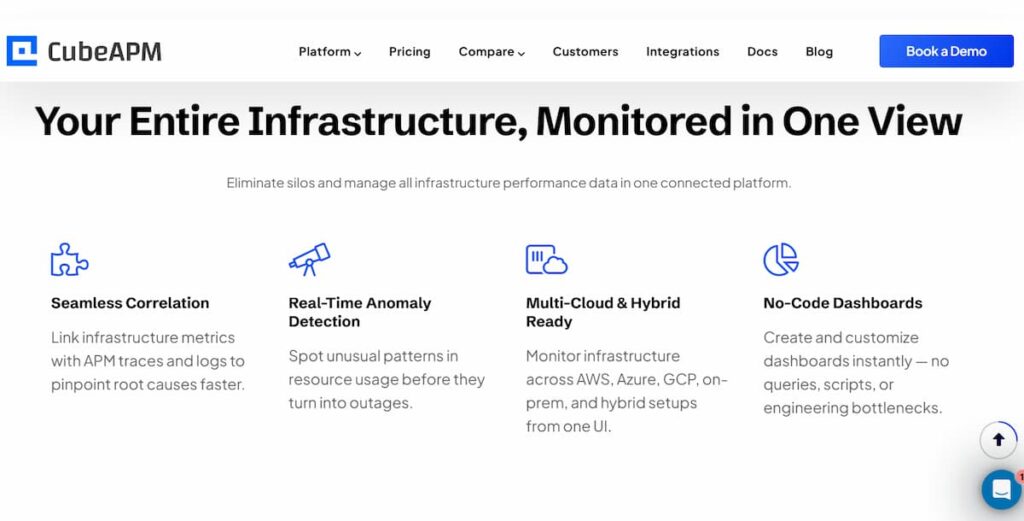
CubeAPM is a self-hosted observability platform that runs inside your Azure environment (typically deployed to an AKS cluster or VM). It provides unified APM, logs, infrastructure monitoring, and real user monitoring with native OpenTelemetry support. Because it runs within your Azure subscription, there are no egress costs; telemetry stays inside your VNet.
CubeAPM pricing is $0.15/GB for data ingested, with unlimited retention and no per-host or per-user fees. For a workload generating 30 GB of telemetry daily (900 GB/month), the cost would be $135/month, plus the infrastructure cost to run CubeAPM itself (typically 2-4 Azure VMs or AKS nodes, approximately $300-500/month depending on instance size). Total cost: around $435-635/month, roughly 85% lower than the Azure-native stack with Application Insights and Log Analytics.
CubeAPM integrates with Azure Container Apps via OpenTelemetry instrumentation. You configure your container app to export traces and metrics to the CubeAPM OTLP endpoint within your VNet. Logs are collected using Fluentbit or Logstash agents deployed to your ACA environment. The entire setup typically takes under an hour, and because CubeAPM uses OpenTelemetry standards, you can migrate away later without vendor lock-in.
Key advantages for ACA workloads:
- Full data retention: Unlike Application Insights’ 90-day default, CubeAPM retains all telemetry indefinitely at no extra cost.
- Unified interface: Metrics, logs, traces, and RUM in one dashboard, reducing context switching during incidents.
- No sampling required: At $0.15/GB, teams can afford 100% trace capture without the cost explosion that forces sampling in Application Insights.
- Compliance and data sovereignty: For regulated industries, keeping telemetry in your own Azure subscription simplifies GDPR, HIPAA, and data residency requirements.
Migration from Azure Monitor to Third-Party APMs
Migrating observability from Azure’s native stack to a third-party platform or self-hosted tool like CubeAPM is typically incremental, not a hard cutover. The most common migration path:
- Enable OpenTelemetry instrumentation in your container apps while keeping Application Insights running. OpenTelemetry supports multiple exporters, so you can send telemetry to both Application Insights and a new platform simultaneously during the transition.
- Deploy the new observability backend (CubeAPM, Grafana, or another platform) and configure your container apps to send traces and metrics to it.
- Validate completeness: Ensure the new platform captures all the signals you were getting from Azure Monitor—replica count, CPU/memory usage, HTTP request metrics, distributed traces.
- Migrate alerts: Recreate your Azure Monitor alert rules in the new platform’s alerting system.
- Disable Application Insights: Once confident the new platform is working, stop sending telemetry to Application Insights to eliminate ingestion costs.
This phased approach avoids observability gaps during migration and allows you to compare platforms side-by-side before committing.
Disclaimer: The information in this article reflects the latest details available at the time of publication and may change as technologies and products evolve. Features, pricing, and plan limits can change over time. Always verify the latest information directly with the vendor before making purchasing or deployment decisions.
Frequently Asked Questions
What metrics does Azure Container Apps provide out of the box?
Azure Container Apps automatically exposes CPU usage (nanocores), memory working set (bytes), network bytes in/out, replica count, HTTP request count, and HTTP request latency percentiles (P50, P95, P99) through Azure Monitor. These metrics are aggregated per revision and retained for 93 days.
How do I enable Application Insights for Azure Container Apps?
Add the Application Insights SDK to your application code or configure OpenTelemetry instrumentation with the OTLP exporter pointed at your Application Insights resource. Set the instrumentation key or connection string as an environment variable in your container app configuration. Telemetry will start flowing immediately upon deployment.
Can I monitor Azure Container Apps with Prometheus?
Yes. Azure Container Apps can expose Prometheus metrics if your application includes a Prometheus exporter library. You configure a Prometheus scrape endpoint in your app, then deploy a Prometheus server (or use Azure Monitor managed Prometheus) to scrape metrics. However, this requires custom setup—Azure does not auto-generate Prometheus metrics for ACA workloads.
What is the difference between Azure Monitor and Application Insights?
Azure Monitor collects platform-level metrics (CPU, memory, replica count, network) without requiring code changes. Application Insights collects application-level telemetry (distributed traces, exceptions, custom events) and requires SDK instrumentation or OpenTelemetry configuration. Both are part of Azure’s observability ecosystem, but they capture different signal types.
How much does Application Insights cost for a production Azure Container Apps workload?
Application Insights charges $2.76/GB for telemetry ingestion. A production workload generating 30 GB of traces and logs daily incurs approximately $2,484/month in ingestion costs. Retention beyond 90 days adds additional charges. Query costs are separate, charged per GB scanned.
How do I reduce Application Insights costs?
Configure sampling to reduce telemetry volume. Azure’s adaptive sampling defaults to 5 events per second per instance. You can increase this if needed, but higher sampling rates increase costs. Alternatively, implement intelligent sampling—capture 100% of errors and slow requests, 1-10% of fast successful requests. This preserves the most valuable telemetry while reducing ingestion volume.
Can I monitor Azure Container Apps with Datadog or New Relic?
Yes. Both platforms support Azure Container Apps through OpenTelemetry or native agent instrumentation. You install the Datadog or New Relic agent in your container image or configure OpenTelemetry to export telemetry to their OTLP endpoints. Be aware that sending telemetry outside Azure incurs data egress charges (approximately $0.087/GB).
What is the best way to monitor cold starts in Azure Container Apps?
Cold starts are not exposed as a direct metric. Infer cold start events by correlating replica count increases with request latency spikes in the same time window. Use Application Insights to measure time-to-first-request after a new replica starts. For production workloads sensitive to cold starts, set minimum replicas to 1 or 2 to avoid scale-to-zero cold starts entirely.