







Azure Active Directory (now rebranded as Microsoft Entra ID) sits at the center of identity and access management for most Azure-dependent organizations. Every authentication request, password reset, conditional access policy block, and role assignment flows through it. When a sign-in fails or a security policy triggers, the signal lands in Azure AD logs, but most teams only discover these failures after users complain or an incident escalates. According to the 2024 Cloud Security Report from Cybersecurity Insiders, 68% of organizations cite account compromise as a top cloud security concern, making proactive monitoring of authentication logs essential for security and compliance.
This guide covers what Azure AD monitoring is, how sign-in and audit logs work, how to query and alert on failures, and what tools simplify monitoring at scale, including native Azure Monitor, third-party SIEMs, and infrastructure monitoring platforms that correlate identity events with broader system health.
What Is Azure Active Directory Monitoring?
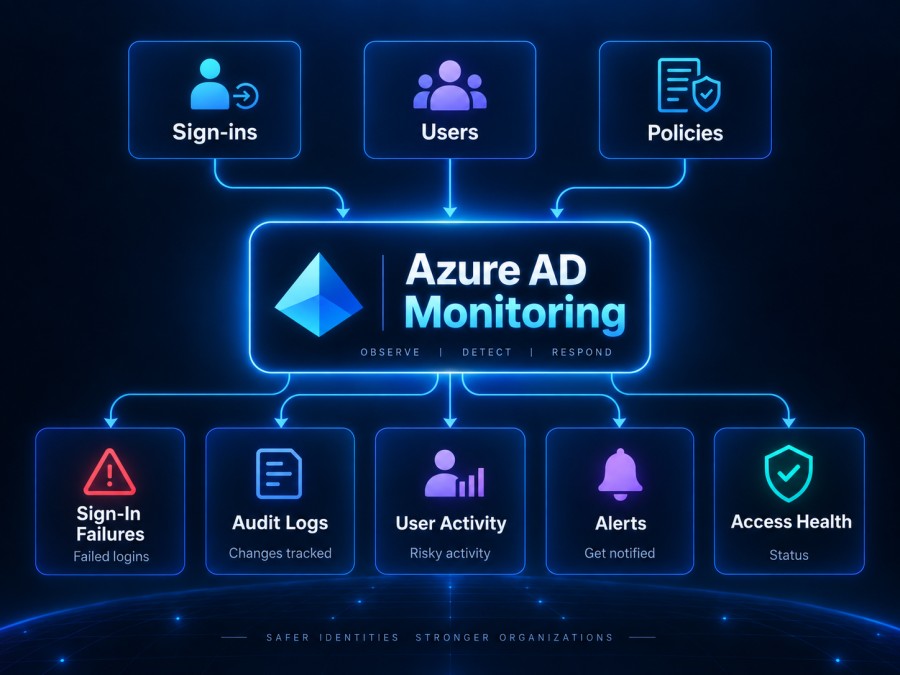
Azure Active Directory monitoring is the practice of collecting, analyzing, and alerting on authentication events, configuration changes, and security signals generated by Microsoft Entra ID. It gives security and platform teams visibility into who is accessing what, when access fails, and whether changes to identity policies or role assignments introduce risk.
Azure AD generates three primary log types:
Sign-in logs: every authentication attempt, including successes, failures, MFA prompts, conditional access decisions, and device trust evaluations. These logs answer questions like: Did this user sign in successfully? Why was this sign-in blocked? Which application or resource was accessed?
Audit logs: every configuration change within Azure AD, including user and group creation, role assignments, policy updates, app registrations, and admin actions. Audit logs provide the audit trail required for compliance frameworks like SOC 2, ISO 27001, and HIPAA.
Provisioning logs: activities performed by Azure AD provisioning services, such as syncing users from on-prem Active Directory or creating accounts in third-party SaaS tools like ServiceNow or Workday.
For most security and compliance workflows, sign-in and audit logs are the two most critical sources. Sign-in logs detect real-time threats like credential stuffing, impossible travel, or conditional access bypass attempts. Audit logs provide forensic evidence of configuration drift, unauthorized privilege escalation, or policy tampering.
Without monitoring, these logs sit idle in Azure until someone manually queries them after an incident. With monitoring, they drive real-time alerts, security dashboards, and compliance reports.
How Azure AD Sign-In Logs Work
Sign-in logs capture every authentication event that passes through Azure AD. This includes interactive user sign-ins (logging into the Azure portal, Office 365, or a third-party SaaS app), non-interactive sign-ins (service principals authenticating to APIs), managed identity sign-ins (Azure resources authenticating to other resources), and service principal sign-ins.
Each log entry includes:
User identity: the user principal name (UPN), object ID, and IP address of the sign-in attempt.
Application or resource: the Azure AD application, API, or resource being accessed.
Device and location: device ID, operating system, browser, and geolocation derived from IP address.
Conditional access result: whether the sign-in was allowed, blocked, or required MFA based on configured policies.
Status and error codes: success or failure, and if failed, the specific error code explaining why (e.g., invalid credentials, account locked, MFA required but not provided).
Authentication details: authentication method used (password, FIDO2 key, Windows Hello, certificate), MFA method if applicable, and whether legacy authentication protocols were used.
Sign-in logs are available in the Azure AD portal under Monitoring > Sign-ins. By default, Azure AD retains sign-in logs for 30 days on Premium P1 and P2 licenses. Free and Basic tiers retain logs for only 7 days. For longer retention or integration with SIEM tools, logs must be exported to Azure Monitor, Log Analytics, or a third-party observability platform.
Common sign-in failure scenarios and their error codes
Most sign-in failures fall into a small set of recurring patterns. The error code in the sign-in log identifies the root cause.
Error 50126: Invalid username or password. This is the most common failure type and indicates either a typo, forgotten password, or credential stuffing attempt.
Error 50074: Strong authentication required. The user hit a conditional access policy requiring MFA but did not complete the MFA prompt.
Error 50053: Account locked due to too many failed sign-in attempts. Azure AD locks accounts after multiple consecutive failures to prevent brute-force attacks.
Error 50058: Silent sign-in failed, user interaction required. The application attempted to authenticate silently using a cached token, but the token expired, or the session was invalidated.
Error 53003: Blocked by conditional access. A conditional access policy explicitly blocked the sign-in based on location, device compliance, or risk level.
Error 50072: User must enroll in MFA. The user is required to register for MFA before they can sign in, but has not yet completed enrollment.
Error 700016: Unauthorized client. The application is not authorized to access the requested resource, often due to misconfigured app registration permissions.
Understanding these error codes is essential for triaging sign-in issues. Without them, a failed sign-in just shows “access denied”; with them, you know exactly what broke and whether the failure represents a security incident or a user onboarding gap.
How Azure AD Audit Logs Work
Audit logs track every administrative or configuration change made within Azure AD. Unlike sign-in logs, which focus on authentication events, audit logs focus on changes to identity objects, policies, and directory structure.
Each audit log entry includes:
Activity: the specific action performed, such as “Add user”, “Update group”, “Delete application”, or “Assign role”.
Initiated by: the user or service principal that performed the action.
Target: the object or resource that was modified, including user accounts, groups, enterprise applications, or directory settings.
Timestamp: when the change occurred.
Additional details: property-level changes, such as which specific role was assigned or which conditional access policy setting was modified.
Audit logs are available in the Azure AD portal under Monitoring > Audit logs. Like sign-in logs, they are retained for 30 days on Premium licenses and 7 days on Free or Basic licenses.
Why audit logs matter for security and compliance
Audit logs serve two primary purposes: detecting unauthorized changes and satisfying compliance audit requirements.
From a security perspective, audit logs surface privilege escalation, policy tampering, and account manipulation. If an attacker gains access to an admin account, they may attempt to create backdoor accounts, assign themselves elevated roles, or disable MFA policies. Each of these actions generates an audit log entry. Without monitoring, these changes go unnoticed until the next security review.
From a compliance perspective, frameworks like SOC 2, ISO 27001, HIPAA, and PCI DSS require organizations to maintain an audit trail of identity and access changes. Auditors expect to see who created accounts, who assigned roles, and who modified security policies – with timestamps and proof that the changes were authorized. Audit logs provide this trail.
Common audit log queries for security monitoring
Most security teams run a recurring set of queries against audit logs to detect high-risk changes.
Role assignments: filter for “Add member to role” to track who gained privileged access.
Conditional access policy changes: filter for “Update policy” to detect modifications to authentication controls.
User and group creation: filter for “Add user” or “Add group” to identify new accounts, which could represent legitimate onboarding or unauthorized backdoor creation.
Application registrations: filter for “Add application” or “Update application” to track new integrations that may introduce security risk.
Password resets: filter for “Reset password (by admin)” to track admin-initiated password changes, which could indicate account takeover or social engineering.
These queries form the baseline for Azure AD security monitoring. Most teams automate them using Azure Monitor alert rules or export them to a SIEM for correlation with logs from other systems.
How to Access Azure AD Logs in the Azure Portal
The simplest way to view Azure AD logs is through the Azure portal. The process is the same whether you are querying sign-in logs or audit logs.
- Sign in to the Azure portal as a user with at least the Reports Reader role.
- Browse to Azure Active Directory > Monitoring > Sign-ins or Audit logs.
- Apply filters to narrow the results by date range, user, application, status, or error code.
- Export results to CSV for offline analysis or create a Log Analytics workspace to enable long-term retention and advanced queries.
For sign-in logs, the default view shows all authentication events for the selected time range. You can filter by status (success or failure), application, user, IP address, or location. Clicking into any individual log entry reveals the full details, including authentication method, device information, conditional access policy evaluation, and error codes if the sign-in failed.
For audit logs, the default view shows all directory changes. You can filter by activity type, initiated by (user or service principal), target resource, or date range. Each log entry includes a JSON representation of the change, showing exactly which properties were modified.
The portal view is useful for ad hoc investigation but not for continuous monitoring. For that, you need to route logs to Azure Monitor or a third-party platform.
How to Monitor Azure AD Logs with Azure Monitor
Azure Monitor is Microsoft’s native observability platform. It collects logs, metrics, and traces from Azure services and routes them to Log Analytics workspaces for querying, alerting, and visualization.
To monitor Azure AD logs with Azure Monitor, you must first configure diagnostic settings to route sign-in and audit logs to a Log Analytics workspace.
- Navigate to Azure Active Directory > Monitoring > Diagnostic settings.
- Click Add diagnostic setting.
- Select SignInLogs and AuditLogs as the log categories to export.
- Choose Send to Log Analytics workspace as the destination.
- Select the Log Analytics workspace where logs should be stored.
- Save the diagnostic setting.
Once configured, sign-in and audit logs begin flowing into the Log Analytics workspace within a few minutes. From there, you can query them using Kusto Query Language (KQL), create dashboards, and configure alert rules.
Example KQL queries for Azure AD monitoring
KQL is the query language used by Azure Monitor and Log Analytics. It is similar to SQL but optimized for log data.
Query all failed sign-ins in the last 24 hours:
SigninLogs
| where TimeGenerated > ago(24h)
| where ResultType != "0"
| project TimeGenerated, UserPrincipalName, AppDisplayName, IPAddress, ResultType, ResultDescriptionQuery all conditional access failures:
SigninLogs
| where TimeGenerated > ago(7d)
| where ConditionalAccessStatus == "failure"
| project TimeGenerated, UserPrincipalName, AppDisplayName, ConditionalAccessPoliciesQuery all role assignments in the last 30 days:
AuditLogs
| where TimeGenerated > ago(30d)
| where OperationName == "Add member to role"
| project TimeGenerated, InitiatedBy, TargetResourcesQuery all user account creations:
AuditLogs
| where TimeGenerated > ago(30d)
| where OperationName == "Add user"
| project TimeGenerated, InitiatedBy, TargetResourcesThese queries form the foundation for Azure AD monitoring dashboards and alerts. Most teams create a set of saved queries and scheduled alerts that run every 15 minutes or hourly.
How to Set Alerts on Azure AD Sign-In Failures and Audit Events
Alerts turn passive log collection into active monitoring. Azure Monitor supports alert rules based on KQL queries. When a query returns results that match a defined threshold, Azure Monitor triggers an alert and routes it to email, SMS, webhook, or incident management platforms like PagerDuty or Slack.
To create an alert rule for Azure AD sign-in failures:
- Navigate to Azure Monitor > Alerts > Create > Alert rule.
- Select your Log Analytics workspace as the scope.
- Under Condition, choose Custom log search.
- Paste a KQL query that identifies the condition you want to alert on, such as failed sign-ins from specific users or repeated failures from a single IP address.
- Set the threshold; for example, trigger the alert if more than 10 failed sign-ins occur within 5 minutes.
- Configure the action group to define where the alert should be sent (email, webhook, etc.).
- Save the alert rule.
Common alert scenarios include:
Repeated failed sign-ins from a single IP: may indicate a brute-force attack.
Sign-in from an unexpected geographic location: may indicate account compromise.
Conditional access policy failure spike: may indicate a misconfigured policy blocking legitimate users.
Role assignment by non-admin account: may indicate privilege escalation.
New application registration: may indicate shadow IT or malicious integration.
Alerts reduce the time between a security event and detection. Without them, failed sign-ins or unauthorized role changes only surface during scheduled security reviews.
Data Retention and Export Options for Azure AD Logs
Azure AD retains sign-in and audit logs for 30 days on Premium P1 or P2 licenses and 7 days on Free or Basic licenses. For compliance requirements, security investigations, or long-term trend analysis, logs must be exported to external storage.
Microsoft supports three export destinations:
Log Analytics workspace: enables KQL queries, dashboards, and alerting. Retention can be extended to 730 days or more depending on workspace settings and pricing tier.
Azure Storage account: archives logs as JSON files for long-term retention. This is the most cost-effective option for storing logs beyond 30 days but does not support real-time querying.
Azure Event Hub: streams logs in real time to third-party SIEM platforms like Splunk, synthetic monitoring tools, or observability platforms like CubeAPM.
Most teams use a combination: Log Analytics for active monitoring and Azure Storage for compliance archival. Exporting to Event Hub enables correlation with logs from other systems, such as Azure resource logs, application traces, or infrastructure metrics.
Tools for Monitoring Azure AD: Native vs Third-Party Platforms
Azure Monitor is the native option for Azure AD monitoring, but it is not the only option. Third-party SIEM platforms, observability tools, and security analytics platforms also integrate with Azure AD logs.
Native Azure monitoring with Azure Monitor and Sentinel
Azure Monitor handles log collection, querying, and alerting. Microsoft Sentinel, Microsoft’s cloud native SIEM, builds on top of Azure Monitor and adds threat detection, incident investigation, and automated response. Sentinel includes pre-built analytics rules for Azure AD sign-in anomalies, impossible travel detection, and privilege escalation.
For teams already invested in Microsoft’s ecosystem, Azure Monitor and Sentinel provide the tightest integration and lowest operational overhead. However, KQL has a steep learning curve, and alert tuning requires deep Azure expertise.
Third-party observability platforms with Azure AD integration
Platforms like CubeAPM, Datadog, Splunk, and Elastic support Azure AD log ingestion via Event Hub or Log Analytics connectors. These platforms correlate Azure AD logs with application traces, infrastructure metrics, and real user monitoring data, providing full context when investigating incidents.
CubeAPM runs on your own infrastructure and ingests Azure AD logs via OpenTelemetry or Azure Event Hub. It correlates authentication failures with downstream service errors, infrastructure resource exhaustion, or deployment events, surfacing whether a sign-in spike is caused by a bot attack, a marketing campaign, or a backend outage. Pricing is usage-based at $0.20/GB with no per-user seat fees, making it cost predictable as log volume scales.
Datadog integrates with Azure AD via its Azure integration and supports custom dashboards, anomaly detection, and multi-cloud correlation. Pricing starts at $0.10/GB for log ingestion plus $1.70 per million indexed log events.
Splunk is common in enterprise security operations centers (SOCs) and supports Azure AD log ingestion via Azure Event Hub. Pricing is workload-based, with costs rising sharply at scale.
Monitoring Azure AD with CubeAPM
CubeAPM is a self-hosted observability platform that runs inside your VPC or on-prem environment. It ingests logs, traces, metrics, and events from Azure AD, Kubernetes, databases, APIs, and application code, correlating all signals in a single query interface.
For Azure AD monitoring, CubeAPM ingests sign-in and audit logs via Azure Event Hub or OpenTelemetry collectors. Logs are indexed in real time with full-text search across all fields. You can filter by user, application, IP address, error code, or conditional access policy and correlate authentication failures with infrastructure events or application errors in the same dashboard.
CubeAPM surfaces Azure AD failures alongside related signals. If a sign-in failure spike occurs at the same time as a database connection pool exhaustion event, CubeAPM shows both in context, helping teams determine whether the failure is an Azure AD issue or a downstream dependency problem.
Alerts can be configured on any KQL-like query, with routing to Slack, PagerDuty, email, or webhooks. Unlike Azure Monitor alert rules, CubeAPM alerts include trace and metric context inline, reducing the number of clicks required to diagnose root cause.
CubeAPM pricing is $0.20/GB for all ingested data, with no separate indexing fees or user seat costs. Retention is unlimited at no extra charge. For a 30 TB/month Azure AD log workload, CubeAPM costs approximately $4,500/month, compared to $8,000+ for Datadog or Splunk with equivalent retention.
Best Practices for Azure AD Monitoring
Monitor both sign-in and audit logs together. Sign-ins detect real-time authentication threats. Audit logs detect configuration drift and privilege changes. Both are required for complete visibility.
Export logs to a Log Analytics workspace or third-party platform immediately. The 30 day retention limit in Azure AD is insufficient for compliance or long term trend analysis.
Create alert rules for high-risk events: repeated failed sign-ins, conditional access failures, role assignments, and application registrations. Tune thresholds to reduce noise but avoid missing real incidents.
Correlate Azure AD logs with application and infrastructure telemetry. Authentication failures often cascade from upstream issues like DNS resolution failures, certificate expiration, or cloud region outages.
Test incident response workflows by simulating failed sign-ins and policy changes. Ensure alerts route to the correct team and that runbooks are current.
Review audit logs weekly for unexpected changes. Look for new admin accounts, role assignments outside the change control process, and conditional access policy modifications.
Implement least privilege for Azure AD roles. Use Privileged Identity Management (PIM) to require just-in-time activation for high-privilege roles, and monitor PIM activation events in audit logs.
Disclaimer: The information in this article reflects the latest details available at the time of publication and may change as technologies and products evolve. Features, pricing, and plan limits can change over time. Always verify the latest information directly with the vendor before making purchasing or deployment decisions.
Frequently Asked Questions
How long does Azure AD keep sign-in and audit logs?
Azure AD retains sign-in and audit logs for 30 days on Premium P1 or P2 licenses and 7 days on Free or Basic licenses. For longer retention, export logs to Azure Monitor, Log Analytics, or a third party platform.
What is the difference between sign-in logs and audit logs in Azure AD?
Sign-in logs track authentication events, including successes, failures, and conditional access decisions. Audit logs track configuration changes like user creation, role assignments, and policy updates.
Can I monitor Azure AD logs without a Premium license?
Yes, but with limitations. Free and Basic licenses retain logs for only 7 days and do not support advanced conditional access policies or risk-based authentication signals.
What tools integrate with Azure AD for monitoring and alerting?
Azure Monitor and Microsoft Sentinel are the native options. Third-party platforms like CubeAPM, Datadog, Splunk, and Elastic also integrate via Event Hub or Log Analytics.
How do I set up alerts for failed Azure AD sign-ins?
Configure diagnostic settings to route sign-in logs to a Log Analytics workspace. Create an alert rule in Azure Monitor using a KQL query that filters for failed sign-ins. Define a threshold and action group to route the alert to email, Slack, or PagerDuty.
What is the most common Azure AD sign-in error code?
Error 50126 is the most common and indicates an invalid username or password. Other frequent codes include 50074 (MFA required), 53003 (blocked by conditional access), and 50053 (account locked).
How do I monitor conditional access policy changes in Azure AD?
Query audit logs for the activity “Update policy” and filter by policy type: Conditional Access. Set up an alert rule to trigger when this activity occurs outside approved change windows.