









Kubernetes has transformed how teams deploy and scale applications, but with that power comes a steep troubleshooting curve. The 2024 CNCF Annual Survey found that 71% of organizations use Kubernetes in production. Yet most engineering teams still lose hours to the same recurring error codes: CrashLoopBackOff, ImagePullBackOff, and OOMKilled.
This guide covers how to identify, diagnose, and fix the most common Kubernetes errors, with practical kubectl commands, real-world troubleshooting workflows, and prevention strategies that reduce repeat incidents.
What Are Kubernetes Error Codes?
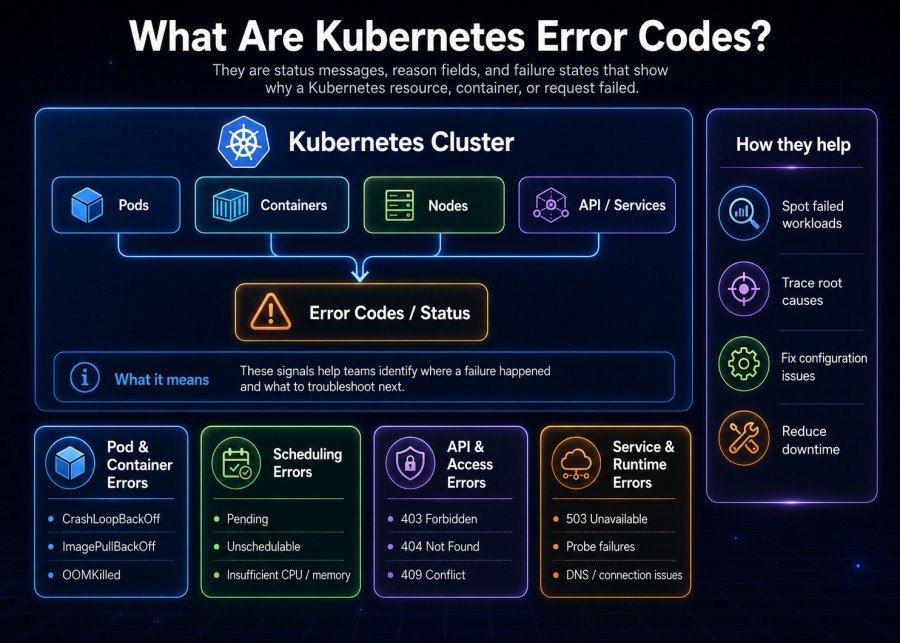
Kubernetes error codes are status messages that indicate why a pod, container, or node failed. They appear in pod events, container status fields, and exit codes returned when a container terminates.
Every Kubernetes error tells you two things: what happened (the symptom) and where to look next (the layer where the failure occurred). Understanding the error code is the first step in any troubleshooting workflow. The code alone rarely gives you the full answer, but it directs you to the right logs, metrics, or configuration to inspect.
Where error codes appear
You encounter Kubernetes errors in three main places:
Pod status: The STATUS column in kubectl get pods shows high-level error states like CrashLoopBackOff, ImagePullBackOff, or Pending.
Container state reasons: Inside each pod, individual containers have their own state and reason fields. You see these in kubectl describe pod under the Containers section.
Exit codes: When a container terminates, it returns a numeric exit code. Exit code 0 means success. Any non-zero exit code signals a failure, with specific codes indicating different types of errors. Exit 137 typically means the container was killed by an OOM signal. Exit 143 means it received a SIGTERM and shut down gracefully.
Why Kubernetes errors are harder to debug than traditional application errors
Kubernetes abstracts your application across multiple layers: the container runtime, the pod scheduler, node resources, network policies, storage provisioners, and the control plane. A single error can originate in any of these layers, and the symptom you see (a pod that won’t start) may be several steps removed from the root cause (a misconfigured secret, a full disk on the node, or a missing image tag).
Traditional application errors happen in one place. Kubernetes errors happen across a distributed system where the failure in one component cascades into symptoms elsewhere.
How Kubernetes Troubleshooting Works
Kubernetes troubleshooting follows a consistent pattern: start with the symptom (the error code), gather context (events and logs), identify the layer where the failure occurred, then fix the root cause.
The three-step troubleshooting workflow
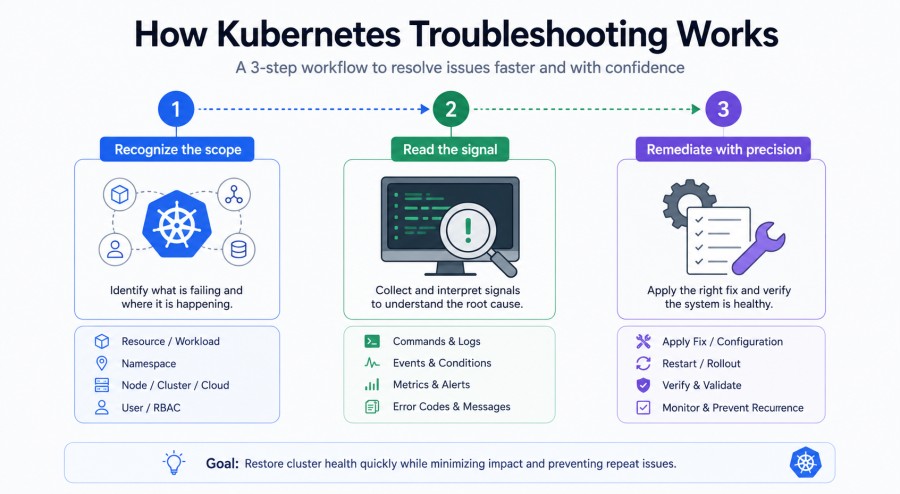
Recognize the scope: Is this issue isolated to one pod, affecting all pods in a deployment, or impacting an entire node or namespace? The scope determines where you look next. A single failing pod suggests an application or configuration issue. All pods failing in a deployment points to a bad rollout or resource limit. An entire node showing NotReady means node-level or infrastructure problems.
Read the signal: Kubernetes surfaces breadcrumbs in pod status, events, container state reasons, exit codes, and logs. Each signal type tells you something different. Events show scheduling decisions and resource availability. Logs show what the application tried to do before it failed. Exit codes tell you how the container died.
Remediate with precision: Once you identify the root cause, apply the smallest fix that resolves the issue. Avoid redeploying everything or restarting unrelated services. Surgical fixes reduce blast radius and prevent masking other underlying problems.
Common Kubernetes Error Codes and How to Fix Them
Most Kubernetes errors fall into a few recurring patterns. The sections below cover the most common error codes, their root causes, how to diagnose them, and the specific fixes that resolve them.
CrashLoopBackOff
What it means: The container inside your pod is starting, crashing, and restarting in a loop. Kubernetes detects the pattern and increases the delay between restart attempts (backoff).
Root causes: Application code that fails immediately on startup, missing or misconfigured environment variables, failed health checks (liveness or readiness probes that fail too quickly), insufficient memory or CPU causing the container to be killed before it finishes starting, or a bad image that contains broken binaries.
How to diagnose:
kubectl get pods -n <namespace>
kubectl describe pod <pod-name> -n <namespace>
kubectl logs <pod-name> -n <namespace>
kubectl logs <pod-name> -n <namespace> --previousThe --previous flag shows logs from the container’s last crash before the current restart. This often reveals the actual error that caused the crash.
Check the Events section in kubectl describe pod. Look for repeated Back-off restarting failed container messages. Check the container’s exit code. Exit 1 or 2 usually means an application error. Exit 137 means OOMKilled. Exit 143 means graceful shutdown.
How to fix: If the logs show an application error, fix the code or configuration that’s causing the crash. If environment variables are missing, add them to your pod spec or ConfigMap. If liveness probes are failing too quickly, increase initialDelaySeconds and failureThreshold in your probe configuration. If the container is being OOMKilled, increase memory limits in your resource requests and limits.
Prevention: Set appropriate initialDelaySeconds for liveness and readiness probes so Kubernetes gives your application time to start. Use startup probes for slow-starting applications. Test your application locally in a container before deploying to Kubernetes. Validate all environment variables and ConfigMaps are present before rollout.
ImagePullBackOff and ErrImagePull
What it means: Kubernetes cannot pull the container image from the registry. ImagePullBackOff is the backoff state after repeated pull failures. ErrImagePull is the initial error.
Root causes: Wrong image name or tag, image does not exist in the registry, private registry requires authentication and the pod does not have an imagePullSecret, registry is unreachable due to network issues or firewall rules, rate limiting from Docker Hub or other public registries.
How to diagnose:
kubectl describe pod <pod-name> -n <namespace>Look in the Events section for messages like Failed to pull image or rpc error: code = Unknown desc = Error response from daemon: pull access denied. The error message usually tells you whether the image was not found, authentication failed, or the registry timed out.
Check the image field in your pod spec:
kubectl get pod <pod-name> -n <namespace> -o yaml | grep image:Verify the image exists in your registry, and the tag is correct. For private registries, confirm your imagePullSecret exists and is correctly referenced.
How to fix: Correct the image name and tag in your deployment or pod spec. For private registries, create an imagePullSecret and reference it in your pod spec:
kubectl create secret docker-registry <secret-name> \
  --docker-server=<registry-url> \
  --docker-username=<username> \
  --docker-password=<password> \
--docker-email=<email>Then add the secret to your pod spec:
spec:
  imagePullSecrets:
- name: <secret-name>If you hit Docker Hub rate limits, switch to a private registry, use a Docker Hub paid account, or configure registry mirrors.
Prevention: Use specific image tags instead of latest to avoid pulling the wrong version. Test image pulls locally before deploying. Set up monitoring for registry availability. Use a private registry with authentication for production workloads.
OOMKilled (Exit Code 137)
What it means: The container exceeded its memory limit and was killed by the kernel’s out-of-memory (OOM) killer. Exit code 137 (128 + 9) indicates the process received a SIGKILL signal.
Root causes: Memory limit set too low for the application’s actual usage, memory leak in the application code, traffic spike causing memory usage to exceed limits, misconfigured Java heap size or other runtime memory settings.
How to diagnose:
kubectl describe pod <pod-name> -n <namespace>Look for Reason: OOMKilled or Exit Code: 137 in the Last State section under Containers. Check the memory limit and actual memory usage before the kill:
kubectl top pod <pod-name> -n <namespace>Compare the memory usage shown here to the memory limit defined in your pod spec. If usage was approaching or at the limit, your application legitimately ran out of memory.
Review application logs before the OOMKill to see if memory usage was gradually increasing (memory leak) or spiked suddenly (traffic surge).
How to fix: Increase memory limits in your resource configuration. If the application has a memory leak, fix the leak in the code. For JVM-based applications, tune heap settings to fit within the container’s memory limit:
resources:
  requests:
    memory: "512Mi"
  limits:
memory: "1Gi"Set memory requests and limits together. Requests ensure the scheduler places the pod on a node with enough memory. Limits prevent the container from consuming more than its share.
Prevention: Right-size memory requests and limits based on actual usage patterns, not guesses. Use monitoring tools to track memory usage over time and adjust limits before you hit OOMKills in production. Profile your application under load to identify memory leaks early. For JVM applications, set -Xmx to 75-80% of the container’s memory limit to leave room for non-heap memory.
Pending
What it means: The pod has been accepted by Kubernetes but cannot be scheduled onto a node. It sits in Pending state until the scheduler finds a suitable node.
Root causes: Insufficient CPU or memory available on any node in the cluster, pod requests resources that exceed what any single node can provide, node selectors or affinity rules prevent the pod from matching any available node, taints on all nodes without corresponding tolerations in the pod spec, PersistentVolumeClaim (PVC) cannot be bound because no matching PersistentVolume exists or the storage class cannot provision one.
How to diagnose:
kubectl describe pod <pod-name> -n <namespace>Check the Events section for FailedScheduling messages. The message explains why the pod cannot be scheduled. Common reasons include Insufficient cpu, Insufficient memory, no nodes available to schedule pods, or didn't match pod affinity rules.
If the issue is resource availability, check node capacity:
kubectl top nodes
kubectl describe nodesLook for nodes with high CPU or memory utilization. If all nodes are near capacity, the cluster needs scaling.
How to fix: If nodes lack resources, add more nodes to your cluster or enable cluster autoscaling. If pod resource requests are too high, reduce them to realistic values. If node selectors or affinity rules are too restrictive, relax them to allow scheduling on more nodes. If the pod has a PVC that cannot be bound, check that the storage class exists and can provision volumes, or manually create a PersistentVolume that matches the PVC’s requirements.
Prevention: Set up cluster autoscaling so nodes scale automatically when resource demand increases. Monitor cluster capacity and set alerts when CPU or memory usage exceeds 70-80% across all nodes. Use pod disruption budgets and resource quotas to prevent one application from consuming all cluster resources. Regularly review resource requests across your workloads to ensure they reflect actual usage.
CreateContainerConfigError
What it means: Kubernetes successfully pulled the image and created the pod, but failed to create the container because of a configuration error.
Root causes: Missing ConfigMap or Secret referenced in the pod spec, incorrect volume mount path or volume definition, malformed environment variable reference, unsupported container runtime settings.
How to diagnose:
kubectl describe pod <pod-name> -n <namespace>The Events section will show CreateContainerConfigError with a message explaining what configuration is missing or invalid. Common messages include couldn't find key X in ConfigMap, secret "name" not found, or failed to create subpath for volumeMount.
List ConfigMaps and Secrets in the namespace:
kubectl get configmaps -n <namespace>
kubectl get secrets -n <namespace>Verify the names match what your pod spec references.
How to fix: Create the missing ConfigMap or Secret:
kubectl create configmap <name> --from-literal=key=value -n <namespace>
kubectl create secret generic <name> --from-literal=key=value -n <namespace>Fix incorrect references in your pod spec. Correct volume paths if the error mentions subpath or mount failures. Redeploy the pod once the configuration is corrected.
Prevention: Validate that all ConfigMaps and Secrets exist before deploying a new application. Use tools like Helm or Kustomize to manage configuration dependencies together. In CI/CD pipelines, include a step that checks for required ConfigMaps and Secrets before applying manifests.
FailedScheduling
What it means: The scheduler attempted to place the pod on a node but could not due to constraints.
Root causes: No nodes match the pod’s node selector or affinity requirements, all nodes are tainted and the pod lacks the necessary tolerations, cluster is at capacity (insufficient CPU, memory, or pods), pod anti-affinity rules prevent co-location with other pods.
How to diagnose:
kubectl describe pod <pod-name> -n <namespace>Look for the FailedScheduling event and read the reason provided. It will specify whether the issue is related to node selectors, taints, affinity, or resource availability.
Check node labels and taints:
kubectl get nodes --show-labels
kubectl describe node <node-name>How to fix: If node selectors are the issue, either add the required label to a node or remove the node selector from the pod spec. If taints block scheduling, add the corresponding toleration to your pod spec. If resource limits are the problem, scale your cluster or reduce resource requests.
Prevention: Use node affinity instead of node selectors for more flexible scheduling. Regularly review taints and tolerations to ensure they match your scheduling intent. Monitor cluster capacity to avoid scheduling failures due to resource exhaustion.
Node NotReady
What it means: A node in your cluster is marked as NotReady, meaning the kubelet on that node has stopped reporting to the control plane or is reporting unhealthy conditions.
Root causes: Kubelet service stopped or crashed, container runtime (Docker, containerd, CRI-O) failed, node ran out of disk space, memory pressure or disk pressure on the node, network connectivity issues between the node and control plane, node was rebooted or shut down.
How to diagnose:
kubectl get nodes
kubectl describe node <node-name>Look at the Conditions section in the node description. Check for Ready, MemoryPressure, DiskPressure, and PIDPressure. If Ready is False or Unknown, the kubelet is not communicating.
Check kubelet logs on the node:
journalctl -u kubelet -n 100Check container runtime status:
systemctl status containerd # or docker, cri-oHow to fix: If kubelet stopped, restart it:
systemctl restart kubeletIf the node ran out of disk space, free up space by removing unused images and containers:
docker system prune -aIf the container runtime is down, restart it and check its logs for errors. If the node is unreachable due to network issues, investigate network configuration or firewall rules.
Prevention: Monitor node conditions and set alerts for MemoryPressure, DiskPressure, or Ready=False. Use node health checks in your infrastructure automation. Regularly clean up unused images and logs. Set up log rotation on nodes to prevent disk full issues.
Exit Code 1 (General Application Error)
What it means: The container exited with a failure status. Exit code 1 is a generic error indicating the application inside the container terminated abnormally.
Root causes: Unhandled exception in application code, missing or incorrect configuration, failed database connection or external dependency, incorrect startup command or entry point.
How to diagnose:
kubectl logs <pod-name> -n <namespace>
kubectl logs <pod-name> -n <namespace> --previousApplication logs should show the error that caused the exit. Look for stack traces, connection errors, or configuration validation failures.
How to fix: Fix the application code or configuration that caused the error. Correct environment variables, ConfigMaps, or Secrets if they are missing or incorrect. Ensure external dependencies (databases, APIs) are reachable from the pod.
Prevention: Test your application thoroughly before deploying to Kubernetes. Use liveness and readiness probes to detect failures quickly. Validate configuration and dependencies during CI/CD.
Kubernetes Troubleshooting Tools and Commands
Effective troubleshooting relies on knowing which commands surface the right information quickly.
Essential kubectl commands for troubleshooting
# List all pods and their status
kubectl get pods -n <namespace>
# Describe a pod to see events and state details
kubectl describe pod <pod-name> -n <namespace>
# View current container logs
kubectl logs <pod-name> -n <namespace>
# View logs from the previous container instance
kubectl logs <pod-name> -n <namespace> --previous
# View logs for a specific container in a multi-container pod
kubectl logs <pod-name> -c <container-name> -n <namespace>
# Check resource usage of pods
kubectl top pod -n <namespace>
# Check resource usage of nodes
kubectl top nodes
# Get all events in a namespace
kubectl get events -n <namespace> --sort-by=.lastTimestamp
# Check node conditions and capacity
kubectl describe node <node-name>
# Execute a command inside a running container
kubectl exec -it <pod-name> -n <namespace> -- /bin/shWhen to use logs vs. events vs. metrics
Logs: Use logs to understand what the application was doing before it failed. Logs show application-level errors, stack traces, and debug output.
Events: Use events to understand what Kubernetes was doing when the failure occurred. Events show scheduling decisions, image pulls, probe failures, and resource exhaustion.
Metrics: Use metrics to understand resource consumption trends over time. Metrics show CPU, memory, disk, and network usage, helping you identify resource pressure or leaks.
Tools that simplify Kubernetes troubleshooting
Beyond kubectl, several tools provide deeper visibility into Kubernetes environments.
Kubernetes Dashboard: A web-based UI for viewing cluster state, pod logs, and resource usage. Useful for teams that prefer GUIs over command-line tools.
k9s: A terminal UI for Kubernetes that makes navigating pods, logs, and events faster than typing kubectl commands repeatedly.
Lens: A desktop application that provides a visual interface for managing Kubernetes clusters, with built-in log viewing, resource monitoring, and troubleshooting workflows.
Kubecost: Tracks Kubernetes resource costs and usage, helping identify over-provisioned workloads or inefficient deployments.
Prometheus and Grafana: Collect and visualize metrics from Kubernetes nodes, pods, and applications. Essential for tracking resource usage trends and setting up alerting.
OpenTelemetry: Collects distributed traces, metrics, and logs from applications running in Kubernetes. Helps correlate application errors with infrastructure events.
Monitoring Kubernetes with CubeAPM
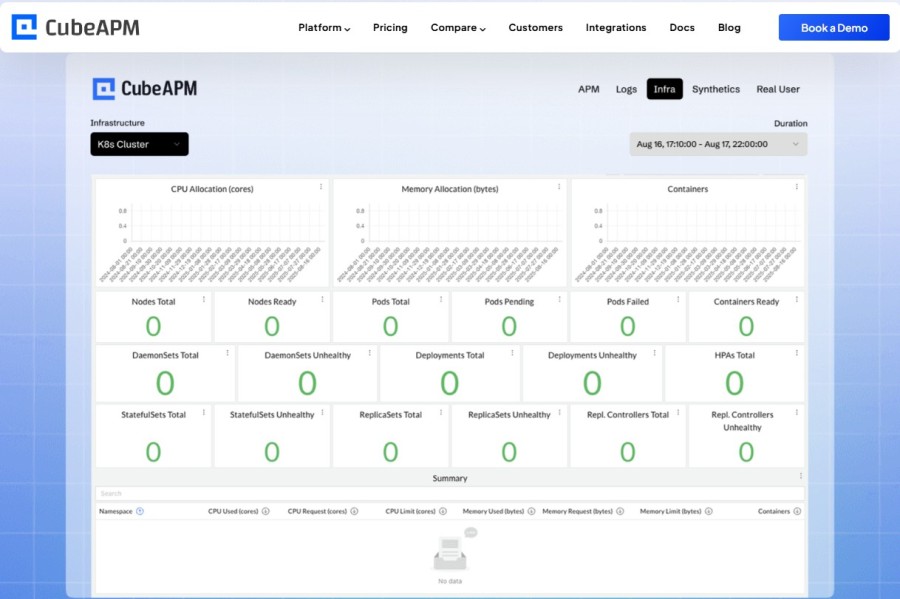
CubeAPM is a self-hosted observability platform built for Kubernetes environments. It provides full-stack monitoring for pods, nodes, workloads, logs, and application traces in one unified interface.
CubeAPM connects to Kubernetes via OpenTelemetry and Prometheus, automatically collecting metrics, events, and logs without requiring changes to your existing monitoring setup. It surfaces Kubernetes-specific signals like pod restarts, OOMKills, node pressure, and scheduling failures alongside application traces and error tracking.
Because CubeAPM runs inside your own cloud or on premises, telemetry data never leaves your infrastructure. This eliminates data egress costs and ensures compliance with data residency requirements. For teams troubleshooting Kubernetes errors, CubeAPM provides contextual alerts that link pod failures directly to the relevant logs, traces, and metrics, reducing mean time to resolution.
CubeAPM’s $0.20/GB pricing model includes unlimited retention, so you can keep all historical data for long-term analysis without worrying about storage tier costs or cold storage fees. Learn more about CubeAPM’s Kubernetes monitoring capabilities.
Best Practices for Kubernetes Troubleshooting
Following structured troubleshooting practices reduces time spent debugging and prevents repeat incidents.
Start with the symptom, not the tooling
When an error occurs, resist the urge to immediately open Grafana or start tailing logs. First, identify the symptom: is the pod not starting, is it crashing, or is it running but behaving incorrectly? The symptom determines which layer (application, pod, node, network, storage) you investigate first.
Use labels and namespaces for faster filtering
Well-organized labels and namespaces make troubleshooting significantly faster. Label your pods with app, version, environment, and component tags. This allows you to filter and group related pods quickly:
kubectl get pods -l app=frontend -n productionNamespaces isolate workloads by environment or team, reducing clutter when troubleshooting a specific application.
Correlate errors across logs, metrics, and events
Kubernetes errors rarely occur in isolation. A pod crash might be preceded by high memory usage (metrics), triggered by a failed database connection (logs), and followed by repeated restart attempts (events). Tools that correlate these signals reduce the time spent switching between different data sources.
If you are troubleshooting manually, gather logs, events, and metrics for the same time window and cross-reference them. Understanding why important traces are lost during incidents highlights how missing telemetry during high load periods can obscure root causes.
Set up alerts for common failure patterns
Proactive alerting catches errors before they escalate. Set up alerts for:
- Pod restart count exceeding a threshold
- Nodes entering NotReady state
- Memory or CPU usage approaching limits
- High error rates in application logs
- PVC binding failures
Kubernetes native tools like Prometheus Alertmanager can route alerts to Slack, PagerDuty, or email, giving teams immediate visibility into failures.
Document your troubleshooting process
After resolving an incident, document the error code, root cause, and fix in a runbook. Over time, this builds institutional knowledge and shortens resolution time for recurring issues. Include the exact kubectl commands you used, the logs or events that revealed the root cause, and any configuration changes you made.
Preventing Recurring Kubernetes Errors
Troubleshooting fixes the immediate problem. Prevention stops it from happening again.
Right-size resource requests and limits
Under-provisioned pods hit OOMKills and throttling. Over-provisioned pods waste cluster capacity. Use actual usage data from monitoring tools to set realistic resource requests and limits.
Start with conservative limits, monitor resource usage in production, then adjust based on real behavior. For AWS Lambda monitoring, similar principles apply: right sizing prevents both cost overruns and performance degradation.
Use readiness and liveness probes correctly
Readiness probes tell Kubernetes when a pod is ready to receive traffic. Liveness probes tell Kubernetes when a pod is healthy and should not be restarted. Misconfigured probes cause false positives (healthy pods get killed) or false negatives (unhealthy pods stay running).
Set initialDelaySeconds high enough for your application to finish starting. Set failureThreshold high enough to tolerate transient failures without triggering a restart. Use startup probes for slow-starting applications to avoid premature liveness failures.
Test configuration changes before production
Most Kubernetes errors stem from configuration mistakes: wrong image tags, missing secrets, incorrect resource limits, or bad environment variables. Test configuration changes in staging before applying them to production.
Use tools like kubectl diff to preview changes before applying them:
kubectl diff -f deployment.yamlEnable cluster autoscaling and pod disruption budgets
Cluster autoscaling prevents resource exhaustion by adding nodes when demand increases. Pod disruption budgets prevent too many pods from being evicted during node maintenance or scaling events.
Both features reduce the likelihood of scheduling failures and improve cluster resilience during traffic spikes or infrastructure changes.
Regularly review and clean up unused resources
Orphaned PVCs, unused ConfigMaps, and stale deployments clutter your cluster and increase the risk of configuration errors. Schedule regular reviews to remove resources that are no longer needed.
Use kubectl get all --all-namespaces to audit what is running across your cluster. Delete resources that are not actively used.
Conclusion
Kubernetes error codes are not obstacles. They are signals that tell you exactly where to look when something breaks. Understanding what each error means, how to diagnose it, and how to fix it transforms troubleshooting from guesswork into a repeatable process.
The most effective troubleshooting combines three things: structured workflows that start with the symptom, tools that correlate logs, metrics, and events, and prevention strategies that stop recurring failures before they reach production.
Monitoring platforms like CubeAPM simplify this by unifying Kubernetes metrics, application traces, and error tracking in one self-hosted interface. For teams comparing observability tools, CubeAPM as a Datadog alternative and CubeAPM as a New Relic alternative explain how self-hosted observability reduces cost and complexity. Real-world results are documented in the RedBus case study, where CubeAPM reduced mean time to resolution by 50% across a high-traffic production environment.
Kubernetes troubleshooting gets easier with practice. Every error you resolve builds your mental model of how the system behaves under failure. Document what you learn, automate what you can, and invest in tools that give you complete visibility without adding operational overhead.
Disclaimer: The information in this article reflects the latest details available at the time of publication and may change as technologies and products evolve. Features, pricing, and plan limits can change over time. Always verify the latest information directly with the vendor before making purchasing or deployment decisions.
Frequently Asked Questions
What is the most common Kubernetes error code?
CrashLoopBackOff is the most frequently encountered error. It occurs when a container repeatedly starts and crashes, triggering Kubernetes to back off between restart attempts. The root cause is usually application code failing at startup, missing environment variables, or misconfigured health probes.
How do I check Kubernetes error logs?
Use `kubectl logs -n ` to view current container logs. Use `kubectl logs -n –previous` to view logs from the last crashed container. For detailed error context, run `kubectl describe pod -n ` and check the Events section.
What does exit code 137 mean in Kubernetes?
Exit code 137 means the container was killed by the out-of-memory (OOM) killer. This happens when the container exceeds its memory limit. The fix is to increase memory limits in your resource configuration or optimize your application to use less memory.
Why is my Kubernetes pod stuck in Pending?
A pod stays in Pending when the scheduler cannot place it on any node. Common reasons include insufficient CPU or memory on all nodes, restrictive node selectors or affinity rules, or PersistentVolumeClaim binding failures. Check `kubectl describe pod` for the specific scheduling failure reason.
How do I troubleshoot ImagePullBackOff?
ImagePullBackOff means Kubernetes cannot pull the container image. Check the image name and tag in your pod spec. Verify the image exists in the registry. For private registries, ensure your pod has a valid imagePullSecret. Use `kubectl describe pod` to see the exact pull error.
What is the difference between a liveness probe and a readiness probe?
A liveness probe checks if the container is still running and healthy. If it fails, Kubernetes restarts the container. A readiness probe checks if the container is ready to receive traffic. If it fails, Kubernetes removes the pod from service endpoints but does not restart it.
How do I fix a Node NotReady error?
Check kubelet status on the node with `systemctl status kubelet` and restart it if needed. Verify the container runtime is running. Check for disk space or memory pressure using `kubectl describe node`. If the node is unreachable due to network issues, investigate network configuration or firewall rules.