










Without alerting, an Aerospike cluster can degrade silently for hours before anyone notices. A failing node, memory pressure, or replication lag can go undetected until customers report errors or transactions start timing out. With proper alerting, the same issues trigger notifications within seconds, surface the exact node or namespace causing the problem, and give operators time to intervene before user impact.
According to the CNCF Annual Survey 2023, 89% of organizations using cloud native databases reported that proactive monitoring and alerting reduced incident response time by at least 40%. For Aerospike clusters handling millions of transactions per second, that difference between reactive firefighting and proactive alerting directly impacts revenue and reliability.
This guide covers what Aerospike alerting is, how it works, what metrics to monitor, best practices for setting up alerts, and how to implement alerts using Prometheus, Grafana, and other monitoring platforms, including CubeAPM.
What Is Aerospike Cluster Alerting?
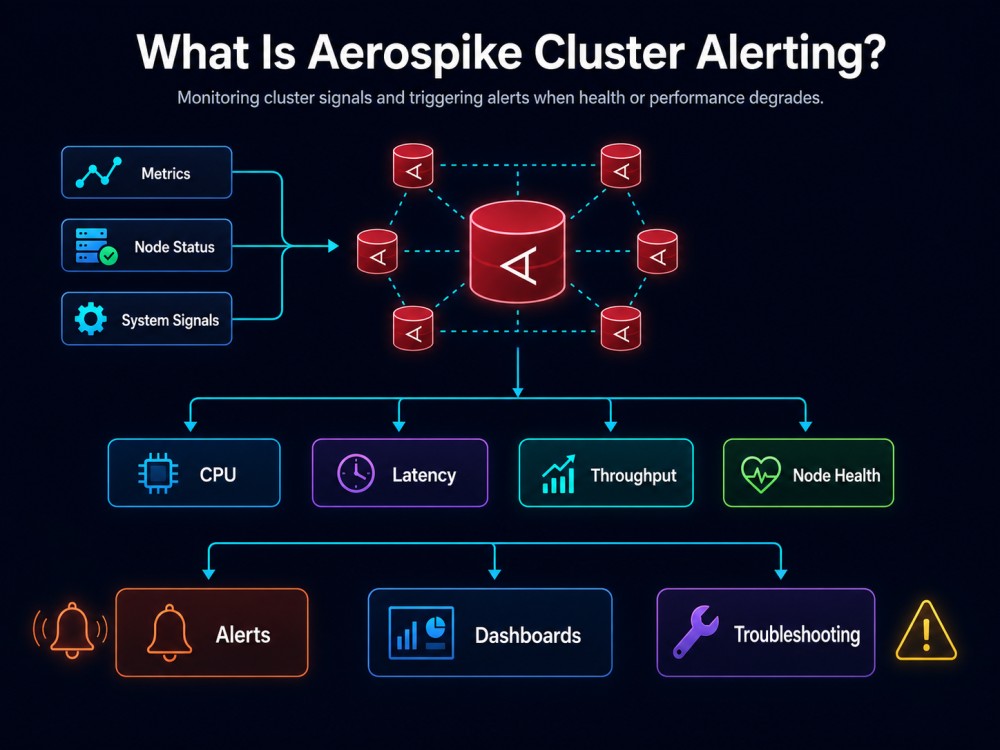
Aerospike cluster alerting is the practice of continuously monitoring key performance and health metrics across Aerospike nodes and namespaces, and automatically notifying operators when those metrics cross defined thresholds. These alerts cover node availability, memory pressure, storage utilization, replication lag, network partition events, and transaction error rates.
The goal is to detect and resolve issues before they cascade into user facing failures. An alert that fires when a single node’s memory utilization hits 85% gives operators time to rebalance data or add capacity. Without that alert, the node fills to capacity, starts evicting data unexpectedly, and impacts application behavior.
Aerospike itself does not include a native alerting system. Instead, it exposes metrics via Prometheus compatible exporters, system logs, and change notification streams. External monitoring tools consume these signals, evaluate alert rules, and route notifications to Slack, PagerDuty, email, or other channels.
Most production Aerospike deployments use one of three approaches: Prometheus and Grafana with custom alert rules, vendor managed observability platforms that support Aerospike integrations, or self hosted platforms like CubeAPM that ingest Aerospike metrics via OpenTelemetry or Prometheus exporters. The choice depends on team size, existing monitoring stack, and whether telemetry data can leave the infrastructure.
How Aerospike Alerting Works
Aerospike alerting operates in four stages: metric collection, metric aggregation and evaluation, rule matching, and notification routing. Each stage depends on external tools because Aerospike itself focuses on database operations, not observability orchestration.
Metric Collection
Aerospike exposes metrics through the Prometheus exporter, which scrapes the Aerospike cluster and publishes metrics in Prometheus format. The exporter connects to each Aerospike node via the Info protocol, retrieves hundreds of metrics covering node health, namespace statistics, set-level data, and cluster stability, and exposes them on an HTTP endpoint.
Common metrics collected include aerospike_node_stats_uptime, aerospike_namespace_memory_used_bytes, aerospike_namespace_available_pct, aerospike_namespace_client_read_error, aerospike_namespace_migrate_records_transmitted, and aerospike_namespace_stop_writes. These metrics are timestamped and labeled with node ID, namespace, and cluster metadata.
The exporter runs as a sidecar container in Kubernetes deployments or as a standalone process on VMs. It scrapes Aerospike every 10 to 30 seconds depending on the configured interval.
Metric Aggregation and Evaluation
Once metrics are collected, a monitoring backend Prometheus, Grafana Mimir, or a vendor platform like CubeAPM ingests, stores, and evaluates them against alert rules. Prometheus evaluates rules using PromQL queries that aggregate metrics across time windows or node groups.
For example, a rule that fires when any namespace’s available memory drops below 20% might use the query aerospike_namespace_available_pct < 20. A rule that detects sustained high read latency across all nodes might use avg(rate(aerospike_namespace_client_read_timeout[5m])) by (cluster) > 0.05.
Evaluation happens continuously. Prometheus checks each rule at a defined interval, typically every 15 to 60 seconds. When a rule condition is met for the specified duration, the alert transitions from pending to firing.
Rule Matching and Alert State
Alerts have three states: inactive, pending, and firing. An alert enters pending when the condition first becomes true. If the condition remains true for the configured duration typically 1 to 5 minutes the alert moves to firing and triggers a notification. This delay prevents flapping caused by transient spikes.
Alert rules can include labels and annotations that provide context. Labels group related alerts, allowing notification routing based on severity or cluster. Annotations embed dynamic data like the exact node ID, namespace name, or current metric value into the alert message.
Notification Routing
Once an alert fires, the monitoring platform routes it to configured receivers. Prometheus Alertmanager handles routing for Prometheus-based setups, matching alerts to receivers based on labels, grouping related alerts to reduce noise, and sending notifications via webhooks, email, Slack, PagerDuty, or other integrations.
A typical routing configuration sends critical alerts to PagerDuty for immediate oncall escalation, warning-level alerts to a Slack channel for team visibility, and info-level alerts to a logging system for post-incident review. Some teams use escalation policies that page a secondary oncall engineer if the primary does not acknowledge within 10 minutes.
Key Metrics to Monitor in Aerospike Clusters
Aerospike exposes hundreds of metrics, but only a subset are critical for alerting. Monitoring every available metric creates alert fatigue. The metrics below represent the core signals that detect real production issues.
Node Health and Availability
Track aerospike_node_stats_uptime to detect node restarts or crashes. A sudden drop in uptime indicates an unexpected restart, which can signal memory pressure, kernel panics, or configuration errors.
Monitor aerospike_node_stats_cluster_size to detect cluster membership changes. When this metric decreases, it means a node left the cluster either due to network partition, process failure, or manual shutdown. When it increases unexpectedly, it can indicate accidental node additions or split brain scenarios.
Alert when aerospike_node_stats_cluster_integrity is false. This metric indicates the cluster has detected inconsistencies or partition issues that require operator intervention.
Memory and Storage Utilization
Aerospike stores data in memory or on SSD depending on namespace configuration. Memory pressure is the most common cause of unexpected evictions and performance degradation.
- Monitor
aerospike_namespace_memory_used_bytesand calculate the percentage of total namespace memory consumed. Alert when utilization exceeds 85%. At 90%, Aerospike may start evicting data based on the configured eviction policy, which can cause cache misses and application errors. - Track
aerospike_namespace_available_pctdirectly if available, which shows remaining capacity. Alert when this drops below 20%. - For disk-backed namespaces, monitor
aerospike_namespace_device_available_pct. Alert when disk utilization exceeds 80%. Full disks cause write failures and can trigger stop writes mode, halting all write operations to the namespace. - Monitor
aerospike_namespace_stop_writesas a boolean. When this is true, the namespace has entered stop writes mode, meaning the cluster is rejecting write requests. This requires immediate action to free up space or add capacity.
Replication and Migration
Aerospike replicates data across nodes for fault tolerance. When nodes join, leave, or fail, the cluster rebalances data through migration. Slow or stalled migrations indicate network issues, resource contention, or misconfigurations.
- Track
aerospike_namespace_migrate_records_transmittedandaerospike_namespace_migrate_records_receivedto monitor migration progress. If these metrics stop increasing during an active migration, the process has stalled. - Monitor
aerospike_namespace_unavailable_partitionsto detect partition availability issues. Any value above zero indicates data partitions are unavailable, meaning some data cannot be read or written. This requires immediate investigation. - Alert on
aerospike_namespace_dead_partitions. This metric indicates partitions with no available replicas. Data in dead partitions is inaccessible and may be lost if not resolved quickly.
Transaction Performance and Errors
Transaction metrics reveal how the cluster is handling client requests. High error rates or latency indicate capacity problems, misconfigurations, or application issues.
- Monitor
aerospike_namespace_client_read_errorandaerospike_namespace_client_write_errorto detect transaction failures. Calculate error rate as errors per second or as a percentage of total transactions. Alert when the error rate exceeds 1% sustained over 5 minutes. - Track
aerospike_namespace_client_read_timeoutandaerospike_namespace_client_write_timeout. High timeout rates indicate the cluster cannot process requests fast enough, often due to memory pressure, slow disks, or network latency. - Monitor
aerospike_namespace_client_read_successandaerospike_namespace_client_write_successto understand baseline transaction volume. Use these to calculate error and timeout rates as percentages.
Cluster Connectivity and Network Partition
Aerospike clusters rely on heartbeat messages to detect node failures and maintain cluster membership. Network partitions or heartbeat failures can cause split-brain scenarios where the cluster splits into separate subclusters.
- Monitor
aerospike_node_stats_heartbeat_received_foreignandaerospike_node_stats_heartbeat_received_self. An increase in foreign heartbeats indicates that another cluster or duplicate node IDs are present on the network. - Track
aerospike_node_stats_fabric_connections_openedandaerospike_node_stats_fabric_connections_closedto detect fabric connection churn. High churn indicates network instability or node restarts. - Alert when
aerospike_node_stats_cluster_keychanges unexpectedly across nodes. Different cluster keys mean nodes disagree on cluster membership, indicating a partition or configuration mismatch.
Best Practices for Aerospike Alerting
Alerting is not just about setting thresholds. Poorly configured alerts create noise, causing teams to ignore real incidents. The practices below reduce false positives and improve response times.
Use Duration Thresholds to Prevent Flapping
Transient spikes are common in distributed systems. A single node might report 95% memory utilization for 10 seconds during a compaction cycle, then drop back to normal. Alerting immediately on this spike creates a false positive.
Set duration thresholds that require the condition to persist before firing. For memory alerts, require the condition to be true for at least 2 minutes. For replication lag, require 5 minutes. For cluster integrity issues, alert immediately without duration because these indicate serious problems.
Prometheus supports this with the for clause in alert rules. For example, for: 5m means the condition must be true for 5 consecutive minutes before the alert fires.
Alert on Trends, Not Absolute Values
Alerting when disk utilization hits 80% is useful, but alerting when utilization increases by 20% in 1 hour is often more actionable. The trend alert gives earlier warning and prevents the threshold alert from firing during expected traffic patterns.
Use rate functions in PromQL to calculate metric changes over time. For example, rate(aerospike_namespace_memory_used_bytes[1h]) > 1e9 alerts when memory usage is increasing by more than 1 GB per hour.
Group Alerts by Cluster and Namespace
A single Aerospike cluster issue can trigger dozens of alerts if every node and namespace fires independently. Grouping alerts by cluster or namespace consolidates related notifications into a single message.
In Prometheus Alertmanager, use the group_by configuration to group alerts by labels like cluster, namespace, or severity. This reduces alert noise and makes it easier to correlate related issues.
Include Diagnostic Context in Alert Messages
An alert that says “Aerospike memory high” requires the operator to open Grafana, find the right dashboard, and identify the affected node and namespace. An alert that says “Aerospike namespace user-data on node 10.0.1.5 is at 92% memory utilization” gives immediate context.
Use annotations in Prometheus alert rules to embed dynamic data. For example, summary: "Namespace {{ $labels.namespace }} on node {{ $labels.node }} is at {{ $value }}% memory" includes the namespace name, node ID, and current value in the alert message.
Test Alerts in Staging Before Production
Deploy alert rules to a staging or development cluster first. Trigger the condition manually by filling memory, stopping a node, or simulating high error rates. Verify that the alert fires, that the notification reaches the correct channel, and that the message includes useful context.
Testing prevents situations where a critical alert rule has a typo and never fires, or where notifications are routed to a channel no one monitors.
Set Separate Thresholds for Warning and Critical Alerts
Not every threshold breach requires immediate action. Use two-tier alerting with warning and critical levels. A warning alert at 85% memory utilization notifies the team in Slack with no oncall escalation, giving them time to investigate during business hours. A critical alert at 95% memory pages the oncall engineer immediately.
This approach prevents alert fatigue while ensuring urgent issues get attention.
Monitor Alert Rule Evaluation Time
Complex alert rules with expensive PromQL queries can slow down Prometheus evaluation cycles, causing delays in firing alerts. Monitor the metric prometheus_rule_evaluation_duration_seconds to identify slow rules.
If an alert rule takes more than 5 seconds to evaluate, simplify the query, reduce the time window, or precompute the metric using recording rules.
Tools and Platforms for Aerospike Alerting
Most Aerospike deployments use one of three approaches: Prometheus and Grafana with custom rules, managed SaaS platforms with built-in Aerospike support, or self-hosted observability platforms that ingest Aerospike metrics alongside other telemetry. Each approach has trade-offs in setup complexity, cost, and data control.
Prometheus and Grafana

Prometheus is the most common open source choice for Aerospike monitoring. The Aerospike Prometheus Exporter connects to Aerospike nodes, scrapes metrics, and exposes them in Prometheus format. Prometheus then scrapes the exporter, stores the metrics, and evaluates alert rules defined in YAML.
Grafana provides dashboards for visualizing Aerospike metrics. The Aerospike Monitoring Stack includes prebuilt Grafana dashboards and Prometheus alert rules covering the most common failure modes.
Setting up Prometheus and Grafana requires deploying and managing both services. For Kubernetes clusters, this typically involves Helm charts, persistent storage for Prometheus data, and configuration files for exporters and alert rules. For VM-based deployments, it means installing and maintaining Prometheus, Grafana, and the exporter as systemd services.
The operational overhead is non trivial. Teams report spending 10 to 20 hours initially setting up the stack and 5 to 10 hours per month maintaining it, tuning alert rules, and troubleshooting exporter issues. This is manageable for platform teams but often too heavy for smaller engineering groups.
Prometheus and Grafana are free and open source, but infrastructure costs apply. A production Prometheus deployment handling 500,000 active time series requires 8 to 16 GB of RAM and 100 GB of SSD storage per month of retention. Grafana adds another 2 to 4 GB of RAM. Cloud VM costs for this setup range from $100 to $300 per month depending on region and provider.
CubeAPM
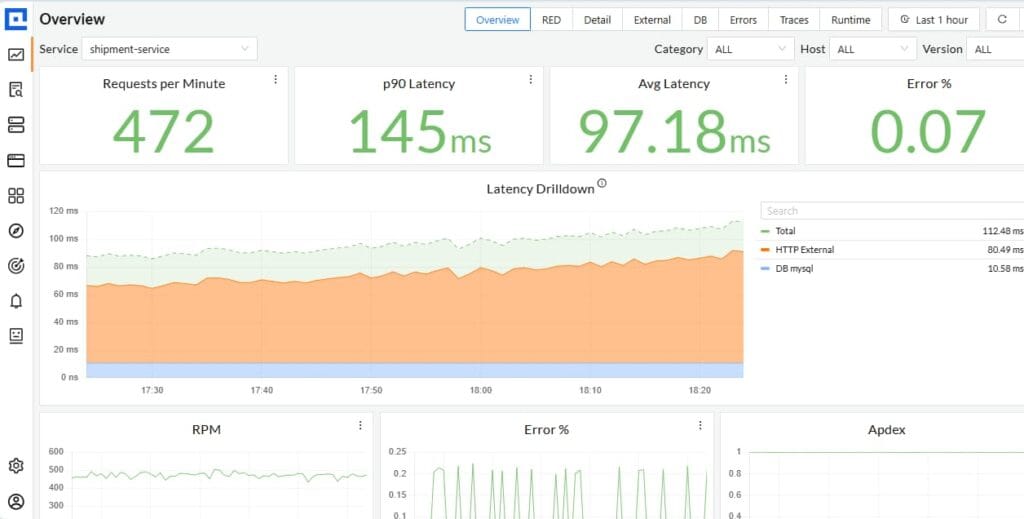
CubeAPM is a self hosted observability platform that runs inside your VPC or on premises. It ingests Aerospike metrics via the Prometheus exporter or OpenTelemetry Collector, stores them with unlimited retention, and provides a unified interface for metrics, logs, and traces.
For Aerospike monitoring, CubeAPM eliminates the need to deploy and maintain separate Prometheus and Grafana instances. The platform includes prebuilt dashboards for Aerospike clusters, automatic metric indexing, and an alerting engine that routes notifications to Slack, PagerDuty, or email.
Because CubeAPM runs on your infrastructure, telemetry data never leaves your environment. This simplifies compliance for teams with data residency requirements and eliminates public cloud egress fees. For a 50-node Aerospike cluster generating 10 GB of metrics per month, avoiding $0.10/GB egress fees saves $1 per month per GB or $10 per month. At larger scales with 500 GB of metrics, that saving becomes $50 per month.
CubeAPM pricing is $0.15/GB for all ingested telemetry with no separate fees for indexing, users, or retention. For an Aerospike deployment generating 50 GB of metrics per month, the cost is $7.50 per month plus the infrastructure cost to run CubeAPM itself, which is typically $0.02/GB or $1 per month for 50 GB.
Setting up Aerospike monitoring in CubeAPM follows the same pattern as Prometheus. Deploy the Aerospike Prometheus exporter, configure CubeAPM to scrape the exporter endpoint, and create alert rules using the built-in alerting interface. The difference is that CubeAPM provides a single platform for Aerospike metrics, application traces, Kubernetes events, and logs, eliminating the need to correlate data across multiple tools.
A logistics company running a 40-node Aerospike cluster reported that consolidating Aerospike metrics, application traces, and Kubernetes monitoring into CubeAPM reduced mean time to root cause by 35% because operators no longer switched between Grafana, Jaeger, and Kibana to correlate signals during incidents.
Datadog

Datadog offers an Aerospike integration that collects metrics using the Aerospike Prometheus exporter and routes them into Datadog’s managed platform. Datadog provides prebuilt dashboards, alert templates, and integrations with 700+ other services.
Datadog pricing for infrastructure monitoring starts at $18 per host per month with 15 months of metric retention. For a 50-node Aerospike cluster, that is $900 per month before APM, logs, or custom metrics. Adding APM at $31 per host brings the total to $2,450 per month.
Datadog simplifies setup but introduces cost unpredictability. One Reddit user documented their Datadog bill increasing from $900 to $8,000 in a month after a traffic spike increased custom metric cardinality. For Aerospike clusters that auto-scale or handle variable traffic, this cost variability is a significant risk.
Datadog’s SaaS-only model also means telemetry data leaves your infrastructure, which rules it out for teams with strict data residency or compliance requirements.
Grafana Cloud
Grafana Cloud offers managed Prometheus and Grafana with an Aerospike integration. Pricing is usage-based: $0.48 per million active series per month for metrics, $0.50 per GB for logs, and $0.50 per GB for traces.
For an Aerospike cluster generating 500,000 active time series, the cost is $240 per month for metrics alone. Adding logs and traces pushes the total above $400 per month for mid-sized deployments.
Grafana Cloud has a generous free tier with 10,000 series, 50 GB of logs, and 50 GB of traces per month, making it a good option for small teams or development environments. Beyond the free tier, costs scale linearly with metric cardinality, which is predictable but becomes expensive at scale.
New Relic

New Relic supports Aerospike monitoring through its Infrastructure agent and Prometheus integration. Metrics are ingested at $0.4 per GB beyond the 100 GB free tier.
For an Aerospike cluster generating 50 GB of metrics per month, the cost is $17.50 per month. For 500 GB, it is $140 per month. New Relic also charges $99 per user per month for full platform access, which includes APM, logs, and dashboards. For a 5-person team, that adds $495 per month.
New Relic’s proprietary NRQL query language creates lock-in. Every dashboard and alert written in NRQL is non-portable, making it harder to migrate to another platform later.
Setting Up Alerts for Aerospike: Step-by-Step
This section walks through setting up Aerospike alerting using Prometheus and Alertmanager. The same principles apply to other platforms, but syntax and configuration locations differ.
Step 1: Deploy the Aerospike Prometheus Exporter
The Aerospike Prometheus exporter runs as a sidecar container in Kubernetes or as a standalone process on VMs. It connects to Aerospike nodes via the Info protocol and exposes metrics on an HTTP endpoint.
For Kubernetes, add the exporter as a sidecar in your Aerospike StatefulSet:
- name: aerospike-prometheus-exporter
  image: aerospike/aerospike-prometheus-exporter:latest
  args:
    - "--aerospike-host=localhost"
    - "--aerospike-port=3000"
    - "--bind=:9145"
  ports:
    - containerPort: 9145
name: metricsThis configuration assumes Aerospike runs on port 3000 and the exporter exposes metrics on port 9145.
For VM deployments, download the exporter binary and run it as a systemd service:
./aerospike-prometheus-exporter \
  --aerospike-host=127.0.0.1 \
  --aerospike-port=3000 \
--bind=:9145Verify the exporter is running by accessing http://localhost:9145/metrics. You should see hundreds of metrics in Prometheus format.
Step 2: Configure Prometheus to Scrape the Exporter
Add a scrape configuration to prometheus.yml that targets the exporter endpoint:
scrape_configs:
  - job_name: 'aerospike'
    static_configs:
      - targets: ['aerospike-node-1:9145', 'aerospike-node-2:9145']
    relabel_configs:
      - source_labels: [__address__]
target_label: instanceFor Kubernetes, use a ServiceMonitor if you are running the Prometheus Operator:
apiVersion: monitoring.coreos.com/v1
kind: ServiceMonitor
metadata:
  name: aerospike-metrics
spec:
  selector:
    matchLabels:
      app: aerospike
  endpoints:
    - port: metrics
interval: 30sReload the Prometheus configuration and verify that the Aerospike metrics appear in the Prometheus UI under Status > Targets.
Step 3: Create Alert Rules
Alert rules are defined in YAML files and loaded into Prometheus. Each rule specifies a PromQL query, a duration threshold, and annotations for context.
Create a file named aerospike-alerts.yaml:
groups:
  - name: aerospike
    rules:
      - alert: AerospikeNamespaceMemoryHigh
        expr: aerospike_namespace_memory_used_pct > 85
        for: 5m
        labels:
          severity: warning
        annotations:
          summary: "Namespace {{ $labels.namespace }} memory usage high"
          description: "Namespace {{ $labels.namespace }} on node {{ $labels.node }} is at {{ $value }}% memory utilization."
      - alert: AerospikeNamespaceMemoryCritical
        expr: aerospike_namespace_memory_used_pct > 95
        for: 2m
        labels:
          severity: critical
        annotations:
          summary: "Namespace {{ $labels.namespace }} memory critical"
          description: "Namespace {{ $labels.namespace }} on node {{ $labels.node }} is at {{ $value }}% memory. Immediate action required."
      - alert: AerospikeStopWrites
        expr: aerospike_namespace_stop_writes == 1
        for: 1m
        labels:
          severity: critical
        annotations:
          summary: "Namespace {{ $labels.namespace }} in stop writes mode"
          description: "Namespace {{ $labels.namespace }} is rejecting writes. Free up space immediately."
      - alert: AerospikeNodeDown
        expr: up{job="aerospike"} == 0
        for: 2m
        labels:
          severity: critical
        annotations:
          summary: "Aerospike node {{ $labels.instance }} down"
          description: "Node {{ $labels.instance }} is unreachable or stopped."
      - alert: AerospikeHighReadErrors
        expr: rate(aerospike_namespace_client_read_error[5m]) > 100
        for: 3m
        labels:
          severity: warning
        annotations:
          summary: "High read error rate on namespace {{ $labels.namespace }}"
description: "Namespace {{ $labels.namespace }} is experiencing {{ $value }} read errors per second."Load the rules into Prometheus by referencing the file in prometheus.yml:
rule_files:
- "aerospike-alerts.yaml"Reload Prometheus and verify the rules appear in the Prometheus UI under Alerts.
Step 4: Configure Alertmanager for Notifications
Alertmanager routes alerts to notification channels. Create an alertmanager.yml configuration file:
global:
  resolve_timeout: 5m
route:
  receiver: 'default'
  group_by: ['cluster', 'namespace']
  group_wait: 30s
  group_interval: 5m
  repeat_interval: 3h
  routes:
    - match:
        severity: critical
      receiver: 'pagerduty'
    - match:
        severity: warning
      receiver: 'slack'
receivers:
  - name: 'default'
    webhook_configs:
      - url: 'http://localhost:5001/webhook'
  - name: 'pagerduty'
    pagerduty_configs:
      - service_key: 'your-pagerduty-key'
  - name: 'slack'
    slack_configs:
      - api_url: 'https://hooks.slack.com/services/your/slack/webhook'
        channel: '#alerts'
text: '{{ range .Alerts }}{{ .Annotations.summary }}: {{ .Annotations.description }}{{ end }}'This configuration groups alerts by cluster and namespace, routes critical alerts to PagerDuty, and sends warnings to Slack.
Start Alertmanager and configure Prometheus to send alerts to it by adding this to prometheus.yml:
alerting:
  alertmanagers:
    - static_configs:
- targets: ['localhost:9093']Step 5: Test the Alert Pipeline
Trigger an alert manually to verify the pipeline works. The easiest way is to temporarily lower an alert threshold or generate synthetic load that crosses the threshold.
For example, create a test rule that always fires:
- alert: TestAlert
  expr: vector(1)
  labels:
    severity: warning
  annotations:
summary: "Test alert"Reload Prometheus and check that the alert appears in the Prometheus UI, transitions to firing, and sends a notification to Slack or PagerDuty within the configured intervals.
Once verified, remove the test rule and restore production thresholds.
Disclaimer: The information in this article reflects the latest details available at the time of publication and may change as technologies and products evolve. Features, pricing, and plan limits can change over time. Always verify the latest information directly with the vendor before making purchasing or deployment decisions.
Frequently Asked Questions
What metrics should I monitor for Aerospike clusters?
Monitor namespace memory utilization, disk usage, replication lag, transaction error rates, cluster membership, and partition availability. These metrics cover the most common failure modes in production Aerospike deployments.
How do I prevent alert fatigue from Aerospike monitoring?
Use duration thresholds to require conditions to persist before firing, group alerts by cluster and namespace to consolidate related notifications, and set separate warning and critical thresholds to avoid paging for non-urgent issues.
Can I use OpenTelemetry to monitor Aerospike?
Yes. The OpenTelemetry Collector can scrape the Aerospike Prometheus exporter using the Prometheus receiver and forward metrics to any OpenTelemetry-compatible backend. This allows you to use a single telemetry pipeline for Aerospike, applications, and infrastructure.
What is the best tool for Aerospike alerting?
Prometheus and Grafana are the most common open source choice. For teams that want a managed solution with data control, CubeAPM provides a self hosted platform with unlimited retention and predictable pricing. For teams already on Datadog or New Relic, their Aerospike integrations work but cost more at scale.
How often should Aerospike metrics be scraped?
Scrape intervals of 15 to 30 seconds are standard. Shorter intervals increase metric resolution but also increase storage and query load on the monitoring backend. For most deployments, 30 seconds is sufficient.
Do I need to monitor every Aerospike namespace separately?
Yes. Each namespace has independent configuration, storage, and replication behavior. Alerts should be scoped to individual namespaces so operators can identify the exact namespace under pressure.
How do I alert on Aerospike cluster splits or network partitions?
Monitor `aerospike_node_stats_cluster_integrity` and `aerospike_node_stats_cluster_key`. If cluster integrity is false or if different nodes report different cluster keys, the cluster has experienced a partition or configuration mismatch.