









Aerospike’s distributed architecture makes it fast, but latency issues can still hide in plain sight. A single slow node, a gradual memory leak, or network congestion between data centers can degrade user-facing API response times before your alerting system even notices. Without structured latency monitoring, teams discover problems only after customers complain.
This guide walks through setting up comprehensive Aerospike latency monitoring using native histogram data, log parsing tools, and external APM platforms. You will learn what latency thresholds matter, how to read histogram output, and how to correlate latency spikes with infrastructure metrics to diagnose root causes faster.
Prerequisites
Before starting, ensure you have:
- Aerospike Server 3.9 or later (post-3.9 versions have improved histogram granularity)
- SSH or kubectl access to Aerospike nodes
- asadm installed (Aerospike Admin tool) or asloglatency script from GitHub
- Access to Aerospike log files, typically
/var/log/aerospike/aerospike.log - Basic understanding of Aerospike namespaces and set configuration
- Optional: Prometheus, Grafana, or an APM tool like CubeAPM for long-term metric storage
Step 1: Understand What Aerospike Histograms Track
Aerospike tracks latency using histograms that count operations in time buckets. Each histogram measures how long operations took to complete, broken into intervals: 0-1ms, 1-2ms, 2-4ms, 4-8ms, and so on up to 64ms and beyond.
The key histograms to monitor are:
{namespace}-read: read latency per namespace{namespace}-write: write latency per namespace{namespace}-query: query latency for secondary index queriesbatch-index: latency for batch read operations
Each histogram bucket shows the percentage of operations that exceeded a given threshold. For example, if {test}-write shows 1.40 in the 1ms column, that means 1.40% of write operations took longer than 1ms to complete.
Aerospike exposes this data in two ways: real time via the asinfo command, and historically via log files. Live monitoring uses asinfo, while post-incident analysis uses log parsing.
Step 2: Query Live Latency Histograms Using asinfo
The asinfo command queries Aerospike’s info protocol to retrieve current histogram data. Run this on any Aerospike node:
asinfo -v 'latency:'This returns latency histograms for all namespaces. To filter by namespace:
asinfo -v 'latency:namespace=test'The output shows time buckets and the percentage of operations exceeding each threshold:
{test}-write
Nov 15 2025 14:22:10 GMT
% > (ms)
ops/sec    1        8       64
14:22:20 35243.0 1.40 0.12 0.00This means in the last 10 seconds, 35,243 write operations occurred. Of those, 1.40% took longer than 1ms, 0.12% took longer than 8ms, and none exceeded 64ms.
For real time monitoring, query this every 10-60 seconds and push the output to a time series database or APM platform. Most production setups scrape asinfo output using Prometheus exporters or custom scripts.
Step 3: Parse Historical Latency Data Using asloglatency
The asloglatency tool parses Aerospike log files and calculates latency percentiles over time. This is essential for diagnosing incidents that already happened.
Download the script from the Aerospike GitHub repository:
git clone https://github.com/aerospike-examples/asloglatency.git
cd asloglatencyBasic usage to analyze write latency for the test namespace over the last hour:
./log_latency.py -h {test}-write -f -3600 -d 1:00:00This analyzes the last 3600 seconds (1 hour) of logs, slicing data into 10 second intervals. Output looks like this:
{test}-write
Nov 15 2025 13:15:45
% > (ms)         slice-to (sec)  1      8      64     ops/sec
--------------   --------------  -----  -----  -----  --------
13:15:55         10              1.40   1.19   0.00   35535.6
13:16:05         10              1.46   1.21   0.00   35143.0
13:16:15         10              1.48   1.25   0.00   35235.0
...
--------------   --------------  -----  -----  -----  --------
avg                              1.46   1.24   0.00   35029.0
max 1.56 1.33 0.00 35535.6Each row shows a 10 second slice. The 1ms column shows what percentage of operations took longer than 1ms. The ops/sec column shows throughput.
To monitor reads instead:
./log_latency.py -h {test}-read -f -3600 -d 1:00:00For continuous monitoring during an incident, run in tail mode:
./log_latency.py -h {test}-write -f tailThis streams live latency analysis until you press Ctrl+C. Press Enter to see average and max values.
Step 4: Set Latency Alert Thresholds Based on Application SLAs
Aerospike is fast, but “fast” is relative to your SLA. An e-commerce checkout API might require p99 writes under 5ms, while a batch analytics job can tolerate 50ms without user impact.
Recommended starting thresholds for user-facing workloads:
- p50 reads/writes: under 1ms
- p99 reads/writes: under 8ms
- p99.9 reads/writes: under 64ms
If more than 1-2% of operations exceed 8ms, investigate. If more than 5% exceed 1ms, you likely have a configuration, network, or hardware bottleneck.
For batch workloads, relax these thresholds. Batch reads often run 10-20ms and that is acceptable as long as throughput stays high.
Configure alerts in your APM tool or monitoring stack to fire when these percentiles degrade over consecutive intervals. A single 10 second spike is often noise. Sustained degradation over 2-3 minutes signals a real problem.
Step 5: Correlate Latency Spikes with Infrastructure Metrics
Latency rarely degrades in isolation. When {namespace}-write latency jumps from 1.2% over 1ms to 8% over 1ms, the root cause is usually one of these:
- CPU saturation: Check
topormpstaton Aerospike nodes. If CPU is pegged at 100%, writes queue. - Memory pressure: Run
free -h. If swap is in use, Aerospike slows dramatically. - Disk I/O: For namespace configurations using SSD persistence, check
iostat -x 1. If%utilis above 80%, disk is the bottleneck. - Network congestion: Use
iftopornetstat -sto check for retransmits or packet loss. - Cluster rebalancing: During node additions or failures, rebalancing can spike latency. Check
asadmcluster state.
Most infrastructure monitoring tools can correlate Aerospike latency with these system-level metrics. Platforms like CubeAPM, Datadog, or Prometheus can overlay latency histograms with CPU/memory/disk charts to pinpoint the exact moment infrastructure stress started.
For example, if latency spikes at 14:22 and CPU jumped to 95% at 14:21, the CPU is the likely culprit. If latency spikes but CPU/memory/disk look normal, investigate network latency between clients and Aerospike nodes.
Step 6: Monitor Aerospike Namespace-Level Configuration Impact
Aerospike performance varies significantly based on namespace storage configuration. The three main storage modes are:
- In-memory only: Fastest, but limited by RAM. Latency is typically sub-millisecond.
- In-memory with SSD persistence: Reads are fast (sub-ms), writes require disk flush (1-5ms typical).
- SSD-only (no in-memory index): Reads and writes hit disk, latency 5-20ms typical.
Check your namespace configuration in /etc/aerospike/aerospike.conf:
namespace test {
    memory-size 64G
    storage-engine device {
        file /opt/aerospike/data/test.dat
        filesize 512G
    }
}If storage-engine is set to memory, all data is RAM-only. If device is configured, data persists to SSD.
Latency expectations change based on this. If you are seeing 10ms p99 writes on an in-memory namespace, something is wrong. If you are seeing the same on an SSD-backed namespace with large object sizes, that might be normal.
Monitor write amplification and defragmentation stats using:
asadm -e 'show statistics namespace'Look for device_available_pct and memory_free_pct. If either drops below 20%, latency will degrade as Aerospike works harder to find free space.
Step 7: Use APM Tools to Track Aerospike Query Performance in Context
Aerospike latency does not exist in a vacuum. A slow Aerospike query often shows up as a slow API response time in your application. Connecting the two requires distributed tracing.
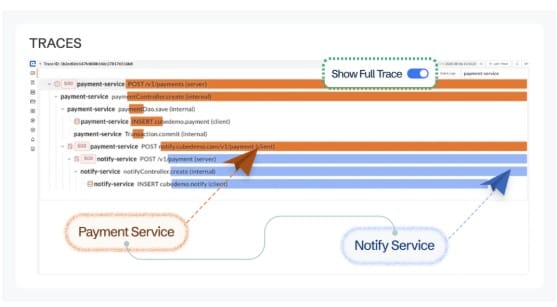
APM tools like CubeAPM, Datadog, or New Relic can instrument your application code to trace requests end to end. When an API call hits your backend, the APM agent records:
- API endpoint latency
- Database query latency (including Aerospike)
- External service calls
- Memory/CPU during the request
This makes it possible to see that a 200ms API response time was caused by a 180ms Aerospike read, which was slow because the specific node handling that key was under memory pressure.
For CubeAPM users, Aerospike metrics can be scraped via Prometheus exporters and correlated with APM traces in a single dashboard. This gives full stack visibility: from user request, through application logic, down to the exact Aerospike histogram bucket that spiked.
Most platforms support OpenTelemetry, meaning you can instrument your Aerospike client library to emit trace spans for every read/write operation. This is especially useful in microservices architectures where a single user request fans out to multiple Aerospike namespaces.
Step 8: Monitor Cross-Datacenter Replication Latency
If you run Aerospike in a multi-datacenter setup using XDR (Cross-Datacenter Replication), monitor replication lag. XDR latency does not directly impact client operations, but it affects data consistency across regions.
Check XDR lag using:
asadm -e 'show statistics xdr'Key metrics to track:
lag: Time in seconds between when a write occurred and when it was replicatedthroughput: Records replicated per secondunshipped_bins: Number of bins waiting to replicate
If lag exceeds 10-20 seconds consistently, investigate network bandwidth between datacenters or check if the destination cluster is under CPU/disk pressure.
For monitoring tools that support Prometheus, the Aerospike Prometheus exporter exposes XDR metrics. Query aerospike_xdr_lag to track replication delay over time.
Troubleshooting Common Issues
High Latency on a Single Node
If one node in your cluster shows higher latency than others, the issue is usually local to that node. Common causes:
- Hardware degradation: Run
smartctlon SSDs to check for failing drives - Network issues: Use
pingandtraceroutefrom other nodes to check connectivity - Uneven data distribution: Run
asadm -e 'show distribution'to see if one node holds disproportionate data
Solution: Migrate traffic away from the degraded node, investigate hardware, or rebalance the cluster.
Latency Spikes During Deployments
Aerospike supports rolling upgrades, but poorly timed restarts can cause temporary latency spikes. During a node restart, the cluster rebalances partitions, which increases CPU and network load.
Solution: Use asadm to monitor cluster state before and after restarts. Ensure migrations_in_progress returns to zero before restarting the next node. Space restarts at least 5-10 minutes apart.
Sudden Latency Increase Across All Nodes
If every node shows degraded latency simultaneously, the issue is external to Aerospike. Common causes:
- Network saturation: A traffic spike or DDoS can overwhelm network bandwidth
- Upstream service slowness: If Aerospike queries depend on external APIs, those delays propagate
- Client-side connection pool exhaustion: Check application logs for connection timeouts
Solution: Correlate Aerospike latency with application-level metrics. If API response times spike before Aerospike latency, the bottleneck is upstream.
Memory Pressure Causing Evictions
If memory_free_pct drops below 10%, Aerospike starts evicting records to free space. Evictions cause write latency spikes as the server works to find evictable records.
Solution: Increase memory-size in namespace configuration or reduce TTL on records to allow faster expiration. Monitor evicted_objects stat to track eviction rate.
Conclusion
Aerospike latency monitoring is not a one-time setup. It requires continuous tracking of histogram data, correlation with infrastructure metrics, and proactive alerting on degradation patterns. Teams that rely on asinfo polling, log analysis with asloglatency, and APM-level tracing can detect problems before customers do.
Start with the native tools, asinfo and asloglatency, then layer in infrastructure monitoring and distributed tracing for full visibility. Set alert thresholds based on your SLA, not on arbitrary percentiles, and always investigate spikes in context with CPU, memory, disk, and network data.
Disclaimer: The information in this article reflects the latest details available at the time of publication and may change as technologies and products evolve. Features, pricing, and plan limits can change over time. Always verify the latest information directly with the vendor before making purchasing or deployment decisions.
Frequently Asked Questions
What latency thresholds should I set for Aerospike alerts?
For user-facing workloads, alert when p99 latency exceeds 8ms or when more than 2% of operations take longer than 1ms. For batch workloads, relax this to 20-50ms depending on your SLA.
How do I check Aerospike latency in real time?
Run `asinfo -v ‘latency:’` on any Aerospike node to see current histogram data. For continuous monitoring, scrape this output every 10-60 seconds using Prometheus or an APM tool.
What causes Aerospike write latency to spike suddenly?
Common causes include CPU saturation, memory pressure triggering evictions, disk I/O bottlenecks on SSD-backed namespaces, network congestion, or cluster rebalancing during node failures or additions.
Can I monitor Aerospike latency with Prometheus?
Yes. Use the official Aerospike Prometheus exporter to scrape latency histograms and other metrics. This allows long-term storage and alerting via Prometheus and Grafana.
How does CubeAPM help with Aerospike monitoring?
CubeAPM correlates Aerospike latency metrics with application traces and infrastructure data in a single platform. It supports OpenTelemetry and Prometheus ingestion, making it possible to track slow queries from user request down to the exact Aerospike operation.
What is the difference between asinfo and asloglatency?
`asinfo` queries live histogram data from running Aerospike nodes, useful for real time monitoring. `asloglatency` parses historical log files to analyze latency trends after incidents have occurred.
Does Aerospike latency monitoring work the same way for in-memory and SSD-backed namespaces?
Latency patterns differ significantly. In-memory namespaces typically show sub-millisecond latency, while SSD-backed namespaces see 1-5ms writes due to disk persistence. Monitor both, but set different alert thresholds based on storage mode.