










Exit code 137 appears in both Docker and Kubernetes when a container receives SIGKILL and is immediately terminated. The most common cause is the Linux OOM killer stepping in when a container exceeds its memory limits. But exit code 137 does not always mean out of memory, and that distinction matters for debugging. Kubernetes adds complexity here: exit code 137 can also appear when a pod is evicted due to node pressure, when a deployment is forcibly terminated during a rollout, or when resource quotas are enforced at the namespace level.
This comparison explains what exit code 137 means in Docker versus Kubernetes, identifies the real causes behind it, and shows how to debug and prevent it in production. If you need visibility into container health, resource saturation, and pod-level failures across Kubernetes environments, Kubernetes monitoring platforms help track exit codes, OOMKills, and node pressure in real time.
What Exit Code 137 Means: The SIGKILL Signal
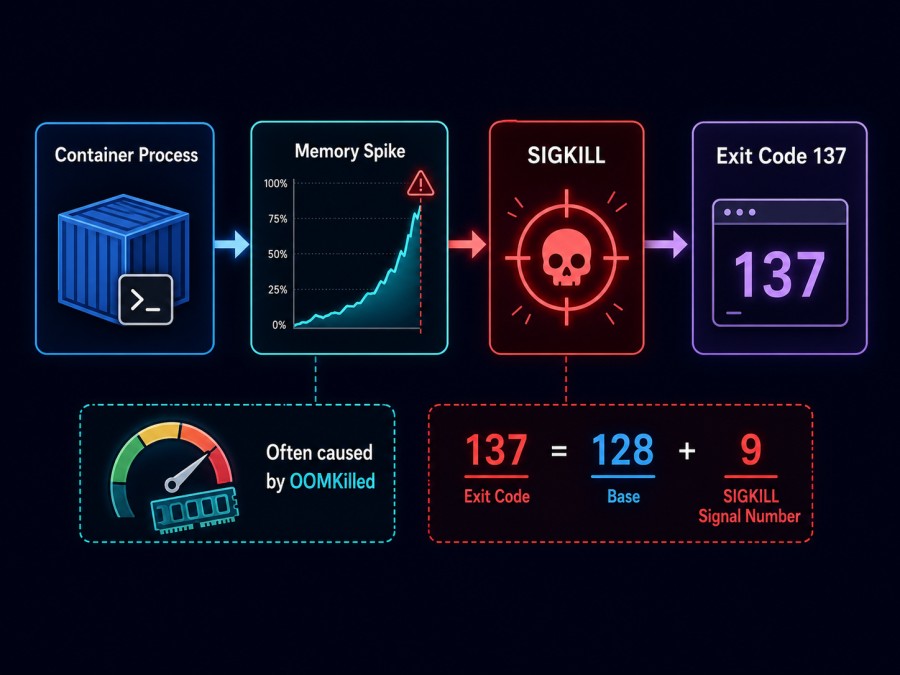
Exit code 137 is the result of a container process being terminated by SIGKILL (signal 9). The container receives no grace period and is killed immediately. The exit code is calculated as 128 + signal number, so 128 + 9 = 137.
SIGKILL is sent by the operating system or orchestrator when:
- The container exceeds its memory limit and the OOM killer intervenes
- Kubernetes evicts the pod due to node resource pressure
- A manual or scripted termination forces immediate shutdown
- The container runtime enforces resource quotas or namespace limits
In Docker, exit code 137 is typically tied to the container itself hitting a memory limit. In Kubernetes, exit code 137 can come from the container, the pod, the node, or the cluster scheduler, making root cause analysis harder.
Docker Exit Code 137: When and Why It Happens
In Docker, exit code 137 appears when a container’s process is killed by SIGKILL. The most common cause is the Linux OOM killer terminating the container because it exceeded its memory allocation.
When OOMKilled is true
If docker inspect <container_id> shows OOMKilled: true, the container was killed because it consumed more memory than its limit. This is the simplest case: increase the memory limit or fix the memory leak in the application.
docker run --memory="512m" myappIf the application needs more than 512 MB, either raise the limit or optimize the code.
When OOMKilled is false but exit code is 137
Exit code 137 with OOMKilled: false means the container received SIGKILL from another source. Possible causes include:
- Manual termination via
docker kill <container_id>sends SIGKILL directly - A CI/CD pipeline or orchestration script sends SIGKILL during cleanup
- The Docker daemon enforces CPU throttling or disk I/O limits in extreme cases
- A parent process managing multiple containers sends SIGKILL to child containers during shutdown
Check Docker logs to identify what sent the signal:
docker logs <container_id>
dmesg | grep -i killIf dmesg shows OOM killer messages for the container, the kernel killed it even if OOMKilled is false due to timing issues in how Docker reports the flag.
Kubernetes Exit Code 137: More Causes, More Complexity
Kubernetes introduces additional sources of SIGKILL beyond container memory limits. Exit code 137 in Kubernetes can be triggered by pod evictions, resource quotas, node pressure, or forced termination during deployments.
OOMKilled at the container level
If a container in Kubernetes hits its memory limit, the OOM killer terminates it and the pod status shows OOMKilled. This is identical to Docker behavior.
resources:
  limits:
memory: "512Mi"If the container exceeds 512 MiB, it receives SIGKILL and the exit code is 137.
Check the pod status:
kubectl describe pod <pod-name>Look for Last State: Terminated with Reason: OOMKilled and Exit Code: 137.
Pod eviction due to node pressure
Kubernetes evicts pods when the node runs out of memory, disk space, or inodes. The evicted pod’s containers receive SIGKILL and exit with code 137, but OOMKilled is false because the container itself did not exceed its limit. The node did.
Check node conditions:
kubectl describe node <node-name>Look for conditions like MemoryPressure: True, DiskPressure: True, or PIDPressure: True. If any of these are true, Kubernetes evicts pods to protect the node.
Preemption during resource quota enforcement
If a namespace has resource quotas and a higher-priority pod needs resources, Kubernetes preempts lower-priority pods by sending SIGKILL. The preempted pod exits with code 137.
Check namespace quotas:
kubectl describe resourcequota -n <namespace>If quota usage is at or near limits, preemption is likely.
Forced termination during deployments
When a Kubernetes deployment rolls out a new version, it terminates old pods. If the termination grace period expires before the pod shuts down cleanly, Kubernetes sends SIGKILL. This is intentional behavior but can appear as exit code 137.
Check the deployment strategy and grace period:
spec:
terminationGracePeriodSeconds: 30If the application takes longer than 30 seconds to shut down, increase the grace period or optimize shutdown logic.
How to Debug Exit Code 137 in Docker
Start with docker inspect to check OOMKilled:
docker inspect <container_id> | grep OOMKilledIf OOMKilled: true, increase memory limits or fix the application.
If OOMKilled: false, check system logs for manual kills or external signals:
dmesg | grep -i kill
journalctl -u docker.service | grep SIGKILLCheck resource usage at the time of termination:
docker stats <container_id>If memory usage was near the limit, raise the limit even if OOMKilled is false.
How to Debug Exit Code 137 in Kubernetes
Start with the pod status:
kubectl describe pod <pod-name>Look for Last State: Terminated, Reason, and Exit Code. If Reason: OOMKilled, the container exceeded its memory limit.
If OOMKilled is not shown, check node conditions:
kubectl describe node <node-name>If MemoryPressure, DiskPressure, or PIDPressure is true, the pod was evicted.
Check pod events for eviction messages:
kubectl get events --field-selector involvedObject.name=<pod-name>Check resource quotas if the namespace is resource-constrained:
kubectl describe resourcequota -n <namespace>If the pod was preempted, consider raising pod priority or increasing namespace limits.
Preventing Exit Code 137 in Production
Set appropriate memory limits in Docker:
docker run --memory="1g" --memory-reservation="512m" myappSet memory requests and limits in Kubernetes:
resources:
  requests:
    memory: "512Mi"
  limits:
memory: "1Gi"Requests guarantee minimum allocation. Limits enforce maximum usage. If the container exceeds the limit, it gets OOMKilled.
Enable pod autoscaling to prevent resource saturation:
apiVersion: autoscaling/v2
kind: HorizontalPodAutoscaler
spec:
  minReplicas: 2
  maxReplicas: 10
  metrics:
  - type: Resource
    resource:
      name: memory
      target:
        type: Utilization
averageUtilization: 70Monitor node resource pressure with alerts on MemoryPressure and DiskPressure conditions. If nodes consistently hit pressure, add more nodes or reduce pod density.
Increase termination grace periods for applications with slow shutdown logic:
spec:
terminationGracePeriodSeconds: 60This gives the application time to finish work before Kubernetes sends SIGKILL.
CubeAPM: Track Exit Codes, OOMKills, and Pod Evictions Across Kubernetes
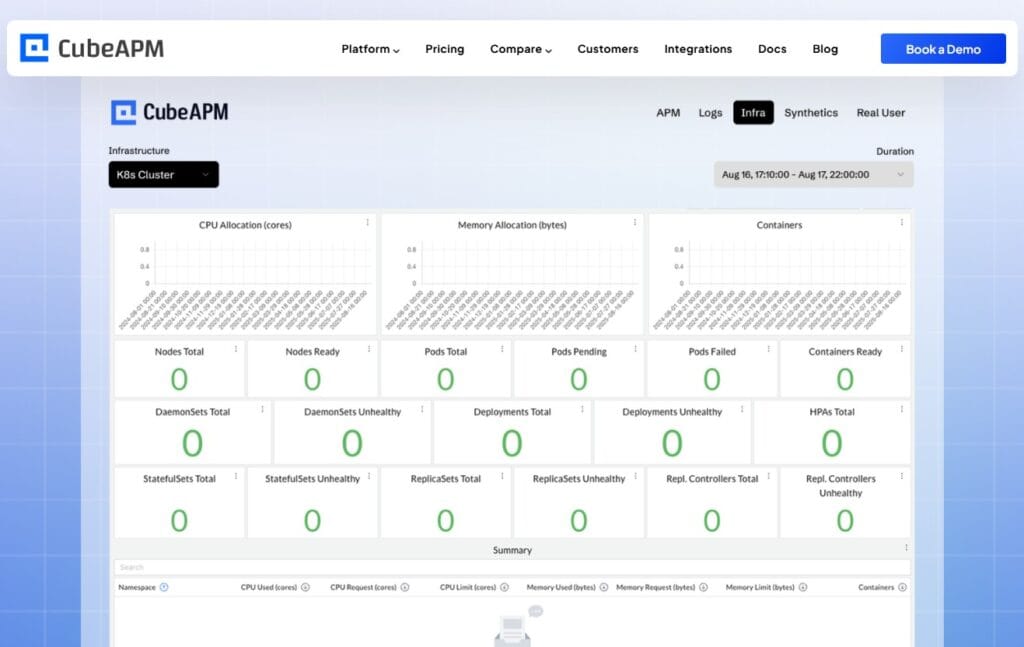
CubeAPM monitors Kubernetes at the pod, node, and cluster level, correlating exit codes with resource saturation, eviction events, and deployment changes. It surfaces OOMKilled events, node pressure conditions, and pod restart reasons in real time.
Track exit code 137 occurrences across all pods:
- Filter by exit code, namespace, or deployment
- Correlate with memory usage, CPU throttling, and node conditions
- Alert on repeated OOMKills or eviction patterns
See which pods are restarting due to exit code 137 and whether the cause is container limits, node pressure, or quota enforcement.
CubeAPM’s Kubernetes monitoring gives full visibility into pod restarts, resource saturation, and cluster health. Since CubeAPM runs on-premises, telemetry data stays inside your infrastructure at $0.15/GB with no egress fees or per-seat charges.
Disclaimer: Feature availability based on CubeAPM documentation as of current publication date. Verify current Kubernetes monitoring capabilities and pricing directly with CubeAPM before deployment.
Exit Code 137 in CI/CD Pipelines and GitLab Runners
GitLab CI/CD users frequently encounter exit code 137 in helper containers or job runners. The helper container exits with code 137 but Kubernetes does not report OOMKilled. This happens when the job exceeds resource limits defined in the GitLab Runner configuration or when the Kubernetes node evicts the pod due to pressure.
Check the GitLab Runner logs:
kubectl logs -n gitlab-runner <runner-pod-name>Look for memory usage spikes before the exit. Increase job memory limits in .gitlab-ci.yml:
variables:
  KUBERNETES_MEMORY_LIMIT: "2Gi"
KUBERNETES_MEMORY_REQUEST: "1Gi"If node pressure is the cause, add more nodes or reduce concurrent job limits in the GitLab Runner configuration.
Key Differences: Docker Exit Code 137 vs Kubernetes Exit Code 137
| Aspect | Docker | Kubernetes |
|---|---|---|
| Primary cause | Container exceeds memory limit | Container limit, pod eviction, or preemption |
| OOMKilled flag | Always set if OOM killer intervened | May be false if eviction or preemption caused it |
| Where to check | docker inspect <container_id> | kubectl describe pod <pod-name> |
| Node involvement | No node-level eviction | Node pressure triggers pod eviction |
| Grace period | None unless explicitly set | Configurable via terminationGracePeriodSeconds |
| Debugging complexity | Lower — single container scope | Higher — pod, node, and cluster interactions |
What to Do When Exit Code 137 Keeps Recurring
If exit code 137 appears repeatedly, follow this sequence:
- Check if
OOMKilledis true: if yes, increase memory limits or fix the memory leak - Check node pressure conditions: if true, scale nodes or reduce pod density
- Check resource quotas: if at limits, raise quotas or reduce pod resource requests
- Check deployment rollout behavior: if the grace period is too short, increase it
- Check for manual kills in logs: if CI/CD or scripts send SIGKILL, adjust the logic
Use monitoring tools to track memory trends, pod restart patterns, and node conditions over time. AWS Lambda monitoring and AWS RDS monitoring face similar memory limit issues, and the same debugging principles apply.
Conclusion
Exit code 137 signals SIGKILL termination in both Docker and Kubernetes. In Docker, it usually means the container exceeded its memory limit. In Kubernetes, it can also mean node pressure, pod eviction, resource quota enforcement, or forced termination during deployments. The OOMKilled flag helps narrow the cause, but exit code 137 with OOMKilled: false requires deeper investigation into node conditions, quota limits, and deployment behavior. Setting appropriate memory limits, monitoring node pressure, and increasing grace periods prevent most exit code 137 occurrences in production.
Disclaimer: The information in this article reflects the latest details available at the time of publication and may change as technologies and products evolve. Features, pricing, and plan limits can change over time. Always verify the latest information directly with the vendor before making purchasing or deployment decisions.
Frequently Asked Questions
What does exit code 137 mean in Docker?
Exit code 137 in Docker means the container received SIGKILL and was immediately terminated. The most common cause is the Linux OOM killer stepping in when the container exceeds its memory limit. If `OOMKilled` is true, increase memory limits or fix the application.
What does exit code 137 mean in Kubernetes?
Exit code 137 in Kubernetes means a container received SIGKILL. Causes include container memory limits, pod eviction due to node pressure, preemption from resource quotas, or forced termination during deployments. Check pod status, node conditions, and resource quotas to identify the root cause.
Why is OOMKilled false when exit code is 137?
Exit code 137 with `OOMKilled: false` means the container received SIGKILL from a source other than the OOM killer. Possible causes include manual termination, pod eviction due to node pressure, preemption, or forced shutdown during deployment rollouts.
How do I prevent exit code 137 in Kubernetes?
Set appropriate memory requests and limits, enable horizontal pod autoscaling, monitor node pressure conditions, increase termination grace periods for slow shutdown applications, and scale nodes when resource pressure is persistent.
What is the difference between exit code 137 in Docker and Kubernetes?
In Docker, exit code 137 usually means the container exceeded its memory limit. In Kubernetes, it can also mean pod eviction, preemption, or forced termination during deployments. Kubernetes adds node-level and cluster-level causes that Docker does not have.
How do I debug exit code 137 in GitLab CI/CD?
Check GitLab Runner logs for memory usage spikes, increase job memory limits in `.gitlab-ci.yml`, check node pressure conditions, and reduce concurrent job limits if nodes are resource-constrained.
What exit code indicates a segmentation fault in containers?
Exit code 139 indicates a segmentation fault (SIGSEGV). Do not confuse it with exit code 137, which indicates SIGKILL. Debugging a segfault requires stack traces and core dumps, not memory limit adjustments.