










AWS RDS automatically publishes metrics to CloudWatch every minute for every active database instance, at no extra charge. The challenge is not access – it is knowing which of the dozens of available metrics actually predict problems before your users notice them, and what thresholds to set on each.
The 9 metrics below cover the full health picture of an RDS instance: compute, memory, storage, I/O, connections, latency, and replication. Together, they tell you whether your database is healthy, degrading, or approaching failure.
Key Takeaways
- All 9 metrics live in the AWS/RDS namespace and are free – no Enhanced Monitoring required
- FreeStorageSpace and FreeableMemory are reported in bytes in CloudWatch, not GB or MB – set alarm thresholds in bytes or your alarms will be misconfigured
- CPUUtilization and FreeableMemory are the two most common slow-burn problems – they degrade gradually and look fine until they do not
- ReplicaLag only applies if you have read replicas – if you do, it is critical; if you do not, skip it
- CloudWatch metrics tell you what happened at the instance level – they do not tell you which query caused it
Quick Reference: The 9 Metrics That Matter
| Metric | What it tells you | Alert threshold |
| CPUUtilization | Processing load on the DB instance | > 80% for 15 minutes |
| FreeableMemory | Available RAM before swapping to disk | < 268,435,456 bytes (256 MB) |
| FreeStorageSpace | Remaining disk space | < 10% of allocated storage (in bytes) |
| DatabaseConnections | Active connections to the instance | > 80% of your max connections |
| ReadLatency | Average time per disk read operation | > 20ms sustained |
| WriteLatency | Average time per disk write operation | > 20ms sustained |
| DiskQueueDepth | I/O requests waiting for disk access | > 1 sustained |
| ReplicaLag | How far behind a read replica is | > 30 seconds |
| ReadIOPS / WriteIOPS | Disk I/O operations per second | > 80% of your allocated IOPS ceiling |
1. CPUUtilization
What it is: The percentage of CPU consumed by the DB instance. RDS measures this at the hypervisor level. If you need an OS-level CPU breakdown per process, you need Enhanced Monitoring on top of this.
What good looks like: Below 70% in steady state with headroom for traffic spikes. Brief spikes during batch jobs or automated maintenance windows are normal.
What bad looks like: Sustained CPU above 80% means the instance cannot keep up with query load. Queries begin to queue, response times climb, and connections eventually time out.
Alert threshold to set:
- Warning: CPUUtilization > 70% for 10 minutes
- Critical: CPUUtilization > 80% for 15 minutes
The practical trap: CPU sitting at 95% is obvious. CPU slowly climbing from 40% to 65% over two weeks is the dangerous one – your workload is growing faster than you noticed, and there is no headroom left for the next traffic spike.
What to do when it fires: Open Performance Insights and identify the top SQL statements consuming CPU. Optimize the worst offenders before resizing the instance – a missing index costs nothing to fix; an instance class upgrade runs month after month.
2. FreeableMemory
What it is: The amount of available RAM in bytes. When FreeableMemory drops low, the OS begins swapping active data pages from memory to disk – a condition that destroys query performance fast.
What good looks like: Consistently above 25% of instance RAM. On a db.r6g.large with 16 GB RAM, that is roughly 4 GB free.
What bad looks like: Below 256 MB, the instance is almost certainly swapping. ReadIOPS and ReadLatency will spike together as the buffer pool spills to storage.
Alert threshold to set:
- Warning: FreeableMemory < 536,870,912 bytes (512 MB)
- Critical: FreeableMemory < 268,435,456 bytes (256 MB)
The bytes trap: CloudWatch receives FreeableMemory in bytes. The RDS console may display it in MB, but your alarm threshold must be set as a byte value. 256 MB = 268,435,456 bytes.
The relationship to ReadIOPS: If FreeableMemory drops and ReadIOPS spikes at the same time, the working set has outgrown the buffer pool. The fix is scaling to a larger instance class with more RAM – not adding disk storage.
3. FreeStorageSpace
What it is: Available disk space remaining on the instance, in bytes. When this reaches zero, the database stops accepting writes entirely – no warnings, no gradual degradation.
What good looks like: Consistently above 20% of allocated storage. For a 500 GB instance, keep at least 100 GB free.
What bad looks like: Below 10% is your action threshold. Below 5% is a production emergency – basic operations, including connecting to the database, can fail.
Alert threshold to set:
- Warning: FreeStorageSpace < 15% of allocated storage
- Critical: FreeStorageSpace < 10% of allocated storage
The bytes trap: CloudWatch reports FreeStorageSpace in bytes. For a 500 GB instance, 10% = 50 GB = 53,687,091,200 bytes. Your alarm threshold must be a byte value.
aws cloudwatch put-metric-alarm \

  --alarm-name "rds-storage-low" \

  --metric-name FreeStorageSpace \

  --namespace AWS/RDS \

  --statistic Average \

  --period 300 \

  --evaluation-periods 1 \

  --threshold 53687091200 \

  --comparison-operator LessThanThreshold \

  --dimensions Name=DBInstanceIdentifier,Value=your-db-instance \

--alarm-actions arn:aws:sns:us-east-1:123456789:your-alert-topicOn storage autoscaling: RDS can expand the disk automatically when free space drops below 10%, but autoscaling has a cooldown period and a maximum threshold you set at launch. Do not rely on it as your only protection – the alarm is still necessary.
4. DatabaseConnections
What it is: The number of active client connections to the DB instance at a given point in time.
What good looks like: Well below the instance’s max connections limit, which varies by instance class and engine. For MySQL and PostgreSQL on RDS, max connections is calculated from available memory – roughly DBInstanceClassMemory / 12582880 for MySQL.
What bad looks like: Connections approaching the max limit mean new connection attempts are refused with errors. Applications see immediate failures, not slow degradation.
Alert threshold to set:
- Warning: DatabaseConnections > 80% of your instance’s max connections
- Critical: DatabaseConnections > 90% of your instance’s max connections
The Lambda connection trap: Each Lambda invocation that opens a direct RDS connection without a connection pool can exhaust the connection limit in seconds at scale. If your workload involves Lambda or other short-lived serverless functions connecting to RDS, use RDS Proxy in front of your instance – it pools and multiplexes connections so the database never sees the raw invocation count.
5. ReadLatency and WriteLatency
What it is: The average time per disk I/O read and write operation, in seconds. These metrics capture how long your storage tier is taking to respond – the primary signal for storage bottlenecks.
What good looks like: Single-digit milliseconds consistently. On gp3 storage with a well-sized workload, ReadLatency and WriteLatency should stay well below 5ms.
What bad looks like: Sustained latency above 20ms means storage is struggling to keep up. Per AWS guidance, if read or write latency consistently stays above 20ms, the storage type may need to be upgraded.
Alert threshold to set:
- Warning: ReadLatency or WriteLatency > 10ms sustained over 5 minutes
- Critical: ReadLatency or WriteLatency > 20ms sustained over 10 minutes
aws cloudwatch put-metric-alarm \
--alarm-name "rds-write-latency-high" \
--metric-name WriteLatency \
--namespace AWS/RDS \
--statistic Average \
--period 300 \
--evaluation-periods 2 \
--threshold 0.02 \
--comparison-operator GreaterThanThreshold \
--dimensions Name=DBInstanceIdentifier,Value=your-db-instance \
--alarm-actions arn:aws:sns:us-east-1:123456789:your-alert-topicNote: WriteLatency threshold is set in seconds in the CLI – 20ms = 0.02.
The IOPS connection: High latency almost always accompanies high DiskQueueDepth. If both are elevated together, the instance is at its IOPS ceiling. The fix is switching to Provisioned IOPS (io1/io2) storage or reducing write-heavy query volume.
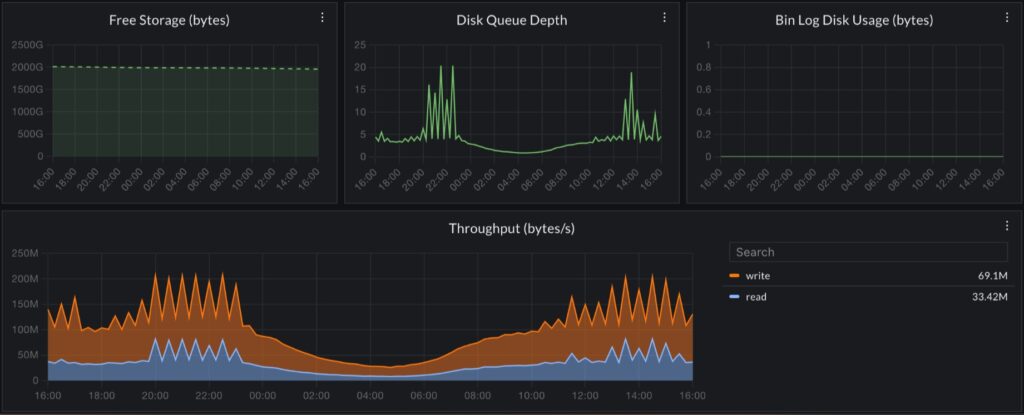
6. DiskQueueDepth
What it is: The number of I/O requests waiting in the queue to access the disk. A queue depth of zero means I/O requests are served immediately. A growing queue depth means storage cannot keep pace with demand.
What good looks like: Near zero in steady state. Some queueing during batch operations is expected and recovers quickly.
What bad looks like: DiskQueueDepth consistently above 1 means storage is a bottleneck. Every millisecond spent in the queue is added directly to ReadLatency and WriteLatency – it compounds.
Alert threshold to set:
- Warning: DiskQueueDepth > 1 sustained for 5 minutes
- Critical: DiskQueueDepth > 5 sustained for 5 minutes
7. ReadIOPS and WriteIOPS
What it is: The number of disk read and write I/O operations per second. Your storage type determines your IOPS ceiling. On gp3 storage, RDS provides a baseline of 3,000 IOPS and 125 MiB/s throughput included in the base price – no burst credits, no depletion.
What good looks like: The sum of ReadIOPS and WriteIOPS consistently below your allocated IOPS ceiling.
What bad looks like: Sustained IOPS at or near your ceiling causes latency to climb and DiskQueueDepth to grow. Both ReadLatency and WriteLatency will spike in tandem.
Alert threshold to set: Alert at 80% of your allocated IOPS. On a gp3 instance at the 3,000 IOPS baseline, alarm when ReadIOPS + WriteIOPS > 2,400.
The gp2 burst trap: gp2 volumes earn burst credits when IOPS usage is below baseline and spend them when above. An instance that looks healthy most of the day can exhaust its burst balance during peak traffic and suddenly spike latency with no obvious warning in the metric itself. If you are still on gp2, migrating to gp3 is straightforward, does not cause downtime, and removes burst credit mechanics entirely. Note: AWS is deprecating magnetic storage effective April 30, 2026 – if you are on magnetic storage, migration to gp3 or io2 is now urgent.
8. ReplicaLag
What it is: For RDS instances with read replicas, ReplicaLag measures how far behind the replica is from the primary, in seconds. A lag of zero means fully in sync. A growing lag means write throughput on the primary is outpacing replication.
What it does not apply to: If you have no read replicas, this metric is not emitted. Aurora tracks replication differently using its own AuroraReplicaLag metric in the same namespace.
What good looks like: Sub-second lag in steady state. Some lag during heavy write bursts is normal and usually self-corrects.
What bad looks like: ReplicaLag growing continuously means the replica is falling further behind every second. Applications reading from the replica see stale data. At high enough lag, reads may need to be rerouted to the primary.
Alert threshold to set:
- Warning: ReplicaLag > 30 seconds
- Critical: ReplicaLag > 60 seconds
Practical note: Lag spikes immediately after DDL operations (ALTER TABLE, index rebuilds) are expected – DDL is replicated after DML and can cause temporary spikes. These are usually self-resolving. Sustained lag unrelated to DDL is the signal to investigate write throughput on the primary.
Setting Up a Baseline Alert Stack
For a production RDS instance starting from scratch, implement these in order:
# CPU alert
aws cloudwatch put-metric-alarm \
--alarm-name "rds-cpu-high" \
--metric-name CPUUtilization \
--namespace AWS/RDS \
--statistic Average \
--period 300 \
--evaluation-periods 3 \
--threshold 80 \
--comparison-operator GreaterThanThreshold \
--dimensions Name=DBInstanceIdentifier,Value=your-db-instance \
--alarm-actions arn:aws:sns:us-east-1:123456789:your-alert-topic
# Freeable memory alert (256 MB = 268435456 bytes)
aws cloudwatch put-metric-alarm \
--alarm-name "rds-memory-low" \
--metric-name FreeableMemory \
--namespace AWS/RDS \
--statistic Average \
--period 300 \
--evaluation-periods 2 \
--threshold 268435456 \
--comparison-operator LessThanThreshold \
--dimensions Name=DBInstanceIdentifier,Value=your-db-instance \
--alarm-actions arn:aws:sns:us-east-1:123456789:your-alert-topic
# Free storage alert (50 GB = 53687091200 bytes, for a 500 GB instance)
aws cloudwatch put-metric-alarm \

  --alarm-name "rds-storage-low" \

  --metric-name FreeStorageSpace \

  --namespace AWS/RDS \

  --statistic Average \

  --period 300 \

  --evaluation-periods 1 \

  --threshold 53687091200 \

  --comparison-operator LessThanThreshold \

  --dimensions Name=DBInstanceIdentifier,Value=your-db-instance \

--alarm-actions arn:aws:sns:us-east-1:123456789:your-alert-topicWhat CloudWatch RDS Metrics Cannot Tell You
CloudWatch answers one question well: Is something wrong with my database instance? It does not answer what caused it.
A CPUUtilization spike could mean a full table scan, a missing index, a sudden traffic surge, or a maintenance job running at the wrong time. FreeableMemory dropping could mean a query returning an unexpectedly large result set or a connection leak. The metric tells you the symptom – not the root cause.
Closing that gap requires two things CloudWatch alone cannot provide.
Performance Insights is AWS’s built-in query-level tool that shows which SQL statements are consuming the most database time, broken down by wait event type. Enable it on any production RDS instance. It is where you go after a CloudWatch alarm fires to find the specific query responsible.
Distributed tracing across your application and database – when your application shows high latency, and CloudWatch shows elevated RDS CPUUtilization, you are looking at two separate tools and correlating timestamps manually. Without a trace connecting them, you cannot tell whether the slow database call was caused by a bad query, a missing index, or an upstream service sending ten times the expected load.
Where CubeAPM Fits
CubeAPM instruments your application layer via the OpenTelemetry standard and surfaces each database call as a span inside the full request trace. When a CloudWatch alarm fires on RDS, you open CubeAPM and see exactly which application request triggered the spike, which query it ran, how long that query took relative to the rest of the request, and whether the same pattern is happening across other services. No switching between CloudWatch, Performance Insights, and a separate APM. No manual timestamp correlation. Everything self-hosted inside your own AWS account – no data leaves your environment.
Summary
| Metric | Threshold | Priority | Notes |
| CPUUtilization | > 80% for 15 min | High | Check Performance Insights when it fires |
| FreeableMemory | < 268,435,456 bytes | High | Threshold in bytes – not MB |
| FreeStorageSpace | < 10% allocated (bytes) | High | Threshold in bytes – adjust per instance size |
| DatabaseConnections | > 80% of max | High | Use RDS Proxy for Lambda workloads |
| WriteLatency | > 20ms sustained | Medium | 0.02 in CLI (seconds) |
| ReadLatency | > 20ms sustained | Medium | 0.02 in CLI (seconds) |
| DiskQueueDepth | > 1 sustained | Medium | Compounds into latency |
| ReplicaLag | > 30 seconds | High (if replicas exist) | DDL-related spikes are expected |
| ReadIOPS + WriteIOPS | > 80% of the IOPS ceiling | Medium | gp3 baseline: 3,000 IOPS |
Start with CPUUtilization, FreeableMemory, FreeStorageSpace, and DatabaseConnections – these four cover the most common failure modes. Add I/O and latency metrics once that baseline is in place. Enable Performance Insights alongside CloudWatch on any instance where query-level diagnosis matters.
Disclaimer: Configurations, thresholds, and CLI examples are for guidance only – verify against current AWS RDS documentation before applying to production. Metric behavior varies by instance class, storage type, and database engine. CubeAPM references reflect genuine use cases; evaluate all tools against your own requirements.
Also read:
How Do I Trace AWS Lambda Cold Starts with OpenTelemetry?
How to Monitor AWS Lambda Timeout Errors and Set Alerts
What Is the Difference Between Lambda Enhanced Monitoring and CloudWatch?