










By default, RDS PostgreSQL does not log slow queries. Every query runs, completes, or fails, and leaves no trace in your logs unless you explicitly configure it to. The result is that slow queries accumulate silently, degrading application performance, and you only find out when users start complaining.
Monitoring slow queries on RDS PostgreSQL requires setting up the right parameter group configuration, choosing the right tool for the job, and knowing where to look when something is already on fire.
Key Takeaways
- log_min_duration_statement is the primary parameter for slow query logging – set it in a custom parameter group, not the default one, which cannot be edited
- Do not set log_min_duration_statement to 0 in production – logging every query generates enormous log volume, fills FreeStorageSpace fast, and degrades instance performance
- pg_stat_statements gives you aggregate query statistics without reading log files – it is the fastest way to find your top offenders
- auto_explain captures execution plans for slow queries automatically – essential for understanding why a query is slow, not just that it is
- Performance Insights standard mode reaches end of life on June 30, 2026 – if you are using it, upgrade to Database Insights Advanced mode before that date
- Changes to log_min_duration_statement are dynamic and do not require a reboot – changes to shared_preload_libraries (for pg_stat_statements or auto_explain) require a reboot
The Three Tools and When to Use Each
| Tool | Best for | Setup required |
| log_min_duration_statement | Capturing slow queries in real time as they happen | Parameter group edit, no reboot |
| pg_stat_statements | Aggregate stats – finding the highest total execution time across all calls | Parameter group edit + reboot |
| auto_explain | Automatic EXPLAIN output for slow queries – finding why they are slow | Parameter group edit + reboot |
| Performance Insights / Database Insights | Visual dashboard for DB load, wait events, and top SQL | Enable per instance |
Step 1: Create a Custom Parameter Group
You cannot edit the default RDS parameter group. Before changing any parameters, create a custom one and attach it to your instance.
In the AWS Console:
- Go to RDS Console, choose Parameter groups, then Create parameter group
- Select your PostgreSQL version family (e.g., postgres16)
- Name it and save
- Attach it to your instance via Modify DB Instance
- Apply immediately or at the next maintenance window, depending on your tolerance for a brief restart
With AWS CLI:
aws rds create-db-parameter-group \

  --db-parameter-group-name my-postgres-params \

  --db-parameter-group-family postgres16 \

  --description "Custom parameter group for slow query monitoring"

aws rds modify-db-instance \

  --db-instance-identifier your-db-instance \

  --db-parameter-group-name my-postgres-params \

--apply-immediatelyStep 2: Enable Slow Query Logging with log_min_duration_statement
log_min_duration_statement sets the threshold in milliseconds above which queries are written to the PostgreSQL log. Queries below the threshold are not logged.
Recommended starting values:
| Environment | Value | What it captures |
| Production (baseline) | 1000 | Queries slower than 1 second |
| Production (investigation) | 500 | Queries slower than 500ms |
| Development | 100 | Queries slower than 100ms |
| Never in production | 0 | Every single query – dangerous |
aws rds modify-db-parameter-group \

  --db-parameter-group-name my-postgres-params \

--parameters "ParameterName=log_min_duration_statement,ParameterValue=1000,ApplyMethod=immediate"This change is dynamic – it takes effect without a reboot. The parameter group status will show “Applying” then “In-sync”.
Note: Make sure PostgreSQL logs are exported to CloudWatch. Without this, the logs only live on the instance.
#bash
aws rds modify-db-instance \

  --db-instance-identifier your-db-instance \

  --cloudwatch-logs-export-configuration EnableLogTypes=postgresql \

--apply-immediatelyWhat a slow query log line looks like in CloudWatch:
2025-04-15 14:23:11 UTC:10.0.1.50(45211):appuser@mydb:[12834]:LOG:
JOIN customers c ON o.customer_id = c.id WHERE o.status = ‘pending’
ORDER BY o.created_at DESC;
The security callout: AWS warns that query logs can expose passwords if your queries include credentials (for example, in ALTER USER or CREATE USER statements). Use the pgAudit extension if you need auditing with sensitive operations, as it redacts credential data from logs. See the AWS query logging security guidance before enabling broad logging in production.
Step 3: Enable pg_stat_statements for Aggregate Query Statistics
pg_stat_statements tracks execution statistics for every query that runs through the database – total calls, total time, mean time, rows returned, cache hit ratio. It is the fastest way to find which queries are consuming the most cumulative database time, even if no single execution is slow enough to appear in your slow query log.
Enable it in your parameter group:
aws rds modify-db-parameter-group \

  --db-parameter-group-name my-postgres-params \

  --parameters "ParameterName=shared_preload_libraries,ParameterValue=pg_stat_statements,ApplyMethod=pending-reboot"

Reboot the instance to apply:
aws rds reboot-db-instance --db-instance-identifier your-db-instanceCreate the extension in your database:
CREATE EXTENSION IF NOT EXISTS pg_stat_statements;On PostgreSQL 11 and later, RDS loads pg_stat_statements by default. You may only need to run CREATE EXTENSION. On PostgreSQL 10 and earlier, the shared_preload_libraries step is required.
Useful queries against pg_stat_statements:
Find the top 10 queries by total execution time:
SELECT

  query,

  calls,

  round(total_exec_time::numeric, 2) AS total_ms,

  round(mean_exec_time::numeric, 2) AS mean_ms,

  rows

FROM pg_stat_statements

ORDER BY total_exec_time DESC

LIMIT 10;Find queries with the worst cache hit ratio (high I/O cost):
SELECT

  query,

  calls,

  round(total_exec_time::numeric, 2) AS total_ms,

  round(100.0 * shared_blks_hit / nullif(shared_blks_hit + shared_blks_read, 0), 2) AS cache_hit_pct

FROM pg_stat_statements

ORDER BY cache_hit_pct ASC

LIMIT 10;Practical note: pg_stat_statements accumulates statistics until you reset it. Run SELECT pg_stat_statements_reset(); to clear the data and start fresh after a schema change or deployment.
Step 4: Capture Execution Plans with auto_explain
Knowing which queries are slow is step one. Knowing why – which index was skipped, whether a sequential scan replaced an index scan, where join cost exploded – requires execution plans. auto_explain logs the EXPLAIN output for any query exceeding your threshold automatically, without you needing to run EXPLAIN manually.
Add auto_explain to shared_preload_libraries:
#bash
aws rds modify-db-parameter-group \

  --db-parameter-group-name my-postgres-params \

  --parameters \

    "ParameterName=shared_preload_libraries,ParameterValue='pg_stat_statements,auto_explain',ApplyMethod=pending-reboot" \

    "ParameterName=auto_explain.log_min_duration,ParameterValue=1000,ApplyMethod=immediate" \

    "ParameterName=auto_explain.log_analyze,ParameterValue=1,ApplyMethod=immediate" \

"ParameterName=auto_explain.log_format,ParameterValue=text,ApplyMethod=immediate"Reboot the instance for shared_preload_libraries to take effect. The auto_explain.* parameters are dynamic after the library is loaded.
What auto_explain output looks like in the PostgreSQL log:
LOG: duration: 3421.882 ms plan:
Query Text: SELECT o.*, c.name FROM orders o JOIN customers c …
Seq Scan on orders (cost=0.00..89432.10 rows=21456 width=284)
(actual time=0.042..3418.221 rows=21456 loops=1)
Filter: (status = ‘pending’)
Rows Removed by Filter: 1043821
A sequential scan removing 1 million rows is a missing index. That is the answer in the log.
Important: Do not set auto_explain.log_min_duration to 0 in production. Logging every execution plan for every query creates enormous log output and measurably degrades performance.
Step 5: Find Currently Running Slow Queries
For live troubleshooting when the database is already slow, skip the logs and query pg_stat_activity directly:
-- Queries running longer than 5 minutes right now

SELECT

  pid,

  now() - query_start AS duration,

  state,

  usename,

  query

FROM pg_stat_activity

WHERE state = 'active'

  AND now() - query_start > interval '5 minutes'

ORDER BY duration DESC;
-- Queries blocked waiting on a lock
SELECT
pid,
now() - query_start AS duration,
wait_event_type,
wait_event,
query
FROM pg_stat_activity
WHERE wait_event IS NOT NULL
AND state = 'active'
ORDER BY duration DESC;If you find a query that needs to be terminated:
SELECT pg_terminate_backend(pid);Step 6: Search Slow Query Logs with CloudWatch Logs Insights
Once slow query logs are flowing to CloudWatch, use Logs Insights to search and aggregate them without downloading log files:
Find all queries slower than 5 seconds in the last hour:
fields @timestamp, @message
| filter @message like /duration:/
| parse @message “duration: * ms” as duration_ms
| filter duration_ms > 5000
| sort duration_ms desc
| limit 50
Count slow queries per 5-minute window to find spike patterns:
fields @timestamp, @message
| filter @message like /duration:/
| parse @message “duration: * ms” as duration_ms
| filter duration_ms > 1000
| stats count() as slow_count by bin(5m)
| sort @timestamp desc
Performance Insights and the 2026 Deadline
Performance Insights provides a visual dashboard showing database load broken down by wait event type, top SQL statements, and per-query execution time – without requiring log file analysis. Enable it on any production RDS PostgreSQL instance.
Important as of May 2026: Performance Insights standard mode reaches end of life on June 30, 2026. AWS has confirmed that after this date, instances on standard mode will be defaulted to Database Insights Standard mode, and features like execution plans and on-demand analysis will only be available in Database Insights Advanced mode. If you are currently using Performance Insights, check your instances now and upgrade to Database Insights Advanced mode before June 30, 2026. See the AWS documentation on enabling Database Insights Advanced mode for the upgrade path.
When Manual Analysis Is Not Enough
The tools above – logs, pg_stat_statements, auto_explain, Performance Insights – all answer the same narrow question: which queries on this RDS instance are slow? What they do not show is the journey a slow query took to get there.
When a user reports a slow page load, the slow query is often not the only cause. An ORM generating 47 queries where 1 would do, an application retrying a failed request 3 times before logging an error, a queue backing up upstream – none of this is visible in the RDS logs alone.
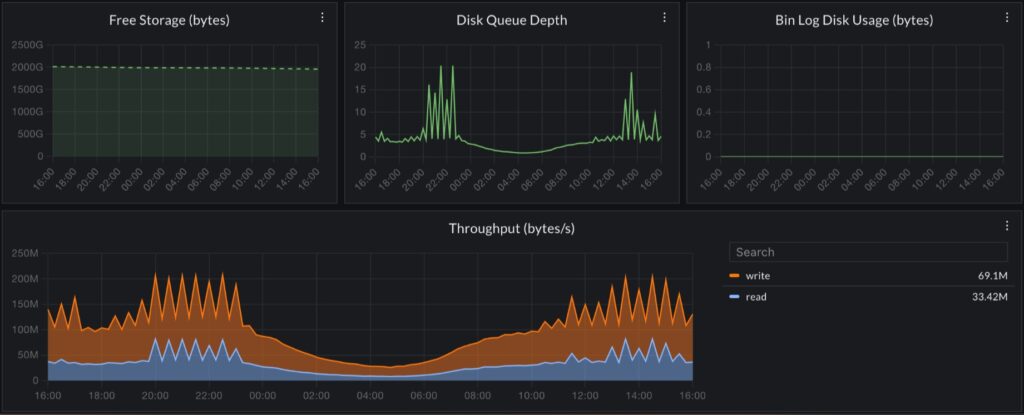
CubeAPM instruments your application via the OpenTelemetry standard and captures every database call as a span in the full request trace. When pg_stat_statements shows a query with high total execution time, CubeAPM shows you which application endpoint is generating it, how many times per request it runs, whether it is being called in a loop, and what the user was doing when it fired. The slow query diagnosis that would take 30 minutes of log correlation takes 2 minutes of trace navigation. Self-hosted inside your own AWS account, no data leaves your environment.
Summary
| What to configure | Parameter | Reboot required |
| Slow query logging threshold | log_min_duration_statement (ms) | No |
| Aggregate query statistics | pg_stat_statements via shared_preload_libraries | Yes |
| Automatic execution plan logging | auto_explain via shared_preload_libraries | Yes |
| Log export to CloudWatch | –cloudwatch-logs-export-configuration | No |
Start with log_min_duration_statement set to 1000ms – it requires no reboot and gives you immediate visibility into queries slower than 1 second. Add pg_stat_statements next to identify which queries consume the most cumulative time. Use auto_explain when you need to understand the execution plan of a known slow query without running EXPLAIN manually. Enable Performance Insights (or Database Insights Advanced) for visual monitoring alongside the log-based tools.
Disclaimer: Configurations and parameter values are for guidance only – verify against current AWS RDS PostgreSQL documentation before applying to production. Parameter behavior may vary by PostgreSQL version. CubeAPM references reflect genuine use cases; evaluate all tools against your own requirements.
Also Read:
How to Monitor AWS Lambda Timeout Errors and Set Alerts
What Is the Difference Between Lambda Enhanced Monitoring and CloudWatch?