










Google Cloud Platform (GCP) is the backbone for millions of production workloads: from containerized microservices running on Google Kubernetes Engine (GKE) to large-scale data pipelines in BigQuery. Keeping those workloads healthy, fast, and cost-efficient requires more than hope. It requires a structured approach to Google Cloud Platform (GCP) monitoring.
This guide explains everything engineers, SREs, and platform teams need to know: what GCP monitoring is, how the native tooling works, which metrics matter, how alerting and dashboards should be set up, what best practices to follow, and where third-party tools like CubeAPM fit in.
Whether you are instrumenting your first GCP project or hardening observability for an enterprise-scale environment, this guide covers it all.
What Is GCP Monitoring?
GCP Monitoring is how you keep tabs on what your applications and infrastructure are doing on Google Cloud. It collects telemetry (metrics, logs, traces) from your resources and surfaces that data so you can catch problems before users do. Google’s own tool for this is Cloud Monitoring, previously called Stackdriver. It’s part of the broader Google Cloud Operations Suite, sits on the same backend infrastructure Google uses internally, and handles scale most third-party tools can’t match out of the box.
The platform is built on the same backend infrastructure Google uses internally and stores more than 65 quadrillion data points on disk, according to Google Cloud’s own documentation. This scale means the system is engineered for reliability and can handle even the largest GCP environments.
At its core, GCP monitoring answers three operational questions:
- Is my infrastructure healthy?
- Are my applications performing as expected?
- Are there anomalies or threats I should act on?
Why GCP Monitoring Matters for Modern Cloud Operations
Cloud environments don’t stay still. Containers spin up and disappear. Serverless functions fire and finish in milliseconds. A VM that was healthy at 2pm can be thrashing by 2:05. If you’re not monitoring in real time, you’re finding out about problems from users, not dashboards.
The cost of that gap is real. Gartner puts unplanned downtime at around $5,600 per minute for enterprises. That specific figure gets debated, but the direction doesn’t. For SaaS products running on GCP, a few minutes of degraded performance can mean broken SLAs and churned customers.
Good monitoring on GCP does five things worth caring about:
- Cost control. Cloud bills are full of surprises. Monitoring gives you the utilization data to cut what you’re not using and right-size what you are.
- Proactive alerting. A slow query or memory spike caught early doesn’t become an outage. One caught by a user already has.
- Performance tuning. You can’t optimize what you’re not measuring. Latency, throughput, resource consumption: monitoring tells you where the actual bottlenecks are, not where you assume they are.
- Capacity planning. Historical data is what separates a reasonable scaling decision from a guess.
- Audit and compliance. For teams under HIPAA, GDPR, or SOC 2, anomaly detection and audit-ready logs aren’t optional. They’re what you show the auditor.
The Google Cloud Operations Suite: Core Components
Cloud Monitoring is one piece of a larger platform. Google bundles its observability tooling under the Google Cloud Operations Suite, formerly Stackdriver. Understanding what each component does matters because they overlap in ways that aren’t obvious, and reaching for the wrong one wastes time.
This is the central hub: metrics, dashboards, alerting, uptime checks. It pulls data from over 100 GCP services automatically, no agents needed. The exception is virtual machines. On Compute Engine instances, you need to install the Ops Agent to get system-level metrics like memory and disk utilization. Those don’t show up by default.
For Kubernetes workloads, Google offers Managed Service for Prometheus (GMP). It’s a fully managed, Prometheus-compatible metrics backend that integrates directly into GKE and supports both self-deployed and managed collection setups.
Cloud Logging collects and stores log data from GCP resources, third-party applications, and custom sources. It connects to Cloud Monitoring so you can build log-based metrics and trigger alerts on patterns in log data. Logs Explorer uses the Logging Query Language (LQL) for querying.
Logs can be routed out to BigQuery for long-term analytics, Cloud Storage for archival, or Pub/Sub if you need real-time streaming to an external SIEM.
Cloud Trace collects latency data across your application stack. It traces requests automatically for App Engine and provides instrumentation libraries for other environments. The main use case is understanding how long each step in a request path takes, which makes it useful for diagnosing slow API responses in microservices.
Profiler is different from tracing. Tracing follows requests. Profiler continuously samples CPU and heap memory usage in production to identify which functions in your code are consuming the most resources. It’s low-overhead by design, supports Go, Java, Node.js, and Python, and is the right tool when you know something is slow but tracing isn’t telling you why.
Cloud Error Reporting groups and counts application errors from your GCP services in real time. It surfaces the most critical issues in a dedicated dashboard, integrates with Cloud Logging, and sends notifications when new errors are detected. The metric that matters here is mean time to detection (MTTD).
If you’re running multiple GCP projects, Metrics Scope lets you centralize monitoring across all of them. One project acts as the scoping project and the others get added to it. The result is a single view across your entire environment without switching between consoles.
Key Metrics to Track in GCP
Cloud Monitoring is one piece of a larger platform. Google bundles its observability tooling under the Google Cloud Operations Suite, formerly Stackdriver. Understanding what each component does matters because they overlap in ways that aren’t obvious, and reaching for the wrong one wastes time.
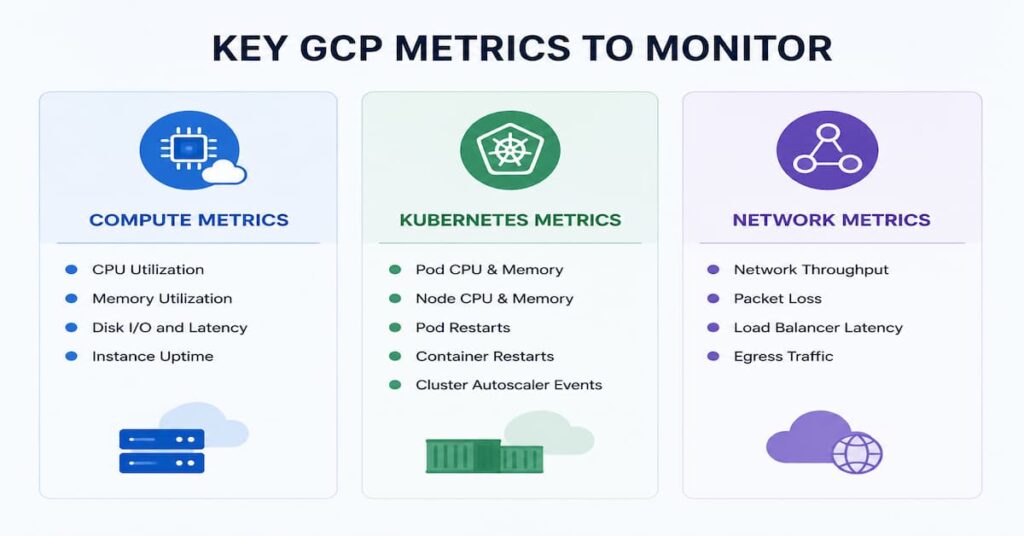
Compute Engine (Virtual Machines)
- CPU utilization
- Disk read/write operations and bytes
- Network ingress and egress
- Instance uptime
- Memory utilization (requires Ops Agent installation)
Google Kubernetes Engine (GKE)
- Node CPU and memory utilization
- Pod restart counts (key signal for OOM kills and crash loops)
- Container CPU throttling
- Persistent Volume Claim (PVC) usage
- Network policy violations
- Cluster API server latency
Cloud SQL
- Database connections (active and max)
- Query execution time
- CPU and memory utilization
- Disk usage and I/O operations
- Replication lag (for read replicas)
- Deadlock count
App Engine
- Request count and rate
- Response latency (p50, p95, p99)
- Error rate by HTTP status code
- Memory usage
- Instance count (for auto-scaling health)
Cloud Storage
- Request count by method (GET, PUT, DELETE)
- Sent and received bytes
- Error rates by error code
- Total stored bytes by bucket
BigQuery
- Query execution time
- Slot utilization
- Job completion rates and failures
- Scanned bytes per query (cost signal)
- Reservation usage
Cloud Run
- Request count and latency
- Container instance count (cold start frequency)
- CPU and memory utilization
- Request error rate by status code
Setting Up Monitoring in GCP: A Practical Walkthrough
You need a GCP project and the right IAM permissions before anything else. Once those are in place, here’s how to get monitoring running.
Step 1: Enable the Cloud Monitoring API
Cloud Monitoring is on by default in most GCP projects. If yours doesn’t have it, head to APIs and Services in the Cloud Console and switch it on. The API endpoint is monitoring.googleapis.com.
Step 2: Install the Ops Agent on Compute Engine VMs
The default Cloud Monitoring agent only collects CPU and network metrics. If you need memory, disk, or process-level data, you need the Ops Agent.
Run:
curl -sSO https://dl.google.com/cloudagents/add-google-cloud-ops-agent-repo.sh && \

sudo bash add-google-cloud-ops-agent-repo.sh --also-installThe Ops Agent combines metrics and logging collection into a single agent, replacing the older Monitoring and Logging agents. It deploys cleanly via Ansible, Chef, or Terraform if you’re managing at scale.
Step 3: Configure Managed Service for Prometheus (GKE)
On GKE, turn on Managed Service for Prometheus at the cluster level. GMP backs Prometheus metrics on Google’s globally consistent storage and lets you query via PromQL through either the Cloud Monitoring UI or the Prometheus Query API. No self-managed Prometheus setup needed.
Step 4: Create a Metrics Scope (Multi-Project Setup)
Pick one project as the host and add the rest as monitored projects under Cloud Monitoring settings. Everything flows into the host project’s dashboards and alerting policies. One place to look instead of logging into each project separately.
Step 5: Configure Uptime Checks
Uptime checks probe your HTTP, HTTPS, or TCP endpoints from locations around the world. Go to Monitoring > Uptime Checks, point it at your target URL, set a check interval of at least one minute, and define what a healthy response looks like. The check produces a metric you can wire directly into an alert.
Alerting Policies and Notification Channels
Alerts are the operational nervous system of GCP monitoring. Without well-configured alerting, even the most comprehensive dashboards are passive. A missed alert on a memory leak or a spike in 5xx errors can mean the difference between a 2-minute fix and a 2-hour outage.
How Alerting Policies Work
An alerting policy in Cloud Monitoring consists of three parts:
- A condition: the metric, threshold, and duration that triggers the alert (for example, CPU utilization > 80% for 5 minutes).
- A notification channel: where the alert is sent (email, PagerDuty, Slack, SMS, webhooks, etc.).
- Documentation: optional runbook text that is included in the notification to guide the responder.
Cloud Monitoring supports both threshold-based conditions and metric-absence conditions (alert when a metric stops reporting, which is valuable for detecting dead services). It also supports forecasting conditions, which alert when a metric is predicted to cross a threshold based on its current trend.
Supported Notification Channels
Cloud Monitoring natively supports the following notification channels:
- PagerDuty
- Slack
- SMS (via Pub/Sub or third-party integration)
- Webhooks (HTTP endpoints)
- Google Chat
- OpsGenie
- VictorOps
For incident management workflows, integrating Cloud Monitoring with PagerDuty or Opsgenie is recommended so alerts automatically create incidents, route to on-call schedules, and track resolution.
Alert Fatigue: A Critical Concern
Alert fatigue is one of the most common problems in GCP environments where alerting is set up without discipline. When every metric fires an alert, on-call engineers begin to ignore notifications, and real incidents get missed.
A few things that actually help:
- Alert on symptoms, not signals. High CPU is a signal. Users getting errors is a symptom. Set alerts to fire only if the condition requires a human to act on it right now.
- Set duration windows. A spike that lasts 90 seconds is usually not an incident. Configure your alerting policies to require the condition to persist before firing.
- Use multi-condition alerting. Requiring two or more conditions to be true simultaneously cuts false positives significantly.
- Audit your alert policies regularly. Services change, thresholds get stale, and alert policies that made sense six months ago often don’t anymore. Review and retire the ones that no longer reflect reality.
- Tie alerts to error budgets, not arbitrary numbers. An alert threshold pulled from thin air is hard to defend and harder to tune. If you’re running SLOs, burn rate alerts tied to your error budget give you something meaningful to act on.
GCP Monitoring Dashboards
Dashboards in Cloud Monitoring provide visual representations of metrics over time. A well-designed dashboard gives your team instant situational awareness during incidents and long-term visibility for capacity planning.
Types of Dashboards
Cloud Monitoring offers two types of dashboards:
- Predefined dashboards: Automatically generated for most GCP services. When you create a GKE cluster or Cloud SQL instance, Cloud Monitoring creates a default dashboard for it immediately.
- Custom dashboards: Built by your team using Metrics Explorer widgets, log-based metric charts, uptime check results, and more.
Metrics Explorer
Metrics Explorer is the interactive tool within Cloud Monitoring for ad-hoc metric exploration. You can select any metric, apply filters (for example, by resource label, zone, or instance name), group by dimensions, and adjust the time range and aggregation method. It supports the Monitoring Query Language (MQL), which provides more expressive filtering and aggregation than the point-and-click interface.
Dashboard as Code with Terraform
Clicking dashboards together in the Cloud Console doesn’t scale and it doesn’t version. Use the google_monitoring_dashboard Terraform resource instead. Define your dashboards in JSON or HCL, commit them to source control, and deploy them the same way you deploy everything else. No more “works in staging, missing in prod” dashboard drift.
Service Level Objectives (SLOs) in GCP
Service Level Objectives are at the heart of modern SRE practice. Cloud Monitoring has native SLO support, allowing teams to define, track, and alert on SLOs directly in the platform.
SLI, SLO, and Error Budget: The Concepts
- A Service Level Indicator (SLI) is the actual measurement: for example, the percentage of HTTP requests that return a 2xx response.
- A Service Level Objective (SLO) is the target: for example, 99.9% availability measured over a 30-day rolling window.
- An Error Budget is the allowable failure rate implied by the SLO: a 99.9% SLO allows for 0.1% failures, which is approximately 43.2 minutes of downtime per 30 days.
Creating SLOs in Cloud Monitoring
Cloud Monitoring allows you to define SLOs for any service using either automatic inference (for App Engine, GKE, and Cloud Run services) or custom definitions. Once an SLO is defined, Cloud Monitoring tracks the error budget burn rate and can alert when the budget is being consumed too quickly, which is a more actionable signal than raw threshold alerts.
This approach shifts alerting from “metric exceeded threshold” to “we are burning error budget at a rate that will exhaust our SLO in X hours,” enabling more precise, customer-centric incident prioritization.
GCP Monitoring Best Practices
Based on patterns from production GCP environments and Google Cloud’s own SRE guidance, the following best practices consistently differentiate mature monitoring setups from fragile ones.
Google’s SRE book defines four signals every user-facing service should track. They’re worth taking seriously because they cover the failure modes that actually matter in production.
- Latency: p50 tells you what’s normal. p95 and p99 tell you what your worst-off users are experiencing. Watch all three.
- Traffic: How much demand is the system receiving? Requests per second is the baseline. Know what normal looks like so you notice when it doesn’t.
- Errors: What is the rate of failed requests? Distinguish between client errors (4xx) and server errors (5xx).
- Saturation: CPU and memory headroom matter, but don’t overlook connection pools. That’s where services quietly choke before anything else shows up.
Labels are the primary mechanism for filtering and grouping metrics in Cloud Monitoring. Define a consistent labeling taxonomy across your GCP resources (for example, environment: production/staging, team: platform/backend, service: api-gateway) and apply it uniformly. Without consistent labels, filtering dashboards and alerts by environment or team is unreliable.
Self-managing Prometheus at scale is operationally expensive. Nobody enjoys managing Prometheus at scale. Retention policies, high availability, and storage scaling compound fast. On GKE, you can skip all of that. GMP gives you a Prometheus-compatible backend, and Google runs it. Your existing recording rules and alerting rules stay intact. You just stop babysitting the infrastructure.
Google Cloud’s built-in metrics cover infrastructure. They do not cover your application’s business logic. Use the Cloud Monitoring API, OpenTelemetry SDK, or Prometheus client libraries to emit custom metrics such as order processing rate, payment failure rate, or queue depth. These application-level metrics are often the most important signals for business continuity.
Start with what matters to your users, not what is easiest to measure. Figure out your SLOs first, then build the alerts that protect them. Teams that skip this step end up with dashboards full of metrics that don’t connect to anything users actually feel.
Clicking through the Cloud Console to configure alerting policies and dashboards doesn’t scale. Define everything in Terraform or another IaC tool. That way your monitoring config is version-controlled, reviewable, and consistent across projects. UI-managed monitoring drifts. Code-managed monitoring doesn’t.
Not everything worth tracking shows up in metrics. Some events only exist in logs. Cloud Logging lets you define metrics that count or extract values from log entries. A practical example: count occurrences of “payment failed” in your application logs and alert when that count crosses a threshold.
Cloud Monitoring keeps standard metrics for 6 weeks. Custom metrics get shorter retention by default. If you need data beyond that for trend analysis, capacity planning, or compliance, export to BigQuery via log sinks. You get unlimited retention and can query everything with SQL.
Third-Party and Open Source Monitoring Tools for GCP
Cloud Monitoring covers GCP infrastructure well. It’s less strong on application performance, deep log analytics, and anything spanning multiple clouds. That’s where third-party tools come in.
CubeAPM
CubeAPM fits GCP monitoring when teams need visibility beyond what Cloud Monitoring provides natively. For example, Cloud Monitoring is strong for GCP resource metrics, but teams running GKE services, APIs, background jobs, and multi-cloud workloads often need deeper correlation between traces, logs, infrastructure metrics, user sessions, and synthetic checks. CubeAPM can collect OpenTelemetry data from GCP workloads and keep that telemetry inside the customer’s own cloud environment, which is useful for teams with data-control or compliance requirements. Its $0.15/GB ingestion-based pricing also makes cost planning simpler when GCP logs, traces, and application telemetry start growing across projects, clusters, and services.
Prometheus and Grafana
Prometheus is the standard for metrics in Kubernetes environments. Pair it with Grafana and you get dashboards that are far more flexible than Cloud Monitoring’s. GMP makes this easier to run on GKE, and Grafana Cloud has a native data source plugin for querying Cloud Monitoring metrics directly.
Datadog
Datadog pulls in Cloud Monitoring metrics alongside host-level data from its own agent. It’s popular with teams running workloads across GCP, AWS, and Azure who want one place to see everything. APM, log management, and synthetic monitoring are all included.
New Relic
New Relic connects to GCP through its native integration and covers the full stack from infrastructure metrics to application traces and browser monitoring. GCP resources get mapped as entities in New Relic One, so when something breaks, you can trace it across layers without jumping between tools.
GCP Monitoring Pricing
Cloud Monitoring has a free tier, but it has limits. Run enough services or ingest enough data and you will start seeing charges. Worth knowing before you scale up.
What Is Free
- All built-in metrics from GCP services (Compute Engine, GKE, Cloud SQL, App Engine, Cloud Storage, BigQuery, etc.) are free to collect and store.
- 100 non-chargeable metrics categories from AWS services integrated into Metrics Scope.
- All uptime check executions up to 1 million per month.
- Log-based metrics derived from log data in Cloud Logging (the log ingestion itself is priced separately).
What Is Charged
- Custom metrics: Charged per metric data point ingested beyond the free tier.
- Monitoring API calls: Charged beyond the free monthly tier.
- Managed Service for Prometheus: Billed on Prometheus samples ingested per month.
- Cloud Logging ingestion: Billed per GiB above 50 GiB/month per project.
📌 Important
For the most current and accurate pricing, refer to the official Google Cloud Monitoring pricing page. Pricing is updated by Google and should be verified directly before budgeting.
CubeAPM and GCP: Application Performance Monitoring at Scale
Cloud Monitoring excels at infrastructure and GCP service metrics. However, application performance monitoring (APM) requires deeper instrumentation at the code level: distributed tracing across services, database query analysis, external API dependency tracking, and correlation of traces with logs.
This is where CubeAPM complements GCP’s native tooling.
What CubeAPM Does
CubeAPM is built on OpenTelemetry, so there’s no vendor lock-in. Instrument your application once and the data flows into CubeAPM alongside whatever else you’re sending telemetry to. On the feature side it covers:
- Distributed tracing with full request context across microservices
- Database query performance analysis, including slow queries, N+1 problems, and index misses
- External service dependency mapping
- Error tracking with stack traces and contextual metadata
- Service topology visualization
Deploying CubeAPM on GCP
CubeAPM can be deployed on GCP using Google Kubernetes Engine or Compute Engine. Because CubeAPM is OpenTelemetry-native, your application code instrumented with the OpenTelemetry SDK can send traces and metrics simultaneously to both CubeAPM (for APM-layer analysis) and Cloud Monitoring (for infrastructure metrics), with no duplication of instrumentation effort.
When to Use CubeAPM Alongside Cloud Monitoring
Use Cloud Monitoring for infrastructure health, GCP service metrics, uptime checks, log aggregation, alerting, and SLO tracking.
Use CubeAPM when you need to go deeper: distributed request tracing, application-level latency analysis, database query performance, dependency mapping, and code-level performance insights.
They’re not competing tools. Cloud Monitoring tells you something is wrong. CubeAPM tells you why. A p99 latency spike in your checkout service is visible in Cloud Monitoring. Which specific database query is causing it shows up in CubeAPM.
Conclusion
GCP’s native tooling covers a lot of ground. Cloud Monitoring, Cloud Logging, Cloud Trace, Cloud Profiler, and Error Reporting handle infrastructure observability, log management, and SLO tracking without much setup overhead. The teams that get real value out of it treat monitoring as code, track the four golden signals, and define SLOs before touching alert thresholds.
Where the native stack thins out is at the application layer. That’s where CubeAPM comes in. Distributed tracing, database query analysis, and service dependency mapping built on OpenTelemetry, sitting alongside Cloud Monitoring without duplicating instrumentation work.
Start with the basics: Cloud Monitoring on, Ops Agent installed, GMP enabled on GKE, first SLOs defined. Build from there as your architecture and team’s needs grow.
FAQs
1. What is the difference between Cloud Monitoring and Cloud Logging?
Cloud Monitoring collects numeric time-series metrics and handles dashboards, alerting, and SLO tracking. Cloud Logging collects structured and unstructured log records. They work together: Cloud Logging can generate log-based metrics, and Cloud Monitoring can display them alongside infrastructure metrics.
2. Is GCP Cloud Monitoring the same as Stackdriver?
Yes. Google rebranded Stackdriver in 2020. Stackdriver Monitoring became Cloud Monitoring, Stackdriver Logging became Cloud Logging, and so on. Same underlying technology, different name. You’ll still see “Stackdriver” in older docs.
3. Can I monitor non-GCP resources with Cloud Monitoring?
Yes. Install the Ops Agent on on-premises or other cloud VMs, or push custom metrics from any environment via the Cloud Monitoring API.
4. What is the Ops Agent and do I need it?
It’s Google’s recommended agent for Compute Engine VMs. Without it, you only get CPU, network, and disk metrics. Install it to add memory utilization, process-level metrics, and system logs. For any VM running application workloads, you need it.
5. How do GCP Monitoring and Prometheus relate to each other?
Prometheus is open-source and widely used in Kubernetes environments. Google’s Managed Service for Prometheus gives you a fully managed, Prometheus-compatible backend integrated with GKE. You keep your existing instrumentation and PromQL queries. Google handles the storage and scaling.