










Google Cloud Bigtable is a NoSQL database designed for petabyte-scale workloads with single-digit millisecond latency. But without proper monitoring, a hotspot in your row key design or a cluster hitting 70% CPU can degrade read latency by 300% before you notice. According to the 2024 CNCF Annual Survey, 68% of organizations use managed NoSQL databases in production, making understanding how to monitor Bigtable critical for teams running high-throughput applications.
This guide covers how Google Cloud Bigtable monitoring works, what metrics matter, how to set up alerts using Cloud Monitoring, and when to use third-party observability platforms for deeper visibility across your entire stack.
What Is Google Cloud Bigtable Monitoring?
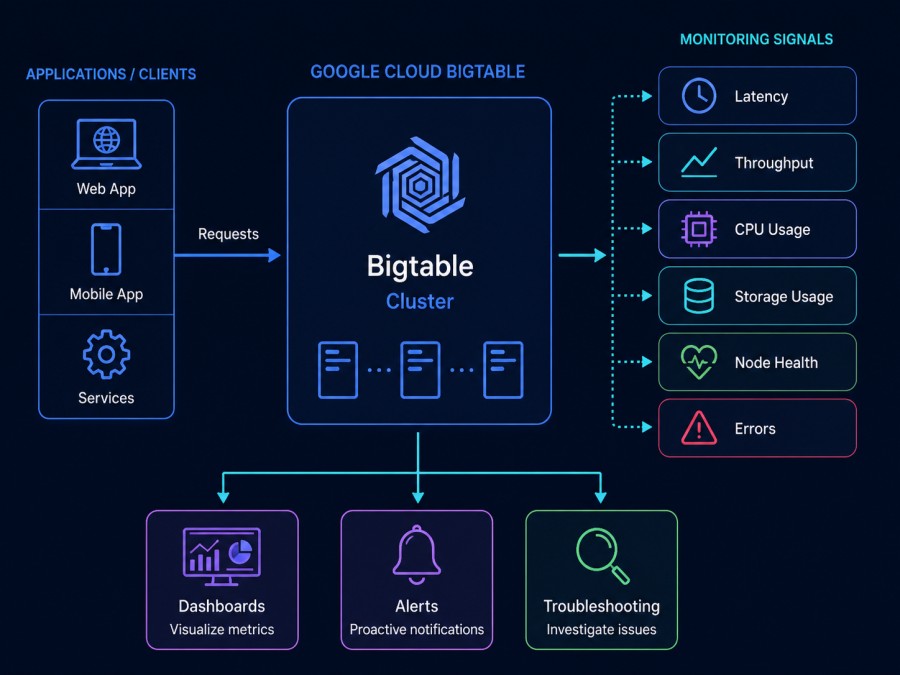
Google Cloud Bigtable monitoring tracks the health, performance, and resource utilization of Bigtable clusters in real time. It measures CPU load, disk usage, in-memory tier performance, replication lag, request latency, and error rates to ensure the database operates within optimal thresholds.
Monitoring Bigtable means understanding the relationship between node count, storage utilization, request rate, and latency. Every Bigtable cluster has capacity limits based on the number of nodes. If a cluster exceeds recommended CPU thresholds or approaches storage limits, queries slow down, errors increase, and user experience degrades.
Bigtable monitoring answers these questions in production:
- Is any node in the cluster hitting 90% CPU during peak traffic?
- Are read or write latencies exceeding SLA targets?
- Is disk utilization approaching 70% of the hard limit?
- Are multi-cluster failovers happening frequently due to replication lag?
- Which app profile, table, or API method is driving the highest CPU usage?
Without monitoring these signals, teams discover performance problems only after users report them. With monitoring in place, alerts fire early enough to add nodes, adjust workload patterns, or redesign row keys before latency spikes.
Why Google Cloud Bigtable Monitoring Matters
Bigtable powers mission-critical workloads at companies like Spotify, Twitter, and Google itself. A single slow query in Bigtable can cascade into failures across microservices, APIs, and customer-facing applications.
Here are the three reasons Bigtable monitoring matters for any team running production workloads:
Performance degradation happens silently without alerts
Bigtable does not fail loudly. Instead, it gradually slows down as CPU load increases, disk usage climbs, or hotspots emerge in your data model. A query that normally completes in 5ms may take 50ms when the hottest node hits 90% CPU. Without monitoring, this degradation goes unnoticed until customer support tickets start arriving.
Real-world example: An engineering team running a recommendation engine on Bigtable saw read latencies spike from 8ms to 120ms during peak traffic. Monitoring revealed the hottest node was at 95% CPU while average cluster utilization was only 60%. The root cause was a row key design that funneled most reads to a single node. After redistributing the workload and adding nodes, latency dropped back to normal.
Cost grows unpredictably without visibility into usage patterns
Bigtable charges based on node hours and storage. If your cluster is over-provisioned, you pay for unused capacity. If it is under-provisioned, you risk throttling and errors. Monitoring shows exactly how much headroom you have and whether you can safely reduce nodes during off-peak hours or need to add capacity before the next traffic spike.
According to Google’s Bigtable documentation, clusters should not exceed 70% of the hard storage limit to leave room for data growth and compaction. Without tracking storage utilization over time, teams often discover they are at 95% capacity only when writes start failing.
Replication failures between clusters go unnoticed
For multi-cluster Bigtable instances, replication lag directly affects consistency and failover behavior. If replication falls behind by several minutes, a failover to a secondary cluster may serve stale data or cause transaction conflicts. Monitoring replication latency and max delay metrics ensures your disaster recovery setup actually works when needed.
The top infrastructure monitoring tools track these signals across databases, Kubernetes clusters, and cloud services to give teams unified visibility into every layer of their stack.
How Google Cloud Bigtable Monitoring Works
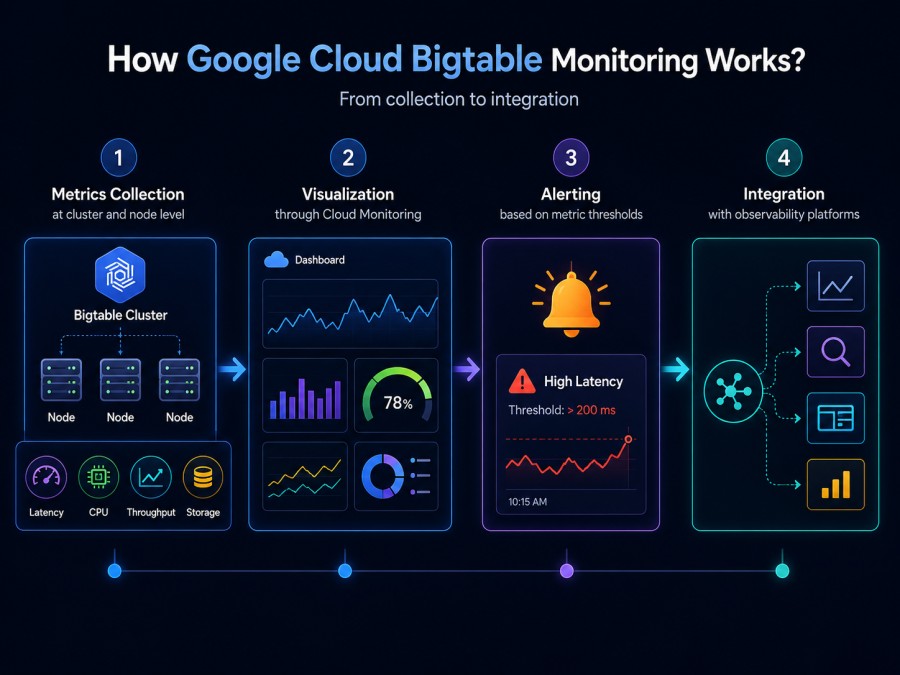
Bigtable monitoring operates through Google Cloud Monitoring, which collects metrics from every Bigtable instance automatically. These metrics are emitted by the Bigtable service itself at the cluster, table, and node level. Cloud Monitoring aggregates them into time series data that can be visualized in dashboards, queried via the Monitoring API, or used to trigger alerts.
Here is how the monitoring pipeline works:
Metrics collection at the cluster and node level
Every Bigtable cluster emits metrics every 60 seconds. These include CPU utilization, disk load, storage used, request counts, and error rates. Metrics are broken down by cluster, table, app profile, and API method. This granularity lets you identify whether high CPU usage is driven by a specific table, read-heavy API calls, or background replication.
Google tracks two types of CPU metrics: average CPU utilization across all nodes and high-granularity CPU utilization of the hottest node. The hottest node metric is critical because a single overloaded node can bottleneck the entire cluster even when average utilization looks healthy.
Visualization through Cloud Monitoring dashboards
Cloud Monitoring provides pre-built dashboards for every Bigtable instance. These dashboards show:
- Cluster-level CPU, disk, and storage metrics
- Per table request counts and latencies
- Replication lag for multi-cluster instances
- Error rates grouped by error type
You can also build custom dashboards using Monitoring Query Language (MQL) to correlate Bigtable metrics with logs, traces, or metrics from other GCP services like Cloud Run or GKE.
Alerting based on metric thresholds
Cloud Monitoring lets you create alert policies that fire when a metric crosses a threshold. For example, you can alert when:
- Average CPU utilization exceeds 70% for 5 consecutive minutes
- Hottest node CPU exceeds 90%
- Storage utilization reaches 60% of the hard limit
- Replication max delay exceeds 10 seconds
Alerts can route to email, SMS, PagerDuty, Slack, or webhooks. Setting alerts on both average and hottest node CPU is standard practice because an overloaded node can degrade performance long before the cluster average looks concerning.
Integration with third-party observability platforms
While Cloud Monitoring covers Bigtable metrics natively, many teams use third-party platforms like Datadog, New Relic, or CubeAPM to correlate Bigtable performance with application traces, logs, and infrastructure metrics across multi-cloud environments. These platforms pull Bigtable metrics via the Google Cloud Monitoring API and combine them with telemetry from Kubernetes, application services, and load balancers to provide full stack visibility.
For teams running self-hosted observability stacks, CubeAPM offers a self-hosted APM and infrastructure monitoring platform that integrates with Bigtable via OpenTelemetry and Prometheus. This setup keeps all telemetry data inside your VPC, avoiding egress fees and meeting data residency requirements. CubeAPM pricing is $0.15/GB for ingestion with unlimited retention, making it significantly cheaper than per-host or per-seat SaaS models as data volume grows.
Key Bigtable Metrics to Monitor
Bigtable emits over 50 metrics, but only a subset matters for day-to-day operational health. These are the metrics that directly affect performance, cost, and reliability.
CPU utilization metrics
CPU usage drives Bigtable performance more than any other resource. Nodes use CPU to process reads, writes, and administrative tasks like compaction. When CPU exceeds recommended thresholds, latency increases, and errors start appearing.
Average CPU utilization: The mean CPU load across all nodes in the cluster. Google recommends keeping this below 70% to handle traffic spikes without throttling. If average CPU is consistently above 60%, consider adding nodes or optimizing query patterns.
CPU utilization of hottest node: The busiest node in the cluster. This metric is more accurate than average CPU for detecting hotspots. If the hottest node frequently exceeds 90%, your workload is unbalanced. This often indicates a row key design problem where too many reads or writes target the same key range.
High granularity CPU utilization of hottest node: A fine-grained measurement updated more frequently than standard metrics. Use this to catch short bursts of CPU load that might otherwise be smoothed out in averaged data.
Change stream CPU utilization: If you have Bigtable change streams enabled, this metric shows how much CPU is consumed by replication activity. High change stream CPU can crowd out user-facing requests, so monitor it separately.
Real example: A SaaS platform saw API response times degrade during business hours. Monitoring showed average cluster CPU at 65% but the hottest node at 92%. The root cause was a timestamp-based row key where all new writes went to the same node. After switching to a composite row key that distributed writes evenly, hottest node CPU dropped to 70%.
Storage utilization metrics
Bigtable clusters have a hard storage limit based on node count. Exceeding 70% of this limit risks running out of space, which causes writes to fail. Storage also affects cost since you pay for provisioned capacity regardless of actual usage.
Storage utilization (bytes): The total amount of compressed data stored across all tables in the cluster. This number directly affects your bill.
Storage utilization (% max): The percentage of the cluster’s hard storage limit currently in use. Google recommends staying below 70% to leave room for growth and compaction overhead. If you hit 100%, writes will fail until you add nodes or delete data.
Change stream storage utilization (bytes): Storage consumed by change stream records. This does not count toward the main storage limit but does incur separate charges. If change streams are enabled, monitor this metric to avoid surprise storage costs.
Note: Deleted data temporarily takes up more space, not less, until compaction runs. Compaction happens automatically over a rolling seven-day cycle, so storage metrics may fluctuate even without new writes.
Disk load metrics
Only relevant for HDD-backed clusters. SSD clusters do not report disk load.
Disk load: The percentage of maximum possible HDD read bandwidth currently in use. If this metric is consistently at 100%, disk throughput is the bottleneck. Add nodes to distribute the load across more disks.
Request latency metrics
Latency measures how long it takes Bigtable to respond to read and write requests. High latency degrades user experience and indicates CPU, disk, or replication problems.
Server request latencies: Distribution of response times for all requests. Break this down by API method (ReadRows, MutateRows, CheckAndMutateRow) and table to identify slow operations.
Replication latency: Time it takes for data to replicate between clusters in a multi-cluster setup. High replication latency means secondary clusters lag behind the primary, which can cause stale reads during failovers.
Replication max delay: The upper bound for replication lag. If this exceeds 30 seconds, investigate replication health immediately.
Latency thresholds depend on your SLA. For user-facing applications, p99 read latency above 50ms is often unacceptable. For batch jobs, 200ms might be fine. Set alerts based on your specific requirements.
Request count and error metrics
Server request count: Total number of requests handled by the cluster. Spike detection here helps correlate traffic increases with performance degradation.
Server error count: Number of requests that failed. Break this down by error type (e.g., DEADLINE_EXCEEDED, RESOURCE_EXHAUSTED) to diagnose the root cause.
Multi-cluster failover count: Number of times requests failed over from one cluster to another. Frequent failovers indicate instability in your primary cluster or replication lag issues.
Error rates above 0.1% warrant investigation. A sudden spike in errors often correlates with capacity limits, configuration changes, or network issues.
Setting Up Google Cloud Bigtable Monitoring
Setting up Bigtable monitoring takes three steps: enabling Cloud Monitoring, configuring dashboards, and creating alert policies. Here is how to do each one.
Enable Cloud Monitoring for your GCP project
Cloud Monitoring is enabled by default for all GCP projects. Bigtable metrics appear automatically once you create a Bigtable instance. No manual instrumentation is required.
To verify metrics are flowing:
- Open the Google Cloud Console
- Navigate to Monitoring > Metrics Explorer
- Search for
bigtable.googleapis.comin the resource type filter - Select a metric like
bigtable.googleapis.com/cluster/cpu_load - Choose your Bigtable instance and cluster
If metrics appear, monitoring is working. If not, check that the Monitoring API is enabled for your project.
Use the Bigtable instance overview page
Google provides a pre-built monitoring dashboard for every Bigtable instance.
To access it:
- Open the Cloud Console
- Navigate to Bigtable > Instances
- Click on your instance name
- Select the Monitoring tab
This page shows:
- CPU utilization (average and hottest node)
- Storage utilization (bytes and % max)
- Request counts and error rates
- Latency distributions
Use this dashboard for quick health checks. For deeper analysis, build custom dashboards.
Create custom dashboards in Cloud Monitoring
Custom dashboards let you combine Bigtable metrics with logs, traces, and metrics from other GCP services.
To build a dashboard:
- Navigate to Monitoring > Dashboards
- Click Create Dashboard
- Add charts for the metrics that matter most to your workload
- Group charts by cluster, table, or app profile
Common dashboard layouts include:
- One row for CPU metrics (average, hottest node, change stream)
- One row for storage metrics (bytes, % max, change stream storage)
- One row for latency (read, write, replication lag)
- One row for errors and failovers
Save the dashboard and share the URL with your team.
Set up alert policies for critical thresholds
Alerts notify you when metrics cross defined thresholds. Without alerts, you have to manually check dashboards to catch problems.
To create an alert policy:
- Navigate to Monitoring > Alerting
- Click Create Policy
- Add a condition:
- Resource type: Cloud Bigtable Cluster
- Metric: CPU load (or storage, error rate, etc.)
- Condition: Threshold (e.g., above 70% for 5 minutes)
- Add notification channels (email, Slack, PagerDuty)
- Name the policy and save
Recommended alerts for every Bigtable cluster:
- Average CPU utilization > 70% for 5 minutes
- Hottest node CPU > 90% for 3 minutes
- Storage utilization > 60% of max
- Replication max delay > 10 seconds
- Server error rate > 0.5%
Monitor Bigtable with third-party platforms
While Cloud Monitoring covers Bigtable natively, teams often need to correlate Bigtable metrics with application traces, Kubernetes pod health, and logs from other services. Third-party platforms pull Bigtable metrics via the Cloud Monitoring API and unify them with telemetry from the rest of your stack.
Popular options include Datadog, New Relic, Dynatrace, and CubeAPM. Each has trade-offs:
Datadog charges per host and per GB of logs ingested. For a 50-node Bigtable cluster monitored alongside GKE and Cloud SQL, expect $3,000 to $5,000 per month before adding APM or custom metrics. Pricing details are on Datadog’s pricing page.
New Relic uses a compute capacity unit model where Bigtable metrics count toward your CCU consumption. Pricing starts at $0.30 per GB for data ingest but grows quickly with metrics cardinality. Full details at New Relic’s pricing page.
CubeAPM runs inside your GCP VPC and monitors Bigtable, GKE, Cloud SQL, and application services with unified dashboards. It uses OpenTelemetry for metric collection and Prometheus for Bigtable integration. Pricing is $0.15/GB for all telemetry data with unlimited retention and no per-seat or per-host fees. This makes it 60% to 70% cheaper than Datadog or New Relic at scale. CubeAPM is self-hosted but vendor-managed, meaning you control where data lives while the CubeAPM team handles upgrades and support.
For teams running Google Cloud monitoring tools, integrating Bigtable metrics with Kubernetes, Cloud Run, and log data from Stackdriver creates a unified view of your entire GCP environment.
Best Practices for Bigtable Monitoring
Monitoring Bigtable effectively means understanding not just what to measure but how to act on the data. These are the practices that separate teams who catch issues early from teams who scramble during outages.
Monitor both average and hottest node CPU
Average CPU utilization can look healthy at 60% while the hottest node sits at 95%. This imbalance means your workload is unevenly distributed across nodes, usually due to row key design. Always alert on both metrics.
If the hottest node consistently exceeds 90%, redesign your row keys to spread load evenly. Bigtable distributes data by row key range, so sequential keys like timestamps or auto-incrementing IDs funnel all traffic to a single node.
Keep storage utilization below 70%
Google recommends staying under 70% of your storage limit to accommodate growth and compaction overhead. If you approach 80%, add nodes immediately. If you hit 100%, writes fail.
Deleted data temporarily increases storage usage until compaction runs. Do not assume deleting rows will free up space instantly.
Set up replication lag alerts for multi-cluster setups
If you use Bigtable replication for disaster recovery, monitor replication latency and max delay. A lag of 10 seconds might be acceptable for analytics workloads but unacceptable for user-facing transactions.
Frequent failovers indicate instability. If the multi-cluster failover count spikes, check network connectivity between regions and verify that both clusters have sufficient capacity.
Use Key Visualizer to identify hotspots
Key Visualizer is a built-in tool that shows how read and write traffic is distributed across your row key space. It highlights hotspots where a small range of keys receives disproportionate traffic.
To access Key Visualizer:
- Open your Bigtable instance in the Cloud Console
- Navigate to the Key Visualizer tab
- Review the heatmap for traffic patterns
If you see a vertical stripe of high activity, your row keys are poorly distributed. Redesign them to spread load evenly.
Correlate Bigtable metrics with application traces
High Bigtable latency often cascades into slow API responses or failed jobs. Without correlating database metrics with application traces, you waste time guessing whether the bottleneck is in Bigtable, your application code, or the network.
Platforms like CubeAPM automatically link Bigtable query latency with distributed traces, showing exactly which service, endpoint, or database query caused a slowdown. This correlation cuts mean time to resolution by 40% to 50% compared to analyzing logs and metrics separately.
Test your alerts during off-peak hours
Create synthetic load tests that push CPU or storage utilization above alert thresholds. Verify that alerts fire correctly and route to the right notification channels. Many teams discover their alert policies are misconfigured only during an actual outage.
Tools for Monitoring Google Cloud Bigtable
Several tools monitor Bigtable, ranging from Google’s native solutions to third-party observability platforms. Each has strengths depending on your stack, team size, and budget.
Google Cloud Monitoring
Native integration with Bigtable. Pre-built dashboards, alerting, and API access. Best for teams running entirely on GCP with no need for multi-cloud visibility. Free for basic usage, paid tiers start at $0.50 per GB of logs ingested. Lacks distributed tracing and application-level correlation.
Datadog
Broad integration ecosystem covering Bigtable, GKE, Cloud SQL, and hundreds of other services. Strong visualization and anomaly detection. Pricing starts at $15 per host per month for infrastructure monitoring, $31 per host per month for APM, plus $0.10/GB for log ingestion. Costs compound quickly as data volume grows. Full pricing at Datadog’s pricing page.
New Relic
Managed observability platform with Bigtable integration via the GCP integration. Charges based on data ingest and user seats. Pricing starts at $0.30 per GB ingested. Seat fees of $49 to $99 per user per month add up fast for larger teams. Details at New Relic’s pricing page.
Dynatrace
Enterprise-focused with AI-driven root cause analysis. Strong for large-scale deployments but expensive. Pricing is host-based, starting around $0.08 per hour per host. A 50-host Bigtable cluster costs $3,000 per month before adding APM or logs. Best for enterprises with dedicated observability budgets.
CubeAPM
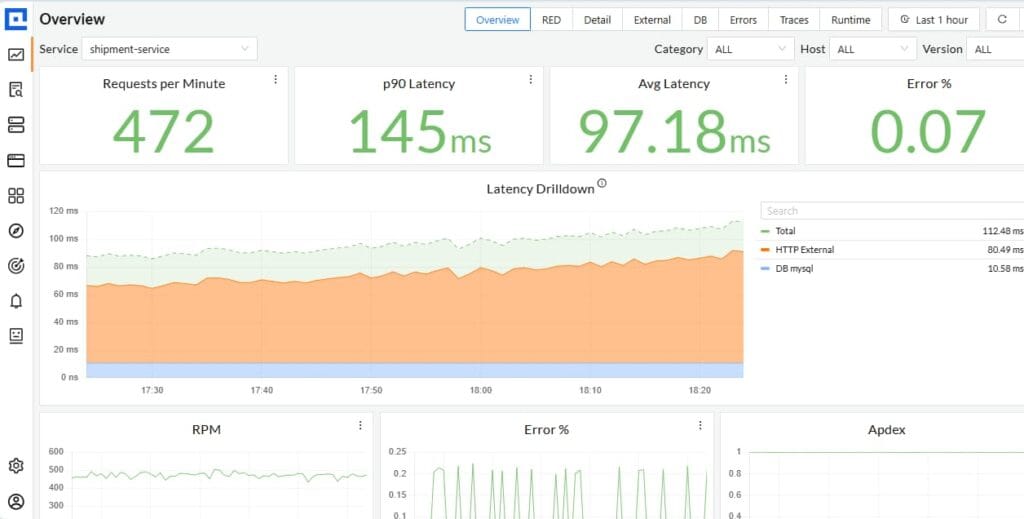
Self-hosted observability platform that monitors Bigtable, Kubernetes, Cloud SQL, and application services in a unified dashboard. Runs inside your GCP VPC, keeping all telemetry data under your control. Uses OpenTelemetry for trace collection and Prometheus for metrics. Pricing is $0.15/GB for all data ingested, with unlimited retention and no per-seat or per-host fees. For a typical mid-market team ingesting 30TB per month, CubeAPM costs $4,500 per month compared to $15,000+ for Datadog or New Relic. Supports GCP, AWS, Azure, and on-premises infrastructure. Ideal for teams with data residency requirements or unpredictable SaaS billing.
Grafana with Prometheus
Open source stack for teams comfortable managing their own observability backend. Bigtable metrics can be pulled via the Google Cloud Monitoring API and visualized in Grafana. Free to use but requires significant ops overhead for setup, scaling, and maintenance. Best for teams already running Prometheus and Grafana for other services.
Monitoring Bigtable in Kubernetes and GKE Environments
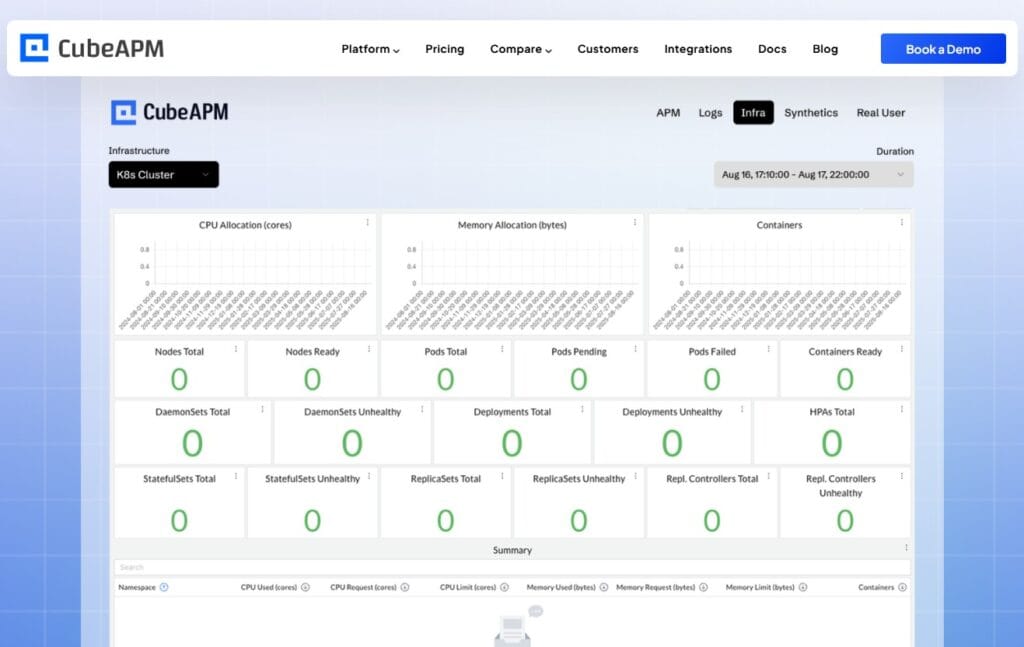
Many teams run Bigtable alongside Kubernetes workloads on GKE. Monitoring both layers together is critical because Bigtable performance affects application pods, and application traffic patterns affect Bigtable load.
Correlate pod metrics with Bigtable query latency
A spike in Bigtable read latency often correlates with increased pod CPU usage or higher request rates from a specific service. Without linking these signals, you spend time investigating the wrong layer.
Tools that integrate Kubernetes pod metrics with Bigtable database metrics make this correlation automatic. For example, if a GKE pod shows high CPU and Bigtable shows elevated query latency at the same timestamp, the root cause is likely an inefficient query pattern or missing index.
CubeAPM provides Kubernetes monitoring that links pod health, service traces, and Bigtable metrics in a single view. This setup cuts troubleshooting time by surfacing the exact service, endpoint, and query causing performance issues.
Monitor Bigtable from GKE pods using OpenTelemetry
OpenTelemetry collectors running as DaemonSets in GKE can scrape Bigtable metrics via the Cloud Monitoring API and export them to your observability backend. This approach keeps all telemetry data inside your VPC and avoids vendor lock in.
Sample OpenTelemetry configuration for scraping Bigtable metrics:
receivers:
  googlecloudmonitoring:
    project_id: "your-gcp-project"
    metrics:
      - "bigtable.googleapis.com/cluster/cpu_load"
      - "bigtable.googleapis.com/cluster/storage_utilization"
      - "bigtable.googleapis.com/server/latencies"
    collection_interval: 60s
exporters:
  otlphttp:
    endpoint: "https://your-cubeapm-instance/v1/traces"
service:
  pipelines:
    metrics:
      receivers: [googlecloudmonitoring]
exporters: [otlphttp]This setup pulls Bigtable metrics every 60 seconds and forwards them to your observability platform via the OpenTelemetry Protocol.
Alert on Bigtable issues before they affect GKE workloads
Set up alerts that fire when Bigtable CPU or latency exceeds thresholds, routing notifications to the same channels your GKE monitoring uses. This creates a unified incident response workflow where database and application alerts land in the same Slack channel or PagerDuty queue.
Common Bigtable Monitoring Challenges and How to Fix Them
Bigtable monitoring is straightforward in theory but has edge cases that catch teams off guard. Here are the problems that come up most often in production.
Hotspots in row key design cause uneven node load
Symptom: Average CPU is 60%, but the hottest node is at 95%. Queries are slow even though the cluster has spare capacity.
Cause: Row keys are designed sequentially (timestamps, auto-incrementing IDs) or use a prefix that funnels traffic to a single node.
Fix: Redesign row keys to distribute load evenly. Use a hash prefix, reverse timestamp, or composite key that spreads reads and writes across the key space. Test the new design with Key Visualizer before deploying to production.
Storage utilization spikes after deleting data
Symptom: You delete millions of rows but storage usage increases instead of decreasing.
Cause: Bigtable uses tombstones for deletions. Deleted rows take up space until compaction runs, which happens on a rolling seven-day schedule.
Fix: Do not panic. Wait for compaction to complete. If you need immediate space, add nodes to increase storage capacity. Plan future deletions around compaction windows.
Replication lag causes stale reads during failovers
Symptom: After a failover to a secondary cluster, users see outdated data or missing writes.
Cause: Replication max delay was high before the failover, meaning the secondary cluster lagged behind the primary.
Fix: Set alerts on replication latency and max delay. If replication lag exceeds acceptable thresholds, investigate network connectivity between regions and verify that both clusters have sufficient capacity to handle replication traffic.
Cloud Monitoring dashboards load slowly with high cardinality metrics
Symptom: Dashboards that query per table or per app profile metrics take 20+ seconds to load.
Cause: High cardinality metrics (broken down by table, method, or app profile) generate thousands of time series. Cloud Monitoring can struggle with queries spanning weeks or months.
Fix: Reduce the time range for high cardinality queries or use third party platforms like CubeAPM that index metrics more efficiently for fast querying at scale.
Disclaimer: The information in this article reflects the latest details available at the time of publication and may change as technologies and products evolve. Features, pricing, and plan limits can change over time. Always verify the latest information directly with the vendor before making purchasing or deployment decisions.
Frequently Asked Questions
How do I monitor Bigtable CPU usage?
Use the `bigtable.googleapis.com/cluster/cpu_load` metric in Cloud Monitoring to track average CPU utilization across all nodes and `bigtable.googleapis.com/cluster/cpu_load_hottest_node` for the busiest node. Set alerts at 70% for average and 90% for hottest node.
What is the recommended storage utilization threshold for Bigtable?
Google recommends keeping storage below 70% of the hard limit to leave room for growth and compaction. Approaching 80% means you should add nodes immediately.
How do I monitor Bigtable replication lag?
Use the `bigtable.googleapis.com/replication/latency` and `bigtable.googleapis.com/replication/max_delay` metrics. Alert when max delay exceeds 10 seconds for user facing workloads.
Can I use third party tools to monitor Bigtable?
Yes, platforms like Datadog, New Relic, Dynatrace, and CubeAPM integrate with Bigtable via the Cloud Monitoring API. These tools correlate Bigtable metrics with application traces, logs, and infrastructure metrics.
How do I identify hotspots in my Bigtable row key design?
Use Key Visualizer in the Cloud Console to see a heatmap of read and write traffic across your row key space. Vertical stripes indicate hotspots where traffic is concentrated on a small range of keys.
What is the cost of monitoring Bigtable with Cloud Monitoring?
Cloud Monitoring includes basic usage for free. Charges apply if you ingest over 50GB of logs per month or make a high volume of API calls. Full details at Cloud Monitoring pricing.
How does CubeAPM monitor Bigtable?
CubeAPM pulls Bigtable metrics via the Cloud Monitoring API or OpenTelemetry and correlates them with application traces, Kubernetes pod metrics, and logs in a unified dashboard. It runs inside your GCP VPC, keeping all telemetry data under your control. Pricing is $0.15/GB with unlimited retention.