









GitHub Actions has become the default CI/CD platform for millions of engineering teams. But as codebases grow and workflows multiply, it gets harder to answer the questions that matter most: Which workflows are slowest? Which ones fail repeatedly? How long is a typical deployment taking today versus last month?
Without proper GitHub Actions monitoring, these questions stay unanswered. Flaky builds silently drain developer time. Scheduled jobs fail overnight with no one noticing. Deployment pipelines creep toward 40-minute runtimes and nobody knows which job is responsible.
This guide shows you exactly how to monitor GitHub Actions workflow duration and failures using built-in GitHub tools, the REST API, third-party integrations, and purpose-built observability platforms.
- ✓ GitHub Actions provides built-in workflow metrics (success rate, duration, queue time) available in the GitHub UI and via REST API.
- ✓ The GitHub REST API lets you query workflow run history, compute failure rates, and export metrics to external dashboards.
- ✓ Native GitHub Actions metrics cover the last 10 days of data. For longer trend analysis, you need a third-party tool or custom export.
- ✓ OpenTelemetry-based integrations (such as Dash0 and CubeAPM) enable distributed tracing across individual workflow steps and correlation with application performance data.
- ✓ Datadog CI Visibility, Grafana, SquaredUp, and CubeAPM are popular third-party options for centralized GitHub Actions monitoring.
- ✓ Scheduled workflow failures are the hardest to detect without external alerting since GitHub does not send failure notifications for cron jobs by default.
Why GitHub Actions Monitoring Matters
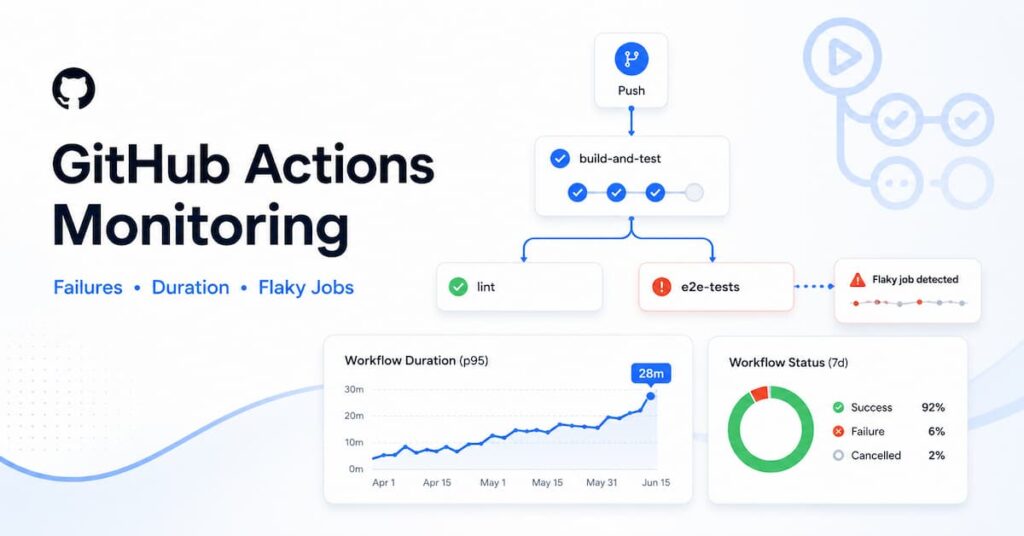
GitHub Actions runs workflows on every push, pull request, release, or schedule you define. At small scale this is easy to manage. At scale, the complexity compounds quickly.
Research from engineering teams using analytics platforms like GitLights shows that without visibility into CI/CD pipelines, teams tend to underestimate both failure frequency and average execution time. A workflow that takes 12 minutes in Q1 can quietly reach 28 minutes by Q3 if no one is tracking duration trends.
The cost is real. GitHub-hosted runners are billed by the minute for private repositories. Unmonitored workflows waste money as much as they waste time.
The three failure modes that monitoring addresses most directly are:
- Silent failures: Scheduled workflows (cron jobs) fail with no notification if you rely only on GitHub’s default behavior.
- Duration creep: Builds get slower gradually. Without trend data, there is no baseline to compare against.
- Flaky jobs: Some jobs fail intermittently. Spotting flakiness requires aggregated success rate data over time, not just the last run.
Method 1: Use GitHub’s Built-in Workflow Metrics
GitHub offers native metrics for GitHub Actions under the Insights tab of any repository. These are the fastest way to get started without any third-party tool.
How to Access Workflow Metrics in GitHub
To view built-in metrics:
- Navigate to your repository on github.com.
- Click the Actions tab in the top navigation.
- Select a specific workflow from the left sidebar.
- Click on any run to view step-level duration and logs.
For organization-level usage, go to your organization’s Settings and select Billing to see Actions minutes consumed per repository. The built-in metrics dashboard covers:
- Workflow run success and failure counts
- Average duration per workflow
- Queue wait time (the time between trigger and runner pickup)
- Job-level breakdown within each run
Limitation: The native GitHub metrics view covers approximately the last 10 days of data. For historical trend analysis spanning weeks or months, you need the REST API or a third-party tool.
Method 2: Query Workflow Data with the GitHub REST API
The GitHub REST API gives you programmatic access to every workflow run, job, and step in a repository. This is the foundation for building custom dashboards, computing success rates, and exporting data to external systems.
List Recent Workflow Runs
The following API call returns the last 30 runs for a specific workflow:
GET /repos/{owner}/{repo}/actions/workflows/{workflow_id}/runsEach run object in the response includes conclusion (success, failure, cancelled, timed_out), run_started_at, and updated_at. From these fields you can compute exact duration and filter for failures.
Calculate Success Rate and Average Duration
After installing the GitHub CLI extension:
gh workflow-stats -o $OWNER -r $REPO -f $WORKFLOW_FILE_NAMEThis outputs total runs, success count, failure count, minimum, maximum, average, and median execution time. It also surfaces the top jobs with the highest failure counts across a repository, which makes it easy to find problem areas quickly.
Enable Debug Logging for Troubleshooting
When a workflow fails and the default logs do not show enough detail, you can enable step debug logging by setting a repository secret named ACTIONS_STEP_DEBUG to true. Similarly, setting ACTIONS_RUNNER_DEBUG to true enables verbose runner-level logging.
Method 3: Use OpenTelemetry and APM Tools for Deep Observability
Standard GitHub Actions logs show step durations, but they do not reveal how a workflow step relates to downstream services or how long individual function calls inside a step take. This is where OpenTelemetry tracing and full-stack APM platforms fill the gap.
CubeAPM for GitHub Actions Observability
CubeAPM supports OpenTelemetry natively. You can ship GitHub Actions trace data directly to CubeAPM and correlate CI/CD pipeline performance with your application traces, logs, and metrics in a single dashboard. This is especially useful when a slow deployment workflow directly impacts application startup time or when a failed build job needs to be traced back to a specific service dependency.
CubeAPM accepts OTLP (OpenTelemetry Protocol) over HTTP and gRPC, so the integration requires only adding an export step to your workflow YAML that points to your CubeAPM endpoint. You get:
- Distributed traces spanning workflow steps and downstream services
- Correlated view of CI failures and production errors in the same timeline
- Duration heatmaps and percentile breakdowns across workflow runs
- Alerting on step-level duration thresholds without writing custom scripts
The practical setup requires adding an OpenTelemetry export step to your workflow YAML as the last step, so it runs even if earlier steps fail. The overhead is typically under five seconds per run.
Method 4: Monitor Scheduled Workflows with External Alerting
Scheduled workflows (triggered by on: schedule with a cron expression) are the hardest to monitor. GitHub does not send email or Slack notifications for scheduled workflow failures unless you configure this explicitly.
Missed scheduled workflow failures are among the most common CI/CD incidents that go undetected for hours or days.
Options for Scheduled Workflow Alerting
- GitHub-native notifications: In repository Settings under Notifications, you can configure failure email alerts for Actions runs. This works for scheduled workflows but sends individual emails per failure, which becomes noisy.
- Webhook-based alerting: Use the GitHub Actions workflow_run webhook event to push failure events to Slack, PagerDuty, or any webhook endpoint. This is the most flexible native approach.
- Dead man switch monitors: Tools like Cronping use the “dead man’s switch” pattern. Your workflow pings an external URL on successful completion. If the ping does not arrive within a threshold, the monitor fires an alert. This catches both failures and workflow-skipped scenarios.
- APM integrations: Platforms like CubeAPM and Datadog can ingest workflow events and fire alerts based on failure rate thresholds, eliminating the need for custom webhook scripts.
Method 5: Third-Party GitHub Actions Monitoring Tools
Several tools specialize in GitHub Actions observability. Each takes a different approach to data collection and visualization.
Datadog CI Visibility
Datadog’s CI Visibility feature ingests GitHub Actions metrics through a GitHub App integration. Once connected, you get dashboards showing workflow duration percentiles, failure counts by repository, and flaky test detection. The integration identifies slow jobs and flaky builds by correlating CI data with application performance data in the same platform.
Grafana with Pipetrics
The Pipetrics Grafana dashboard (dashboard ID 24157) pulls GitHub Actions data into Grafana via the Pipetrics service. It surfaces repository success rate, billed versus actual minutes, queue wait times, and per-trigger breakdowns (push, pull request, schedule). Teams using Grafana as their observability hub can layer CI metrics alongside infrastructure and application dashboards.
SquaredUp
SquaredUp connects to GitHub and lets you build dashboards that blend GitHub Actions workflow health with data from cloud providers and monitoring tools. SquaredUp’s GitHub Actions monitoring guide highlights that the most useful dashboards combine workflow success rates with the services those workflows deploy to, so you can see CI failures alongside the downstream impact.
Depot GitHub Actions Metrics
Depot offers GitHub Actions metrics as part of its faster runner platform. The Depot documentation on GitHub Actions analytics shows how you can view success rates, p50/p95 durations, and per-step breakdowns directly in the Depot dashboard. This is useful if your team is already using Depot for faster CI builds.
GitLights
GitLights aggregates GitHub Actions data across multiple repositories and teams. Its dashboard surfaces six key performance indicators: total runs, success count, failure count, average duration, execution duration trend, and success rate by workflow.
Key Metrics to Track for GitHub Actions Monitoring
Regardless of which method or tool you use, these are the metrics that matter most for production-quality GitHub Actions monitoring:
- Workflow success rate: Percentage of runs that complete with a success conclusion. Anything below 90% for a critical workflow warrants investigation.
- Average workflow duration: The mean execution time for a workflow. Track this as a time series to detect gradual creep.
- p95 workflow duration: The 95th percentile duration. This reveals outliers that do not show up in averages.
- Queue wait time: Time between workflow trigger and when a runner picks it up. Spikes here indicate runner capacity issues, not code problems.
- Job-level failure rate: Which specific job inside a workflow fails most often. A workflow-level failure rate hides which component is actually broken.
- Scheduled workflow health: Whether cron-triggered workflows completed successfully in the expected window.
- Billed minutes vs. actual runtime: For cost control on GitHub-hosted runners. Billed time rounds up to the nearest minute per job, which can surprise teams with many short parallel jobs.
How to Debug a Failing GitHub Actions Workflow
When monitoring surfaces a failing workflow, the investigation usually follows a predictable path:
- Check the step that failed. In the GitHub UI, failed steps are highlighted in red. Click on the step to expand its log output.
- Look at the conclusion field. A conclusion of timed_out means the workflow hit its timeout limit (default 6 hours, configurable per job). A conclusion of cancelled means it was stopped manually or by concurrency policy.
- Enable debug logging. Set ACTIONS_STEP_DEBUG=true as a repository secret to get verbose output on the next run.
- Check runner availability. If queue wait time is abnormally high, the issue may be runner capacity rather than the workflow code itself. For self-hosted runners, check the runner host’s resource utilization.
- Compare against historical runs. Use the GitHub API or a monitoring tool to compare the failed run’s duration against the last 30 runs. A sudden spike suggests an external dependency issue or a recently merged change.
- Use workflow run re-runs strategically. Re-running only the failed jobs (not the entire workflow) saves time and billing minutes. GitHub added this capability in 2022.
- ✓ Correlate CI failures with production incidents in one unified view
- ✓ Set alerts on workflow duration thresholds and failure rates
- ✓ Visualize trends across repositories with no extra configuration
Conclusion
Effective GitHub Actions monitoring starts with understanding what data is available natively and where you need additional tooling. GitHub’s built-in metrics and the REST API cover basic visibility for individual repositories. OpenTelemetry tracing adds step-level depth. External alerting fills the gap for scheduled workflows. Dedicated platforms like Datadog, Grafana, SquaredUp, and CubeAPM centralize monitoring across many repositories with alerting, trend analysis, and cost tracking.
The most common mistake teams make is relying on ad hoc log reviews after something breaks. The teams with the most reliable CI/CD pipelines set up proactive monitoring early, track duration baselines, and alert on failure rate changes before they become incidents.
Start with the GitHub Actions Insights tab and the REST API. Add OpenTelemetry if you need distributed tracing. Bring in a dedicated monitoring platform when you outgrow manual queries and need centralized dashboards, long-term trend storage, and cross-repository visibility.
Disclaimer: The information in this article is intended for educational purposes only. GitHub Actions features, pricing, and API behavior may change over time. Always refer to the official GitHub Actions documentation for the most up-to-date guidance. Third-party tools mentioned are independent products with their own pricing and support terms.
FAQs
1. How do I monitor GitHub Actions workflow duration?
Use the built-in Actions Insights tab for the last 10 days of data. For longer trends, query the GitHub REST API using /repos/{owner}/{repo}/actions/workflows/{workflow_id}/runs and compute duration from run_started_at and updated_at. Tools like CubeAPM, Datadog, and Grafana can visualize duration trends across repositories over weeks or months.
2. How do I get notified when a GitHub Actions workflow fails?
Enable failure alerts under repository Settings then Notifications. For scheduled workflows, GitHub sends no notifications by default, so add a webhook step that posts to Slack or PagerDuty on failure, or use an APM platform like CubeAPM that monitors workflow outcomes and alerts on failure rate thresholds automatically.
3. What metrics should I track for GitHub Actions monitoring?
Focus on six: workflow success rate, average duration, p95 duration, queue wait time, job-level failure rate, and billed versus actual runtime. A success rate below 90% on a critical workflow or a sudden duration spike above your baseline are the two signals that most reliably point to a problem.
4. Why are my GitHub Actions scheduled workflows failing silently?
GitHub does not send failure notifications for cron-triggered workflows unless explicitly configured. Add a webhook notification step that fires on failure, or use an external tool like CubeAPM or Cronping that watches for expected completions and alerts when a scheduled run does not arrive on time.
5. What is the best tool for GitHub Actions monitoring?
GitHub’s native Insights tab covers basic single-repository visibility. For multi-repository monitoring, alerting, and long-term trends, a dedicated platform works better. CubeAPM is a strong open source option that ties CI/CD data to application traces and metrics. Datadog CI Visibility, Grafana with Pipetrics, and SquaredUp are solid alternatives depending on your existing stack.