









Amazon ElastiCache automatically publishes metrics to CloudWatch under the AWS/ElastiCache namespace every 60 seconds for each cache node, at no extra charge. Metrics fall into two categories: engine-level metrics derived from the Redis INFO command, and host-level metrics from the operating system of the ElastiCache node. Both are necessary for a complete picture.
Note on Valkey: AWS now offers ElastiCache for Valkey alongside ElastiCache for Redis OSS. Valkey is a fork of Redis OSS 7.2 and is protocol-compatible. All CloudWatch metrics covered in this article apply equally to both engines. The AWS documentation groups them under “Metrics for Valkey and Redis OSS.” If you are on Valkey, every metric name, threshold, and alarm configuration below applies without change.
Note on Redis OSS v4 and v5: Standard support for ElastiCache Redis OSS versions 4 and 5 ended on January 31, 2026. Any clusters still running on these versions are now automatically enrolled in Extended Support, which incurs additional charges. AWS strongly recommends upgrading to ElastiCache for Valkey or Redis OSS v6 or later. Extended Support runs through January 31, 2029, after which remaining clusters will be automatically upgraded to the latest stable version of ElastiCache for Valkey.
Key Takeaways
- Use EngineCPUUtilization, not CPUUtilization, for Redis CPU monitoring – Redis is single-threaded, so CPUUtilization reports across all cores and can look low even when the Redis engine core is saturated
- Cache hit rate is not a native CloudWatch metric – you calculate it from CacheHits and CacheMisses
- Evictions should be zero for caches used as a data store – evictions indicate memory pressure and potential data loss
- SwapUsage above 50 MB is an early warning sign of memory pressure that precedes performance degradation
- ReplicationLag is only available on replication groups with replicas – primary-only deployments do not emit this metric
- ElastiCache for Valkey 8.0 introduced I/O multithreading, making EngineCPUUtilization behavior slightly different on Valkey vs Redis OSS – check the AWS docs for your specific engine version
Quick Reference: The Key Metrics
| Metric | Type | Alert threshold | Priority |
| EngineCPUUtilization | Engine | > 90% | Critical |
| BytesUsedForCache | Engine | > 80% of node memory | High |
| Evictions | Engine | > 0 for data stores; baseline for pure caches | High |
| CacheHits + CacheMisses (cache hit rate) | Engine | Hit rate < 80-90% | High |
| CurrConnections | Engine | Approaching 65,000 limit | High |
| ReplicationLag | Engine | > 10 seconds | High (if replicas exist) |
| SwapUsage | Host | > 50 MB | Medium |
| FreeableMemory | Host | < 100 MB | High |
| NetworkBytesIn / NetworkBytesOut | Host | Approaching node network limit | Medium |
| TrafficManagementActive | Engine | Any value of 1 | Medium |
1. EngineCPUUtilization vs CPUUtilization
What it is: EngineCPUUtilization measures the CPU consumed specifically by the Redis engine process. CPUUtilization measures total CPU usage across all cores on the host node.
Why the distinction matters: Redis is single-threaded for command processing. It uses one core for all client requests. On a node with 4 vCPUs, a fully saturated Redis engine will show CPUUtilization at roughly 25% – because it is using 100% of one core but the other three are idle. That 25% looks healthy. Your cache is actually maxed out.
EngineCPUUtilization removes this distortion by isolating the Redis engine’s single-core usage. This is the metric to alarm on.
For smaller nodes with 2 vCPUs or fewer: AWS recommends using CPUUtilization instead of EngineCPUUtilization. However, because Redis is single-threaded, the alert threshold for CPUUtilization must be calculated as a fraction of the total core count. On a 2-core node, the effective threshold is 90 / 2 = 45%, not 90%. Setting an alarm at 90% CPUUtilization on a 2-core node means Redis can be fully saturated before the alarm fires. Calculate your threshold as: 90 / number_of_vCPUs.
Alert threshold to set (for nodes with 4+ vCPUs using EngineCPUUtilization):
- Warning: EngineCPUUtilization > 80% for 5 minutes
- Critical: EngineCPUUtilization > 90% for 5 minutes
Alert threshold to set (for nodes with 2 vCPUs or fewer using CPUUtilization):
- Warning: CPUUtilization > (70 / number_of_vCPUs)%
- Critical: CPUUtilization > (90 / number_of_vCPUs)%
aws cloudwatch put-metric-alarm \

  --alarm-name "elasticache-engine-cpu-high" \

  --metric-name EngineCPUUtilization \

  --namespace AWS/ElastiCache \

  --statistic Average \

  --period 300 \

  --evaluation-periods 2 \

  --threshold 90 \

  --comparison-operator GreaterThanThreshold \

  --dimensions Name=ReplicationGroupId,Value=your-cluster-id \

--alarm-actions arn:aws:sns:us-east-1:123456789:your-alert-topicWhat to do when it fires: High engine CPU on Redis usually means expensive commands. Run SLOWLOG GET 25 on the Redis endpoint to find the slowest recent commands. KEYS *, large LRANGE or SMEMBERS calls on large collections, and unindexed Lua scripts are common culprits. Add replicas to distribute read traffic if reads are driving the CPU.
2. Memory: BytesUsedForCache, FreeableMemory, and SwapUsage
Memory is the most critical resource in Redis. Three CloudWatch metrics cover different aspects of memory health.
BytesUsedForCache is the total memory Redis has allocated, derived from the used_memory field of the Redis INFO command. This is the metric to watch for capacity planning.
FreeableMemory is the available RAM on the host node – the memory not yet consumed by the OS or Redis. When this approaches zero, the OS begins using swap.
SwapUsage is the amount of swap space in use. Any swap usage on a Redis node is a warning sign. Redis is designed to operate entirely in memory. Swap degrades performance significantly because disk access is orders of magnitude slower than RAM.
Alert thresholds to set:
- BytesUsedForCache > 80% of your node’s total memory
- FreeableMemory < 104,857,600 bytes (100 MB) – threshold in bytes
- SwapUsage > 52,428,800 bytes (50 MB) – threshold in bytes
# Alert when freeable memory drops below 100 MB

aws cloudwatch put-metric-alarm \

  --alarm-name "elasticache-memory-low" \

  --metric-name FreeableMemory \

  --namespace AWS/ElastiCache \

  --statistic Average \

  --period 300 \

  --evaluation-periods 2 \

  --threshold 104857600 \

  --comparison-operator LessThanThreshold \

  --dimensions Name=ReplicationGroupId,Value=your-cluster-id \

--alarm-actions arn:aws:sns:us-east-1:123456789:your-alert-topicThe reserved memory recommendation: AWS recommends reserving a portion of node memory for Redis overhead during operations like snapshots and failovers. During a backup, Redis forks a child process that temporarily doubles memory consumption for the working set being snapshotted. Without reserved memory, this can trigger swap usage or OOM kills. Set the reserved-memory-percent parameter in your ElastiCache parameter group. A value of 25% is a common starting point for clusters that take regular snapshots.
3. Evictions
What it is: The number of keys evicted from the cache due to the maxmemory policy. When Redis reaches its maxmemory limit, it removes keys according to the configured eviction policy (LRU, LFU, random, etc.) to make room for new writes.
What good looks like: Depends entirely on your use case.
- For caches used as a data store where data loss is unacceptable, evictions should be zero
- For caches used as a pure cache (application falls back to the database on misses), some evictions are expected and acceptable
What bad looks like: Any evictions on a data store cache means data is being silently removed. On a pure cache, a sustained increase in evictions signals that your dataset has outgrown your cache capacity.
Alert threshold to set:
- Data store use: Evictions > 0 is an immediate alert
- Pure cache use: alert when eviction rate increases significantly above baseline
aws cloudwatch put-metric-alarm \

  --alarm-name "elasticache-evictions" \

  --metric-name Evictions \

  --namespace AWS/ElastiCache \

  --statistic Sum \

  --period 300 \

  --evaluation-periods 1 \

  --threshold 0 \

  --comparison-operator GreaterThanThreshold \

  --dimensions Name=ReplicationGroupId,Value=your-cluster-id \

--alarm-actions arn:aws:sns:us-east-1:123456789:your-alert-topic4. Cache Hit Rate
What it is: The percentage of requests that are served from the cache without going to the database. CloudWatch does not provide a cache hit rate metric directly – you calculate it from CacheHits and CacheMisses.
Cache Hit Rate = CacheHits / (CacheHits + CacheMisses) * 100
What good looks like: Above 90% for most production caches. Below 80% means a significant share of requests are missing the cache and hitting the backend database, which defeats the purpose of the cache.
What bad looks like: A gradual decline in hit rate over time usually means the dataset is growing beyond cache capacity. A sudden drop often means cache was flushed, a key prefix changed, or the application was deployed with a code change that altered key names.
Setting an alarm via a CloudWatch metric math alarm:
aws cloudwatch put-metric-alarm \

  --alarm-name "elasticache-low-hit-rate" \

  --metrics '[

    {"Id":"hits","MetricStat":{"Metric":{"Namespace":"AWS/ElastiCache","MetricName":"CacheHits","Dimensions":[{"Name":"ReplicationGroupId","Value":"your-cluster-id"}]},"Period":300,"Stat":"Sum"}},

    {"Id":"misses","MetricStat":{"Metric":{"Namespace":"AWS/ElastiCache","MetricName":"CacheMisses","Dimensions":[{"Name":"ReplicationGroupId","Value":"your-cluster-id"}]},"Period":300,"Stat":"Sum"}},

    {"Id":"hit_rate","Expression":"hits/(hits+misses)*100","Label":"CacheHitRate"}

  ]' \

  --comparison-operator LessThanThreshold \

  --threshold 80 \

  --evaluation-periods 3 \

--alarm-actions arn:aws:sns:us-east-1:123456789:your-alert-topicNote: If CacheHits + CacheMisses = 0 (no requests), the formula produces a division by zero. Add a condition in your monitoring tool or use treat-missing-data notBreaching to avoid false alarms during idle periods.
5. CurrConnections
What it is: The number of client connections currently connected to the Redis node. ElastiCache enforces a hard limit of 65,000 simultaneous connections per node.
What good looks like: Stable and well below the 65,000 limit. Connection count grows naturally with traffic, but should not climb unboundedly.
What bad looks like: Connections trending toward 65,000. When the limit is reached, new connections are refused. This manifests in your application as connection timeout errors, not cache misses.
Alert threshold to set:
- Warning: CurrConnections > 50,000
- Critical: CurrConnections > 60,000
The connection leak pattern: Lambda functions, serverless workloads, or application code that opens Redis connections without closing them can exhaust the connection limit quickly. If connections climb steadily without corresponding traffic growth, a connection leak is likely. Use a connection pool in your application and set an appropriate connection-timeout on the client.
Also watch NewConnections: A spike in NewConnections combined with elevated CurrConnections means connection churn – clients are frequently disconnecting and reconnecting instead of reusing pooled connections. This adds CPU overhead to the Redis engine for TLS handshakes and authentication.
6. ReplicationLag
What it is: For ElastiCache replication groups with read replicas, ReplicationLag measures how far behind a replica is from the primary node, in seconds.
What good looks like: Sub-second lag in steady state. Some lag during heavy write operations is expected.
What bad looks like: Growing lag means the replica cannot apply write operations as fast as the primary is generating them. Applications reading from the replica will see stale data.
Alert threshold to set:
- Warning: ReplicationLag > 10 seconds
- Critical: ReplicationLag > 30 seconds
What this metric does not tell you: ReplicationLag tells you the replica is behind. It does not tell you which write operations are causing the lag – large key writes, slow replica I/O, or network saturation between primary and replica. For root cause diagnosis, combine with ReplicationBytes to see the volume of data being replicated.
7. TrafficManagementActive
What it is: A relatively recent ElastiCache metric that emits a value of 1 when ElastiCache is actively managing traffic on a node because incoming commands are exceeding what the Redis engine can process. AWS throttles incoming traffic to maintain the stability of the engine.
What good looks like: No data points or constant 0.
What bad looks like: Any data point of 1. When TrafficManagementActive = 1, your clients will experience increased command latency because ElastiCache is rate-limiting requests to protect the node. It is a leading indicator that you are approaching the throughput ceiling of the current node type.
Alert threshold to set: Alert on any Sum > 0 over a 5-minute period.
8. SuccessfulReadRequestLatency and SuccessfulWriteRequestLatency
These two metrics, available on ElastiCache for Valkey 7.2 and later (self-designed clusters only – not serverless), measure the total server-side latency in microseconds for successful read and write commands, respectively. They capture the full processing pipeline: socket read, queue time, command execution, and socket write – unlike command-specific metrics like GetTypeCmdsLatency, which only capture execution CPU time.
What good looks like: Sub-millisecond latency (below 1,000 microseconds) for simple GET/SET operations. Complex commands like SORT or large SCAN operations will be higher.
What bad looks like: Sustained latency increase without a corresponding change in traffic. This can indicate high EngineCPUUtilization, large value sizes being transferred, or network saturation.
Recommended statistic: AWS recommends monitoring the p50 statistic for routine monitoring of these metrics. Use p99 or p100 to investigate specific latency spikes. Establish a baseline over one week and alert when p50 latency exceeds 2x that baseline.
Setting Up the Slow Log
CloudWatch metrics tell you that latency is high. The Redis slow log tells you which specific commands are slow. Enable slow log delivery to CloudWatch Logs via the ElastiCache console:
- Go to ElastiCache Console, select your cluster
- Under Logs, choose Modify
- Enable Slow log, set the delivery destination to CloudWatch Logs
- Set the slow log threshold in your parameter group: slowlog-log-slower-than in microseconds (10,000 = 10ms is a common starting point)
Once enabled, every command exceeding the threshold is logged with its execution time, command type, and key, giving you the specific data needed to optimize hot commands.
How Do I Find Which Application Request Is Causing ElastiCache Slowness?
EngineCPUUtilization at 95% tells you Redis is under heavy load. The slow log shows you which Redis commands are slow. What neither of these tells you is which application endpoint is generating those commands, how many times per request they are being called, or whether a single poorly written feature is responsible for most of the load.
When Redis is slow, the investigation path using CloudWatch alone is: check metrics, check slow log, check application logs, correlate timestamps. Each is a separate system. You are stitching together a picture across tools.
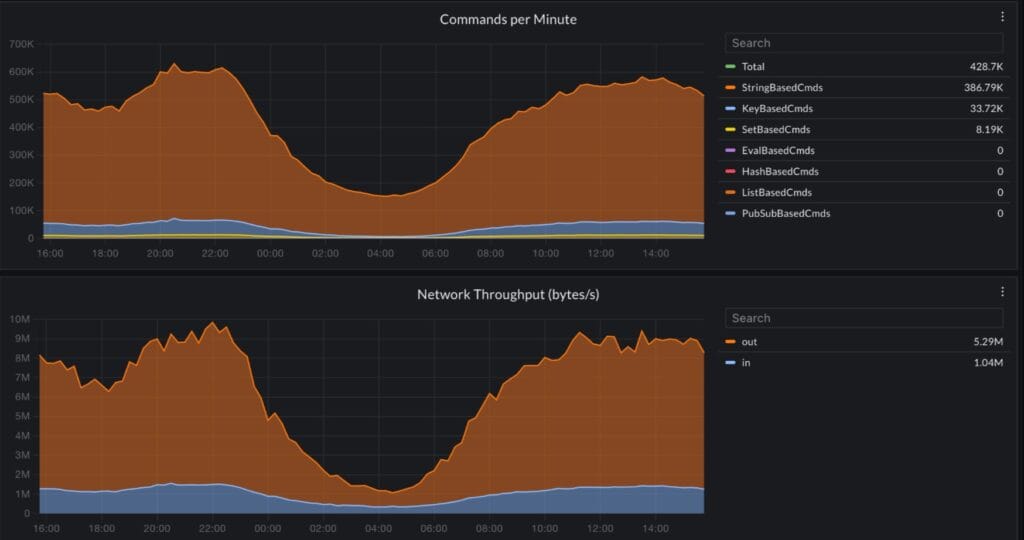
CubeAPM instruments your application layer via OpenTelemetry and captures every Redis command as a span inside the full request trace. When EngineCPUUtilization spikes, the trace in CubeAPM shows you which API endpoint triggered the slow Redis commands, exactly which keys were accessed, how many Redis calls were made per request, and whether the same pattern repeats across multiple services. The CloudWatch alarm identifies that Redis is under pressure. The trace identifies the application code responsible. Self-hosted inside your own AWS account, no data leaves your environment.
Summary
| Metric | Statistic | Alert threshold | Notes |
| EngineCPUUtilization | Average | > 90% | Use this, not CPUUtilization, for Redis |
| FreeableMemory | Average | < 104,857,600 bytes (100 MB) | Threshold in bytes |
| SwapUsage | Average | > 52,428,800 bytes (50 MB) | Any swap is a warning sign |
| Evictions | Sum | > 0 for data stores | Signals memory pressure and data loss |
| Cache hit rate | Metric math | < 80% | Calculate from CacheHits / (CacheHits + CacheMisses) |
| CurrConnections | Average | > 50,000 (warning), > 60,000 (critical) | Hard limit is 65,000 |
| ReplicationLag | Average | > 10 seconds | Only emitted when replicas exist |
| TrafficManagementActive | Sum | > 0 | ElastiCache is throttling your traffic |
Start with EngineCPUUtilization, FreeableMemory, Evictions, and the cache hit rate metric math alarm. These four cover the most common ElastiCache performance failure modes. Add CurrConnections and ReplicationLag once the baseline is in place. Enable slow log delivery to CloudWatch Logs for any cluster where latency matters – it gives you command-level diagnosis that metrics alone cannot provide.
Disclaimer: Configurations, thresholds, and CLI examples are for guidance only – verify against the current Amazon ElastiCache CloudWatch metrics documentation before applying to production. Metric availability varies by engine version. All metrics in this article apply equally to ElastiCache for Redis OSS and ElastiCache for Valkey. CubeAPM references reflect genuine use cases; evaluate all tools against your own requirements.
Also read:
How Do I Monitor AWS Kinesis Stream Lag and Throughput?