










Amazon Managed Streaming for Apache Kafka (Amazon MSK) is a fully managed service that makes it easy to build and run applications that use Apache Kafka for data streaming. While AWS handles the heavy lifting of provisioning, patching, and scaling your Kafka infrastructure, monitoring your MSK cluster remains your responsibility and it directly impacts reliability, performance, and cost.
Without proper AWS MSK monitoring, you risk silent consumer lag building up, brokers running out of disk space, or request handlers becoming saturated, all of which can lead to message loss or application outages. This guide walks you through the key metrics to track, how to set up monitoring with CloudWatch and Prometheus/Grafana, and the thresholds that actually matter in production.
- Two monitoring approaches: AWS CloudWatch (built-in, zero configuration) or Prometheus + Grafana (open source, deeper visibility).
-
Critical metrics to watch:
ConsumerLag (MaxOffsetLag),KafkaDataLogsDiskUsed, request handler idle percent,BytesInPerSec,BytesOutPerSec, and CPU utilization. -
Alert threshold:
Set an alert when
RequestHandlerAvgIdlePercentdrops below 20%. This is the clearest signal that your broker is under dangerous load. -
Four CloudWatch monitoring levels:
DEFAULT(free),PER_BROKER,PER_TOPIC_PER_BROKER, andPER_TOPIC_PER_PARTITION.DEFAULTis enough for cluster-wide health. UsePER_TOPIC_PER_BROKERto debug throughput issues. - Prometheus + Grafana enables topic-level, partition-level, and cost-center visibility that CloudWatch cannot provide without significant extra cost.
What Is AWS MSK and Why Does Monitoring Matter?
Amazon MSK runs the open-source version of Apache Kafka. This means you get the full Kafka API without needing to manage broker configuration, rolling upgrades, or ZooKeeper (for older clusters). MSK currently supports two cluster types:
- MSK Provisioned: You choose instance types, storage, and the number of brokers. You get full access to all CloudWatch monitoring levels and Prometheus open monitoring.
- MSK Serverless: Fully elastic. You pay for throughput consumed. Monitoring options are more limited compared to Provisioned.
Kafka’s architecture means that a single slow or overloaded broker can degrade the entire cluster. Partitions assigned to a struggling broker cause producer backpressure and consumer lag. Monitoring lets you catch these problems before they cascade.
AWS MSK Monitoring: Two Main Approaches
AWS MSK supports two monitoring approaches. You can use either or combine both depending on your requirements.
| Approach | Best For |
|---|---|
| Amazon CloudWatch | Built-in, zero-setup monitoring. Good for ops teams already using CloudWatch alarms and dashboards. |
| Prometheus + Grafana | Deeper per-topic, per-partition, and per-client metrics. Better for cost analysis and custom alerting. Free but requires setup. |
Method 1: Monitoring AWS MSK with Amazon CloudWatch
Amazon MSK integrates natively with CloudWatch and automatically pushes metrics at 1-minute intervals. You can access these from the CloudWatch console under AWS/Kafka.
CloudWatch Monitoring Levels
MSK offers four monitoring levels. Each level adds more granular metrics at an additional CloudWatch cost (DEFAULT level metrics are free):
| Monitoring Level | What It Provides |
|---|---|
| DEFAULT (free) | Cluster-wide and broker-level metrics. Covers CPU, disk, throughput, consumer lag, partition counts. |
| PER_BROKER | Adds per-broker breakdown for BytesIn/BytesOut, network errors, and request metrics. |
| PER_TOPIC_PER_BROKER | Breaks down BytesIn/BytesOut and message counts by topic and broker. Useful for isolating hot topics. |
| PER_TOPIC_PER_PARTITION | Most granular. Adds OffsetLag per topic per partition. Useful for lag root-cause analysis. |
How to Access MSK Metrics in CloudWatch
- Sign in to the AWS Management Console and open the CloudWatch console.
- In the navigation pane, choose Metrics, then choose All metrics, and select AWS/Kafka.
- Choose a dimension: Cluster Name for cluster-level metrics; Broker ID, Cluster Name for broker-level; or Topic, Broker ID, Cluster Name for topic-level metrics.
- Select a statistic and time period. Optionally, create a CloudWatch Alarm from the graph pane.
You can also query metrics via the AWS CLI using list-metrics and get-metric-statistics, or via the CloudWatch API using ListMetrics and GetMetricStatistics.
Critical AWS MSK Metrics to Monitor
These are the metrics that experienced teams monitor in every production MSK deployment. Divided by what they tell you:
1. Broker Health and Load
| Metric | Level | What to Watch | Alert Threshold |
|---|---|---|---|
| KafkaDataLogsDiskUsed | DEFAULT | Percentage of disk used for data logs per broker | Alert at 85% |
| KafkaAppLogsDiskUsed | DEFAULT | Percentage of disk used for application logs | Alert at 80% |
| CpuUser + CpuSystem | DEFAULT | CPU usage in user and kernel space | Combined > 60% sustained |
| CpuIdle | DEFAULT | Percentage of CPU idle time per broker | Alert when < 30% |
| RequestHandlerAvgIdlePercent | PER_BROKER | % of time request handler threads are idle. 0 = fully saturated | Alert when < 20% |
| NetworkProcessorAvgIdlePercent | PER_BROKER | % idle time for network processor threads | Alert when < 30% |
| BurstBalance | DEFAULT | Remaining EBS burst I/O credits. Low = degraded throughput | Monitor trending down |
⚠️ Important: RequestHandlerAvgIdlePercent
This is the single most important load indicator for an MSK broker. Research from Xebia (xebia.com) showed that when this metric falls below 20% during load tests, the broker becomes saturated. Producers get throttled and messages can be lost.
If RequestHandlerAvgIdlePercent consistently drops below 20%, take one of these actions:
- Scale up broker instance type for more CPU and memory.
- Increase the number of brokers in the cluster.
- Verify topics are correctly partitioned. A single-partition topic routes all traffic to one broker, creating a hot spot.
2. Consumer Lag Metrics
| Metric | Level | What to Watch | Alert Threshold |
|---|---|---|---|
| MaxOffsetLag | DEFAULT | Maximum offset lag across all partitions in a consumer group | Alert when non-zero and growing |
| SumOffsetLag | DEFAULT | Total offset lag across all partitions for a consumer group | Depends on use case; set baseline |
| EstimatedMaxTimeLag | DEFAULT | Estimated time (seconds) to drain MaxOffsetLag | Alert when > acceptable SLA |
Consumer lag is one of the most actionable signals in Kafka. When MaxOffsetLag grows continuously, it means your consumers cannot keep up with the producers. This leads to data being retained longer than expected (and higher storage costs) and eventual message processing delays. A non-zero and growing MaxOffsetLag always warrants investigation.
3. Throughput Metrics
| Metric | Level | What to Watch | Alert Threshold |
|---|---|---|---|
| BytesInPerSec | DEFAULT | Bytes per second received from producers. Available per cluster, broker, and topic. | Alert on unexpected drops or spikes |
| BytesOutPerSec | DEFAULT | Bytes per second sent to consumers. Available per cluster, broker, and topic. | Alert on unexpected drops |
| MessagesInPerSec | PER_BROKER | Message ingestion rate per broker | Baseline and alert on drops |
BytesInPerSec and BytesOutPerSec give you immediate visibility into traffic patterns. A sudden drop in BytesInPerSec when producers are expected to be active almost always indicates either a producer outage or a connectivity issue. A growing gap between BytesInPerSec and BytesOutPerSec signals consumer lag. These metrics are also available for MSK Serverless.
4. Partition and Cluster Health
| Metric | Level | What to Watch | Alert Threshold |
|---|---|---|---|
| ActiveControllerCount | DEFAULT | Should always be exactly 1 in a healthy cluster | Alert if not 1 |
| UnderReplicatedPartitions | DEFAULT | Partitions where replication is lagging. Zero is healthy. | Alert if > 0 |
| OfflinePartitionsCount | DEFAULT | Partitions with no active leader. Critical. | Alert if > 0 |
| GlobalPartitionCount | DEFAULT | Total partitions in the cluster (excluding replicas) | Monitor for unexpected changes |
| GlobalTopicCount | DEFAULT | Total number of topics across the cluster | Monitor for unexpected growth |
Keep UnderReplicatedPartitions at zero during normal operation. A non-zero value means a broker is struggling to replicate data fast enough. OfflinePartitionsCount above zero is a critical alert because it means no leader exists for those partitions and messages cannot be produced or consumed to those partitions.
During scheduled maintenance windows, AWS updates brokers one by one. This triggers UnderReplicatedPartitions and ActiveControllerCount fluctuations. You can check cluster maintenance status using the describe-cluster-v2 CLI command or by checking for MAINTENANCE state in the MSK console. Consider muting partition replication alerts during known maintenance windows.
5. Disk Space Monitoring
Disk space is a common production failure point for Kafka. The primary metric is KafkaDataLogsDiskUsed, which shows the percentage of disk used for data logs per broker. Filter by Cluster Name and Broker ID in CloudWatch.
To predict future disk exhaustion, combine two data points:
- KafkaDataLogsDiskUsed (current percentage)
- BytesInPerSec (ingestion rate to estimate how fast disk fills)
AWS also sends automated storage capacity alerts to the MSK console, Health Dashboard, Amazon EventBridge, and email when a Provisioned cluster approaches its storage limit.
Method 2: Monitoring AWS MSK with Prometheus and Grafana
For teams that need deeper visibility, especially per-topic, per-partition, and per-client metrics, Prometheus with Grafana is the preferred approach. MSK Provisioned clusters support Open Monitoring, which exposes JMX and Node Exporter endpoints.
Architecture Overview
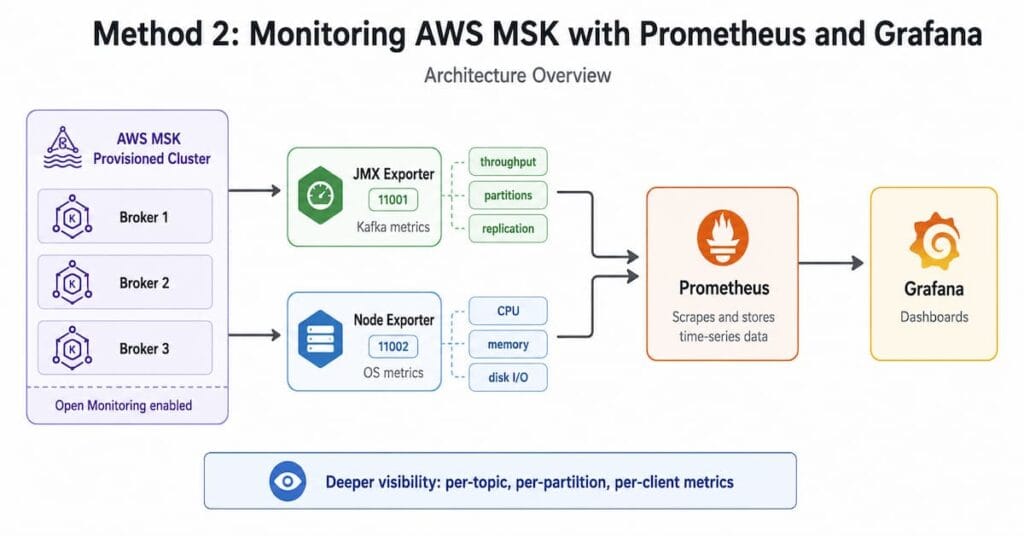
The setup uses three components:
- JMX Exporter (port 11001): Exposes Kafka broker metrics (request handlers, throughput, partitions, replication).
- Node Exporter (port 11002): Exposes OS-level metrics (CPU, memory, disk I/O) from each broker’s underlying EC2 instance.
- Prometheus: Scrapes both exporters and stores time-series data.
- Grafana: Reads from Prometheus and renders dashboards.
Prerequisites
- Enable Open Monitoring when creating the MSK cluster (or update an existing one) in the MSK console or via AWS CLI.
- Launch an EC2 instance inside the same VPC as the MSK cluster with the same security group.
- Configure security group inbound rules: SSH (22), Prometheus (9090), Grafana (3000).
- You can also push metrics to Amazon Managed Service for Prometheus (AMP) using Prometheus remote write, and visualize with Amazon Managed Grafana.
Prometheus Configuration
Create a targets.json file listing your broker DNS names and exporter ports:
// targets.json[ { "labels": { "job": "Kafka-broker", "cluster": "my-msk-cluster" }, "targets": [ "b-1.<cluster-name>.<uuid>.kafka.<region>.amazonaws.com:11001", "b-2.<cluster-name>.<uuid>.kafka.<region>.amazonaws.com:11001" ] }, { "labels": { "job": "node", "cluster": "my-msk-cluster" }, "targets": [ "b-1.<cluster-name>.<uuid>.kafka.<region>.amazonaws.com:11002", "b-2.<cluster-name>.<uuid>.kafka.<region>.amazonaws.com:11002" ] }]In your prometheus.yml, reference the targets file:
# prometheus.ymlglobal: scrape_interval: 15s evaluation_interval: 15sscrape_configs: - job_name: 'Kafka-broker' file_sd_configs: - files: - 'targets.json'Key Prometheus / Grafana Metrics and PromQL Queries
Once Prometheus is scraping your MSK brokers, use these queries in Grafana:
| What to Measure | PromQL Expression | Alert When | Notes |
|---|---|---|---|
| Request Handler Busy % | 100 – kafka_server_KafkaRequestHandlerPool_Count{name=”RequestHandlerAvgIdlePercent”} | > 80% | Primary load indicator |
| Network Processor Busy % | 100 – kafka_network_SocketServer_Value{name=”NetworkProcessorAvgIdlePercent”} | > 70% | Network saturation |
| Disk I/O Utilization | (rate(node_disk_read_bytes_total[5m]) + rate(node_disk_written_bytes_total[5m])) / 1e9 | Trending up sharply | Requires Node Exporter |
| CPU Usage % | irate(process_cpu_seconds_total{job=”node”}[5m]) * 100 | > 70% sustained | Per broker |
| Heap Memory Usage | java_lang_Memory_HeapMemoryUsage_used / java_lang_Memory_HeapMemoryUsage_max * 100 | > 80% | JVM heap pressure |
| Storage Used (monthly GB) | sum by(topic) (rate(kafka_log_Log_Value{name=”Size”}[1h])) / 1e9 / 730 | Trending toward limit | For cost tracking |
For a full open-source monitoring setup with Prometheus and Grafana on MSK, see: The Write Ahead Log: How to Monitor AWS MSK Cluster
Third-Party MSK Monitoring Tools
Several third-party platforms integrate with MSK monitoring. They reduce setup effort by connecting to either CloudWatch or Prometheus endpoints:
| Tool | Integration Method |
|---|---|
| Datadog | MSK open monitoring (Prometheus). Agent-based. Provides pre-built MSK dashboards. |
| New Relic | Prometheus OpenMetrics integration. Supports MSK Standard brokers. |
| Dynatrace | Integrates via AWS CloudWatch and MSK open monitoring. Adds AI-powered anomaly detection. |
| LogicMonitor | Monitors MSK via CloudWatch API. Supports broker, cluster, and topic metrics. |
| CubeAPM | Unified APM with built-in MSK monitoring. Tracks broker metrics, consumer lag, and throughput from one dashboard. |
Common MSK Monitoring Scenarios and How to Resolve Them
Scenario 1: Consumer Lag Is Growing
Symptom: MaxOffsetLag or SumOffsetLag is increasing over time.
Diagnostic steps:
- Check BytesInPerSec: Has producer throughput spiked unexpectedly? If yes, consumers may not be scaled for the new load.
- Check consumer instance health: Are consumer group members failing or rebalancing frequently?
- Check partition count: If topics have too few partitions for the consumer group size, parallelism is limited. Increasing partition count lets more consumers run concurrently.
- Check broker RequestHandlerAvgIdlePercent: If brokers are saturated, increasing partitions or broker count will help.
Scenario 2: Broker Is Under Load (RequestHandlerAvgIdlePercent < 20%)
Symptom: One or more brokers have RequestHandlerAvgIdlePercent below 20%. Producers experience throttling.
Root causes and fixes:
- Unbalanced partitions: If a topic has only one partition, all traffic goes to one broker. Increase partition count to spread the load.
- Undersized broker type: Consider upgrading to an M5 or larger broker instance type.
- Too many small producers: Many concurrent producer connections increase request handler load. Batch messages where possible.
Scenario 3: Disk Space Running Low
Symptom: KafkaDataLogsDiskUsed is approaching 85% or AWS storage capacity alerts fire.
Options to resolve:
- Increase broker storage. MSK Provisioned supports online storage expansion without downtime.
- Reduce topic retention settings (retention.ms or retention.bytes). Shorter retention = less disk used.
- Enable Tiered Storage for MSK. Hot data stays local; older data moves to S3. Source: AWS MSK Tiered Storage docs.
- Identify storage-heavy topics using per-topic Prometheus metrics and reduce retention on those topics specifically.
Scenario 4: UnderReplicatedPartitions > 0
Symptom: UnderReplicatedPartitions is non-zero outside of a maintenance window.
Common causes:
- One or more brokers are slow due to high CPU, high disk I/O, or network congestion.
- A broker is temporarily unavailable and still being listed as part of the cluster.
- Replication is configured for high throughput topics without enough broker capacity.
Check ActiveControllerCount (should be exactly 1) and review per-broker CPU and I/O metrics to identify the struggling broker.
Conclusion
Effective AWS MSK monitoring requires watching metrics across three layers: broker health (CPU, disk, request handler idle percent), data flow (BytesInPerSec, BytesOutPerSec, consumer lag), and cluster integrity (ActiveControllerCount, UnderReplicatedPartitions, OfflinePartitionsCount).
CloudWatch gives you the easiest path to getting started, with DEFAULT level metrics available for free. Prometheus and Grafana unlock per-topic, per-partition, and per-client visibility that CloudWatch cannot match at scale, and they allow you to build cost-center dashboards that link storage and throughput to specific topics and consumers.
The single most important metric to set an alert on today: RequestHandlerAvgIdlePercent. When it drops below 20%, your brokers are under serious load and producers will be throttled. Catch it before it catches you.
Disclaimer: The information in this article is based on publicly available AWS documentation and community resources as of 2025. AWS services and their monitoring capabilities are updated frequently. Always refer to the official AWS MSK documentation (https://docs.aws.amazon.com/msk/latest/developerguide/) for the most current metric names, pricing, and configuration guidance. Metric availability may vary based on MSK cluster type (Provisioned vs. Serverless), broker type (Standard vs. Express), and the monitoring level configured for your cluster.