










GitLab CI/CD is the engine behind most modern software delivery workflows, but a pipeline that silently fails, queues for 20 minutes, or flaps between success and failure drains developer productivity and erodes deployment confidence. GitLab CI monitoring means proactively observing pipeline duration, failure rates, runner health, and job-level errors, so you can fix problems before they block a release.
This guide walks through every monitoring layer available to GitLab users: the built-in analytics UI (available on all tiers), Prometheus and Grafana integration, OpenTelemetry-based pipeline tracing, and third-party APM tools.
Key Takeaways
- ✓ GitLab’s built-in CI/CD Analytics page tracks total runs, median duration, 95th-percentile duration, and failure rate without any additional setup.
- ✓ The GitLab CI Pipelines Exporter scrapes the GitLab API and exposes Prometheus metrics, enabling Grafana dashboards and threshold-based alerts.
- ✓ GitLab Observability (introduced in GitLab 18.1 as an experiment) auto-instruments pipelines via a single
OTEL_EXPORTER_OTLP_ENDPOINTenvironment variable. - ✓ Runner health (CPU, memory, disk I/O) is a leading indicator of pipeline slowdowns and should be monitored alongside pipeline metrics.
- ✓ CubeAPM correlates pipeline telemetry with application traces, bridging the gap between a failing CI job and its production impact.
- ✓ Best practices: set failure-rate alert thresholds, monitor the 95th-percentile duration, use job-level caching, and run fast-failing jobs first.
1. Understanding What to Monitor in GitLab CI/CD
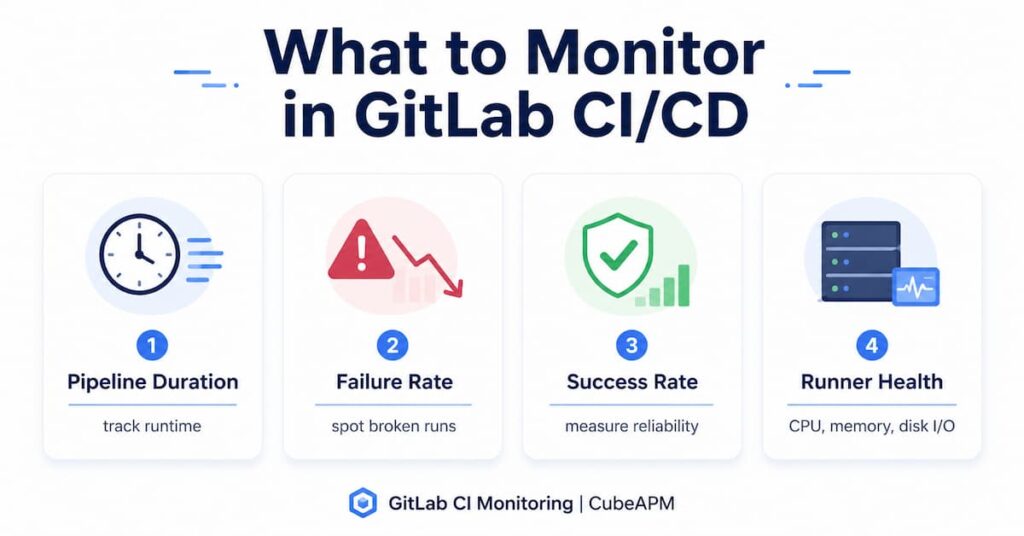
Before configuring any tool, it helps to understand which signals matter. GitLab’s own documentation on pipeline efficiency identifies four primary areas:
- Pipeline duration (median and 95th percentile): measures how long pipelines take end to end.
- Failure rate: the percentage of pipeline runs that did not complete successfully.
- Success rate: the inverse of failure rate; your baseline reliability indicator.
- Runner health: CPU, memory, disk I/O, and process count on the machines executing jobs.
According to GitLab’s Pipeline efficiency documentation, the total pipeline duration is heavily influenced by the size of the repository, the number of stages and jobs, dependencies between jobs, and the resources provisioned to runners.
2. Using GitLab’s Built-in CI/CD Analytics
GitLab provides a native CI/CD Analytics page for every project. It is available on all tiers (Free, Premium, Ultimate) and requires no external tooling.
How to Access CI/CD Analytics
- In the top bar, select Search or go to and find your project.
- In the left sidebar, select Analyze > CI/CD analytics.
- Use the Source, Branch, and Date range filters to focus on specific workflows.
Metrics Available
| Metric | Description | Available On |
|---|---|---|
| Total pipeline runs | All pipelines including child pipelines and failed YAML pipelines | Free+ |
| Median duration | 50th-percentile pipeline execution time | Free+ |
| 95th-percentile duration | 95% of pipelines finish within this time; used to spot outliers | Free+ |
| Failure rate | Percentage of pipelines that did not complete successfully | Free+ |
| Success rate | Percentage of pipelines that completed successfully | Free+ |
| Other rate | Skipped or canceled pipelines | Free+ |
| Job performance metrics (P50, P95 duration, failure rate per job) | Per-job breakdown; requires ClickHouse on Self-Managed | Premium/Ultimate |
Note on job performance metrics: CI/CD job performance metrics were introduced in GitLab 18.9 as limited availability. On GitLab Self-Managed and GitLab Dedicated instances, you must configure ClickHouse to enable this feature. On GitLab.com it is available by default for Premium and Ultimate tiers.
3. Monitoring Job Logs for Errors
Job logs are the most immediate source of error information. Every CI/CD job writes a full execution log, accessible from your project under CI/CD > Pipelines. Select any pipeline, then select a job to view its log.
Collapsible Log Sections
GitLab supports custom collapsible sections in job logs. This is useful when a build step produces hundreds of lines of output. You can mark sections using ANSI escape codes in your .gitlab-ci.yml script:
job1: script: - echo -e "\e[0Ksection_start:`date +%s`:install_deps\r\e[0KInstalling dependencies" - npm install - echo -e "\e[0Ksection_end:`date +%s`:install_deps\r\e[0K"When the feature flag FF_SCRIPT_SECTIONS is enabled on the runner, multi-line script commands automatically appear as collapsible sections in the GitLab UI.
Retrieving Logs via the API
For automated error analysis, retrieve job logs programmatically using the GitLab Jobs API:
curl --header "PRIVATE-TOKEN: <your_access_token>" \ "https://gitlab.example.com/api/v4/projects/<project_id>/jobs/<job_id>/trace"4. Prometheus and Grafana Integration
For teams that need historical trends, alerting, and cross-project visibility, Prometheus is the standard approach. GitLab’s own pipeline efficiency documentation recommends the GitLab CI Pipelines Exporter as the primary Prometheus integration.
GitLab CI Pipelines Exporter
The GitLab CI Pipelines Exporter polls the GitLab API and emits Prometheus metrics for pipeline status, duration, and job-level data. It can automatically discover branches and environments.
# docker-compose.yml (example)version: '3'services: gitlab-ci-pipelines-exporter: image: mvisonneau/gitlab-ci-pipelines-exporter:latest environment: GCPE_GITLAB_TOKEN: "<your-gitlab-token>" volumes: - ./config.yml:/etc/gitlab-ci-pipelines-exporter/config.yml ports: - "8080:8080"A minimal config.yml to monitor a project:
# config.ymlprojects: - name: my-org/my-project refs: - main - developOnce running, you can build Grafana dashboards from these metrics. Embedded metric charts can also be referenced in GitLab incident management issues, making it easier to correlate pipeline failures with system incidents. Runner Monitoring with Prometheus Node Exporter
GitLab’s documentation on pipeline efficiency recommends the Prometheus Node Exporter for monitoring runner host systems (CPU, memory, disk I/O), and kube-state-metrics for Kubernetes-based runners.
5. OpenTelemetry-Based Pipeline Tracing
GitLab Observability was introduced in GitLab 18.1 as an experiment and provides distributed tracing, metrics, and logs within the GitLab platform. According to the GitLab Observability documentation, it automatically instruments CI/CD pipelines when you set one environment variable.
Enabling Automatic CI Pipeline Tracing
Set the following variable in your project’s CI/CD settings or directly in .gitlab-ci.yml:
variables: OTEL_EXPORTER_OTLP_ENDPOINT: "https://<gitlab-instance>/-/otel/traces" OTEL_EXPORTER_OTLP_HEADERS: "Authorization=Bearer <token>"GitLab Observability is free for all tiers with no per-seat, per-metric, or per-host charges, and no cardinality limits. As of the week of April 21, 2026, users are processing more than 57 million traces daily and monitoring more than 3,000 services on GitLab.com.
Sending to an External OTLP Backend
If you use an external OpenTelemetry collector or APM backend, redirect the same environment variable to your collector endpoint:
variables: OTEL_EXPORTER_OTLP_ENDPOINT: "https://your-apm-backend:4318" OTEL_SERVICE_NAME: "my-gitlab-pipeline"6. Key Metrics to Monitor and Alert On
Whether you use GitLab’s built-in analytics, Prometheus, or an external APM, these are the metrics that matter most for GitLab CI monitoring:
| Metric | What It Tells You | Alert Threshold (guideline) |
|---|---|---|
| Failure rate | Pipeline reliability; recurring failures indicate flaky tests or infra problems | > 10% on main branch |
| Median pipeline duration | Typical developer wait time from push to green | Baseline + 20% |
| P95 pipeline duration | Worst-case experience; outliers not visible in median | Baseline + 50% |
| Job-level P95 duration | Which specific job is the bottleneck | Job baseline + 30% |
| Runner CPU utilization | Runner saturation; queuing upstream | > 80% sustained |
| Runner memory usage | OOM kills cause silent job failures | > 85% |
| Pipeline queue time | Time waiting for an available runner | > 5 min on critical branches |
7. Identifying and Fixing Common Pipeline Errors
Monitoring surfaces the symptoms; the following patterns explain the root causes.
Flaky Jobs
Flaky jobs fail randomly without a code change triggering them. GitLab’s documentation on pipeline efficiency recommends tracking test coverage drops and code quality correlated to that behavior. Use the job-level failure rate metric to identify jobs with inconsistent results and move them to a dedicated flaky-test stage so they do not block the main pipeline.
Slow Pipelines Due to Missing Cache
Install steps such as npm install or pip install are a common bottleneck. Cache them across pipeline runs:
build: script: - npm ci cache: key: ${CI_COMMIT_REF_SLUG} paths: - node_modules/ when: alwaysLate-Failing Long Jobs
If a slow job (e.g., end-to-end tests) fails only after 30 minutes, all earlier fast jobs were wasted. Redesign the pipeline to run fast-failing jobs first using the needs keyword to decouple stage ordering:
lint:  stage: validate  script: npm run lint
unit-tests:  stage: validate  needs: []  script: npm test
e2e-tests: stage: integration needs: ["unit-tests"] script: npm run e2eRunner Resource Starvation
When CPU or memory on the runner host is exhausted, jobs queue or are killed silently. Monitor runner hosts using the Prometheus Node Exporter and alert at 80% CPU or 85% memory sustained utilization. For Kubernetes-based runners, kube-state-metrics tracks pod resource requests and limits.
8. Tools Comparison for GitLab CI Monitoring
| Tool | Primary Strength | Setup Effort | Best For |
|---|---|---|---|
| CubeAPM | Correlates pipeline traces with app APM; OTel-native; self-hosted; no cardinality limits | Low (single OTLP env var) | Teams wanting pipeline + app traces in one pane |
| GitLab CI/CD Analytics (built-in) | Zero setup; pipeline success/duration charts; job performance metrics (Premium+) | None | Quick overview on all GitLab tiers |
| GitLab Observability (built-in, experiment) | Distributed tracing, metrics, and logs natively in GitLab; auto pipeline instrumentation | Low | GitLab 18.1+ users wanting native OTel tracing |
| GitLab CI Pipelines Exporter + Prometheus | Long-term metrics retention; Grafana dashboards; cross-project alerting | Medium | Teams with existing Prometheus/Grafana stack |
| Datadog CI Visibility | End-to-end pipeline and test visibility with APM correlation; hosted SaaS | Medium | Enterprise teams on Datadog |
| Netdata | Per-second runner host metrics; zero config; anomaly detection | Low (agent install) | Real-time runner resource monitoring |
| Grafana + Prometheus (custom) | Fully custom dashboards; any metric source | High | Teams needing bespoke alerting logic |
9. Best Practices for GitLab CI Monitoring
- Monitor the 95th percentile, not just the median. Median duration hides outliers. Alert when P95 exceeds your baseline by 50%.
- Set branch-level filters. CI/CD Analytics lets you filter by branch. Prioritize alerts on your main or production branch.
- Alert on failure rate trends, not individual failures. A single failed pipeline is noise; a rising failure rate over 24 hours is a signal.
- Run fast-failing jobs first. Linting, security scanning, and unit tests should appear before long integration tests so developers get feedback within minutes, not hours.
- Cache aggressively. Use cache:when: always to preserve downloaded dependencies even after a failed job run.
- Monitor runner resources proactively. Runner saturation causes invisible queuing. Add CPU and memory dashboards next to your pipeline dashboards.
- Correlate code changes with performance. Use GitLab Observability or CubeAPM to link a specific merge request to a duration spike.
- Review storage usage regularly. Job artifacts accumulate quickly. Set expire_in on artifacts to prevent storage bloat from slowing pipelines.
Go Beyond GitLab’s Built-in Analytics with CubeAPM
GitLab CI/CD analytics shows you pipeline success rates and duration, but it does not correlate failures with application-level traces, runner resource saturation, or downstream service degradation. CubeAPM bridges that gap. It ingests OpenTelemetry pipeline telemetry alongside your application traces, giving you a single pane of glass that connects a failed CI job to the exact service error it caused in production.
CubeAPM is self-hosted and fully open-standards based. You can instrument your GitLab pipelines using the native OpenTelemetry environment variable (OTEL_EXPORTER_OTLP_ENDPOINT) and start sending traces to CubeAPM in minutes, with no per-seat or per-metric pricing.
Summary
Here is a quick reference of every monitoring layer covered in this guide:
| Layer | Tool / Feature | Key Benefit |
|---|---|---|
| Built-in analytics | GitLab CI/CD Analytics (Analyze > CI/CD analytics) | Instant pipeline health overview; no setup |
| Job logs | GitLab Job Logs UI + API (/jobs/:id/trace) | Raw error output; collapsible sections |
| Prometheus metrics | GitLab CI Pipelines Exporter | Long-term trends; Grafana dashboards; alerting |
| Runner monitoring | Prometheus Node Exporter / kube-state-metrics | CPU, memory, disk I/O on runner hosts |
| Distributed tracing | GitLab Observability (OTel, experiment) | Auto-instrumented pipeline traces in GitLab UI |
| Full APM correlation | CubeAPM (docs.cubeapm.com) | Pipeline traces + app traces; self-hosted; OTel-native |
Disclaimer
The information in this article is provided for educational purposes only. All GitLab feature availability, version numbers, and tier requirements have been verified against official GitLab documentation as of the date of publication. Features marked as experimental or limited availability may change. Always refer to the official GitLab documentation at docs.gitlab.com for the most current information. Third-party tool details (pricing, features) may change independently of this article.
FAQs
1. What is the easiest way to start GitLab CI monitoring without any extra tools?
Navigate to Analyze > CI/CD analytics inside your GitLab project. This built-in page shows total pipeline runs, median and 95th-percentile duration, and success and failure rates for any date range and branch. No configuration is required and it is available on the Free tier.
2. How do I get Prometheus metrics for GitLab CI/CD pipelines?
Deploy the GitLab CI Pipelines Exporter (github.com/mvisonneau/gitlab-ci-pipelines-exporter). It polls the GitLab API and exposes Prometheus metrics for pipeline status, duration, and job-level data. Point a Prometheus scrape job at it and build Grafana dashboards on top of the collected metrics.
3. Does GitLab support OpenTelemetry tracing for pipelines?
Yes. GitLab Observability (introduced as an experiment in GitLab 18.1) auto-instruments CI/CD pipelines when you set the OTEL_EXPORTER_OTLP_ENDPOINT environment variable. The feature is free for all tiers and has no cardinality limits on traces, metrics, or logs.
4. How do I monitor GitLab Runner performance?
Use the Prometheus Node Exporter on Linux runner hosts to track CPU, memory, disk I/O, and process resources. For Kubernetes-based runners, deploy kube-state-metrics. GitLab’s pipeline efficiency documentation also recommends testing runner auto-scaling with cloud providers and defining offline times to reduce costs.
5. What is the difference between GitLab CI/CD Analytics and GitLab Observability?
CI/CD Analytics (available to all tiers) shows aggregated pipeline and job metrics directly in the GitLab UI, such as success rates and median duration. GitLab Observability is a separate experimental feature (GitLab 18.1+) that provides distributed tracing, logs, and metrics using OpenTelemetry standards, allowing you to follow a request across microservices and correlate code changes with application performance issues.