









If you have ever deployed an application on AWS Elastic Beanstalk and wondered whether it is actually healthy or just appearing healthy, you are not alone. Beanstalk’s default health reporting can give you a false sense of security. An environment can show green while your application is internally crashing, eating CPU, or serving errors to every user.
This guide covers everything you need to know about AWS Elastic Beanstalk monitoring: from understanding the basic health color system to setting up Enhanced health reporting, CloudWatch alarms, and third-party observability tools.
- ✓ AWS Elastic Beanstalk offers two health reporting modes: Basic (limited visibility) and Enhanced (detailed telemetry including CPU, memory, and request metrics).
- ✓ Basic health reporting only confirms that an instance is reachable via a load balancer ping. It cannot detect internal application failures.
- ✓ Enhanced health reporting deploys a health agent on every EC2 instance and publishes custom CloudWatch metrics for deep observability.
- ✓ CloudWatch Alarms are the primary way to get notified when your environment degrades. They can trigger SNS notifications, Auto Scaling actions, or Lambda functions.
- ✓ For self-healing environments, your Auto Scaling group must use ELB health checks, not just EC2 checks.
- ✓ Third-party tools like New Relic, Site24x7, and CubeAPM extend visibility beyond what native Beanstalk monitoring provides.
What Is AWS Elastic Beanstalk Health Monitoring?
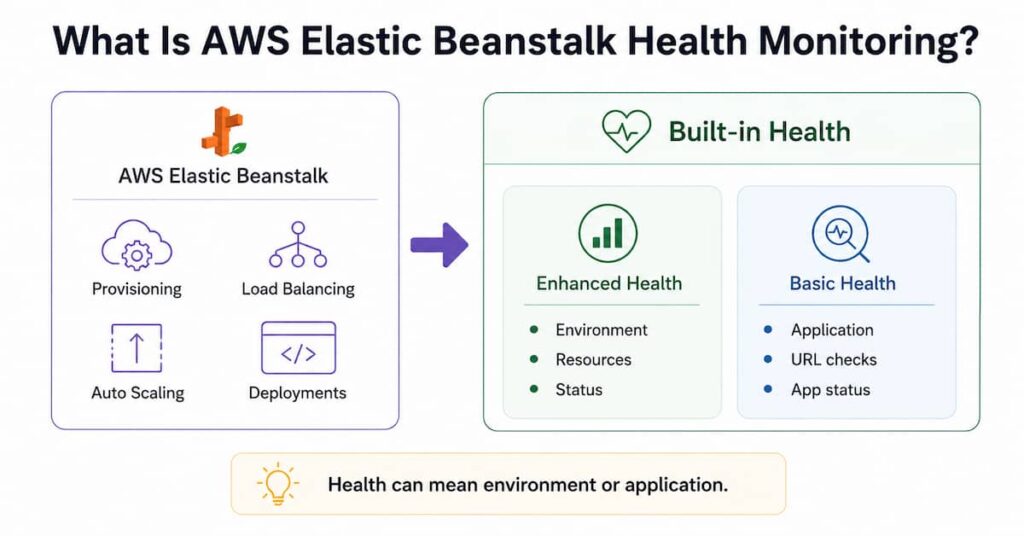
AWS Elastic Beanstalk is a Platform-as-a-Service (PaaS) that automatically handles infrastructure provisioning, load balancing, auto-scaling, and application deployment. As part of this managed experience, Beanstalk includes built-in health monitoring that gives you a quick view of your environment’s status.
However, “health” in Beanstalk’s context can mean different things depending on which monitoring mode you use. Understanding this distinction is the first step to setting up proper observability for your application.
Basic Health Reporting vs. Enhanced Health Reporting
Elastic Beanstalk provides two health reporting systems. Choosing the right one has a direct impact on how much visibility you have into your application.
Basic Health Reporting
Basic health reporting is the default mode for older platform versions. It provides a simple color-coded status based on:
- Elastic Load Balancing (ELB) health checks for load-balanced environments
- EC2 instance status checks for single-instance environments
- CloudWatch metrics (CPUUtilization, NetworkIn, NetworkOut, DiskReadOps, DiskWriteOps)
The critical limitation of basic health reporting is that it only checks whether your instance is reachable. It does not monitor whether your application is actually functioning correctly. A server that responds to a TCP ping on port 80 will show as healthy even if the application process has crashed.
Enhanced Health Reporting
Enhanced health reporting is a significantly more powerful monitoring mode available on Elastic Beanstalk platform versions 2 and later. When enabled, it:
- Deploys a health agent on every EC2 instance in your environment
- Collects detailed metrics: request counts, HTTP response codes, CPU usage, memory, disk I/O, load average, and more
- Publishes a custom CloudWatch metric: AWS/ElasticBeanstalk/EnvironmentHealth
- Provides specific status messages like “Ok”, “Info”, “Warning”, “Degraded”, “Severe”, “Emergency”, and “Suspended”
- Displays cause information directly in the Elastic Beanstalk console
With Enhanced health reporting enabled, you get a true picture of what is happening inside your environment, not just whether the server is reachable.
Understanding Health Status Colors
Whether you use Basic or Enhanced health reporting, Beanstalk represents environment health with four colors. Here is what each color means:
| Color | Status | What It Means |
| Green | Ok / Info | Environment is passing all health checks. Application is running normally. |
| Yellow | Warning / Degraded | One or more health checks are failing. Performance may be impacted. |
| Red | Severe / Emergency | Multiple health checks failing. Application requests are likely failing. |
| Grey | Unknown / Suspended | Environment is being updated, initializing, or has been suspended due to severe issues. |
Note: With Enhanced health reporting, each color maps to more specific status labels (e.g., Red can be either “Severe” or “Emergency”), making it easier to assess the actual severity.
How to Enable Enhanced Health Reporting
Enabling Enhanced health reporting takes only a few minutes and is one of the most important configuration changes you can make for production environments.
Via the AWS Management Console
- Open the Elastic Beanstalk console and navigate to your environment.
- In the left sidebar, choose Configuration.
- Under the Monitoring section, choose Edit.
- Under Health reporting system, select Enhanced.
- Choose Apply to save your changes.
Via .ebextensions
You can also enable Enhanced health reporting by adding a configuration file to your source bundle:
# .ebextensions/health-reporting.configoption_settings: aws:elasticbeanstalk:healthreporting:system: SystemType: enhancedMonitoring Elastic Beanstalk Health in the AWS Console
Once you have Enhanced health reporting enabled, the AWS Management Console becomes a powerful real-time monitoring tool.
The Environment Overview Dashboard
The main environment page shows:
- Overall health status (color + status label)
- Recent events and cause information
- A link to the enhanced health dashboard for per-instance details
The Enhanced Health Dashboard
The Enhanced Health Dashboard (available under Monitoring in your environment) provides:
- Per-instance health breakdown with cause information
- Request count and latency percentiles (p50, p75, p95, p99)
- HTTP response code distribution (2xx, 3xx, 4xx, 5xx)
- CPU utilization, load average, and system health per instance
Monitoring Graphs
The Monitoring tab in the Elastic Beanstalk console shows time-series graphs for key CloudWatch metrics. You can customize which metrics appear by adding metrics from CloudWatch, including custom metrics published by the Enhanced health agent.
Setting Up CloudWatch Alarms for Elastic Beanstalk
CloudWatch Alarms are the backbone of any alerting strategy for Elastic Beanstalk. They watch a metric over a time window and fire when the metric crosses a threshold.
Key Metrics to Alarm On
For Enhanced health reporting environments, these are the most critical metrics:
- EnvironmentHealth (the numeric health status, where 0=Ok, 1=Info, 5=Warning, 10=Degraded, 20=Severe, 25=Emergency)
- ApplicationRequests5xx (server-side errors)
- ApplicationRequests4xx (client errors that may indicate broken flows)
- ApplicationLatencyP99 (tail latency for the top 1% of requests)
- InstancesSevere and InstancesDegraded (count of unhealthy instances)
- CPUUtilization (from the EC2 namespace for the Auto Scaling group)
Step-by-Step: Create an SNS-Backed CloudWatch Alarm
- Open the SNS console and create a new topic (e.g., BeanstalkAlerts).
- Add a subscription to your topic with your email address or SMS number.
- Confirm the subscription via the confirmation email you receive.
- Open CloudWatch and navigate to Alarms > Create Alarm.
- Choose Select metric and find your Elastic Beanstalk metrics under AWS/ElasticBeanstalk.
- Select EnvironmentHealth for your specific environment.
- Set the condition to be Greater than or equal to 10 (Degraded or worse) for at least 1 datapoint in 5 minutes.
- Under Notification, choose the SNS topic you created.
- Name your alarm and create it.
Using .ebextensions to Deploy a CloudWatch Alarm
You can deploy alarms as part of your application bundle, keeping your monitoring configuration in version control. Here is a minimal example:
# .ebextensions/cloudwatch-alarm.configResources: BeanstalkHealthAlarm: Type: AWS::CloudWatch::Alarm Properties: AlarmName: BeanstalkEnvironmentDegraded Namespace: AWS/ElasticBeanstalk MetricName: EnvironmentHealth ComparisonOperator: GreaterThanOrEqualToThreshold Threshold: 10 EvaluationPeriods: 1 Period: 300 Statistic: Maximum AlarmActions: - arn:aws:sns:us-east-1:123456789012:BeanstalkAlertsHealth Checks: Load Balancer, EC2, and Auto Scaling
One of the most misunderstood aspects of Elastic Beanstalk monitoring is how health checks interact with the three components that use them: Elastic Beanstalk itself, the Elastic Load Balancer (ELB), and the Auto Scaling group (ASG).
How the Three Health Check Systems Work
Each component serves a different purpose:
- Elastic Beanstalk health checks: Ping the health check URL (or TCP port 80 by default) and update the environment color status. They drive the console display and the EnvironmentHealth metric.
- ELB health checks: Ping each instance on a configurable path and port. If an instance fails, the ELB stops routing traffic to it. This does not terminate the instance.
- Auto Scaling group health checks: By default, only use EC2-level checks (hardware/hypervisor). They can also use ELB health checks. If an instance is marked unhealthy by the ASG, it is terminated and replaced.
The Self-Healing Gap and How to Fix It
By default, the Auto Scaling group only performs EC2 instance checks, which verify that the underlying hardware is operational. This means your ASG will not replace an instance where the application has crashed but the underlying VM is still running.
To enable true self-healing, you must configure the Auto Scaling group to use ELB health checks:
# .ebextensions/autoscaling-elb-health.configResources: AWSEBAutoScalingGroup: Type: AWS::AutoScaling::AutoScalingGroup Properties: HealthCheckType: ELB HealthCheckGracePeriod: 300This ensures that when the load balancer marks an instance as unhealthy (because the application is not responding correctly), the Auto Scaling group will terminate and replace that instance automatically.
Configuring Health Check Paths
For load-balanced environments, you can (and should) configure a custom health check path rather than relying on the root URL. A dedicated health endpoint typically:
- Returns HTTP 200 only when the application and its dependencies (database, cache) are operational
- Responds quickly (within the ELB timeout, typically 5 seconds)
- Does not require authentication
Health Checks for Single-Instance and Worker Environments
Single-instance environments (no load balancer) and worker tier environments handle health checks differently:
- Single-instance environments: Elastic Beanstalk directly monitors the EC2 instance status checks rather than using an ELB. The instance must pass EC2 status checks and the application must be running and responding on the expected port.
- Worker tier environments: Health is assessed based on the SQS queue and the response codes returned by the worker process. If the worker does not return a 200 response to the SQS daemon within the configured timeout, the message is returned to the queue.
Key CloudWatch Metrics for Elastic Beanstalk
Understanding which metrics matter most helps you build a monitoring strategy that catches real issues without generating alert fatigue.
Metrics Published Under AWS/ElasticBeanstalk (Enhanced Mode Only)
- EnvironmentHealth: Numeric representation of health status
- InstancesOk, InstancesInfo, InstancesWarning, InstancesDegraded, InstancesSevere: Count of instances in each health state
- ApplicationRequests2xx, 3xx, 4xx, 5xx: Request counts by HTTP response code family
- ApplicationLatencyP10, P50, P75, P85, P90, P95, P99, P999: Request latency percentiles
- RootFilesystemUtil: Root filesystem utilization percentage
- EnvironmentHealthColor: Text representation of the color status
Standard EC2 and ELB Metrics (Basic Mode)
- CPUUtilization: Percentage of CPU used by the instance
- NetworkIn / NetworkOut: Network bytes in and out
- DiskReadOps / DiskWriteOps: Disk IOPS
- HealthyHostCount / UnHealthyHostCount (from your load balancer namespace)
- RequestCount and TargetResponseTime (from the ALB/CLB namespace)
Using Heartbeat Monitoring with Elastic APM
For teams using the Elastic Stack, Heartbeat can be used to perform synthetic uptime monitoring against Elastic Beanstalk endpoints. Heartbeat periodically pings your application URL and reports results to Elasticsearch, which you can visualize in Kibana’s Uptime app.
A minimal Heartbeat configuration for a Beanstalk environment looks like:
heartbeat.monitors: - type: http id: beanstalk-app name: My Beanstalk App urls: - https://myapp.us-east-1.elasticbeanstalk.com/health schedule: '@every 30s' check.response.status: [200]Monitoring .NET Applications with CloudWatch and Amazon Managed Grafana
For .NET applications running on Elastic Beanstalk, AWS recommends combining the CloudWatch Agent with Amazon Managed Grafana to create rich dashboards. The CloudWatch Agent can collect:
- Custom application metrics exposed via the StatsD or collectd protocol
- Windows Performance Counters (for Windows Server instances)
- .NET runtime metrics like GC pause time and thread pool utilization
Amazon Managed Grafana connects to CloudWatch as a data source and allows you to build dashboards that combine Beanstalk environment health, EC2 metrics, and application-level metrics in a single view.
Monitoring Best Practices for AWS Elastic Beanstalk
- ✓ Always enable Enhanced health reporting on production environments.
-
✓ Set up a dedicated
/healthendpoint in your application that checks database and cache connectivity. -
✓ Configure Auto Scaling groups to use ELB health checks (
HealthCheckType: ELB) for self-healing. -
✓ Create CloudWatch Alarms on
EnvironmentHealth >= 10(Degraded) andApplicationRequests5xxabove your defined threshold. - ✓ Use SNS to route alerts to your team via email, SMS, or PagerDuty/Slack integrations.
- ✓ Consider using Managed Grafana for cross-environment dashboards.
-
✓ For worker environments, monitor
SQS ApproximateNumberOfMessagesNotVisibleto detect stalled processing. -
✓ Use
.ebextensionsto deploy monitoring configuration as code rather than configuring it manually through the console.
- ✓ Full-stack request tracing across Beanstalk environments
- ✓ Real-time health status monitoring with instant alerts
- ✓ Error rate, latency, and throughput dashboards built specifically for Beanstalk workloads
- ✓ Works alongside CloudWatch — no rip-and-replace required
Conclusion
AWS Elastic Beanstalk monitoring is more nuanced than it first appears. The default Basic health reporting gives you a superficial view that can mask serious application problems. By enabling Enhanced health reporting, configuring proper CloudWatch alarms, setting up ELB-based health checks for your Auto Scaling group, and using a dedicated health check endpoint, you can build a monitoring setup that reflects what is actually happening in your environment.
The most important steps are: enable Enhanced health reporting, alarm on EnvironmentHealth, and set HealthCheckType to ELB in your Auto Scaling group. These three changes alone will dramatically improve your observability and reliability on Elastic Beanstalk.
Disclaimer
This article is provided for informational purposes only. AWS console interfaces, API behaviors, and default configurations may change over time. Always consult the official AWS Elastic Beanstalk documentation at docs.aws.amazon.com for the most current guidance. The code examples in this article are illustrative; review and adapt them to your specific environment before deploying to production.
FAQs
1. What is the difference between Basic and Enhanced health reporting in Elastic Beanstalk?
Basic health reporting checks whether your instances are reachable at the network level (via a load balancer ping or EC2 status check). Enhanced health reporting deploys a health agent on every instance that collects detailed application metrics including HTTP response codes, request latency, CPU, memory, and disk usage, and publishes them to CloudWatch.
2. How do I enable Enhanced health reporting?
You can enable it in the Elastic Beanstalk console by going to Configuration > Monitoring > Health reporting system and selecting Enhanced. You can also enable it via .ebextensions by setting SystemType: enhanced under the aws:elasticbeanstalk:healthreporting:system namespace.
3. Why is my Elastic Beanstalk environment showing green but my application is failing?
This typically happens with Basic health reporting, where the health check only verifies that the instance responds to a TCP ping on port 80. Your application process could be returning 500 errors or the health check path could be returning 200 even when the application is degraded. Switching to Enhanced health reporting and configuring a proper health check endpoint that validates your application’s dependencies will resolve this.
4. Why are unhealthy instances not being replaced automatically?
By default, the Auto Scaling group only uses EC2 instance checks (hardware-level). To get automatic instance replacement based on application health, you must configure the ASG to use ELB health checks by setting HealthCheckType: ELB in your .ebextensions configuration.
5. What is the EnvironmentHealth metric and how do I use it?
EnvironmentHealth is a numeric CloudWatch metric published by Enhanced health reporting under the AWS/ElasticBeanstalk namespace. It uses the following scale: 0 = Ok, 1 = Info, 5 = Warning, 10 = Degraded, 20 = Severe, 25 = Emergency. Setting a CloudWatch Alarm with a threshold of 10 (Degraded) is the recommended starting point for production alerting.