









Running AWS Batch jobs without proper monitoring is like flying blind. Jobs can silently fail, pile up in the RUNNABLE state for hours, or exhaust compute capacity without a single alert firing. Yet AWS Batch does not push detailed job-status metrics to CloudWatch by default, leaving a significant observability gap.
This guide covers every layer of AWS Batch monitoring: native CloudWatch integration, Container Insights, EventBridge-driven custom metrics, alerting, and dashboards. By the end, you will have a complete picture of how to monitor AWS Batch jobs and compute environmental health so issues are caught before they become incidents.
-
AWS Batch does not publish job-status counts
(
RUNNABLE,FAILED,SUCCEEDED) to CloudWatch by default. You must build custom metrics. - Container Insights gives you CPU, memory, network, and storage metrics for compute environments at the container level.
- EventBridge + Lambda is the recommended pattern to get real-time queue depth, job age, and job-state counts.
- CloudWatch Alarms and dashboards turn raw metrics into actionable alerts.
-
Jobs stuck in
RUNNABLEalmost always mean insufficient compute capacity or a lowmaxvCpussetting.
1. Understanding the AWS Batch Monitoring Landscape
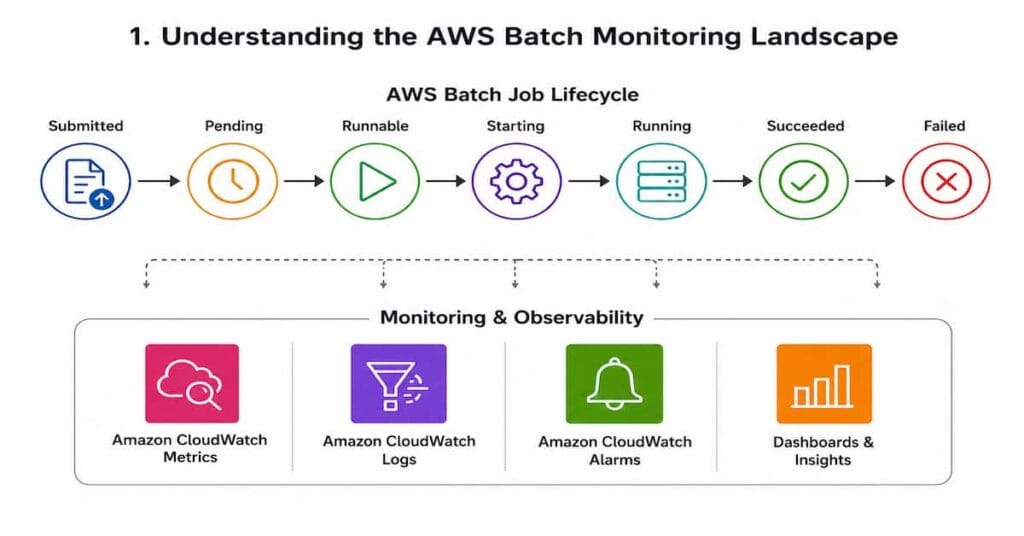
AWS Batch is a fully managed service that dynamically provisions compute capacity and runs batch computing workloads. Jobs progress through a defined lifecycle before completing or failing.
AWS Batch Job Lifecycle States
Understanding job states is the foundation of effective AWS Batch monitoring. Every job moves through a predictable sequence:
| State | Meaning | Monitor For |
| SUBMITTED | Job accepted by Batch scheduler | Queue depth growth |
| PENDING | Waiting on dependencies | Stuck dependency chains |
| RUNNABLE | Ready but waiting for compute | Capacity bottleneck signal |
| STARTING | Container provisioning | Slow start times |
| RUNNING | Executing | Duration overruns |
| SUCCEEDED | Completed successfully | Throughput / SLA |
| FAILED | Exited with non-zero code | Failure rate spikes |
Why RUNNABLE matters: Jobs stuck in RUNNABLE are one of the most common and silent problems in AWS Batch. This state means the job is ready to run but compute capacity is unavailable. It can indicate a low maxvCpus setting, exhausted Spot capacity, a service quota limit, or an IAM permission issue preventing scaling. Without custom monitoring, this can go undetected for hours.
What AWS Batch Sends to CloudWatch Natively
Out of the box, AWS Batch publishes a limited set of infrastructure-level metrics. The official AWS documentation identifies the primary monitoring tools as CloudWatch Logs, Container Insights, and EventBridge events. However, critical operational metrics such as job counts by state are not included natively.
| Metric | Default CloudWatch | Custom / Container Insights |
| CPU & Memory Utilization | Yes (Container Insights) | Yes |
| Job Status Counts (RUNNABLE etc.) | No | Custom Lambda required |
| Queue Depth | No | EventBridge + Lambda |
| Job Duration | No | Custom metric |
| Container Instance Count | Yes | Yes |
| Log Output | Yes (awslogs driver) | Yes |
| Job Failure Alerts | No native | CloudWatch Alarm on custom metric |
2. Setting Up CloudWatch Logs for AWS Batch Jobs
CloudWatch Logs is the first monitoring layer to configure. Every container that runs in your AWS Batch compute environment can stream its stdout and stderr output to a CloudWatch log group. This is critical for diagnosing job failures.
Step 1: Create the Log Group
Create a dedicated log group before registering job definitions. Setting a retention period avoids unbounded storage costs.
aws logs create-log-group \ --log-group-name /aws/batch/jobs \ --retention-in-days 30Step 2: Configure the awslogs Driver in Your Job Definition
Add a logConfiguration block to your container properties when registering a job definition. For EC2-based compute environments you also need to attach the CloudWatchLogsFullAccess policy (or a scoped-down equivalent) to your ecsInstanceRole.
aws batch register-job-definition \ --job-definition-name monitored-job \ --type container \ --container-properties '{ "image": "123456789012.dkr.ecr.us-east-1.amazonaws.com/my-app:latest", "resourceRequirements": [ {"type": "VCPU", "value": "2"}, {"type": "MEMORY", "value": "4096"} ], "logConfiguration": { "logDriver": "awslogs", "options": { "awslogs-group": "/aws/batch/jobs", "awslogs-region": "us-east-1", "awslogs-stream-prefix": "my-app" } } }'Log streams follow the format <prefix>/<container-name>/<ecs-task-id>. For Fargate-based compute environments, CloudWatch Logs is enabled by default.
3. Enabling CloudWatch Container Insights
Container Insights is the second monitoring layer. It collects, aggregates, and summarizes metrics and logs from your AWS Batch compute environments and jobs. These metrics are stored as structured performance log events using a JSON schema, which CloudWatch then aggregates into higher-level metrics at the compute environment and job level.
Metrics Available Through Container Insights
Once enabled, Container Insights provides the following metrics per compute environment:
- JobCount: number of jobs running in the compute environment
- ContainerInstanceCount: EC2 instances registered with the ECS agent
- CpuReserved and CpuUtilized: CPU units reserved vs. used
- MemoryReserved and MemoryUtilized: memory reserved vs. used
- NetworkRxBytes and NetworkTxBytes: bytes received and transmitted (awsvpc or bridge mode only)
- StorageReadBytes and StorageWriteBytes: bytes read from and written to storage
Important: CloudWatch Container Insights metrics are charged as custom metrics. Review the Amazon CloudWatch pricing before enabling this at scale.
How to Enable Container Insights
Container Insights is enabled per compute environment from the AWS Batch console:
- Open the AWS Batch console and choose Environments.
- Select the compute environment you want to monitor.
- Go to the Container insights tab and toggle Container insights on.
- Optionally select a default aggregation interval or set a custom one.
4. Filling the Gaps: Custom Metrics with EventBridge and Lambda
Container Insights and CloudWatch Logs tell you about resource utilization, but they do not tell you how many jobs are RUNNABLE, how long jobs have been waiting, or what your current failure rate is. These gaps require a custom solution.
The Problem: Missing Job-Status Metrics
As documented in the AWS re:Post community and several engineering blogs, AWS Batch does not publish job-status counts (RUNNABLE, RUNNING, FAILED, SUCCEEDED) as CloudWatch metrics. These metrics are visible on the AWS Batch console dashboard but are not surfaced to CloudWatch, making it impossible to build alarms or programmatic dashboards without additional work.
A practical example: in one real-world incident, 1,000 Batch jobs were accidentally submitted at once. They piled up in RUNNABLE due to a low maxvCpus setting and went unnoticed for hours because there was no alarm on queue depth. This is the class of problem that custom metrics solve.
Architecture: EventBridge + Lambda + CloudWatch
The recommended pattern uses three AWS services together:
- EventBridge captures job state change events in real time
- A Lambda function processes events, queries the Batch API for queue depths, and publishes custom CloudWatch metrics
- CloudWatch stores the metrics and powers alarms and dashboards
Step 1: Create the EventBridge Rule
aws events put-rule \ --name batch-job-state-changes \ --event-pattern '{ "source": ["aws.batch"], "detail-type": ["Batch Job State Change"], "detail": { "status": ["FAILED", "SUCCEEDED", "RUNNING", "RUNNABLE"] } }'Step 2: Lambda Function to Publish Custom Metrics
The Lambda function queries the AWS Batch API for job counts per status and publishes them as custom CloudWatch metrics. Using paginated list_jobs() calls ensures accurate counts even for large queues.
import boto3from datetime import datetime
cloudwatch = boto3.client('cloudwatch')batch      = boto3.client('batch')
def get_job_count(queue, status):    count, token = 0, None    while True:        params = {'jobQueue': queue, 'jobStatus': status, 'maxResults': 100}        if token: params['nextToken'] = token        resp  = batch.list_jobs(**params)        count += len(resp['jobSummaryList'])        token  = resp.get('nextToken')        if not token: break    return count
def handler(event, context): queues = [q['jobQueueArn'] for q in batch.describe_job_queues()['jobQueues']] for queue in queues: for status in ['RUNNABLE','RUNNING','FAILED','SUCCEEDED','SUBMITTED']: count = get_job_count(queue, status) cloudwatch.put_metric_data( Namespace='AWSBatch/JobStatus', MetricData=[{ 'MetricName': 'JobCount', 'Dimensions': [ {'Name': 'JobQueue', 'Value': queue}, {'Name': 'Status', 'Value': status} ], 'Value': count, 'Unit': 'Count', 'Timestamp': datetime.utcnow() }] )Schedule this Lambda function every 5 minutes using an EventBridge scheduled rule. The total monthly cost for the Lambda invocations and custom CloudWatch metrics is typically a few cents for most workloads.
5. Creating CloudWatch Alarms for AWS Batch
Metrics are only useful when they trigger action. Create CloudWatch Alarms for the most critical failure modes.
Alarm 1: High Job Failure Rate
aws cloudwatch put-metric-alarm \ --alarm-name batch-high-failure-rate \ --alarm-description 'More than 10 Batch jobs failed in 1 hour' \ --namespace AWSBatch/JobStatus \ --metric-name JobCount \ --dimensions Name=Status,Value=FAILED \ --statistic Sum \ --period 3600 \ --threshold 10 \ --comparison-operator GreaterThanThreshold \ --evaluation-periods 1 \ --alarm-actions arn:aws:sns:us-east-1:123456789012:batch-alerts \ --treat-missing-data notBreachingAlarm 2: Jobs Stuck in RUNNABLE
aws cloudwatch put-metric-alarm \ --alarm-name batch-runnable-backlog \ --alarm-description 'More than 50 jobs waiting for compute capacity' \ --namespace AWSBatch/JobStatus \ --metric-name JobCount \ --dimensions Name=Status,Value=RUNNABLE \ --statistic Maximum \ --period 300 \ --threshold 50 \ --comparison-operator GreaterThanThreshold \ --evaluation-periods 1 \ --alarm-actions arn:aws:sns:us-east-1:123456789012:batch-alertsAlarm 3: Long-Running Jobs
aws cloudwatch put-metric-alarm \ --alarm-name batch-long-running-jobs \ --alarm-description 'Batch job running longer than 2 hours' \ --namespace AWSBatch/JobStatus \ --metric-name JobDurationSeconds \ --statistic Maximum \ --period 300 \ --threshold 7200 \ --comparison-operator GreaterThanThreshold \ --evaluation-periods 1 \ --alarm-actions arn:aws:sns:us-east-1:123456789012:batch-alerts6. Monitoring Compute Environment Health
Monitoring job status alone is not sufficient. Your compute environment can be healthy while jobs fail, or jobs can be healthy while your compute environment is degraded. Monitor both layers independently.
Compute Environment State Checks
AWS Batch compute environments expose a status field: CREATING, UPDATING, DELETING, DELETED, VALID, or INVALID. An INVALID state means the compute environment cannot provision capacity, which will immediately impact all jobs queued to it.
Use the AWS Batch describe-compute-environments API to poll environment state:
aws batch describe-compute-environments \ --query 'computeEnvironments[*].{name:computeEnvironmentName,status:status,state:state}' \ --output tableKey Metrics to Watch for Compute Health
- ContainerInstanceCount: if this drops to zero unexpectedly, scaling has failed
- CpuUtilized vs CpuReserved: a persistent gap can indicate wasted spend or undersizing
- MemoryUtilized vs MemoryReserved: high utilization above 90% can cause OOM failures
- RUNNABLE job count trending up: the primary leading indicator of capacity exhaustion
Spot Instance Interruption Handling
If you use Spot compute environments, jobs can be interrupted when Spot capacity is reclaimed. AWS Batch automatically retries interrupted jobs according to the retry strategy in the job definition. Monitor the FAILED state with a reason filter of ‘Host EC2 was terminated’ to distinguish Spot interruptions from application failures.
7. Building an AWS Batch Monitoring Dashboard
Once you have metrics flowing into CloudWatch, create a dashboard that gives your team a single view of batch pipeline health. A well-structured dashboard for AWS Batch monitoring typically contains four sections.
Job Health Panel
- RUNNABLE job count over time
- FAILED job count over time
- SUCCEEDED job count over time
- Job failure rate (FAILED / total)
Compute Capacity Panel
- ContainerInstanceCount over time
- CpuUtilized vs CpuReserved
- MemoryUtilized vs MemoryReserved
Performance Panel
- Average and maximum job duration
- P99 job duration for SLA tracking
Queue Depth Panel
- Jobs per state per queue
- Job age (time in RUNNABLE state)
9. AWS Batch Monitoring Best Practices
- Always configure CloudWatch Logs on every job definition. Silent failures are the hardest to debug.
- Enable Container Insights for any production compute environment. The cost is small relative to the visibility it provides.
- Set a RUNNABLE backlog alarm early. A growing RUNNABLE count is almost always actionable before it becomes a crisis.
- Separate Spot and On-Demand compute environments. This makes it easier to distinguish Spot interruptions from application failures in your metrics.
- Use job retry strategies for transient failures but cap retries. Unlimited retries on a broken job can exhaust your compute budget silently.
- Review maxvCpus on all managed compute environments monthly. Workload growth regularly makes previously sensible limits into bottlenecks.
- Tag job queues and job definitions consistently. Dimensions in your custom CloudWatch metrics should match these tags so you can filter dashboards by team, pipeline, or environment.
- Pre-built AWS Batch dashboards in minutes, not days
- Correlate batch job failures with infrastructure events and application traces
- Unified alerting across Batch, ECS, Lambda, and other AWS services
Conclusion
AWS Batch monitoring requires building on top of what AWS provides natively. CloudWatch Logs and Container Insights give you the infrastructure layer. EventBridge and Lambda close the gap for job-status metrics. CloudWatch Alarms and dashboards turn data into action.
The most important metric to get right first is the RUNNABLE job count. Jobs stuck in RUNNABLE are the leading indicator of nearly every serious Batch incident. Once you have an alarm on that metric, you can build out the rest of your monitoring incrementally.
Disclaimer: This article is intended for informational purposes only. AWS services, pricing, and feature availability change over time. Always refer to the official AWS documentation for the most current and accurate information. Code examples are provided as illustrative references and should be reviewed and tested in your own environment before use in production.
FAQ
1. Does AWS Batch publish job status metrics to CloudWatch by default?
No. AWS Batch does not push job-status counts (RUNNABLE, RUNNING, FAILED, SUCCEEDED) to CloudWatch natively. You need to build a custom solution using EventBridge, Lambda, and the Batch API to publish these as custom metrics.
2. How do I get alerted when AWS Batch jobs are stuck in RUNNABLE?
Create a CloudWatch Alarm on a custom metric tracking RUNNABLE job count. If the count crosses a threshold (for example, 50 jobs) over a 5-minute period, trigger an SNS notification. Jobs stuck in RUNNABLE almost always indicate a low maxvCpus setting or insufficient Spot capacity.
3. What is CloudWatch Container Insights for AWS Batch?
Container Insights is an optional feature that collects CPU, memory, network, and storage metrics at the container level for your Batch compute environments. It is enabled per compute environment from the AWS Batch console and is charged as custom CloudWatch metrics.
4. How do I monitor AWS Batch job logs?
Configure the awslogs log driver in your job definition’s logConfiguration block. This streams container stdout and stderr to a CloudWatch log group. For Fargate-based compute environments, CloudWatch Logs is enabled by default. For EC2-based environments, you also need to attach a CloudWatch Logs IAM policy to your ecsInstanceRole.
5. What is the best way to monitor AWS Batch compute environment health?
Use a combination of Container Insights metrics (ContainerInstanceCount, CpuUtilized, MemoryUtilized) and the describe-compute-environments API to check environment state. An INVALID compute environment state means capacity provisioning has failed and will block all queued jobs. Set a CloudWatch Alarm on ContainerInstanceCount dropping to zero as an early warning signal.