










Azure Cosmos DB powers mission-critical applications from globally distributed e-commerce carts to financial systems that cannot tolerate latency spikes. Yet without proper monitoring, a throttled request, a hot partition, or a replication lag issue can degrade user experience for hours before anyone notices.
This guide covers how Azure Cosmos DB monitoring works, which metrics matter most, how to configure diagnostic settings correctly, and how to choose between Azure Monitor, third-party tools, and self-hosted platforms for full observability.
Pricing data sourced from official vendor pages as of June 2026. Prices may vary; verify directly with each vendor before making a decision.
What Is Azure Cosmos DB Monitoring?
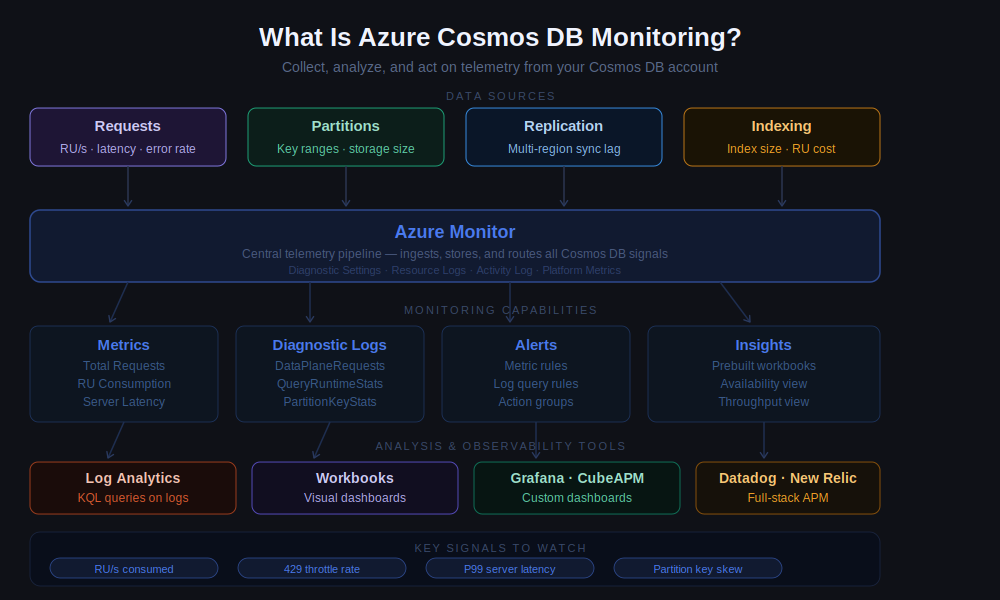
Azure Cosmos DB monitoring is the practice of collecting, analyzing, and alerting on telemetry data from your Cosmos DB accounts to track availability, performance, capacity, and operational health in real time.
Cosmos DB generates metrics and logs automatically. Metrics include throughput consumption (RU/s), latency percentiles, throttled requests, storage usage, and availability. Logs capture diagnostic events like configuration changes, replication lag, partition splits, and backup operations.
Monitoring matters because Cosmos DB pricing is tied directly to provisioned throughput (Request Units per second) and storage. Without visibility into actual RU consumption patterns, teams either overprovision and waste budget, or underprovision and hit 429 throttling errors that impact end users.
Three monitoring layers are critical:
- Platform metrics: Collected automatically by Azure Monitor at one-minute granularity. These include server-side metrics like total requests, RU consumption per container, latency by operation type, and availability percentage. No configuration required; these flow into Azure Monitor immediately after account creation.
- Resource logs: Also called diagnostic logs. These require explicit configuration through diagnostic settings. Logs capture granular events like slow queries, partition key statistics, cross-region replication events, and control plane operations. By default, logs are not retained; you must route them to a destination like Log Analytics, Storage Account, or Event Hub.
- Client-side telemetry: Captured through application instrumentation using the Cosmos DB SDKs. This includes request-level latency, retry behavior, exception stack traces, and request charge details per operation. Client-side data correlates with server-side metrics to pinpoint whether performance issues originate in the application layer, network path, or database service itself.
How Azure Cosmos DB Monitoring Works
Azure Cosmos DB monitoring operates through Azure Monitor, Microsoft’s unified observability platform. Every Cosmos DB account automatically emits platform metrics to Azure Monitor without any setup. For deeper visibility, diagnostic settings route logs to queryable destinations.
- Azure Monitor platform metrics: Cosmos DB publishes metrics every minute to the Microsoft.DocumentDB/databaseAccounts namespace. These cover requests, throughput, storage, availability, latency, consistency, and system-level signals. Metrics are stored in the Azure Monitor time-series database with a default retention of 93 days and can be queried through the Azure portal, REST API, Azure CLI, or PowerShell.
- Diagnostic settings: To capture resource logs, create a diagnostic setting in the Azure portal under your Cosmos DB account’s Diagnostic settings blade. Select which log categories to collect (DataPlaneRequests, QueryRuntimeStatistics, PartitionKeyStatistics, ControlPlaneRequests, and others) and choose a destination: Log Analytics workspace for querying with KQL, Azure Storage for long-term retention, or Event Hub for streaming to external systems.
- Cosmos DB Insights: A pre-built workbook in Azure Monitor that aggregates Cosmos DB metrics into a single dashboard, showing account-level health, request distribution by status code, RU consumption by container, latency percentiles, storage usage, and throttling trends. Insights is accessible from the Azure Monitor Insights Hub or directly from your Cosmos DB account’s Monitoring section.
- Integration with application telemetry: Cosmos DB SDKs expose diagnostic information through their APIs. The .NET SDK, for example, provides RequestDiagnostics objects that include request charge, latency breakdown, retry attempts, and regions contacted. Correlating this client-side data with server-side metrics and logs lets you trace the full path of a slow query from application code through the network to the database partition.
Data flow: Application → Cosmos DB Gateway → Data partitions → Metrics emitted to Azure Monitor + Logs (if diagnostic settings enabled) → Log Analytics / Storage / Event Hub → Alerting / Dashboards / Third-party tools.
Key Metrics and Logs to Track in Azure Cosmos DB
Azure Cosmos DB exposes over 100 metrics. The ones that matter most depend on whether you optimize for cost, latency, availability, or capacity planning.
Throughput metrics
Total Requests: Count of all requests segmented by status code, operation type (Create, Read, Update, Delete, Query), API type (NoSQL, MongoDB, Cassandra, Gremlin, Table), and region. Critical for identifying traffic patterns and validating that requests are distributed as expected across regions in multi-region accounts.
Normalized RU Consumption: A percentage value (0% to 100%) showing how much of your provisioned throughput is being used, calculated per partition key range (physical partition). Sustained values above 80% indicate you are close to throttling. Values consistently below 30% suggest overprovisioning. This metric identifies hot partitions consuming disproportionate RU/s relative to others.
Total Request Units: The raw count of RUs consumed, aggregated by container, operation type, and region. Useful for cost attribution and capacity planning.
Provisioned Throughput: Shows the RU/s currently allocated to a container or database. If you use autoscale, this value changes dynamically. Track this alongside actual consumption to verify autoscale behavior and ensure manual throughput changes take effect.
Throttled Requests (429 errors): Count of requests rejected due to exceeding provisioned throughput. A single 429 triggers a client retry, usually transparent to users. Sustained 429s indicate consistent overload and user-visible latency. This metric must trigger alerts because throttling directly impacts application performance.
Latency metrics
Server-Side Latency: Time Cosmos DB spends processing a request, excluding network time, measured in milliseconds. Track P50, P95, and P99 percentiles by operation type. A P99 latency spike from 5ms to 50ms can indicate a hot partition, a large query, or indexing policy issues.
End-to-End Latency: Total time from client request initiation to response completion, including network round-trip time. Higher than server-side latency when network paths are slow or when the client is geographically distant from the Cosmos DB region.
Replication Latency: Time it takes for writes to replicate across regions in multi-region accounts. Elevated replication latency can cause stale reads in eventual consistency mode and delays in conflict resolution.
Availability and health metrics
Availability: Percentage uptime for your Cosmos DB account. Azure Cosmos DB offers a 99.999% availability SLA for multi-region accounts with multi-region writes enabled, and 99.99% for single-region accounts. This metric confirms SLA compliance and helps identify region-specific outages.
Region Availability: Per-region availability for multi-region accounts. If one region degrades while others remain healthy, this metric isolates the problem geography.
Storage metrics
Data Usage: Total storage consumed by your data in GB, reported at 5-minute granularity. Cosmos DB transactional storage costs $0.25/GB/month, so tracking growth trends is essential for budget forecasting.
Index Usage: Storage consumed by indexes. Cosmos DB indexes all properties by default, which can inflate storage costs. If index size significantly exceeds data size, consider tuning your indexing policy to exclude unused paths.
Document Count: Total number of documents in a container. Useful for understanding data distribution across partitions and for validating that deletes and TTL policies are working as expected.
Diagnostic logs (require diagnostic settings)
DataPlaneRequests: Logs every read, write, query, or stored procedure execution. Includes request charge, latency, client IP, user agent, and partition key value. Essential for debugging slow queries and for understanding per-partition RU consumption patterns.
QueryRuntimeStatistics: Detailed execution metrics for queries, including document load time, query engine execution time, output document count, and index utilization. Use this to optimize queries that scan too many documents or fail to use indexes effectively.
PartitionKeyStatistics: Storage size and document count per logical partition key. Since each logical partition has a 20 GB limit, this log identifies partition keys approaching that threshold. Over-reliance on a single partition key causes hot partitions and eventual write failures.
ControlPlaneRequests: Logs for account management operations like throughput updates, failover events, backup policy changes, and region additions. Critical for audit trails and for correlating performance changes with configuration changes.
MongoRequests, CassandraRequests, GremlinRequests, TableApiRequests: API-specific logs for non-SQL APIs, including error codes, operation types, and request charges specific to each API’s semantics.
Best Practices for Azure Cosmos DB Monitoring
Configure diagnostic settings early: Enable diagnostic settings during initial deployment, not after a production incident. Route logs to a Log Analytics workspace for querying and to a Storage Account for long-term retention. At minimum, enable DataPlaneRequests, QueryRuntimeStatistics, PartitionKeyStatistics, and ControlPlaneRequests.
Set alerts on throttling and latency: Create Azure Monitor alert rules for TotalRequests filtered by StatusCode = 429. Fire an alert if throttled request count exceeds a threshold such as more than 10 in a 5-minute window. Similarly, alert on P99 latency exceeding acceptable thresholds for your workload, typically 10ms for point reads and 100ms for queries.
Monitor normalized RU consumption per partition: Use the NormalizedRUConsumption metric with dimensions set to PartitionKeyRangeId. If any partition consistently shows 100% consumption while others are underutilized, you have a hot partition. The solution is usually to choose a partition key with higher cardinality or to refactor your data model.
Track autoscale behavior: If you use autoscale throughput, monitor the AutoscaleMaxThroughput metric to see how often Cosmos DB scales up and down. Compare this to TotalRequestUnits to verify that autoscale provides sufficient headroom during traffic spikes.
Use partition key statistics to avoid partition limits: Enable the PartitionKeyStatistics diagnostic log and query it regularly in Log Analytics. Identify partition keys approaching the 20 GB logical partition limit and migrate data to a new partition key before hitting the limit, at which point writes to that partition will fail.
Correlate client-side and server-side telemetry: Instrument your application using Application Insights or OpenTelemetry to capture request IDs, operation names, and latency. Correlate these with Cosmos DB DataPlaneRequests logs using the ActivityId field. This tells you whether slowness originates in your code, network, or Cosmos DB itself.
Monitor cross-region replication lag: For multi-region accounts, track ReplicationLatency to ensure writes replicate within acceptable timeframes. Elevated replication lag can cause consistency issues in eventual consistency mode and delay conflict resolution in multi-region write scenarios.
Review indexing policy impact: Check the Index Usage metric regularly. If index size is disproportionately large relative to data size, audit your indexing policy. Exclude paths that are never queried and use composite indexes for queries with multiple filters and ORDER BY clauses. Every unnecessary indexed path increases both write RU cost and storage cost.
Set budget alerts on RU consumption: Azure Cost Management can alert you when Cosmos DB spend exceeds a threshold. Combine this with RU consumption metrics to detect cost overruns early. A sudden spike in TotalRequestUnits often correlates with unoptimized queries or unexpected traffic surges.
Retain logs for compliance and troubleshooting: Azure Monitor metrics have a 93-day retention limit. Diagnostic logs in Log Analytics default to 30 days unless configured otherwise. For compliance or long-term trend analysis, route logs to Azure Storage with immutable storage policies or export to external SIEM systems.
Tools for Azure Cosmos DB Monitoring
Azure Monitor is the default monitoring platform for Cosmos DB, but teams often supplement it with third-party tools or self-hosted solutions for deeper analysis, unified multi-cloud observability, or cost control.
Azure Monitor and Cosmos DB Insights
Azure Monitor is Microsoft’s native observability service. Every Cosmos DB account automatically sends platform metrics to Azure Monitor, viewable in the Azure portal under the Metrics blade, where you can create alert rules and build custom dashboards.
Cosmos DB Insights is a pre-built workbook that aggregates key metrics into a unified view, showing request counts by status code, RU consumption trends, throttling events, storage usage, and latency distributions. It is accessible from the Azure Monitor Insights Hub or directly from your Cosmos DB account’s Insights section.
For teams already operating inside Azure, this is the natural starting point. The main limitations emerge at scale: Analytics Log ingestion is billed at $2.30/GB after the first 5 GB/month free, queries can slow against large log volumes, and managing alert rules across many accounts or subscriptions adds overhead. A Basic Logs tier exists at $0.50/GB for less-frequently-queried data, though it has limited alerting and retention capabilities compared to Analytics Logs.
Application Insights
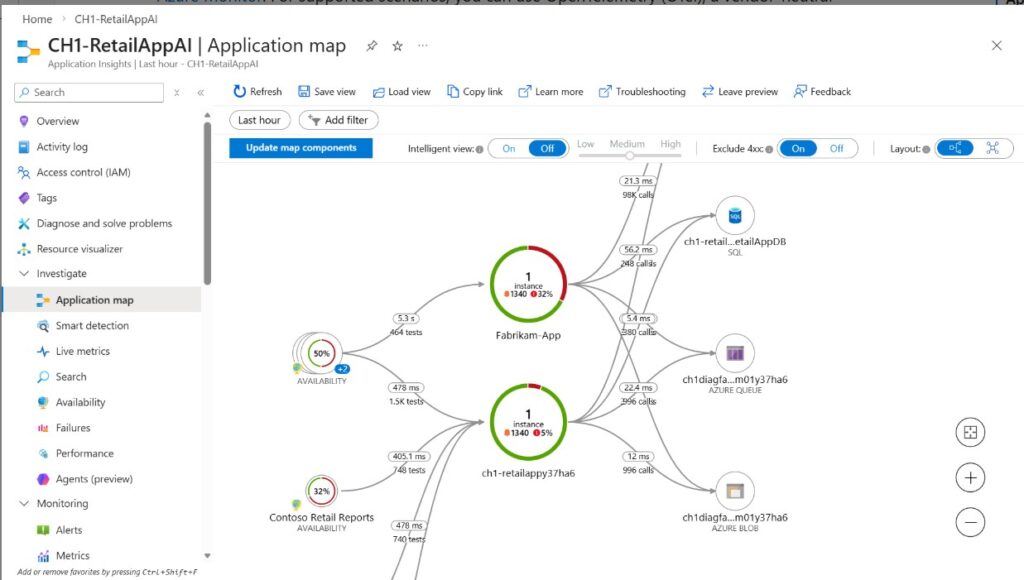
Application Insights is Azure’s APM service and integrates with Cosmos DB through auto-instrumentation in .NET, Java, Node.js, and Python SDKs. It captures distributed traces that include Cosmos DB dependency calls, latency breakdowns, and exception stack traces, making it well-suited for correlating a slow API response through your application stack into the underlying Cosmos DB query.
Application Insights data is stored in a Log Analytics workspace and billed at the same Analytics Logs rate ($2.30/GB after the first 5 GB/month free). It complements Azure Monitor metrics rather than replacing them, adding application-layer context to server-side signals. For teams running serverless architectures like Azure Functions that interact with Cosmos DB, Application Insights is often the most direct integration path. See the CubeAPM guide to monitoring Azure Functions for context on how these signals combine in practice.
Datadog
Datadog’s Azure integration pulls Azure Monitor metrics and diagnostic logs for Cosmos DB and surfaces them in pre-built dashboards with alerting integrations to PagerDuty, Slack, and other incident management tools. The breadth of supported integrations (700+) makes it practical for teams monitoring heterogeneous multi-cloud environments where Cosmos DB is one of many data sources.
Infrastructure monitoring starts at $15/host/month (Pro plan, billed annually). APM, when purchased alongside infrastructure monitoring, is $31/host/month (billed annually). Log ingestion costs $0.10/GB with additional charges for indexing and retention. For teams monitoring Cosmos DB alongside other Azure services and multiple cloud providers, the unified platform reduces context-switching between tools, but the multi-dimensional billing model means costs accumulate quickly across infrastructure, APM, and logs simultaneously.
New Relic
New Relic’s Azure integration monitors Cosmos DB by ingesting metrics and logs from Azure Monitor. It provides AI-powered anomaly detection, distributed tracing that correlates Cosmos DB dependency calls with upstream application traces, and a Kubernetes cluster explorer that is useful when Cosmos DB serves as the backend for containerized workloads.
Pricing is $0.40/GB for data ingest after 100 GB/month free, plus per-user licensing for full platform access (Standard: $99/user/month; Pro and Enterprise pricing requires contacting sales). For teams already using New Relic across their stack, adding Cosmos DB visibility does not require a separate integration; it is covered by the same data ingest pricing.
Dynatrace
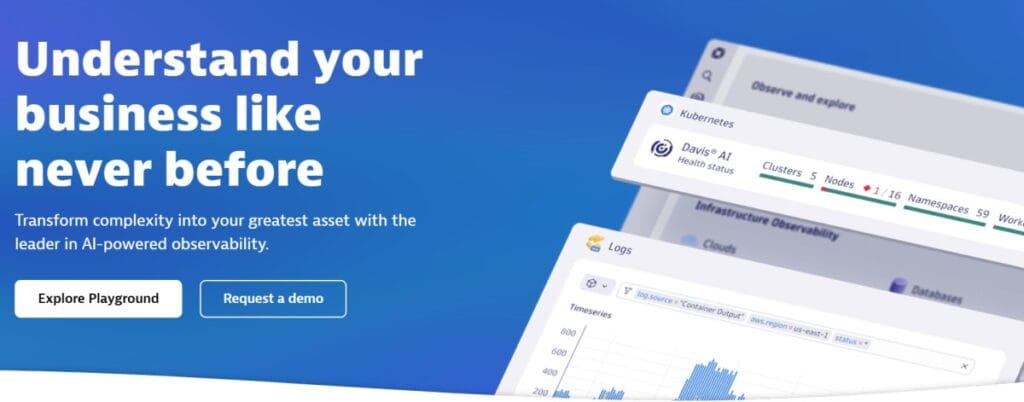
Dynatrace auto-discovers Cosmos DB accounts within Azure and provides Davis AI-driven root cause analysis that can correlate Cosmos DB latency spikes with upstream service behavior, infrastructure pressure, or deployment events. Full-Stack Monitoring is priced at $58/month per 8 GiB host (billed at $0.01/GiB-hour), with Log Analytics available separately at $0.20/GB ingestion. Dynatrace is a natural fit for organizations already using it for AKS or other Azure workloads who want to extend coverage to Cosmos DB without adding a second tool.
For a direct comparison of how Azure Monitor, Dynatrace, and CubeAPM handle Azure observability, see the Azure Monitor vs Dynatrace vs CubeAPM breakdown.
CubeAPM
CubeAPM is a self-hosted observability platform that monitors Azure Cosmos DB alongside application traces, logs, infrastructure metrics, and Kubernetes workloads, all within your own Azure VPC or on-premises environment. Because CubeAPM runs inside your infrastructure, diagnostic logs from Cosmos DB never leave your environment, which matters for teams with GDPR, HIPAA, or data localization requirements.
CubeAPM ingests Azure Monitor metrics and Cosmos DB diagnostic logs through OpenTelemetry collectors or Azure Event Hub integration, correlating Cosmos DB query latency with application traces and Kubernetes pod metrics for full-stack visibility. Smart Sampling reduces storage overhead by retaining high-signal events such as latency spikes, throttling events, and errors without dropping diagnostic coverage.
Pricing is $0.15/GB for all ingested data with no per-user fees and no additional retention costs. For a detailed comparison of how CubeAPM stacks up against Azure Monitor and Datadog for Azure workloads, see the Azure Monitor vs Datadog vs CubeAPM comparison.
Grafana and Prometheus
The open-source combination of Prometheus and Grafana can scrape Azure Monitor metrics using the Azure Monitor exporter for Prometheus and visualize them in Grafana dashboards. This approach is free to self-host but requires operational effort for deployment, long-term storage (typically Prometheus with Thanos or Cortex), and ongoing maintenance. It is best suited for teams that already operate a Prometheus and Grafana stack and want to add Cosmos DB metrics without introducing a new platform.
Elastic Stack

Elastic can ingest Cosmos DB diagnostic logs through Azure Event Hub, index them in Elasticsearch, and visualize them in Kibana. Elastic APM can correlate Cosmos DB calls with application traces. The self-hosted Elastic Stack is free but infrastructure-heavy. Elastic Cloud Serverless Observability is consumption-based, starting at approximately $0.105/GB ingested for the Logs Essentials tier.
How to Choose the Right Monitoring Tool
Use Azure Monitor and Cosmos DB Insights if
You are already in the Azure ecosystem, have modest log volumes where $2.30/GB ingestion is manageable, and want a fully managed solution with minimal setup. This is the right default for teams that have not yet outgrown native Azure tooling and do not need cross-cloud visibility.
Use a commercial SaaS platform (Datadog, New Relic, Dynatrace) if
You monitor multi-cloud environments and need Cosmos DB visibility alongside AWS, GCP, or on-premises workloads in a single pane of glass. Commercial platforms reduce integration effort across heterogeneous stacks and offer mature alerting and incident management workflows. Budget for variable month-to-month costs that scale with data volume and feature usage.
Use CubeAPM or Grafana/Elastic if
You have data residency requirements that prohibit sending telemetry to third-party SaaS, need predictable cost at scale, or want to unify Cosmos DB observability with application traces and infrastructure metrics without egress fees. Self-hosted tools require more initial setup but give full control over data, retention, and cost.
Full Cosmos DB Observability, Inside Your Infrastructure: CubeAPM
Azure Monitor gives you native Cosmos DB visibility, but costs escalate quickly once log volumes grow. At $2.30/GB for Analytics Log ingestion and additional retention charges beyond 31 days, teams monitoring high-traffic Cosmos DB accounts in production can find that observability becomes a meaningful budget line.
CubeAPM addresses this by running entirely inside your own infrastructure. Cosmos DB diagnostic logs, application traces, and infrastructure metrics are ingested, correlated, and stored within your Azure VPC or data center at a flat $0.15/GB, with no per-user fees and no retention limits.
At 5 TB/month of Cosmos DB logs and traces:
- CubeAPM: $750/month (plus self-hosted infrastructure costs)
- Azure Monitor Analytics Logs: approximately $11,500/month at $2.30/GB
Cosmos DB throttling events, slow query logs, and application traces are correlated in the same timeline view without exporting data to external platforms. GDPR or HIPAA requirements are met by design; telemetry never leaves the customer’s cloud. CubeAPM supports OpenTelemetry-native ingestion, so existing instrumentation does not need to be replaced. Onboarding a Cosmos DB account averages under 60 minutes.
Conclusion
Azure Cosmos DB monitoring requires visibility across three layers: platform metrics through Azure Monitor, diagnostic logs routed to a queryable destination, and client-side telemetry correlated with server-side data. The right tool depends on your log volume, data residency requirements, and whether you monitor Cosmos DB in isolation or as part of a broader multi-cloud observability stack.
Start with diagnostic settings enabled at deployment, alerts on throttling and P99 latency, and a clear understanding of your per-GB ingestion costs before choosing a long-term platform. Ready to evaluate CubeAPM for your Azure environment? Start with the documentation.
Disclaimer: Pricing data was sourced from official vendor websites and documentation as of June 2026. Vendor pricing changes frequently; verify all figures directly with each vendor before making purchasing decisions. CubeAPM is the platform behind this blog.
FAQs
Which Azure service monitors the performance of Azure Cosmos DB?
Azure Monitor is the primary service. It collects platform metrics automatically and provides diagnostic logging, alerting, and visualization through Cosmos DB Insights. Application Insights can monitor Cosmos DB dependency calls when integrated with your application code.
How do you view Cosmos DB metrics in Azure?
Navigate to your Cosmos DB account in the Azure portal, select Metrics under the Monitoring section, and choose the namespace Microsoft.DocumentDB/databaseAccounts. Filter by dimensions like container name, region, or status code. For pre-built views, use Cosmos DB Insights under the Insights section.
What are the most important metrics to monitor in Cosmos DB?
Total requests filtered by status code (to detect throttling), normalized RU consumption per partition (to identify hot partitions), server-side latency at P95 and P99, data and index storage usage, and availability percentage for SLA compliance.
How do you configure diagnostic settings for Azure Cosmos DB?
In the Azure portal, go to your Cosmos DB account, select Diagnostic settings under Monitoring, click Add diagnostic setting, choose the log categories you need (DataPlaneRequests, QueryRuntimeStatistics, PartitionKeyStatistics, ControlPlaneRequests), and select a destination such as a Log Analytics workspace. Save to start collecting logs.
What is the difference between server-side latency and end-to-end latency in Cosmos DB?
Server-side latency measures the time Cosmos DB spends processing a request, excluding network time. End-to-end latency includes the network round-trip between client and database. High end-to-end latency with normal server-side latency points to network issues or geographic distance between the client and the database region.
How do you detect and fix hot partitions in Cosmos DB?
Monitor NormalizedRUConsumption with the PartitionKeyRangeId dimension. If one partition consistently shows 100% consumption, enable the PartitionKeyStatistics diagnostic log to identify the problematic partition key. Fix it by choosing a key with higher cardinality or refactoring your data model.
Does Azure Cosmos DB support OpenTelemetry for monitoring?
Cosmos DB SDKs can export diagnostic information to OpenTelemetry collectors, and Azure Monitor supports OTel ingestion through Application Insights. You can send traces and metrics to any OTel-compatible backend including CubeAPM, Grafana, or Jaeger.