










PostgreSQL connection pool exhaustion in Kubernetes is a production incident that looks deceptive. Your database is healthy, queries run fast when they execute, and CPU is fine. But your application cannot get a connection to run those queries. Requests pile up, timeouts multiply, and users see errors or frozen screens. According to the 2024 CNCF Annual Survey, 73% of organizations now run stateful workloads like databases in Kubernetes, which means connection pool issues hit harder and spread faster in distributed environments than they ever did in single-server deployments.
This guide explains what connection pool exhaustion is, why it happens more often in Kubernetes, how to diagnose it, and how to fix the root cause, whether that is a connection leak, pool misconfiguration, or query bottleneck.
What Is PostgreSQL Connection Pool Exhaustion?
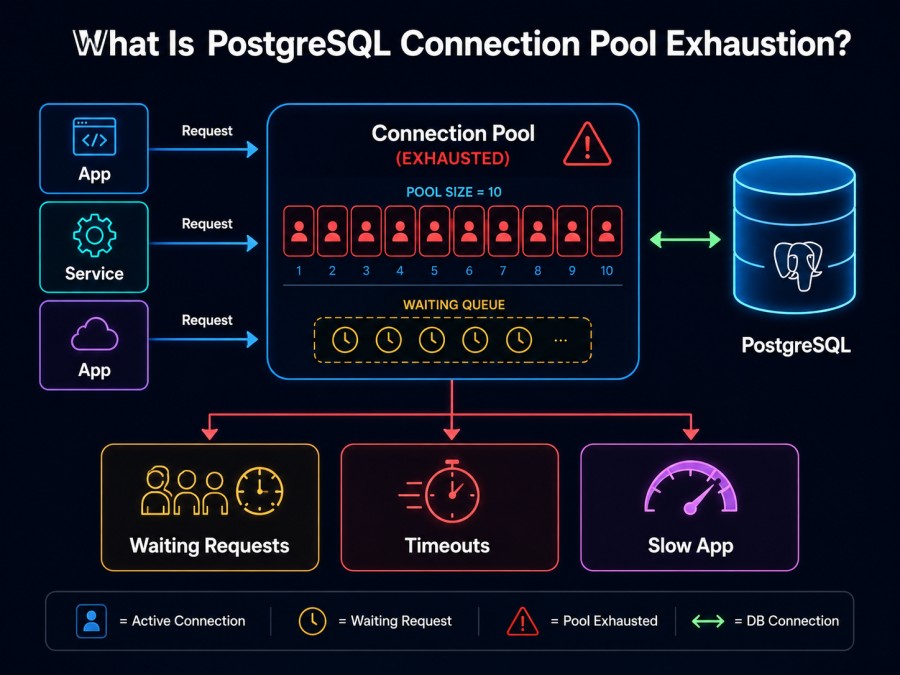
Connection pool exhaustion happens when an application tries to acquire a database connection from the pool but all connections are in use and the pool has hit its maximum size. The application waits for a connection to become available. If no connection is released within the configured timeout, the request fails with an error.
In most PostgreSQL client libraries, the error looks like this: “connection pool has been exhausted” or “timeout waiting for connection from pool”. The database itself is not down. The problem is on the client side, the application cannot reach the database because it ran out of available connections in its own pool.
Connection pools exist to avoid the overhead of opening a new TCP connection and PostgreSQL backend process for every single query. Instead, the application opens a fixed number of connections at startup and reuses them. This works well until the application holds connections longer than expected, leaks them, or faces traffic that exceeds the pool capacity.
In Kubernetes, this problem gets worse because each pod runs its own connection pool. A deployment with 10 replicas means 10 separate pools all competing for connections to the same PostgreSQL instance. If each pod is configured with a pool size of 20, that is 200 total connections to PostgreSQL, which may exceed the database max_connections setting or create contention at the database layer even if the pool itself is not exhausted.
How Connection Pools Work in Kubernetes
Every application pod that connects to PostgreSQL maintains its own connection pool. The pool size is set by the application code or environment variable, not by Kubernetes. When a request comes in, the application checks out a connection from the pool, runs the query, and returns the connection. If the connection is never returned due to a leak, timeout, or crash, the pool shrinks until it runs out entirely.
Kubernetes adds two complications. First, pods scale horizontally. A sudden autoscale event from 5 pods to 20 pods multiplies the number of active pools by four in seconds, which can instantly exhaust the database connection limit. Second, pod restarts or rollouts create a brief window where old pods hold connections while new pods are trying to establish their own pools, doubling the connection count temporarily.
PostgreSQL has a hard limit on connections set by the max_connections parameter in postgresql.conf. The default is 100. If your Kubernetes deployment has 10 pods with pool size 15 each, you need 150 connections just for the application layer, which exceeds the database limit before any connection overhead, monitoring tools, or admin sessions are counted.
Common Causes of Connection Pool Exhaustion in Kubernetes
Connection Leaks
A connection leak happens when the application acquires a connection from the pool but never releases it. This is the most common cause and also the hardest to spot without instrumentation. Leaks typically come from code paths where an error is thrown before the connection close or release statement is reached, or from missing defer or finally blocks in languages like Go or Python.
In Kubernetes, leaks compound faster because each pod leaks independently. A single leaked connection per pod across 20 pods removes 20 connections from circulation. Over hours, the pools drain completely.
Pool Size Misconfiguration
Many teams set the pool size too low relative to the workload. A common default is 10 connections per pod. If the application handles 50 concurrent requests per pod, all 50 requests compete for 10 connections, which guarantees pool exhaustion during any traffic spike.
The flip side is setting the pool size too high. If every pod opens 50 connections but the database max_connections is 100, two pods can exhaust the entire database. The right pool size depends on request concurrency, query duration, and how many pods are running.
Slow Queries Holding Connections
Long running queries block connections from returning to the pool. A query that takes 30 seconds holds its connection for the full duration. If 10 requests hit that query path simultaneously, 10 connections are locked for 30 seconds each. If the pool only has 15 connections, the remaining 5 are consumed by normal traffic, leaving nothing for new requests.
In Kubernetes, slow queries are harder to trace because the slow query may be happening in pod A while pod B is the one throwing pool exhaustion errors. The connection pool is local to each pod, but all pods share the same database, so a slow query in one pod can cause lock contention or I/O saturation that slows down queries in every other pod.
Autoscaling Without Connection Capacity Planning
Horizontal pod autoscaling in Kubernetes can add 10 or 20 new pods in under a minute during a traffic spike. Each new pod opens its own connection pool. If the database was already near max_connections before the scale event, the new pods push it over the limit. PostgreSQL refuses new connections, the new pods fail health checks, and the cluster enters a crash loop.
Pod Restarts and Rolling Updates
During a rolling update, Kubernetes starts new pods before terminating old ones to maintain availability. For a brief window, both the old and new pods are running and both hold active connections. If the deployment has 10 pods with 20 connections each, a rolling update temporarily creates 20 pods with 400 total connections. If max_connections is 300, the deployment cannot complete without connection errors.
Incorrect Connection Timeout Settings
Most PostgreSQL client libraries allow you to set a connection timeout, the maximum time the application will wait for a connection from the pool before giving up. Setting this too low, like 5 seconds, causes premature failures during brief traffic spikes. Setting it too high, like 60 seconds, masks the problem and makes users wait a full minute before seeing an error, which degrades the user experience even worse.
How to Diagnose Connection Pool Exhaustion
Start by checking the PostgreSQL server side. Connect to the database and run this query to see how many connections are currently active:
SELECT count(*) FROM pg_stat_activity;Compare that number to max_connections. If you are near the limit, the problem is database capacity. If you are well below the limit, the issue is on the application side, likely a pool configuration or connection leak.
To see which applications or users are holding the most connections, run:
SELECT usename, application_name, count(*)
FROM pg_stat_activity
GROUP BY usename, application_name
ORDER BY count DESC;This shows which pods or services are consuming the most connections. In Kubernetes, the application_name often includes the pod name or service name, which helps isolate the source.
Next, check for idle connections that have been open for a long time:
SELECT pid, usename, application_name, state, state_change, now() - state_change AS duration
FROM pg_stat_activity
WHERE state = 'idle'
ORDER BY duration DESC
LIMIT 20;If you see idle connections that have been idle for minutes or hours, those are leaked connections. The application checked them out but never returned them.
On the application side, check the pod logs for connection pool errors. Most libraries log when the pool is exhausted. In Go with pgx, the error looks like “failed to acquire connection: timeout”. In Python with psycopg2, it looks like “connection pool exhausted”. In Node.js with node-postgres, it looks like “timeout acquiring client from pool”.
If you are using an APM tool that tracks database connection pool metrics, check the pool utilization graph. Tools like Kubernetes monitoring platforms often surface connection pool size, active connections, and wait time. A pool that stays at 100% utilization for extended periods is either leaking connections or undersized for the workload.
How to Fix Connection Pool Exhaustion
Fix Connection Leaks
Ensure every code path that acquires a connection releases it, even on error. In Go, use defer. In Python, use context managers or try/finally. In Java, use try-with-resources. In Node.js, always call client.release() in a finally block or use async/await with proper error handling.
To detect leaks in production, instrument your connection pool to log every checkout and check-in with a timestamp and stack trace. If a connection is checked out but not returned within a threshold like 30 seconds, log a warning. This helps you find the exact code path causing the leak.
Right Size the Connection Pool
The correct pool size depends on how many concurrent requests each pod handles and how long queries take on average. A common starting formula is:
pool_size = (expected_concurrent_requests_per_pod * average_query_duration_seconds) + bufferFor example, if a pod handles 20 concurrent requests and queries take 100ms on average, you need at least 2 connections. Add a buffer of 5 to 10 connections to handle spikes. A pool size of 10 to 15 per pod is reasonable for this workload.
Multiply the pool size by the number of pods to ensure the total does not exceed the database max_connections. If you have 20 pods with pool size 15, that is 300 connections. If max_connections is 200, reduce the pool size to 8 per pod or increase max_connections on the database.
Increase Database max_connections
PostgreSQL allows you to raise max_connections, but this has a cost. Each connection consumes memory for backend processes and shared buffers. A max_connections setting of 500 or 1000 can exhaust RAM on smaller database instances.
A better approach is to use a connection pooler like PgBouncer or Pgpool-II between the application and PostgreSQL. The application connects to the pooler, which multiplexes those connections into a smaller number of backend connections to PostgreSQL. This lets you support 500 application connections with only 100 database connections.
In Kubernetes, deploy PgBouncer as a sidecar container in each pod or as a separate deployment. Configure the application to connect to localhost:6432 (PgBouncer default port) instead of the PostgreSQL endpoint.
Optimize Slow Queries
Identify slow queries using pg_stat_statements:
SELECT query, mean_exec_time, calls
FROM pg_stat_statements
ORDER BY mean_exec_time DESC
LIMIT 10;Add indexes, rewrite queries, or break long transactions into smaller ones. Reducing a 10 second query to 1 second frees up connections 10 times faster, which directly reduces pool exhaustion risk.
Configure Connection Timeouts Correctly
Set the connection timeout to a value that balances user experience and resource utilization. For user facing APIs, 10 to 15 seconds is reasonable. For background jobs, 30 to 60 seconds may be acceptable. Never set it to infinity, which can cause requests to hang indefinitely.
Also configure idle_in_transaction_session_timeout on the PostgreSQL side to kill connections that start a transaction but do not commit or rollback within a time limit. This prevents leaked transactions from holding connections forever.
Plan for Autoscaling
Before enabling horizontal pod autoscaling, calculate the maximum number of pods you expect and ensure the database can handle the total connection count. If autoscaling can add 50 pods and each pod needs 10 connections, you need 500 database connections. If max_connections is 200, either reduce the pool size, use a connection pooler, or increase max_connections.
Monitor connection usage during scale up events. If new pods fail to connect, the database is the bottleneck. If new pods connect but requests time out, the pool size or timeout settings need adjustment.
Tools for Monitoring and Preventing Connection Pool Exhaustion
CubeAPM monitors PostgreSQL connection pool metrics alongside application traces and Kubernetes pod health. It tracks pool size, active connections, wait time, and connection errors per pod, correlating those metrics with slow queries and pod restarts to surface the root cause. CubeAPM runs inside your VPC, which means PostgreSQL telemetry never leaves your infrastructure. It integrates with OpenTelemetry, so if your application already exports OTel metrics, CubeAPM ingests them without additional instrumentation. Pricing is $0.15 per GB of telemetry data ingested, with unlimited retention and no per-host or per-user fees.
Prometheus with postgres_exporter surfaces connection count, max_connections, and idle connection duration. You can build dashboards in Grafana to track these metrics across all PostgreSQL instances and set alerts when active connections exceed 80% of max_connections. Prometheus is open source and self hosted, but it requires manual setup and tuning.
PgBouncer is a lightweight connection pooler that sits between the application and PostgreSQL. It multiplexes application connections into a smaller pool of database connections, which prevents the application from exhausting max_connections. PgBouncer is well documented and widely used in production Kubernetes clusters.
Datadog APM tracks PostgreSQL connection pool metrics if you instrument your application with Datadog tracing libraries. It correlates connection pool exhaustion with traces and logs, which helps identify the exact request causing the problem. Datadog pricing starts at $31 per host per month for APM, with additional charges for logs and custom metrics. For a 50 pod Kubernetes cluster, that can reach $1,550 per month before log ingestion costs.
pganalyze monitors PostgreSQL query performance and connection usage. It surfaces slow queries, connection leaks, and vacuum activity. Pricing starts at $99 per server per month. It is a SaaS only tool, which means query data is sent to pganalyze servers.
Disclaimer: The information in this article reflects the latest details available at the time of publication and may change as technologies and products evolve. Features, pricing, and plan limits can change over time. Always verify the latest information directly with the vendor before making purchasing or deployment decisions.
Frequently Asked Questions
What does “connection pool exhausted” mean in PostgreSQL?
It means the application tried to get a connection from the pool but all connections were in use and the pool reached its maximum size, so the request timed out waiting for an available connection.
Why does connection pool exhaustion happen more in Kubernetes than in traditional deployments?
Each Kubernetes pod maintains its own connection pool. Scaling from 5 pods to 20 pods multiplies the number of pools by four, which can exhaust the database max_connections limit if not planned correctly.
How do I check if my PostgreSQL database is at max_connections?
Connect to PostgreSQL and run: SELECT count(*) FROM pg_stat_activity; then compare the result to SHOW max_connections; If they are close, the database is near capacity.
What is the right connection pool size per pod?
It depends on concurrent request load and query duration. A common starting point is 10 to 20 connections per pod, but calculate based on your actual workload and ensure the total across all pods does not exceed database max_connections.
Should I increase max_connections or use a connection pooler like PgBouncer?
Use a connection pooler. Increasing max_connections consumes more memory and can degrade PostgreSQL performance. PgBouncer multiplexes application connections into fewer database connections without requiring database changes.
How do I find connection leaks in my application code?
Instrument your connection pool to log every checkout and checkin with timestamps. If a connection is held longer than expected without being returned, log a warning with the stack trace to identify the leak.
What timeout should I set for acquiring a connection from the pool?
For user facing APIs, 10 to 15 seconds is reasonable. For background jobs, 30 to 60 seconds may be acceptable. Avoid setting it too low, which causes false positives during brief traffic spikes, or too high, which makes users wait too long.