










ClickHouse is engineered for speed, capable of processing billions of rows in milliseconds. Yet production deployments regularly surface two critical failure patterns: queries that silently consume all server resources, and replicas that fall behind without any immediate error. Left unmonitored, either problem can cause cascading outages.
This guide covers practical ClickHouse monitoring for both query performance and replication lag. You will find the exact system tables to query, the metrics that matter most, alerting thresholds used in real deployments, and a comparison of monitoring tools including CubeAPM, Datadog, Prometheus, and ManageEngine.
Key Takeaways
- Query performance in ClickHouse is monitored primarily through
system.query_log, which records execution time, memory usage, and rows scanned for every completed query. - Replication lag is measured via
system.replicasusing theabsolute_delaycolumn, which reports how many seconds a replica is behind the most advanced node in its shard. - A
queue_sizethat is not shrinking, or anabsolute_delayexceeding 60 seconds, should trigger an immediate investigation. - A replica entering
is_readonlymode is an error state requiring urgent attention as it cannot accept inserts or process mutations. - Tools like CubeAPM provide unified ClickHouse monitoring with dashboards for both query analytics and replication health, reducing the need to manually query system tables.
- Setting
max_memory_usageandmax_concurrent_querieslimits protects the server from runaway queries that can cause Out of Memory crashes.
ClickHouse Monitoring Overview
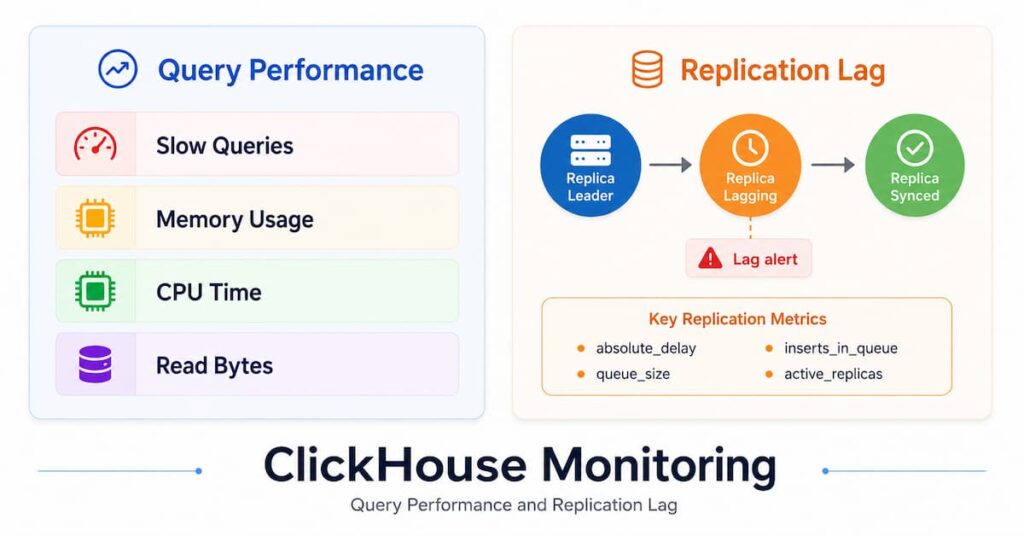
The diagram above illustrates the two monitoring pillars covered in this guide: query performance (left, tracked via system.query_log) and replication lag (right, tracked via system.query_log and system.replicas).
Monitoring ClickHouse Query Performance
Every query executed on your ClickHouse instance is recorded in system.query_log. Tthis table stores detailed execution metadata for every completed and failed query.
1. Find Slow Queries
Slow queries in ClickHouse pose a stability risk beyond mere performance inconvenience. A poorly optimized query scanning large tables without proper filtering can consume tens of gigabytes of RAM. When the server runs out of memory, ClickHouse’s only option is to kill queries or crash entirely.
Use the following query to surface the top 20 slowest queries in the past hour:
SELECT

    query,

    query_duration_ms,

    memory_usage,

    read_rows,

    read_bytes,

    result_rows

FROM system.query_log

WHERE

    type = 'QueryFinish'

    AND event_time >= now() - INTERVAL 1 HOUR

ORDER BY query_duration_ms DESC

LIMIT 20;The type = 'QueryFinish' filter ensures you see completed queries only. Set type = 'ExceptionWhileProcessing' to see queries that failed with errors.
2. Identify Memory-Intensive Queries
ClickHouse allocates memory per query. Queries scanning large tables without proper PREWHERE or ORDER BY alignment can exhaust server RAM. Use this query to find the top memory consumers:
SELECT

    query,

    formatReadableSize(memory_usage) AS mem,

    query_duration_ms,

    read_rows

FROM system.query_log

WHERE type = 'QueryFinish'

ORDER BY memory_usage DESC

LIMIT 10;Once you identify a memory-heavy query, set a per-query limit using the max_memory_usage setting to prevent it from exhausting server resources:
SELECT ...

SETTINGS max_memory_usage = 10000000000; -- 10 GB cap3. Track Query Frequency and Aggregate Cost
Individual slow queries are one problem. Equally damaging are queries that each run in under a second but execute thousands of times per hour, collectively consuming most of your CPU. Use aggregation to expose these:
SELECT

    normalizeQuery(query) AS normalized,

    count()               AS calls,

    avg(query_duration_ms) AS avg_ms,

    sum(memory_usage)     AS total_mem,

    sum(read_rows)        AS total_rows

FROM system.query_log

WHERE

    type = 'QueryFinish'

    AND event_time >= now() - INTERVAL 1 HOUR

GROUP BY normalized

ORDER BY total_mem DESC

LIMIT 20;The normalizeQuery() function replaces literal values with placeholders, so queries with different parameters are grouped together. This reveals the true cost of query patterns rather than individual executions.
4. Monitor with system.metrics and system.events
The system.metrics table provides real-time counters for the current state of the server, including the number of queries executing right now:
SELECT metric, value, description

FROM system.metrics

WHERE metric IN ('Query', 'Merge', 'BackgroundMergesAndMutationsPoolTask')

ORDER BY value DESC;Key metrics to watch in this table include:
- Query: the number of queries currently executing.
- Merge: background merge operations in progress.
- ReplicatedFetch / ReplicatedSend: data parts being transferred between replicas.
5. Set Query Safeguards
Beyond monitoring, ClickHouse provides server-level settings to protect against runaway queries. Configure these in your server settings or pass them as query-level overrides:
- max_concurrent_queries: limits the number of simultaneous queries to prevent CPU starvation.
- max_memory_usage: caps memory consumption per query.
- max_execution_time: terminates queries that exceed the defined wall clock time.
- max_bytes_before_external_group_by: spills large GROUP BY operations to disk to prevent OOM errors.
Monitoring ClickHouse Replication Lag
When you use the ReplicatedMergeTree engine family, ClickHouse maintains replicas of your data across multiple nodes. Each replica keeps a replication queue: a list of inserts, merges, and mutations it must apply to stay in sync. Replication issues are often silent. They do not cause immediate query failures. Instead, they quietly accumulate lag until a failover exposes stale data or a growing queue starts consuming resources.
1. The Primary Lag Metric: absolute_delay
The most important field in system.replicas is absolute_delay. This column reports how many seconds the current replica is behind the most advanced replica in the same shard:
SELECT

    database,

    table,

    replica_name,

    is_leader,

    absolute_delay,

    queue_size,

    inserts_in_queue,

    merges_in_queue

FROM system.replicas

WHERE absolute_delay > 60

ORDER BY absolute_delay DESC;Typical thresholds for alerting:
- absolute_delay = 0: fully caught up, healthy.
- absolute_delay < 10: normal, acceptable lag under typical workloads.
- absolute_delay 10 to 60: worth watching, may indicate a load spike.
- absolute_delay > 60: alert immediately, replica is falling behind.
- absolute_delay > 300: critical, investigate immediately.
2. Check the Replication Queue
Beyond absolute_delay, query system.replication_queue to understand what work remains and whether any operations are stuck:
SELECT

    database,

    table,

    type,

    create_time,

    num_tries,

    last_exception,

    is_currently_executing,

    postpone_reason

FROM system.replication_queue

ORDER BY create_time ASC

LIMIT 50;Pay attention to these columns:
- num_tries: a high value means the task keeps failing and retrying. This is the strongest signal of a stuck operation.
- last_exception: the error message from the last failure. Filter for num_tries > 5 to find tasks that are repeatedly failing.
- type = ‘GET_PART’: downloading a part from another replica.
- type = ‘MERGE_PARTS’: merging local parts, which can stall if resources are exhausted.
3. Detect Read-Only Replicas
A replica with is_readonly = 1 is in an error state. It cannot accept inserts or process mutations. This typically indicates a problem with the coordination layer (ClickHouse Keeper or ZooKeeper). Treat any read-only replica as a page-worthy incident:
SELECT database, table, replica_name, is_readonly

FROM system.replicas

WHERE is_readonly = 1;4. Monitor Active vs Total Replicas
If active_replicas drops below total_replicas, at least one node is unreachable. This should trigger an immediate alert:
SELECT

    database,

    table,

    total_replicas,

    active_replicas

FROM system.replicas

WHERE active_replicas < total_replicas;5. Diagnose a Stalled Replication Queue
When replication lag is growing but the reason is unclear, follow this diagnostic sequence:
First, check resource utilization. A CPU-bound, memory-constrained, or I/O-saturated replica will naturally fall behind. The fix is addressing the underlying bottleneck, not the replication configuration.
Second, look for stuck operations in the queue:
SELECT database, table, type, new_part_name, num_tries, last_exception

FROM system.replication_queue

WHERE num_tries > 5

ORDER BY num_tries DESC;Third, verify ClickHouse Keeper or ZooKeeper connectivity, since replication coordination depends on it:
SELECT * FROM system.zookeeper WHERE path = '/clickhouse';Fourth, scan the error log for replication-specific messages:
SELECT event_time, level, message

FROM system.text_log

WHERE message LIKE '%Replication%'

  AND level IN ('Error', 'Warning')

  AND event_time > now() - INTERVAL 1 HOUR

ORDER BY event_time DESC

LIMIT 100;Exporting ClickHouse Metrics to Prometheus
According to the ClickHouse monitoring documentation, you can configure ClickHouse to export metrics natively to Prometheus. Add the following to your server configuration file:
<prometheus>

    <endpoint>/metrics</endpoint>

    <port>9363</port>

    <metrics>true</metrics>

    <events>true</events>

    <asynchronous_metrics>true</asynchronous_metrics>

</prometheus>Once enabled, Prometheus scrapes ClickHouse metrics from the /metrics endpoint. Combine this with Grafana dashboards to build visual monitoring for query throughput, merge queue depth, and replication lag over time.
For replication alerting in Prometheus, configure rules for:
- Replication queue_size exceeding a threshold over a sustained period, not just a momentary spike.
- absolute_delay growing continuously rather than fluctuating.
- active_replicas dropping below the expected total.
- Any replica entering is_readonly mode.
Using the ClickHouse Built-In Observability Dashboard
ClickHouse ships with a built-in advanced observability dashboard accessible at $HOST:$PORT/dashboard (requires user credentials). This dashboard displays:
- Queries per second and queries currently running.
- CPU usage in cores, CPU wait, and OS CPU usage (both userspace and kernel).
- Selected bytes per second, read from disk, and read from filesystem.
- Memory tracked, inserted rows per second.
- Total MergeTree parts and maximum parts per partition.
The dashboard is useful for a quick operational health check, but it does not retain historical data or support alerting. For production monitoring, combine the built-in dashboard with Prometheus exports or a dedicated APM tool.
ClickHouse Monitoring Tools Comparison
The following table compares the major ClickHouse monitoring options on the two key dimensions covered in this guide:
| Tool | Query Monitoring | Replication Lag | Self-Hosted |
| CubeAPM | Yes | Yes | Yes |
| Datadog DBM | Yes (Preview) | Limited | No (SaaS) |
| Prometheus + Grafana | Via query_log | Via exporter | Yes |
| ManageEngine AppMgr | Yes | Yes | Yes |
| Built-in Dashboard | Yes (basic) | Limited | Yes |
Monitor ClickHouse Query Performance and Replication Lag with CubeAPM
Why CubeAPM Works Well for ClickHouse Monitoring
Manually querying system.query_log and system.replicas gets you the data you need, but it does not scale to multi-node clusters, does not retain historical trends, and does not alert your team when thresholds are breached. That is the gap CubeAPM fills.
CubeAPM is a self-hosted APM and observability platform that integrates with ClickHouse to surface query performance metrics, slow query analysis, and replication health dashboards in a single interface. Because it is self-hosted, you retain full control over your monitoring data with no external SaaS dependency.
Key capabilities relevant to ClickHouse:
- Unified query analytics showing execution time trends, memory usage, and rows scanned across all nodes.
- Replication lag dashboards tracking
absolute_delayandqueue_sizeover time, with configurable alerting thresholds. - Alert routing to Slack, email, and webhooks when query duration or replication lag exceeds defined limits.
- Historical baseline comparison so you can detect regressions that look acceptable in isolation but represent significant degradation from the norm.
Conclusion
Effective ClickHouse monitoring starts with two system tables: system.query_log for query performance and system.replicas for replication health. Together these tables give you the raw signal you need. Adding Prometheus exports, alerting rules, and a dedicated APM tool like CubeAPM turns those signals into operational visibility that scales across clusters and persists historical trends.
The most important thresholds to remember: alert on queries exceeding your defined execution time or memory budget, alert when absolute_delay exceeds 60 seconds, and treat any is_readonly replica as an immediate incident. These three rules catch the vast majority of ClickHouse production incidents before they become outages.
Disclaimer: The SQL queries and system table references in this article are based on ClickHouse documentation available at the time of writing (June 2026). System table schemas, column names, and configuration parameters may vary across ClickHouse versions. Always verify queries against the official ClickHouse documentation for your specific version. Third-party tool features and pricing are subject to change; refer to each vendor’s official documentation for current information.
FAQs
1. What is the best way to find slow queries in ClickHouse?
Query system.query_log and filter by type = ‘QueryFinish’, ordering by query_duration_ms DESC. This gives you the top slow queries along with their memory usage, rows scanned, and read bytes. Combine with normalizeQuery() to group queries with different parameter values.
2. How do I know if my ClickHouse replica is lagging?
Check absolute_delay in system.replicas. A value above 60 seconds warrants an alert. Also monitor queue_size for a queue that is growing rather than shrinking, and check whether is_readonly is set to 1 on any replica.
3. What causes ClickHouse replication lag?
The most common causes are: resource exhaustion on the lagging replica (CPU, RAM, or I/O bottleneck), stuck operations in the replication queue (check num_tries in system.replication_queue), high insert pressure creating a multiplier effect, and ClickHouse Keeper or ZooKeeper connectivity issues.
4. Can ClickHouse monitoring be set up without third-party tools?
Yes. ClickHouse provides a built-in dashboard at $HOST:$PORT/dashboard and native Prometheus export support. You can monitor query performance and replication health entirely through system tables and Prometheus with Grafana dashboards. However, dedicated APM tools like CubeAPM add historical trending, cross-cluster aggregation, and automated alerting that manual system table queries do not provide.
5. How does ClickHouse Database Monitoring in Datadog differ from CubeAPM?
Datadog Database Monitoring for ClickHouse (available in Preview as of 2026) is a SaaS solution that aggregates query metrics and surfaces expensive query patterns. CubeAPM (docs.cubeapm.com) is a self-hosted alternative that covers both query performance and replication lag without sending data to an external service. CubeAPM is typically a better fit for teams with strict data residency requirements or those monitoring on-premises ClickHouse deployments.