









Jenkins pipeline monitoring is the practice of tracking build status, duration, failure patterns, and resource usage across your CI/CD workflows in real time. When a pipeline breaks, every minute of delay can stall releases, frustrate developers, and erode trust in your delivery process.
Most teams discover pipeline failures the wrong way: a developer notices a stale deployment, or a customer reports a bug that should have been caught in CI. A proper monitoring strategy fixes that by surfacing problems the moment they occur, so your team can respond before downstream impact happens.
This guide covers every layer of Jenkins pipeline monitoring, from built-in console logs and native plugins, to OpenTelemetry-based observability and APM platforms. By the end, you will know exactly how to detect build failures, diagnose slow stages, route alerts, and track the metrics that matter.
- ✓ Jenkins provides built-in tools like Console Output, Build History, and Load Statistics for basic pipeline visibility.
- ✓ The Build Failure Analyzer plugin automatically categorizes failure causes, cutting manual log triage.
- ✓ Prometheus and Grafana are the most popular open-source stack for Jenkins metrics dashboards.
- ✓ OpenTelemetry integration sends traces, metrics, and logs from Jenkins to any compatible backend.
- ✓ Key metrics to monitor: build success rate, average duration, queue depth, executor utilization, and MTTR.
- ✓ Effective alerting combines Jenkinsfile post blocks, plugin notifications, and APM alert rules.
- ✓ CubeAPM provides plug-and-play Jenkins monitoring via OpenTelemetry with pre-built dashboards and smart alerts.
Why Jenkins Pipeline Monitoring Matters
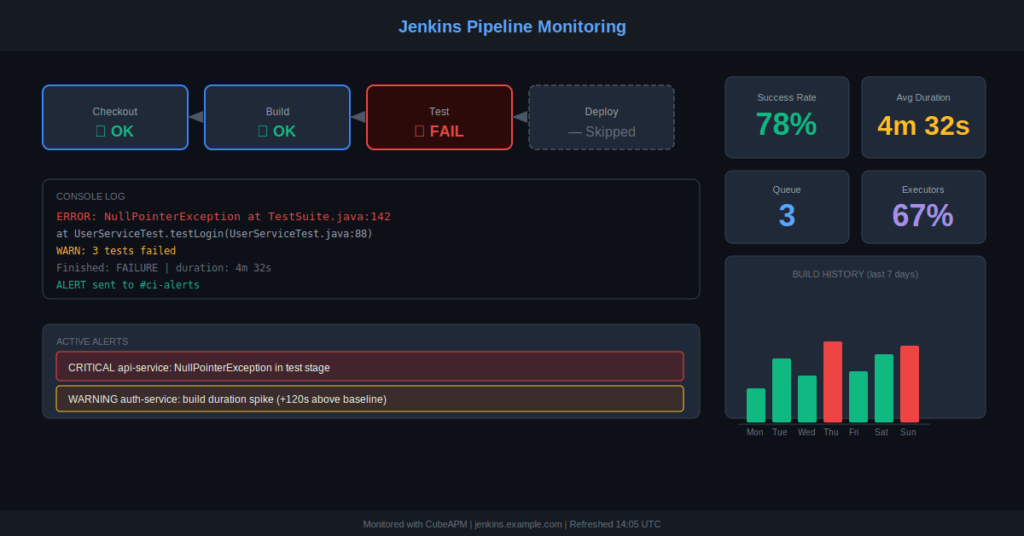
Jenkins orchestrates millions of builds daily across software teams worldwide. A failure in a single pipeline stage, whether a flaky test, a dependency issue, or a misconfigured environment, can cascade into blocked releases and wasted engineering time.
Teams that monitor pipelines proactively report faster mean time to recovery (MTTR) and fewer production incidents caused by faulty builds. Without monitoring you face:
- Silent failures where a job hangs indefinitely without any alert
- Build queue pile-ups that block all downstream deployments
- Undetected test regressions reaching production
- Executor saturation causing builds to wait hours in queue
- Plugin or configuration issues that surface only when a critical pipeline runs
Key Jenkins Pipeline Metrics to Track
Effective jenkins pipeline monitoring starts with knowing which numbers matter. These are the core metrics your strategy should capture:
The percentage of successful builds over a given window. A dropping success rate is the earliest signal that something is systematically wrong, such as a bad dependency, a breaking environment change, or a consistently flaky test suite.
How long builds take on average. Sudden spikes often point to slow tests, network bottlenecks, or resource contention on agents. Compare against a rolling baseline to catch regressions early.
The number of builds waiting for an available executor. A growing queue means agent capacity is insufficient for current load. Left unchecked, this can push wait times from seconds to hours.
The percentage of build executors currently in use. Consistently high utilization (above 85 percent) signals you need more agents. Low utilization can indicate idle resources worth consolidating.
Breaking down failures by stage, such as checkout, build, test, or deploy, tells you precisely where problems are concentrated. If 90 percent of failures happen in the test stage, that is where to focus optimization.
How long it takes from a build failure to the next successful build. MTTR directly measures the effectiveness of your failure detection and response process.
CPU usage, memory consumption, and disk space on each Jenkins agent. An agent running low on disk will fail builds with cryptic errors.
Step 1: Use Jenkins Built-In Monitoring Tools
Before installing any plugin or external tool, Jenkins provides several native monitoring surfaces every team should know.
Console Output
The console output of each build run is your most direct source of failure information. Navigate to Build Number > Console Output in the Jenkins UI to see real-time log streaming. Look for exit codes, stack traces, and error messages that pinpoint the failing step.
For pipeline jobs, view stage-level logs by clicking each stage in the Stage View. As noted by the Jenkins community on Stack Overflow, the most common starting point when debugging a failed job is the console output and stage logs.
Build History Panel
The left-side build history panel on each job page shows recent build numbers, their status icons (blue for success, red for failure), and timestamps. This gives a quick visual trend over recent builds without any plugin.
Load Statistics
Navigate to Manage Jenkins > Load Statistics to see executor usage, build queue length, and agent availability over time. This built-in view is useful for spotting capacity bottlenecks at a glance.
System Log
The Jenkins system log at Manage Jenkins > System Log captures server-level events including plugin errors, remoting connection issues, and authentication failures. Logs on Linux are typically located at /var/log/jenkins/jenkins.log. For Docker deployments, use docker logs <container-name>.
Step 2: Install Key Jenkins Monitoring Plugins
Jenkins has a rich plugin ecosystem. These are the most impactful plugins for pipeline monitoring and failure detection:
Transforms the standard job list into a full-screen, auto-refreshing grid showing the current build status of all selected jobs. Ideal for team wall dashboards.
Scans build logs using configurable regular expression rules and automatically labels failure causes on the build page. This eliminates manual log reading for common failures.
Exposes a /prometheus endpoint on your Jenkins instance that Prometheus can scrape for build duration histograms, job counters, executor state, and queue metrics. Install via Manage Plugins and add Jenkins as a scrape target in your Prometheus config.
Allows you to define rich, conditional email alerts triggered by build events. Template the message to include the build URL, console output excerpts, commits since last success, and duration. Configure per-job in Post-build Actions.
Sends build notifications directly to a Slack channel with job name, build number, status, and a link to the console output.
Step 3: Add Failure Handling Directly in Your Jenkinsfile
The most reliable way to capture build failures is to handle them programmatically inside the pipeline definition. The Declarative Pipeline syntax provides a post block for this purpose.
Here is a complete example that routes failure alerts to Slack and performs workspace cleanup:
pipeline {

  agent any

  stages {

    stage('Build') {

      steps { sh 'make build' }

    }

    stage('Test') {

      steps { sh 'make test' }

    }

    stage('Deploy') {

      steps { sh 'make deploy' }

    }

  }

  post {

    failure {

      slackSend(channel: '#ci-alerts', color: '#FF0000',

        message: "FAILED: ${env.JOB_NAME} #${env.BUILD_NUMBER} - ${env.BUILD_URL}")

    }

    unstable {

      echo 'Test regressions detected'

    }

    always {

      cleanWs()

    }

  }

}The failure block runs only when the build fails. The unstable block captures test regressions. The always block ensures workspace cleanup regardless of outcome.
Step 4: Set Up Prometheus and Grafana for Jenkins Metrics
For teams that want persistent dashboards and historical trend analysis, Prometheus and Grafana is the most widely used open source approach for Jenkins pipeline monitoring.
- Install the Prometheus Metrics plugin from Manage Jenkins > Manage Plugins. After restart, metrics are available at http://<jenkins-host>/prometheus.
- Configure Prometheus to scrape Jenkins by adding a scrape job to your prometheus.yml with the Jenkins host and path.
- Import a Grafana Jenkins dashboard (Dashboard ID 9964 or 10581 from grafana.com) to instantly visualize build duration, success rate, queue depth, and executor usage.
- Set Grafana alert rules on key panels such as success rate dropping below 80 percent, or build duration exceeding twice the baseline, with notifications routed to Slack or PagerDuty.
Key Prometheus metrics include jenkins_builds_duration_milliseconds, jenkins_builds_success_build_count_total, jenkins_executor_count_value, and jenkins_queue_size_value.
Step 5: Monitor Jenkins Pipelines with OpenTelemetry
OpenTelemetry is the vendor-neutral standard for collecting distributed traces, metrics, and logs. The Jenkins OpenTelemetry plugin instruments pipelines to export traces of every build, with each stage and step as a span. You can send this data to any OpenTelemetry-compatible backend including CubeAPM, Grafana Tempo, or Jaeger.
- Install the OpenTelemetry Plugin from Manage Jenkins > Manage Plugins.
- Configure the OTLP endpoint under Manage Jenkins > Configure System. Set the endpoint to your observability backend, such as CubeAPM’s OTLP receiver or a local OpenTelemetry Collector.
- Run a pipeline and navigate to your backend to see distributed traces. Each stage appears as a child span with duration, status, and error details.
- Build dashboards in your backend’s UI using trace data. With CubeAPM, you can correlate Jenkins pipeline spans with traces from your application services and infrastructure metrics.
Step 6: Use CubeAPM for Jenkins Pipeline Observability
CubeAPM is an Application Performance Monitoring platform that collects telemetry data from your applications and infrastructure, and provides a unified UI to visualize and query it. As described in the CubeAPM documentation, it supports OpenTelemetry-native ingestion and can send alert notifications over Email, Slack, PagerDuty, and Google Chat.
Because CubeAPM uses OpenTelemetry as its ingestion layer, setting it up with Jenkins is straightforward using the Jenkins OpenTelemetry plugin:
- Install CubeAPM following the install guide here
- Point the Jenkins OpenTelemetry plugin to CubeAPM’s OTLP endpoint under Manage Jenkins > Configure System.
- Run a pipeline and open CubeAPM to see distributed traces for every build, with stage-level spans, durations, and failure details.
- Set up alerts in CubeAPM based on build failure signals or duration anomalies, routed to Slack or PagerDuty.
What makes CubeAPM particularly useful for Jenkins monitoring is that the same platform also covers your application services and infrastructure. You get a single pane of glass that connects a failing Jenkins test stage to the service it is testing, without switching between tools.
Step 7: Troubleshoot Failed Jenkins Jobs Effectively
When a pipeline fails, a systematic approach reduces MTTR. Here is the recommended debugging workflow:
- Check Console Output first. Scroll to the bottom of the log for the failure summary. Look for non-zero exit codes, exception stack traces, and the last successful step.
- Check the Build Failure Analyzer result (if installed). The labeled cause often points directly to the root issue without reading the full log.
- Reproduce in isolation. Run the failing stage on the same agent type with the same environment variables. Environment differences between agents are a common source of inconsistent failures.
- Compare recent commits. The Jenkins UI shows commits between the last successful build and the failing one under the Changes tab.
- Check agent health. Low disk space, memory pressure, or a stale workspace can cause builds to fail without obvious code-level errors. Check the agent page and review system information.
- Review Jenkins system log. If the build UI does not surface the cause, the server log may contain plugin errors or remoting exceptions.
Step 8: Set Up Alerting for Pipeline Failures
Monitoring without alerting is just data. To close the loop on jenkins pipeline monitoring, you need to route failure signals to the right people fast.
- Jenkinsfile post blocks: Inline failure, unstable, and changed handlers that notify via Slack, email, or webhook immediately on build completion.
- Grafana alert rules: Threshold-based alerts on Prometheus metrics (for example, success rate below 80 percent for 5 minutes) routed to PagerDuty or Slack.
- External uptime monitoring: Tools like MoniTao monitor Jenkins from outside and alert when a scheduled job fails to run, covering the case when Jenkins itself is down.
- APM-level alerts: CubeAPM provides anomaly-aware alerting that can trigger on duration spikes or queue depth increases before hard failure thresholds are crossed.
Choosing the Right Jenkins Monitoring Approach
The right tool depends on your team size, infrastructure, and observability maturity. Here is a quick decision guide:
| Scenario | Recommended Approach | Key Tool | Effort |
| Small team, basic CI | Native Jenkins UI + Plugins | Build History, Console Output | Low |
| Growing team, dashboards | Prometheus + Grafana | Prometheus Plugin, Grafana | Medium |
| Distributed tracing | OpenTelemetry | OTel Plugin + CubeAPM | Medium |
| All-in-one APM | Dedicated APM platform | CubeAPM | Low |
| External uptime monitoring | Heartbeat monitoring | MoniTao or equivalent | Low |
- ✓ Build duration trends and success rate dashboards out of the box
- ✓ Real-time failure alerts routed to Slack, PagerDuty, Email, or Google Chat
- ✓ OpenTelemetry-native ingestion with Jenkins traces correlated to application services
- ✓ Infrastructure monitoring alongside pipeline metrics in a single pane of glass
- ✓ Simple self-hosted or cloud deployment with no complex setup required
Conclusion
Jenkins pipeline monitoring is not a one-time setup: it is an ongoing practice that keeps your CI/CD process reliable as your codebase, team, and infrastructure grow.
Start with the basics: enable Console Output review, install the Build Failure Analyzer, and add post block alerting to your Jenkinsfiles. Once those foundations are in place, layer in Prometheus and Grafana for persistent dashboards. For teams that need distributed tracing, correlated APM, and unified infrastructure visibility, CubeAPM with the Jenkins OpenTelemetry plugin is the most direct path.
The goal is simple: your team should know about a pipeline failure before a developer notices a stale build or a customer sees a bug in production. With the right monitoring stack in place, that is entirely achievable.
DisclaimerThis article is intended for informational purposes only. Product names, plugin names, URLs, and version details referenced were accurate at the time of writing. Jenkins, Prometheus, Grafana, OpenTelemetry, New Relic, and OpenObserve are trademarks of their respective owners. CubeAPM is not affiliated with, endorsed by, or associated with the Jenkins open source project. Always verify plugin compatibility and configuration details against current official documentation before implementing in a production environment.
FAQs
1. What is the fastest way to find why a Jenkins pipeline failed?
Go to the failed build and open Console Output. Scroll to the bottom to see the final exit code and the last commands executed. If you have the Build Failure Analyzer plugin installed, the labeled failure cause appears at the top of the build page, saving you from reading the full log.
2. What are the most important Jenkins pipeline metrics to monitor?
Build success rate, average build duration, queue depth, and executor utilization are the four core metrics. Track failure rate by stage to pinpoint bottlenecks. For reliability teams, MTTR (mean time to recovery) is also critical.
3. How do I get Jenkins build failure alerts in Slack?
Install the Slack Notification Plugin from Manage Jenkins > Manage Plugins. Configure your Slack workspace token under Manage Jenkins > Configure System. Then add a post { failure { slackSend(...) } } block to your Jenkinsfile. This sends a Slack message with the job name, build number, and console URL whenever a build fails.
4. How does CubeAPM help with Jenkins pipeline monitoring?
CubeAPM ingests OpenTelemetry data from the Jenkins OpenTelemetry plugin and provides a unified view of pipeline traces, metrics, and alerts. You can see stage-level breakdowns for every build, correlate failures with your application services, and route alerts to Slack, PagerDuty, or email.
5. How does OpenTelemetry improve Jenkins pipeline monitoring?
The Jenkins OpenTelemetry plugin converts every pipeline run into a distributed trace, with each stage and step as a span. This lets you see exactly how long each part of the pipeline takes, correlate Jenkins traces with traces from your application services, and send data to any OpenTelemetry-compatible backend without vendor lock-in. It is especially valuable for teams already using distributed tracing in production.