









Amazon Elastic Container Service (ECS) is AWS’s fully managed container orchestration service. It lets you run Docker containers on a cluster of EC2 instances or on AWS Fargate, the serverless compute engine, without managing the underlying infrastructure.
When you run workloads in ECS, things can go wrong in ways that are not immediately obvious: a task keeps cycling, a service runs out of memory, a container silently crashes on health check failures, or auto-scaling does not trigger when it should. Without proper AWS ECS monitoring in place, these issues only surface when users notice slowdowns or outages.
This guide walks you through everything you need to monitor AWS ECS tasks and services effectively, from the built-in tools AWS provides to third-party observability platforms, key metrics to watch, alerting strategies, and actionable best practices.
- Amazon CloudWatch and Container Insights are the primary built-in tools for AWS ECS monitoring and should be your starting point.
-
Track six critical metrics at minimum:
CPUUtilization,MemoryUtilization,RunningTasksCount,PendingTasksCount,DesiredTaskCount, andCPUReservation. - ECS on Fargate and ECS on EC2 have different monitoring approaches: Fargate requires Container Insights or sidecar agents; EC2 allows direct OS-level metrics.
- Use Amazon EventBridge rules to detect deployment failures, OOM kills, and task placement failures in near real time.
- Third-party tools like Datadog, New Relic, Dynatrace, and CubeAPM provide APM traces, distributed tracing, and deeper container visibility that CloudWatch alone cannot offer.
- Avoid alert fatigue by grouping health-check failures over a time window (for example, 5 minutes) rather than alerting on every individual failure.
- Always monitor at three levels: cluster, service, and task/container.
What Is AWS ECS Monitoring?
AWS ECS monitoring is the continuous process of collecting, analyzing, and acting on metrics, logs, and events from your ECS clusters, services, and tasks. It covers:
- Performance monitoring: CPU, memory, and network usage of containers and host instances.
- Availability monitoring: Whether your desired number of tasks are running and healthy.
- Error and log monitoring: Container stdout/stderr logs, crash reasons, and application errors.
- Event-driven monitoring: Deployment state changes, task state transitions, and auto-scaling events.
- Security monitoring: Unusual traffic patterns, unauthorized access attempts, or IAM anomalies.
ECS exposes metrics through Amazon CloudWatch at both the cluster level and the service level. At the cluster level, you can track aggregate CPU and memory across all tasks. At the service level, you can drill into utilization and task counts for a specific service. If you enable Container Insights, you get even finer granularity at the task and container level.
ECS Architecture: What You Are Actually Monitoring
Before diving into tools and metrics, it helps to understand the ECS hierarchy, because each layer produces different signals.
A cluster is the logical grouping of tasks and services. It can contain EC2 instances (container instances) or operate in Fargate mode where AWS manages the compute. Cluster-level metrics give you a bird’s eye view of capacity utilization.
A service maintains a desired number of running task replicas and handles rolling deployments, load balancer registration, and health checks. Service-level metrics tell you whether your deployment is healthy and whether scaling is working correctly.
A task is a running instantiation of a task definition. It can contain one or more containers. Task-level metrics (available through Container Insights) tell you which specific task is consuming excessive resources or cycling unexpectedly.
The individual Docker container inside a task. Container Insights exposes per-container CPU and memory, which is critical for multi-container task definitions where one container may be starving others.
Launch Type: EC2 vs Fargate
This distinction matters for monitoring:
- ECS on EC2: You have access to the underlying EC2 instance, so you can use traditional server monitoring (CloudWatch Agent, custom scripts) in addition to ECS-native metrics.
- ECS on Fargate: You have no access to the underlying host. You must rely on CloudWatch Container Insights, FireLens log routing, or sidecar containers to collect metrics and logs.
Key Metrics to Monitor in AWS ECS
Below are the most important metrics published by Amazon ECS to CloudWatch, along with what they indicate. These come under the AWS/ECS namespace.
| Metric | Level | What It Tells You |
|---|---|---|
| CPUUtilization | Cluster / Service | Percentage of CPU used by running tasks |
| MemoryUtilization | Cluster / Service | Percentage of memory used by running tasks |
| CPUReservation | Cluster | CPU reserved by running tasks as % of total registered capacity |
| MemoryReservation | Cluster | Memory reserved by running tasks as % of total registered capacity |
| RunningTasksCount | Service | Number of tasks currently in RUNNING state |
| PendingTasksCount | Service | Number of tasks in PENDING state waiting to be placed |
| DesiredTaskCount | Service | Number of tasks the service scheduler should maintain |
| ContainerInstanceCount | Cluster | Number of registered EC2 container instances (EC2 launch type only) |
Additional Metrics from Container Insights
When you enable CloudWatch Container Insights, you get these additional signals:
- container_cpu_utilization: CPU usage at the individual container level.
- container_memory_utilization: Memory at the container level.
- network_rx_bytes / network_tx_bytes: Network throughput per task or container.
- storage_read_bytes / storage_write_bytes: Disk I/O for containers.
- EphemeralStorageUtilized: For Fargate tasks, the amount of ephemeral storage consumed.
Built-in AWS Monitoring Tools for ECS
1. Amazon CloudWatch Metrics
Amazon CloudWatch is the primary monitoring service for AWS ECS. ECS automatically publishes cluster-level and service-level metrics to CloudWatch every minute. You do not need to install any agent for these basic metrics.
To view them, go to the CloudWatch console, choose Metrics, and select the AWS/ECS namespace. You can filter by ClusterName or ServiceName dimensions.
You should set CloudWatch Alarms on:
- CPUUtilization above 80% for 5 consecutive minutes (service level) to trigger scale-out.
- MemoryUtilization above 85% to detect memory pressure before OOM kills occur.
- RunningTasksCount below DesiredTaskCount to catch failed deployments or task placement issues.
2. CloudWatch Container Insights
Container Insights is an opt-in feature that deploys a containerized CloudWatch agent as a daemon service on your EC2 container instances (or via a task definition for Fargate). It collects performance data at the task and container level, not just the cluster and service level.
To enable it for an existing cluster via the AWS CLI:
aws ecs update-cluster-settings --cluster my-cluster --settings name=containerInsights,value=enabledContainer Insights data costs extra (priced per metric published), but it is essential for production workloads where you need per-container visibility.
3. Amazon EventBridge (CloudWatch Events)
ECS publishes state-change events to Amazon EventBridge for tasks, services, and container instances. You can create EventBridge rules to route these events to Lambda functions, SNS topics, or Slack webhooks for alerting.
Critical event patterns to monitor:
- ECS Deployment State Change with eventName = SERVICE_DEPLOYMENT_FAILED: Alerts you when a rolling deployment fails.
- ECS Service Action with eventName = SERVICE_TASK_START_IMPAIRED: Indicates tasks are repeatedly failing to start.
- ECS Service Action with eventName = SERVICE_TASK_PLACEMENT_FAILURE: Fires when ECS cannot place tasks due to resource or constraint issues.
- ECS Task State Change with desiredStatus = STOPPED and lastStatus = STOPPED: Catches any task that exits unexpectedly, including OOM kills.
4. AWS CloudTrail
CloudTrail logs all API calls made to ECS, including RunTask, CreateService, UpdateService, and DeleteCluster. This is your audit trail for security and compliance. You can route CloudTrail logs to CloudWatch Logs for real-time anomaly detection or to an S3 bucket for long-term storage.
5. ECS Service Health Dashboard (AWS Console)
The ECS console provides a built-in Service Health view under the Events tab of each service. It shows deployment status, task counts, and recent events like health check failures or deregistrations from the load balancer. While not a replacement for metric-based alerting, it is a quick first stop during incident triage.
How to Set Up Monitoring for ECS Tasks Step by Step
- Enable Container Insights on your cluster
In the ECS console, select your cluster, click Update Cluster, and toggle Container Insights to Enabled. For new clusters, set containerInsights to enabled during cluster creation. This unlocks per-task and per-container metrics automatically.
- Create CloudWatch Alarms for critical thresholds
Set alarms on CPUUtilization, MemoryUtilization, and RunningTasksCount at the service level. Wire them to an SNS topic that delivers to your on-call channel (PagerDuty, OpsGenie, Slack).
- Set up EventBridge rules for deployment and task failures
Create rules for SERVICE_DEPLOYMENT_FAILED, SERVICE_TASK_START_IMPAIRED, and ECS Task State Change (stopped tasks). Target an SNS topic or Lambda function that formats and sends the alert to your team.
- Configure log routing with FireLens or awslogs
Add a log configuration to your task definition. The simplest approach is the awslogs driver, which sends container stdout/stderr to a CloudWatch Logs group. For advanced routing (Splunk, Elasticsearch, Datadog), use AWS FireLens with a Fluent Bit sidecar.
“logConfiguration”: { “logDriver”: “awslogs”, “options”: { “awslogs-group”: “/ecs/my-service”, “awslogs-region”: “us-east-1”, “awslogs-stream-prefix”: “ecs” } }
- Set up a CloudWatch dashboard
Build a CloudWatch dashboard combining cluster CPU and memory reservation, service-level utilization, running vs desired task counts, and Container Insights container-level data. Pin it to your team’s monitoring screen.
- Optionally integrate a third-party APM tool
If you need distributed tracing, request-level latency metrics, or deeper anomaly detection, add a third-party agent as a sidecar container in your task definition. See the section below on third-party tools.
Monitoring ECS on Fargate vs ECS on EC2
ECS on Fargate
With Fargate, you cannot access the underlying host. This means:
- Standard CloudWatch metrics (CPUUtilization, MemoryUtilization) are available at the service level automatically.
- Container Insights must be enabled to get per-task and per-container granularity.
- You cannot install the CloudWatch Agent on the host; instead, use a sidecar container in your task definition.
- For custom application metrics, use the AWS Distro for OpenTelemetry (ADOT) as a sidecar, which is the AWS-supported OpenTelemetry collector for ECS.
- Fargate platform version 1.4 and later includes support for ephemeral storage metrics through Container Insights.
ECS on EC2
With the EC2 launch type, you have the full power of the host:
- Install the CloudWatch Agent on container instances to collect host-level OS metrics (disk I/O, swap, custom metrics).
- Use the ECS-optimized AMI, which includes the ECS agent pre-installed. The ECS agent communicates task state to the ECS control plane and reports to CloudWatch.
- For Prometheus metrics, you can run Prometheus as a sidecar or as a separate ECS service and scrape your application containers.
- Auto-scaling group metrics (CPU credits for T-type instances, instance state changes) are also relevant for EC2-backed clusters.
Common ECS Monitoring Problems and How to Detect Them
Task Cycling (Tasks Repeatedly Starting and Stopping)
Task cycling is one of the most frustrating ECS issues to diagnose. It usually means your container is crashing on startup due to a misconfiguration, missing environment variable, or unhealthy application.
How to detect it:
- Create an EventBridge rule on ECS Task State Change where lastStatus = STOPPED. Track the stoppedReason field in the event payload. Common reasons include: Essential container in task exited, OutOfMemoryError, or CannotPullContainerError.
- Monitor RunningTasksCount in CloudWatch. If it oscillates between 0 and your desired count, you have task cycling.
- Check the ECS service Events tab in the console for repeated registration and deregistration messages.
Out-of-Memory (OOM) Kills
When a container exceeds its memory limit, Linux kills it with a SIGKILL. In ECS, this appears as a task stopped with reason: OOMKilled or exit code 137.
How to detect it:
- Set a CloudWatch Alarm on MemoryUtilization greater than 90% at the service level as an early warning.
- Use Container Insights container_memory_utilization to see which container within a task is consuming memory.
- Create an EventBridge rule for ECS Task State Change where stoppedReason contains OOMKilled.
Task Placement Failures
ECS cannot place a task when no container instance has sufficient CPU, memory, or satisfies placement constraints (availability zone balance, attribute constraints).
How to detect it:
- Monitor CPUReservation and MemoryReservation at the cluster level. If either approaches 100%, new tasks will fail to place.
- Create an EventBridge rule for ECS Service Action with eventName = SERVICE_TASK_PLACEMENT_FAILURE.
- Check PendingTasksCount in CloudWatch. A persistently high pending count indicates placement problems.
Health Check Failures
When a task fails its load balancer or container health check, the service deregisters it from the target group and attempts to replace it. Frequent replacements cause instability and inflate your task churn.
How to detect it:
- Set up an EventBridge rule on ECS Task State Change (stopped tasks) and aggregate events over a 5-minute window using a Lambda function. Alert only when the count exceeds a threshold (for example, 3 failures in 5 minutes). This approach prevents alert fatigue from individual noisy failures.
- Monitor the HealthyHostCount metric from Application Load Balancer target groups associated with your ECS service.
Third-Party Monitoring Tools for AWS ECS
CubeAPM
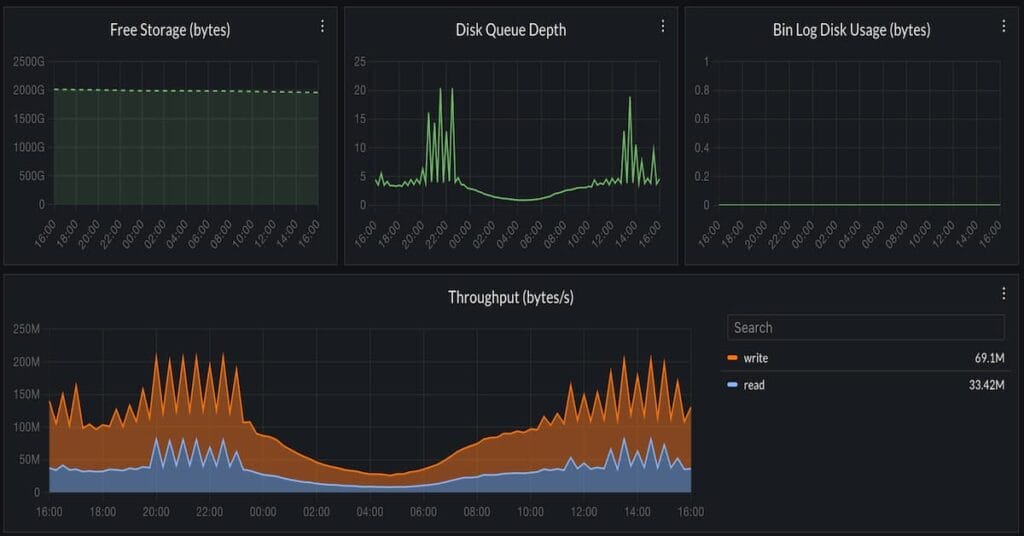
CubeAPM is a strong first option for ECS teams that want OpenTelemetry-based monitoring for metrics, logs, and traces without depending only on CloudWatch. It supports telemetry collection from ECS on EC2 and Fargate using the OpenTelemetry Collector, making it useful for teams that want ECS visibility with lower telemetry cost and more deployment control.
SpeedCurve
SpeedCurve is useful when ECS services power customer-facing web applications. It focuses on frontend performance monitoring, synthetic checks, and real user monitoring, so it helps teams understand page speed and user experience. It should sit beside an APM or infrastructure tool, not replace ECS container monitoring.
Datadog
Datadog is a mature ECS monitoring option for teams that want metrics, logs, traces, dashboards, and AWS integrations in one SaaS platform. It can collect ECS data through CloudWatch, the ECS API, and the Datadog Agent. The main tradeoff is agent setup and higher cost as telemetry volume grows.
New Relic
New Relic supports ECS and ECR monitoring, including container, task, and service-level visibility. It is a good fit for teams already using New Relic for APM or infrastructure monitoring. Setup may involve AWS integrations, agents, or OpenTelemetry depending on the ECS deployment model.
Dynatrace
Dynatrace fits larger ECS environments that need auto-discovery, dependency mapping, and AI-assisted root-cause analysis. It can work well for complex AWS estates, but smaller teams may find the deployment model and pricing heavier than needed.
Prometheus + Grafana
Prometheus and Grafana are best for teams that want open-source flexibility and full control over ECS metrics, dashboards, and alerts. The tradeoff is operational work. Teams must manage scraping, service discovery, dashboards, alert rules, retention, and long-term storage themselves.
Best Practices for AWS ECS Monitoring
Always set up monitoring at the cluster, service, and container level. Cluster-level data tells you about overall capacity. Service-level data tells you about deployment and scaling health. Container-level data (via Container Insights) tells you about individual workload behavior.
A CPU alarm at 80% is only useful if you know what 80% means for your workload. Establish baselines first, then set alarms relative to your observed normal range. Use CloudWatch Anomaly Detection to automatically create dynamic thresholds based on historical patterns.
Health check failure events and task state changes can fire dozens of times per minute during a bad deployment. Instead of alerting on every event, aggregate over a time window using an EventBridge rule that targets a Lambda function which counts failures and only sends a notification when a threshold is crossed.
Use ECS resource tags consistently (environment, team, service, cost-center). This allows you to filter CloudWatch metrics and alarms by tag, build per-team cost dashboards, and correlate incidents back to specific services quickly.
Use the awslogs driver or FireLens to route all container logs to a central location (CloudWatch Logs, S3, or a third-party SIEM). Set log retention policies on CloudWatch Logs groups to manage costs. A 30-day retention is a reasonable default for most teams.
For EC2-backed clusters, the ECS agent running on each container instance must stay connected to the ECS control plane. If the agent disconnects, tasks on that instance become unmanaged. Create an EventBridge rule for the ECS Container Instance State Change event type and alert when agentConnected becomes false.
Periodically validate that your alarms actually fire. Inject a fault (for example, set a task’s memory limit below what it needs) in a staging environment and confirm that the right alert fires, the right person gets notified, and the runbook is actionable.
Conclusion
Monitoring AWS ECS effectively requires combining native AWS tools with a clear understanding of what can go wrong at each layer of the stack. Start with CloudWatch metrics and alarms for the basics, enable Container Insights for per-container visibility, set up EventBridge rules for event-driven alerts on deployments and task failures, and centralize your logs with the awslogs driver or FireLens.
As your workloads scale, consider a third-party APM tool to add distributed tracing, request-level performance data, and smarter anomaly detection that CloudWatch alone cannot provide.
The goal of ECS monitoring is not to collect every possible metric. It is to ensure that when something breaks, you know about it before your users do, you have enough context to diagnose it quickly, and you have runbooks in place to resolve it.
Disclaimer: This article is intended for informational purposes only. AWS services, pricing, and feature availability may change over time. Always refer to the official Amazon ECS documentation for the most current and accurate guidance. Third-party tool features and pricing are subject to change by their respective vendors.
FAQs
1. What is the difference between CloudWatch metrics and Container Insights for ECS?
Standard CloudWatch ECS metrics (CPUUtilization, MemoryUtilization, RunningTasksCount) are published automatically at the cluster and service level at no extra charge. Container Insights is an opt-in feature that adds per-task and per-container metrics, as well as network and storage metrics. Container Insights data is billed separately based on the number of metrics ingested.
2. How do I monitor ECS tasks running on Fargate?
For Fargate tasks, enable Container Insights on your cluster to get per-task and per-container metrics. For application-level tracing, add the AWS Distro for OpenTelemetry (ADOT) as a sidecar container in your task definition. For logs, configure the awslogs log driver or FireLens in your task definition. You cannot install agents directly on the Fargate host because AWS manages that infrastructure.
3. How do I get alerted when an ECS task keeps restarting?
Create an Amazon EventBridge rule that matches the ECS Task State Change event type with desiredStatus = STOPPED and lastStatus = STOPPED. Route events to an SNS topic or a Lambda function. In the Lambda, inspect the stoppedReason field to identify the cause (OOM, health check failure, container exit code). To avoid alert fatigue, aggregate events over a short window and only alert when a threshold (such as 3 stopped tasks in 5 minutes for the same service) is breached.
4. Is Prometheus supported for ECS monitoring?
Yes. You can use the AWS Distro for OpenTelemetry (ADOT) collector, which is based on OpenTelemetry, as a sidecar in your ECS task definitions to scrape Prometheus-formatted metrics from your application containers. ADOT can forward metrics to Amazon Managed Service for Prometheus (AMP) or directly to a self-managed Prometheus server. Grafana can then be used to visualize these metrics alongside CloudWatch data.
5. What is the best way to reduce costs in AWS ECS monitoring?
Use standard CloudWatch ECS metrics as your baseline since they are free. Enable Container Insights selectively on production clusters only, as it incurs additional per-metric charges. Set CloudWatch Logs retention policies to 30 days or less to avoid indefinite log storage costs. Use metric filters and CloudWatch Logs Insights queries instead of keeping all log data in expensive storage tiers. Evaluate whether a third-party tool’s consolidated pricing is more cost-effective than paying for multiple AWS observability services separately.