










Azure Data Factory stores pipeline run data for only 45 days in ADF Studio. Without diagnostic logging to Log Analytics, you have no way to query failures beyond that window, no way to alert on failure patterns, and no way to correlate pipeline failures with other Azure resource events.
The two layers of monitoring that every production ADF deployment needs are the ADF Studio monitor view for real-time run inspection and diagnostic logs routed to Log Analytics for historical analysis, alerting, and cross-factory visibility.
Key Takeaways
- ADF Studio stores pipeline run data for only 45 days. Enable diagnostic logging to Log Analytics on day one if you need longer retention or cross-factory queries.
- Diagnostic logs must be explicitly enabled. They are not on by default. Enable PipelineRuns, ActivityRuns, and TriggerRuns log categories at a minimum.
- When routing logs to Log Analytics, use resource-specific tables (ADFPipelineRun, ADFActivityRun, ADFTriggerRun) rather than the legacy AzureDiagnostics table. Resource-specific tables have cleaner schemas and better query performance.
- ADF distinguishes between UserError and system errors in the FailureType field. UserError means the failure was caused by user configuration or data (bad SQL, missing file, wrong connection string). System errors indicate ADF service-level or infrastructure failures. Use this distinction in alert rules to avoid alerting on user-fixable data quality issues.
- ADF provides six platform metrics without any configuration: PipelineFailedRuns, PipelineSucceededRuns, ActivityFailedRuns, ActivitySucceededRuns, TriggerFailedRuns, and TriggerSucceededRuns.
- The Workflow Orchestration Manager (Apache Airflow in ADF) is being retired. New instances cannot be created after January 1, 2026. Migrate to Apache Airflow jobs in Microsoft Fabric.
What ADF Exposes Without Any Configuration
Three monitoring surfaces are available without enabling diagnostic settings.
ADF Studio Monitor Tab
The Monitor tab in Azure Data Factory Studio (accessible from the left menu) shows all pipeline runs, activity runs, and trigger runs in a list view with filtering by status, pipeline name, date range, and annotation. It shows run duration, start time, triggered by, and error details.
From the Monitor tab, you can:
- View the full activity run breakdown for any pipeline run by clicking the pipeline name
- Rerun a failed pipeline from the beginning or from a specific failed activity
- Cancel in-progress runs
- View the consumption report for a run (DIU and activity hours consumed)
This view shows data for the last 45 days only.
Platform Metrics
Six run-count metrics are available in Azure Monitor without any diagnostic settings:
| Metric | REST API name | What it counts |
| Pipeline failed runs | PipelineFailedRuns | Pipeline runs that ended with Failed status |
| Pipeline succeeded runs | PipelineSucceededRuns | Pipeline runs that ended with Succeeded status |
| Pipeline cancelled runs | PipelineCancelledRuns | Pipeline runs that were cancelled |
| Activity failed runs | ActivityFailedRuns | Activity runs that ended with Failed status |
| Activity succeeded runs | ActivitySucceededRuns | Activity runs that ended with Succeeded status |
| Trigger failed runs | TriggerFailedRuns | Trigger-initiated runs that failed |
| Trigger succeeded runs | TriggerSucceededRuns | Trigger-initiated runs that succeeded |
These metrics are aggregated counts. They do not include pipeline names, error messages, or activity-level detail. Use them for alerting on failure count thresholds and for overview dashboards. For root cause analysis, you need diagnostic logs.
Azure Activity Log
The Azure Activity Log records control plane operations on your ADF resource: who created or modified pipelines, triggers, and linked services. It does not record pipeline run data. Use it for auditing configuration changes, not for monitoring execution failures.
Step 1: Enable Diagnostic Logging to Log Analytics
Enable diagnostic settings via the Azure portal or CLI. Use resource-specific table routing rather than AzureDiagnostics for cleaner schemas.
az monitor diagnostic-settings create \

  --resource "/subscriptions/{sub-id}/resourceGroups/myResourceGroup/providers/Microsoft.DataFactory/factories/myDataFactory" \

  --name "adf-diagnostics" \

  --workspace "/subscriptions/{sub-id}/resourceGroups/myResourceGroup/providers/Microsoft.OperationalInsights/workspaces/myworkspace" \

  --logs '[

    {"category": "PipelineRuns",   "enabled": true},

    {"category": "ActivityRuns",   "enabled": true},

    {"category": "TriggerRuns",    "enabled": true}

]'Or in the portal: navigate to your Data Factory, then Monitoring > Diagnostic settings > Add diagnostic setting, select the three log categories above, choose Resource specific as the destination table type, and point them at your Log Analytics workspace.
Important: Select Resource specific (not Legacy/AzureDiagnostics) when configuring the destination. Resource-specific routing creates the ADFPipelineRun, ADFActivityRun, and ADFTriggerRun tables directly. These have typed columns and query better than the generic AzureDiagnostics table, where all values are stored in a property bag.
For SSIS workloads, also enable the SSIS-specific log categories: SSISIntegrationRuntimeLogs, SSISPackageEventMessages, SSISPackageExecutableStatistics, SSISPackageExecutionComponentPhases, and SSISPackageExecutionDataStatistics.
Step 2: Understand FailureType Before Writing Alerts
Every failed pipeline and activity run in ADF has a FailureType field with two possible values:
| FailureType | What it means | Who should act |
| UserError | The failure was caused by user configuration or data: wrong connection string, missing source file, bad SQL syntax, schema mismatch, access denied | Data engineers or data owners fix the pipeline configuration or source data |
| System error (empty or other value) | The failure was caused by ADF infrastructure, integration runtime, or a transient service issue | Azure Support or the ADF team handles it. Often auto-retries |
Why this matters for alerts: Alerting on all pipeline failures without filtering by FailureType will include every data quality issue, every missing file, and every temporary source unavailability. In most data engineering environments, UserError failures are expected and handled by retry logic or pipeline error handling paths. Alerts should target system errors or sustained UserError spikes, not individual UserError occurrences.
Step 3: Query Pipeline Failures with KQL
Run these queries from your Log Analytics workspace after diagnostic logs are flowing.
Failed pipeline runs in the last 24 hours
ADFPipelineRun

| where TimeGenerated > ago(24h)

| where Status == "Failed"

| project TimeGenerated, PipelineName, RunId, Status, FailureType, ErrorCode, ErrorMessage, Start, End

| order by TimeGenerated descPipeline failure rate by pipeline name (last 7 days)
ADFPipelineRun

| where TimeGenerated > ago(7d)

| where Status != "InProgress" and Status != "Queued"

| summarize

    total = count(),

    failed = countif(Status == "Failed"),

    failure_rate = round(100.0 * countif(Status == "Failed") / count(), 2)

    by PipelineName

| where failed > 0

| order by failure_rate descPipeline availability excluding UserErrors (official Microsoft pattern)
ADFPipelineRun

| where Status != "InProgress" and Status != "Queued"

| where FailureType != "UserError"

| summarize availability = 100.00 - (100.00 * countif(Status != "Succeeded") / count())

    by bin(TimeGenerated, 1h), _ResourceId

| order by TimeGenerated asc

| render timechartFailed activity runs with error details
ADFActivityRun

| where TimeGenerated > ago(24h)

| where Status == "Failed"

| project TimeGenerated, PipelineName, ActivityName, ActivityType, Status, FailureType, ErrorCode, ErrorMessage, Start, End

| order by TimeGenerated descTop 5 activities failing with system errors (official Microsoft pattern)
ADFActivityRun

| where TimeGenerated >= ago(24h)

| where Status != "InProgress" and Status != "Queued"

| where FailureType != "UserError"

| summarize failureCount = countif(Status != "Succeeded") by bin(TimeGenerated, 1h), ActivityName

| top 5 by failureCount desc nulls last

| order by TimeGenerated asc

| render timechartLong-running pipelines (executions exceeding a threshold)
ADFPipelineRun

| where TimeGenerated > ago(24h)

| where Status == "Succeeded"

| extend durationMinutes = datetime_diff("minute", End, Start)

| where durationMinutes > 60

| project TimeGenerated, PipelineName, durationMinutes, Start, End, RunId

| order by durationMinutes descLatest status per pipeline run (avoid duplicates from multi-record runs)
ADFPipelineRun

| summarize argmax(TimeGenerated, *) by RunId, Status, _ResourceIdThis query is important because ADF writes multiple records per run to the ADFPipelineRun table as the run progresses. Without argmax, queries counting run statuses can double-count in-progress and completed records for the same run.
Trigger failures in the last 24 hours
ADFTriggerRun

| where TimeGenerated > ago(24h)

| where Status == "Failed"

| project TimeGenerated, TriggerName, TriggerType, Status, ErrorCode, ErrorMessage

| order by TimeGenerated descStep 4: Configure Alerts
Alert on pipeline failure count (platform metric)
az monitor metrics alert create \

  --name "ADF-PipelineFailures" \

  --resource-group myResourceGroup \

  --scopes "/subscriptions/{sub-id}/resourceGroups/myResourceGroup/providers/Microsoft.DataFactory/factories/myDataFactory" \

  --condition "total PipelineFailedRuns > 0" \

  --window-size 5m \

  --evaluation-frequency 1m \

  --severity 2 \

--action "/subscriptions/{sub-id}/resourceGroups/myResourceGroup/providers/microsoft.insights/actionGroups/myActionGroup"Log alert on system errors only (KQL-based)
az monitor scheduled-query create \

  --name "ADF-SystemErrors" \

  --resource-group myResourceGroup \

  --scopes "/subscriptions/{sub-id}/resourceGroups/myResourceGroup/providers/Microsoft.OperationalInsights/workspaces/myworkspace" \

  --condition "count > 0" \

  --condition-query "ADFPipelineRun | where TimeGenerated > ago(5m) | where Status == 'Failed' | where FailureType != 'UserError' | count" \

  --evaluation-frequency "PT5M" \

  --window-size "PT5M" \

  --severity 1 \

--action-groups "/subscriptions/{sub-id}/resourceGroups/myResourceGroup/providers/microsoft.insights/actionGroups/myActionGroup"Step 5: Monitor Specific Pipeline Patterns
Monitoring copy activity failures
Copy activities are the most common activity type in ADF and produce additional monitoring data. Enable the session log on Copy activities to capture row-by-row error details for skipped or failed records.
In ADF Studio, the Copy activity monitor view shows rows read, rows written, rows skipped, throughput, and duration. For persistent logging of this data, enable session logging on the Copy activity settings.
Query for copy activity failures with throughput:
ADFActivityRun

| where TimeGenerated > ago(24h)

| where ActivityType == "Copy"

| where Status == "Failed"

| extend output = todynamic(Output)

| project

    TimeGenerated,

    PipelineName,

    ActivityName,

    Status,

    ErrorCode,

    ErrorMessage,

    RowsRead = tolong(output.rowsRead),

    RowsWritten = tolong(output.rowsCopied)

| order by TimeGenerated descMonitoring data flow activity failures
Mapping data flows produce their own diagnostic output. Add the DataFlowDebugSessions category to diagnostic settings if you use data flows and need session-level debugging information.
Query for data flow activity duration and errors:
ADFActivityRun

| where TimeGenerated > ago(24h)

| where ActivityType == "ExecuteDataFlow"

| extend durationSec = datetime_diff("second", End, Start)

| project TimeGenerated, PipelineName, ActivityName, Status, durationSec, ErrorCode, ErrorMessage

| order by durationSec descStep 6: Rerun from Failure
When a pipeline fails, ADF supports rerunning from the point of failure without re-executing already-completed activities. This is done from the Monitor tab in ADF Studio.
Navigate to the failed pipeline run, click the rerun icon, and select Rerun from failed activity to restart only the activities that failed and their downstream dependencies. Activities that succeeded are not re-executed.
For programmatic reruns, use the REST API or the Azure CLI:
az datafactory pipeline-run cancel \

  --factory-name myDataFactory \

  --resource-group myResourceGroup \

--run-id {run-id}Common Setup Problems
| Problem | Likely cause | Fix |
| No data in ADFPipelineRun table | Diagnostic settings not enabled, or routing set to AzureDiagnostics instead of resource-specific | Enable diagnostic settings with resource-specific table routing. Allow 5 to 10 minutes for first data to appear |
| Queries double-counting run statuses | ADF writes multiple records per run to the table as the run progresses | Use summarize argmax(TimeGenerated, *) by RunId to get the latest status per run |
| Alerts firing for every missing file or bad data | Alert rule not filtering on FailureType | Add where FailureType != “UserError” to alert KQL queries for system error alerting |
| Pipeline run history missing beyond 45 days | Diagnostic logging was not enabled from the start | Enable diagnostic settings and Log Analytics routing. ADF Studio data is capped at 45 days and cannot be recovered retroactively |
| ADFSandboxActivityRun table not queryable | Sandbox tables appear in Log Analytics but are not supported for KQL queries | Use ADFActivityRun for all activity run queries. Sandbox tables are not queryable |
| High Log Analytics ingestion costs | All SSIS categories enabled unnecessarily | Enable only the log categories you need. SSIS categories are high volume and only needed for SSIS workloads |
From Pipeline Failures to Application Impact
ADF diagnostic logs tell you a pipeline failed, which activity failed, and what the error code was. What they do not tell you is whether the downstream applications or reports that depend on that pipeline’s output are now broken, which API calls are returning stale data because the pipeline did not complete, or whether the pipeline failure was caused by a problem in an upstream application that writes data to the source ADF reads from.
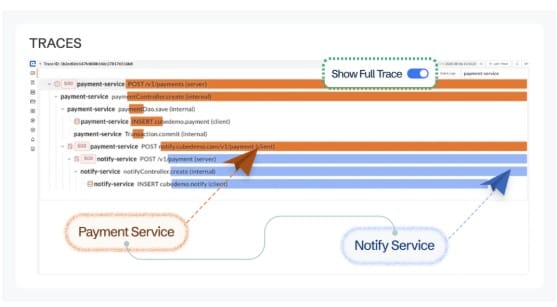
CubeAPM correlates ADF pipeline telemetry with distributed traces from the application services that depend on pipeline outputs. When a pipeline fails, you can see which downstream API endpoints are now returning errors or stale results, trace the failure back to the upstream service that produced bad source data, and see the full impact chain across your data platform and application tier. It runs self-hosted inside your own infrastructure at $0.15/GB ingestion with no per-user fees.
Summary
Monitoring Azure Data Factory pipeline failures requires two layers working together: ADF Studio’s native Monitor tab for real-time run inspection with 45 days of history, and diagnostic logs in Log Analytics for persistent historical analysis, cross-factory queries, and KQL-based alerting. Enable resource-specific table routing to get typed ADFPipelineRun, ADFActivityRun, and ADFTriggerRun tables. Always filter on FailureType when writing alert rules to distinguish system errors from user-fixable data quality failures. Use argmax when counting run statuses to avoid double-counting from multi-record runs.
| Signal | Where it lives | Key detail |
| Pipeline runs (real-time) | ADF Studio Monitor tab | 45-day retention only |
| Pipeline run counts | Platform metrics: PipelineFailedRuns, PipelineSucceededRuns | No error details, aggregate counts only |
| Pipeline failure details | ADFPipelineRun table in Log Analytics | Requires diagnostic settings, resource-specific routing |
| Activity failure details | ADFActivityRun table in Log Analytics | Includes ActivityType, ErrorCode, ErrorMessage |
| Trigger failures | ADFTriggerRun table in Log Analytics | Trigger name, type, status, error details |
| FailureType field | ADFPipelineRun and ADFActivityRun | UserError vs system error: use to filter alert rules |
| Duplicate run records | ADFPipelineRun table | Use argmax(TimeGenerated, *) by RunId to get latest status |
Disclaimer: 45-day pipeline run retention limit, diagnostic log category names (PipelineRuns, ActivityRuns, TriggerRuns), resource-specific table names (ADFPipelineRun, ADFActivityRun, ADFTriggerRun), FailureType field values, platform metric names, argmax deduplication pattern, Workflow Orchestration Manager retirement (January 1, 2026), and rerun-from-failure capability are verified against Microsoft Learn official documentation including learn.microsoft.com/en-us/azure/data-factory/monitor-data-factory (last modified November 2, 2025), learn.microsoft.com/en-us/azure/data-factory/monitor-configure-diagnostics, and learn.microsoft.com/en-us/azure/data-factory/monitor-data-factory-reference as of May 2026.
Also read:
How to Monitor Azure Functions Execution and Errors
How to Monitor Azure Virtual Machines: CPU, Memory, and Disk