










ClickHouse is built for speed. It can scan billions of rows in milliseconds and handle petabyte-scale analytics workloads without breaking a sweat. But even ClickHouse can slow down, and when it does, a single runaway query can consume every available CPU core and gigabyte of RAM on your cluster, cascading into dashboard failures, delayed billing pipelines, or complete server crashes.
Cloudflare experienced this first-hand. After migrating to a new partitioning scheme on a petabyte-scale ClickHouse cluster, their daily billing aggregation jobs began slowing down progressively. All the usual indicators looked fine: I/O was normal, memory was normal, and rows scanned were unchanged. The actual bottleneck was buried deep in ClickHouse query planning, consuming 45% of CPU time filtering data parts before a single row was read. It took flame graphs from system.trace_log to uncover it.
This guide walks you through ClickHouse slow query analysis from the ground up: how to enable logging, identify the slowest queries, interpret EXPLAIN output, use profiling tools, and apply targeted fixes. Whether you are debugging an occasional spike or a systemic degradation, every technique here is grounded in how ClickHouse actually works.
🔑 Key Takeaways
- system.query_log is your first stop for any ClickHouse slow query investigation. It captures duration, rows read, memory usage, and exception messages for every finished query.
- EXPLAIN (json=1, indexes=1) reveals which parts and granules ClickHouse scans. Fewer selected granules almost always means a faster query.
- PREWHERE is a low-effort, high-impact optimization. It pre-filters rows before reading all selected columns, dramatically reducing I/O on large tables.
- A mismatched ORDER BY key is the most common root cause of full-table scans. Queries that filter on columns not in the primary key force ClickHouse to read every granule.
- Data-skipping indexes (bloom filter, set, minmax) add a secondary filtering layer for high-cardinality columns outside the primary key.
- CubeAPM and other OpenTelemetry-native APM tools can surface slow ClickHouse queries automatically without any manual log querying.
Understanding ClickHouse Query Performance
Before diving into the tools, it helps to understand what happens when ClickHouse executes a query. Every query goes through four stages: parsing and analysis, query plan optimization, parallel pipeline execution, and final result processing. A slow query is almost always caused by an issue in one of these stages, most commonly excessive data reads during the execution stage due to poor primary key alignment or missing indexes.
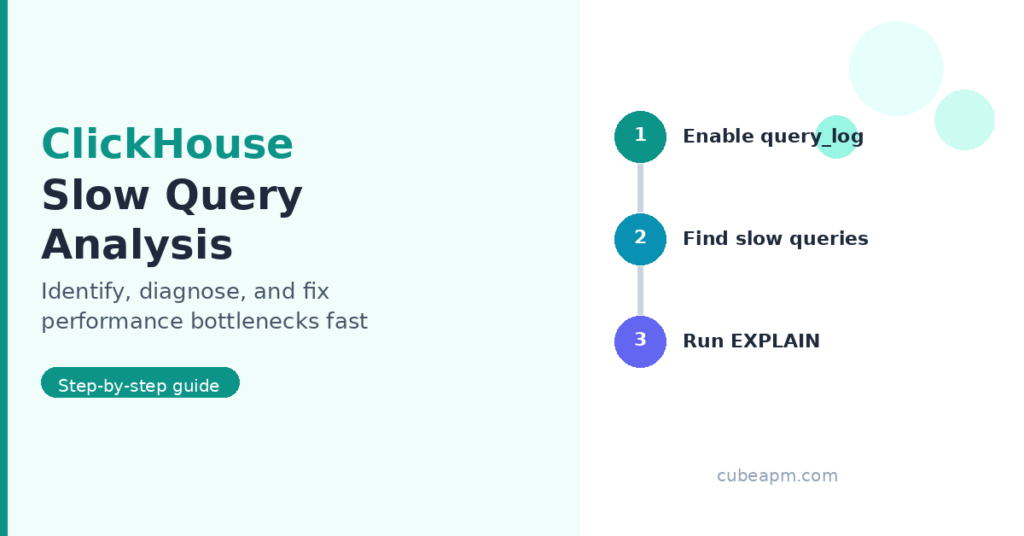
ClickHouse slow query analysis: a structured approach to identifying and resolving query performance issues.
Step 1: Enable and Configure query_log
ClickHouse logs every query to system.query_log by default. This table is your starting point for any ClickHouse slow query analysis. Before running any diagnostic queries, verify that logging is active and correctly configured.
Check the current logging settings with:
SELECT name, value

FROM system.settings

WHERE name IN (

  'log_queries',

  'log_query_threads',

  'log_queries_min_query_duration_ms'

);The most important setting is log_queries_min_query_duration_ms. Set it to 0 to log all queries, or a threshold like 500 to log only queries slower than 500 milliseconds. You can configure this in config.xml or apply it per user:
ALTER USER analytics_user

SETTINGS log_queries_min_query_duration_ms = 1000;For per-session overrides, run this before executing a query you want to profile:
SET log_queries_min_query_duration_ms = 500;

SET log_queries = 1;

SET log_query_threads = 1;Note: query_log entries are flushed on a short delay (default 7.5 seconds). If a query finishes and you immediately query system.query_log, wait a moment or flush manually with SYSTEM FLUSH LOGS.
Step 2: Find the Slowest Queries
Once logging is active, use system.query_log to surface the worst offenders. The following query returns the ten slowest queries from the last 24 hours, along with key resource metrics:
SELECT

  query_id,

  user,

  query_duration_ms,

  read_rows,

  formatReadableSize(read_bytes) AS read_bytes_readable,

  formatReadableSize(memory_usage) AS memory_readable,

  query

FROM system.query_log

WHERE type = 'QueryFinish'

  AND event_time >= now() - INTERVAL 24 HOUR

ORDER BY query_duration_ms DESC

LIMIT 10;Key fields to examine:
query_duration_ms— total wall-clock time in millisecondsread_rows— rows read from storage, before filteringread_bytes— bytes read from disk. High values indicate a full or near-full scanmemory_usage— peak memory consumed by the query. Watch for values approaching yourmax_memory_usagelimit
If read_rows is dramatically higher than result_rows, the query is reading far more data than it returns. This ratio, sometimes called the scan efficiency ratio, is the clearest signal of a primary key mismatch or missing index.
Step 3: Analyze Query Plans with EXPLAIN
Once you have identified a slow query, use EXPLAIN to understand how ClickHouse plans to execute it. The most useful form for performance debugging is EXPLAIN with JSON output and index details:
EXPLAIN json = 1, indexes = 1

SELECT count(*)

FROM events

WHERE user_id = 12345;The JSON output includes an Indexes block showing:
- Selected Parts — how many data parts ClickHouse will open
- Selected Granules — how many granules (blocks of 8,192 rows by default) will be read
A query that selects 1 granule out of 120,000 is extremely efficient. A query that selects all 120,000 is doing a full table scan. If Selected Granules equals total granules, your WHERE clause is not aligned with the table’s ORDER BY key, and no index is helping.
To inspect the execution pipeline and see parallelism:
EXPLAIN PIPELINE

SELECT count(*)

FROM events

WHERE user_id = 12345;The x N notation in pipeline output shows how many parallel threads will process each stage. If a stage shows x 1 where you expect parallelism, a bottleneck may be forcing single-threaded execution.
Step 4: Use the Query Profiler and system.trace_log
For queries where EXPLAIN does not identify an obvious issue, use ClickHouse’s built-in sampling query profiler. It records stack traces at regular intervals and stores them in system.trace_log, which you can then visualize as a flame graph.
Enable CPU profiling before running a slow query:
SET query_profiler_real_time_period_ns = 10000000; -- 10ms intervals

SET query_profiler_cpu_time_period_ns = 10000000;After the query completes, retrieve its trace:
SELECT

  arrayStringConcat(arrayReverse(trace_full), ';') AS stack,

  count() AS count

FROM system.trace_log

WHERE query_id = '<your-query-id>'

GROUP BY stack

ORDER BY count DESC

LIMIT 20;Cloudflare used this technique to discover that 45% of sampled CPU time on slow queries was spent inside filterPartsByPartition, a query planning function, not in execution at all. The trace_log made an invisible planning bottleneck visible. This approach is documented in the Cloudflare engineering blog.
The ClickHouse documentation also recommends using clickhouse-benchmark to run a query multiple times under controlled conditions before tuning, so that you are measuring repeatable behavior rather than a one-off cold-cache run. The tool produces percentiles (median, 95th, 99th) and helps confirm whether a fix actually improved things. See the ClickHouse benchmark docs for usage.
Step 5: Diagnose the Root Cause
Most slow ClickHouse queries trace back to a small set of root causes. Understanding these lets you move directly from symptoms to fixes.
Primary Key (ORDER BY) Mismatch
ClickHouse physically sorts data on disk according to the table’s ORDER BY key and builds a sparse index over 8,192-row granules. When a query filters on columns that appear late in the ORDER BY key or not at all, ClickHouse cannot skip granules and must read the entire dataset. This is the most common cause of unexpectedly slow queries.
For example, a table with ORDER BY (postcode, address) cannot efficiently serve WHERE town = 'LONDON'. ClickHouse will scan every granule because town is not in the primary key. The fix is either to add town to the ORDER BY, or to create a data-skipping index on town (see below).
Missing Data-Skipping Indexes
For columns that are queried frequently but cannot be included in the ORDER BY key, ClickHouse supports secondary data-skipping indexes. These store metadata about column values per granule so that non-matching granules can be skipped at read time.
Common data-skipping index types:
- minmax — stores min and max values per granule. Ideal for numeric ranges and dates not in the primary key
- set(N) — stores up to N distinct values per granule. Useful for low-cardinality columns
- bloom_filter — probabilistic membership filter. Effective for high-cardinality columns like user IDs or order numbers
- ngrambf_v1 — bloom filter over n-grams. Useful for substring searches on text columns
Example of adding a bloom filter index:
ALTER TABLE events

ADD INDEX idx_user_id (user_id)

TYPE bloom_filter(0.01)

GRANULARITY 1;OPTIMIZE TABLE events FINAL; -- materialize the indexNo PREWHERE Clause
ClickHouse’s PREWHERE clause is a powerful optimization that is frequently overlooked. Unlike WHERE, which filters after reading all selected columns, PREWHERE reads only the filter column first, eliminates non-matching rows, and then reads the remaining columns only for rows that pass the filter. For queries that scan large tables but return a small fraction of rows, PREWHERE can reduce I/O by an order of magnitude.
-- Without PREWHERE: reads all columns first

SELECT user_id, event_name, properties

FROM events

WHERE event_date = today();
-- With PREWHERE: reads event_date first, then other columns
SELECT user_id, event_name, properties
FROM events
PREWHERE event_date = today();ClickHouse can automatically convert WHERE to PREWHERE in many cases when optimize_move_to_prewhere = 1 (the default). However, for analytical queries on very large tables, it is worth being explicit.
Excessive Memory Usage and OOM
A query that triggers an Out of Memory (OOM) error brings the entire ClickHouse server down, not just the individual query. This is especially dangerous in shared-cluster environments. To constrain memory per query:
SET max_memory_usage = 10000000000; -- 10 GB per query

SET max_bytes_before_external_group_by = 5000000000;The second setting allows GROUP BY operations to spill intermediate state to disk when they exceed the threshold, trading speed for stability. You can also limit concurrent heavy queries at the server level with max_concurrent_queries in config.xml.
Too Many Data Parts (Part Count Explosion)
Each INSERT to ClickHouse creates a new data part. Background merge processes consolidate parts over time, but if inserts outpace merges, the part count grows. As Cloudflare discovered, a high part count dramatically slows query planning even when no additional data is read per query. Monitor part counts with:
SELECT table, count() AS part_count

FROM system.parts

WHERE active AND database = 'your_db'

GROUP BY table

ORDER BY part_count DESC;If a table has tens of thousands of active parts, investigate your insert frequency and partitioning strategy. ClickHouse recommends fewer, larger inserts over many small ones. See the ClickHouse best practices for batch insert guidance.
Step 6: Use system.query_metric_log for Time-Series Resource Analysis
For queries that show intermittent slowdowns rather than consistent slowness, system.query_metric_log provides per-second snapshots of memory, CPU, and I/O metrics during query execution. This makes it possible to see whether memory spiked at a particular moment, or whether CPU stalled waiting on I/O.
SELECT

  event_time,

  CurrentMetric_MemoryTracking AS memory_bytes,

  ProfileEvent_RealTimeMicroseconds AS cpu_us

FROM system.query_metric_log

WHERE query_id = '<your-query-id>'

ORDER BY event_time;As noted by the ClickHouse engineering team at Contentsquare, this table exists independently from system.query_log, so joining the two datasets manually is currently required to get a complete picture. The Contentsquare engineering blog details how they built internal tooling to correlate these sources.
📌 Monitor ClickHouse Queries Without the Manual Overhead
CubeAPM is a self-hosted, OpenTelemetry-native APM that integrates with your ClickHouse infrastructure to surface slow queries, trace upstream service calls, and correlate database performance with application behavior, all in a single pane. No per-host charges, no data ingest fees. Just flat $0.15/GB pricing with full control over your data.
Conclusion
ClickHouse slow query analysis is a layered process. Start with system.query_log to identify which queries are slow and how many rows they read relative to how many they return. Use EXPLAIN json=1, indexes=1 to check whether ClickHouse is skipping granules or doing full scans. Apply PREWHERE, data-skipping indexes, and ORDER BY adjustments to fix the most common causes. For elusive bottlenecks, reach for the query profiler and system.trace_log to generate flame graphs that expose exactly where CPU time is being spent.
The tools are all built in to ClickHouse and free to use. The skill is knowing which one to reach for first, and in which order to apply fixes. This guide gives you that framework.
⚠️ Disclaimer: The SQL queries and configuration values in this article are provided for illustrative purposes and have been verified against ClickHouse documentation as of June 2026. ClickHouse system table schemas and default settings may change across versions. Always test configuration changes in a staging environment before applying them to production. CubeAPM pricing is based on publicly available information at docs.cubeapm.com.
FAQs
1. How do I find slow queries in ClickHouse?
Query system.query_log filtering on type = 'QueryFinish' and ordering by query_duration_ms DESC. This table records execution time, rows read, bytes read, and memory usage for every completed query.
2. Why is my ClickHouse query suddenly slower than usual?
Common causes include a growing data part count (which increases query planning time), a schema or partitioning change that invalidates primary key alignment, resource contention from concurrent heavy queries, or a new query pattern that does not match the table’s ORDER BY key. Start with EXPLAIN json=1, indexes=1 to check granule selection, then review system.parts for part count growth.
3. What is the difference between WHERE and PREWHERE in ClickHouse?
WHERE reads all selected columns from granules that pass the primary key filter, then applies the predicate. PREWHERE reads only the filter column first, eliminates non-matching rows, and then reads remaining columns only for surviving rows. This can dramatically reduce I/O for selective filters on large tables. ClickHouse applies PREWHERE automatically in many cases via optimize_move_to_prewhere, but being explicit gives you control over which columns are pre-filtered.
4. How do data-skipping indexes work in ClickHouse?
Data-skipping indexes store per-granule metadata (min/max values, bloom filter sketches, or value sets) for a specified column. When a query’s WHERE clause references that column, ClickHouse checks the index before reading each granule. If the index guarantees no matching rows, the granule is skipped entirely. They are most useful for high-cardinality columns that cannot be included in the ORDER BY key. They require OPTIMIZE TABLE FINAL to be built after creation.
5. Can CubeAPM or other APM tools monitor ClickHouse query performance?
Yes. APM tools that support OpenTelemetry can instrument ClickHouse queries as database spans, surfacing latency, error rates, and slow query traces alongside your application code. CubeAPM is a self-hosted, OpenTelemetry-native option that provides this visibility at flat $0.15/GB pricing with no per-host or per-user fees. Datadog also offers ClickHouse integration through its Database Monitoring product.