









Amazon S3 is widely used for object storage, but latency spikes and unexpected error rates can quietly break downstream applications. A slow S3 response can cascade through API gateways, Lambda functions, and databases, all without a single obvious alert.
This guide walks you through the exact steps to monitor AWS S3 request latency and error rates, from enabling CloudWatch request metrics to setting actionable alarms and reading the results correctly.
- ✓ AWS S3 has two metric categories in CloudWatch: storage metrics (free, daily) and request metrics (paid, per-minute). You need request metrics enabled to track latency and error rates.
-
✓ The two most important latency metrics are
FirstByteLatency(time to first byte) andTotalRequestLatency(full round-trip). Monitor p95/p99, not just averages. -
✓
4xxErrorsindicate client-side problems (misconfigured permissions, expired credentials).5xxErrorsindicate S3-side throttling or service issues, especially HTTP 503 Slow Down. -
✓ Set CloudWatch alarms on
4xxErrors,5xxErrors, andTotalRequestLatencyto get proactive alerts before users notice degradation. - ✓ For high-frequency or latency-sensitive workloads, S3 Express One Zone delivers single-digit millisecond latency compared to 50–200 ms for S3 Standard.
- ✓ Tools like CubeAPM, Datadog, and Elastic can augment CloudWatch for richer dashboards and cross-account visibility.
Why AWS S3 Performance Monitoring Matters
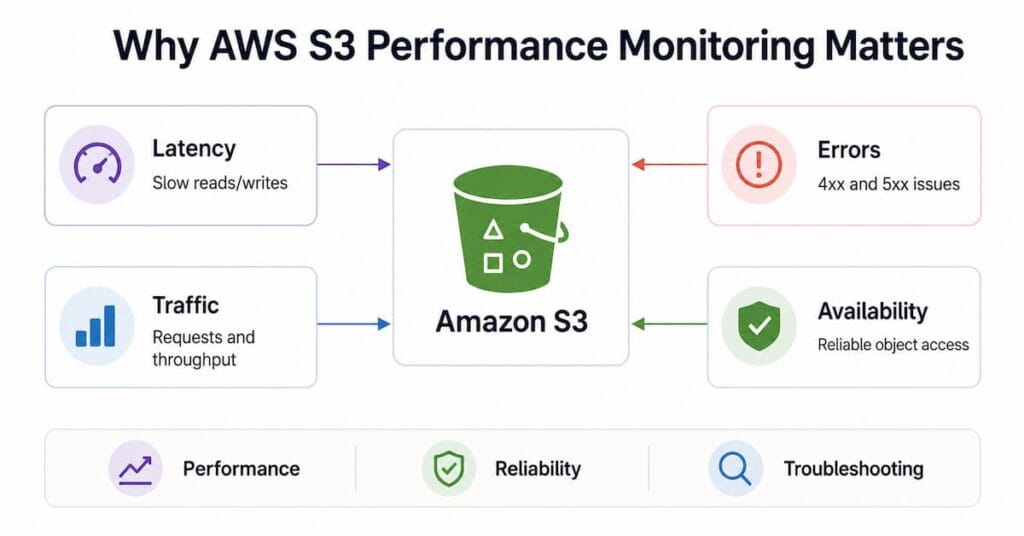
S3 is designed to be highly durable and available, but performance is not uniform. Latency is influenced by factors like object size, network path, prefix design, geographic distance, and request concurrency. Without monitoring, you may never know which of these is slowing your application.
Consider a practical scenario: an e-commerce platform stores product images in S3. A latency spike during batch processing jobs means that concurrent GET requests start queuing, checkout page loads slow down, and conversion rates drop. According to performance data from retail platforms, each 100ms of additional S3 latency can correspond to a 2-4% drop in conversions.
The same pattern applies to:
- Media and content delivery pipelines where slow S3 reads stall video encoding or transcoding.
- Data analytics jobs where S3 latency can represent 60-80% of total execution time.
- ML inference systems where model-loading delays waste GPU utilization.
Monitoring S3 performance metrics lets you detect these issues early, correlate them with deployments or traffic changes, and fix them before they compound.
Understanding AWS S3 Metrics in CloudWatch
Amazon CloudWatch is the primary monitoring tool for AWS S3. S3 metrics are split into two categories.
Storage Metrics (Free, Daily)
These are collected automatically, reported once per day, and available at no extra cost. They include:
- BucketSizeBytes: Total data stored in a bucket across all storage classes (Standard, Glacier, Intelligent-Tiering, etc.).
- NumberOfObjects: Total count of current and noncurrent objects, delete markers, and incomplete multipart upload parts.
Storage metrics are useful for cost tracking and detecting unexpected data growth, but they update only once per day. They are not suitable for real-time performance monitoring.
Request Metrics (Paid, Per-Minute)
Request metrics provide near real-time operational data about S3 bucket activity. They are not enabled by default and incur CloudWatch custom metric charges. According to AWS S3 metrics and dimensions documentation, the key request metrics include:
| Metric | Type | What It Tells You |
|---|---|---|
| AllRequests | Volume | Total HTTP requests made to the bucket regardless of type |
| GetRequests | Volume | Number of GET requests to retrieve objects |
| PutRequests | Volume | Number of PUT requests to add objects |
| DeleteRequests | Volume | Number of DELETE requests |
| FirstByteLatency | Latency | Time from request reception to first byte returned (TTFB) |
| TotalRequestLatency | Latency | Full elapsed time from request to last byte of response |
| 4xxErrors | Errors | Count of HTTP 4xx client error responses |
| 5xxErrors | Errors | Count of HTTP 5xx server error responses |
| BytesDownloaded | Throughput | Total bytes downloaded from the bucket |
| BytesUploaded | Throughput | Total bytes uploaded to the bucket |
How to Enable S3 Request Metrics in CloudWatch
Request metrics are disabled by default. You must enable them per bucket. Here is the step-by-step process from the AWS S3 console:
Using the AWS Management Console
- Open the Amazon S3 console at https://s3.console.aws.amazon.com/s3/
- Select the bucket you want to monitor.
- Click the Metrics tab.
- Under Request metrics, click Create filter.
- Choose whether to apply the filter to the entire bucket or a specific prefix.
- Name the filter (for example, “entire-bucket” or “uploads-prefix”).
- Click Save changes.
Metrics will start appearing in CloudWatch within 15 minutes of the first request after enabling.
Using the AWS CLI
You can also enable request metrics programmatically:
aws s3api put-bucket-metrics-configuration \

  --bucket your-bucket-name \

  --id entire-bucket \

--metrics-configuration '{"Id": "entire-bucket"}'To scope metrics to a specific prefix:
aws s3api put-bucket-metrics-configuration \

  --bucket your-bucket-name \

  --id uploads-prefix \

--metrics-configuration '{"Id": "uploads-prefix", "Filter": {"Prefix": "uploads/"}}'Cost Considerations
Request metrics are billed at the standard Amazon CloudWatch custom metric rate. To control costs:
- Enable request metrics only on buckets and prefixes that are operationally critical.
- Use a 1-minute period only where necessary; 5-minute periods reduce data point volume.
- Storage metrics (BucketSizeBytes, NumberOfObjects) are always free and require no configuration.
How to Monitor S3 Latency
Latency monitoring in AWS S3 centers on two CloudWatch metrics: FirstByteLatency and TotalRequestLatency. Understanding the difference is critical.
- FirstByteLatency (Time to First Byte / TTFB) measures the time between when S3 receives the request and when it starts sending data back. This reflects S3 processing overhead and network round-trip to the edge.
- TotalRequestLatency measures the full elapsed time from request reception to the last byte of the response. For large objects, this will be significantly higher than TTFB.
What Latency Thresholds Are Normal?
According to production telemetry and AWS community data:
- S3 Standard (same region): typical range is 50-200ms for GetObject requests.
- S3 Express One Zone (same Availability Zone): 2-8ms consistent latency.
- Cross-region requests: 150-300ms penalty on top of base latency.
- Requests routed through a NAT Gateway: 20-50ms of additional overhead.
Why You Should Track Percentiles, Not Just Averages
Averages mask tail latency. A p50 (median) of 60ms can coexist with a p99 of 800ms, meaning 1 in 100 requests is very slow. For latency-sensitive workloads, monitor:
- p95 (95th percentile): useful for understanding typical worst-case latency.
- p99 (99th percentile): critical for SLA definitions and user-experience guarantees.
In the CloudWatch console, when you view a metric like TotalRequestLatency, switch the statistic from Average to p95 or p99 to see tail latency.
Common Causes of S3 Latency Spikes
| Cause | What to Do |
|---|---|
| EC2 and S3 in different regions | Always deploy EC2 and its S3 bucket in the same AWS Region. |
| Missing VPC endpoint | Add an S3 VPC Gateway Endpoint to avoid public internet routing. |
| Hot prefix (partition bottleneck) | Distribute object keys across multiple prefixes to avoid throttling. |
| Sequential GET requests | Use concurrent requests and byte-range fetches for parallel reads. |
| Large object transfers | Use multipart uploads for objects above 100 MB; use byte-range GET for large downloads. |
| Cross-continent users | Enable S3 Transfer Acceleration or use CloudFront as a CDN layer. |
How to Monitor S3 Error Rates
AWS S3 returns standard HTTP status codes that map directly to CloudWatch metrics. Understanding what each error type means helps you fix the right problem.
4xxErrors: Client-Side Errors
The 4xxErrors metric counts all HTTP 4xx responses. Common causes include:
- 403 Forbidden: Bucket policy or IAM policy denying access. Often caused by misconfigured permissions or expired credentials.
- 404 Not Found: Object key does not exist. May indicate application bugs, incorrect key naming, or premature deletion.
- 400 Bad Request: Malformed request headers or invalid parameters from the client application.
A sustained rise in 4xxErrors usually points to a configuration problem, a code deployment issue, or an attempted unauthorized access. Security teams can set alarms specifically for 403 responses as part of intrusion detection workflows.
5xxErrors: Server-Side and Throttling Errors
The 5xxErrors metric counts HTTP 5xx responses. The most important is:
- 503 Slow Down: S3 returns this when a prefix is receiving more requests than its partition can handle. AWS S3 automatically scales to support very high request rates per prefix (up to 3,500 PUT/COPY/POST/DELETE and 5,500 GET/HEAD per second), but this scaling takes time. A burst of traffic can trigger 503s while S3 is scaling up.
- 503 Service Unavailable: Rare, but can indicate a transient S3 service disruption.
When you see 503 Slow Down errors, the correct response is:
- Implement exponential backoff and retry logic in your application.
- Distribute requests across more key prefixes (for example, add a hash prefix to object keys).
- Use the latest AWS SDKs, which include automatic retry logic for 503 responses.
According to AWS S3 performance guidelines, you can also monitor 503 errors via S3 Storage Lens advanced metrics or S3 server access logging analyzed with Amazon Athena.
Using Server Access Logging for Deeper Error Analysis
CloudWatch metrics aggregate errors at the bucket or prefix level. For per-request error details (including exact status codes, object keys, and requester IDs), enable S3 server access logging. Log entries can be stored in a separate S3 bucket and queried with Amazon Athena.
Example Athena query to find all 503 errors in the last 24 hours:
SELECT requestdatetime, operation, key, httpstatus, errorcode

FROM s3_access_logs_db.my_bucket_logs

WHERE httpstatus = '503'

  AND parse_datetime(requestdatetime, 'dd/MMM/yyyy:HH:mm:ss Z')

>= current_timestamp - interval '24' hour;Setting Up CloudWatch Alarms for S3 Latency and Errors
Monitoring without alerting is incomplete. Set CloudWatch alarms so you are notified before users report issues.
Recommended Alarm Thresholds
| Metric | Suggested Threshold | Notes |
|---|---|---|
| TotalRequestLatency (p99) | > 500ms | Adjust based on your application SLA; use p95 for less sensitive workloads |
| FirstByteLatency (p95) | > 200ms | Signals S3 processing or network congestion; investigate with server access logs |
| 4xxErrors (Sum) | > baseline + 20% | Set based on normal traffic; sudden spikes often indicate permission changes |
| 5xxErrors (Sum) | > 10 per minute | Even low 5xx counts may indicate a growing throttling problem |
Creating an Alarm via the AWS CLI
The following CLI command creates a CloudWatch alarm for TotalRequestLatency exceeding 500ms (p99) over a 5-minute window:
aws cloudwatch put-metric-alarm \

  --alarm-name "S3-High-Latency" \

  --namespace "AWS/S3" \

  --metric-name "TotalRequestLatency" \

  --dimensions Name=BucketName,Value=your-bucket-name \

               Name=FilterId,Value=entire-bucket \

  --statistic p99 \

  --period 300 \

  --threshold 500 \

  --comparison-operator GreaterThanThreshold \

  --evaluation-periods 3 \

--alarm-actions arn:aws:sns:us-east-1:ACCOUNT_ID:YourSNSTopicReplace your-bucket-name, the FilterId value (must match the metrics filter you created), and the SNS topic ARN with your own values.
Viewing S3 Metrics in the CloudWatch Console
- Open the CloudWatch console.
- Navigate to Metrics > All metrics.
- Select the AWS/S3 namespace.
- Filter by BucketName and FilterId to view per-bucket request metrics.
- Use the Graphed metrics tab to switch statistics from Average to p95 or p99.
Building an S3 Monitoring Dashboard in CloudWatch
A well-structured dashboard gives you a quick operational view of all S3 health signals in one place.
Recommended Dashboard Widgets
- Line graph: TotalRequestLatency (p50, p95, p99) over the last 3 hours.
- Line graph: AllRequests (Sum) to contextualize latency and error trends.
- Single value: Current 4xxErrors sum over the last 15 minutes.
- Single value: Current 5xxErrors sum over the last 15 minutes.
- Line graph: BytesDownloaded and BytesUploaded to spot throughput issues.
- Line graph: FirstByteLatency (p95) for TTFB tracking.
Combining S3 Metrics with Related Services
If your application uses AWS Lambda to process S3-triggered events, add Lambda error rate and duration metrics on the same dashboard. Correlating S3 request latency with Lambda timeout rates often reveals that Lambda timeouts are downstream symptoms of S3 slowdowns, not independent failures.
Using AWS Storage Lens for Broader S3 Observability
Amazon S3 Storage Lens provides organization-wide visibility across buckets, accounts, and regions. It surfaces metrics that CloudWatch does not expose directly, including retrieve request metrics, object-level usage breakdowns, and optimization recommendations.
Key features relevant to performance monitoring:
- 503 Unavailable error counts in the advanced metrics section, broken down by prefix.
- Request activity trends across multiple accounts without cross-account CloudWatch setup.
- Recommendations to move cold data to cheaper storage classes, which indirectly improves access performance for active data.
Storage Lens advanced metrics require an upgrade from the default free dashboard. When enabled, Storage Lens metrics can be published to CloudWatch in the AWS/S3/Storage-Lens namespace, making them available for alarms and dashboards alongside request metrics.
AWS S3 Performance Monitoring Best Practices
- Enable request metrics only on production or critical buckets to keep CloudWatch costs manageable.
- Always monitor p95 and p99 latency percentiles, not just average latency. Average values mask tail latency that affects real users.
- Set alarms on 5xxErrors even at low thresholds. A small number of 503 Slow Down errors is an early warning of a throttling problem that will get worse under sustained load.
- Correlate 4xxError spikes with deployment events using CloudTrail. A code push that changes S3 key naming or IAM policies can instantly produce 403 errors.
- Use S3 server access logging for per-request detail and Athena for log analysis. CloudWatch metrics tell you that something is wrong; access logs tell you what.
- Keep your EC2 instances and S3 buckets in the same AWS Region. Cross-region requests add 150-300ms of unavoidable latency.
- Add a VPC S3 Gateway Endpoint to your VPC. This routes S3 traffic through the AWS network backbone instead of the public internet, reducing latency and eliminating NAT Gateway costs for S3 traffic.
- For high-throughput workloads, add randomized prefixes (hash prefixes) to distribute requests across multiple S3 partitions and avoid the 3,500/5,500 requests-per-second-per-prefix limits.
- ✓ Track S3 FirstByteLatency and TotalRequestLatency at the p95/p99 level with automatic baselines.
- ✓ Get alerted on 4xxErrors and 5xxErrors before they impact user experience.
- ✓ Correlate S3 slowdowns with downstream Lambda, API Gateway, and database performance in a single trace view.
- ✓ Monitor multiple AWS accounts and regions from one dashboard without complex CloudWatch cross-account setup.
Conclusion
Monitoring AWS S3 request latency and error rates requires enabling CloudWatch request metrics, understanding the difference between latency types (TTFB versus full round-trip), and setting up alarms that alert you before users are affected.
The most important metrics to track are TotalRequestLatency (at p95/p99), 4xxErrors, and 5xxErrors. Pair these with S3 server access logging for per-request detail, and use Storage Lens for organization-wide trends.
For teams running complex AWS architectures, a dedicated APM tool like CubeAPM, Datadog, or Elastic provides the cross-service correlation that native CloudWatch dashboards lack, making it much faster to trace a user-facing slowdown back to an S3 root cause.
Disclaimer
The metric thresholds, latency figures, and pricing details referenced in this article are based on AWS documentation, publicly available AWS community data, and published benchmark reports as of May 2026. AWS service pricing, default limits, and feature availability may change. Always verify current values in the official AWS documentation and your own AWS account before making infrastructure decisions.
FAQs
1. Do I need to pay extra to monitor S3 latency and error rates in CloudWatch?
Yes, partially. Storage metrics (BucketSizeBytes, NumberOfObjects) are free and collected daily automatically. Request metrics, which include latency and error rate data, are paid and billed at standard CloudWatch custom metric rates. Enable them only on buckets that need operational monitoring to keep costs in check.
2. What is the difference between FirstByteLatency and TotalRequestLatency?
FirstByteLatency measures the time from when S3 receives a request to when it sends back the first byte of data. TotalRequestLatency measures the full round-trip, from request receipt to the last byte of the response. For large objects, TotalRequestLatency will be significantly higher. Track both, but use TotalRequestLatency for SLA definitions.
3. Why am I seeing 503 Slow Down errors on my S3 bucket?
S3 returns 503 Slow Down when a single key prefix receives more requests than its partition can handle. The per-prefix limit is 3,500 PUT/DELETE and 5,500 GET/HEAD requests per second. Fix this by distributing object keys across multiple prefixes, implementing exponential backoff and retry logic in your application, and using the latest AWS SDKs, which handle 503 retries automatically.
4. Why should I monitor p99 latency instead of average latency?
Average latency hides tail latency. A p50 of 60ms can coexist with a p99 of 800ms, meaning 1 in 100 requests is very slow. Those slow requests are often the ones users notice most. For any latency-sensitive workload, set CloudWatch alarms on p95 or p99, not the average statistic.
5. What is the fastest S3 storage option for latency-sensitive workloads?
Express One Zone delivers single-digit millisecond latency (typically 2-8ms) compared to 50-200ms for S3 Standard in the same region. It is best suited for high-frequency trading systems, real-time ML inference, gaming state management, and IoT data ingestion. The trade-off is that it stores data in a single Availability Zone, so it is not appropriate for workloads requiring multi-AZ durability.