










If you are sending email through Amazon Simple Email Service (SES), monitoring your delivery rates and bounce metrics is not optional. AWS enforces strict thresholds on bounce and complaint rates. Once your bounce rate crosses 5% or your complaint rate crosses 0.1%, your account can be placed under review or have sending paused entirely. This guide explains exactly how to monitor AWS SES, which metrics matter most, and the tools you can use to stay ahead of problems.
- ✓ AWS SES has two primary reputation metrics: bounce rate (keep below 5%) and complaint rate (keep below 0.1%).
- ✓ SES exposes events via the Reputation Metrics console, CloudWatch, Virtual Deliverability Manager (VDM), and SNS notifications.
- ✓ Configuration sets and event publishing are the foundation of any custom monitoring pipeline.
- ✓ CloudWatch Alarms let you receive automated alerts before thresholds are breached.
- ✓ Third-party tools (Datadog, Prometheus, CubeAPM) simplify dashboard setup and cross-service correlation.
- ✓ SES now includes inbox placement metrics and blocklist monitoring via VDM (launched May 2026).
Why AWS SES Monitoring Matters
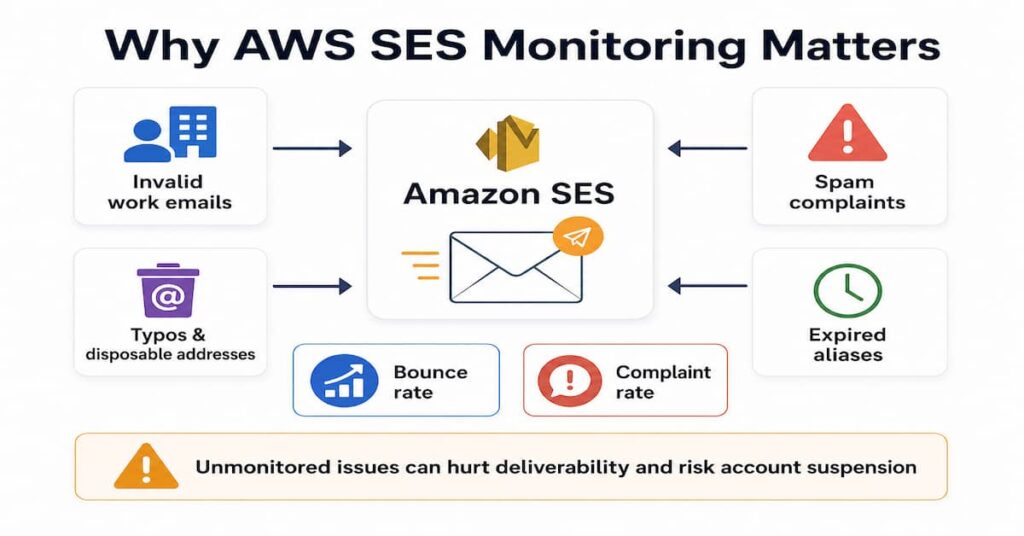
AWS SES is a bare-bones email service compared to all-in-one providers like SendGrid or Mailgun. It does not have a built-in dashboard that surfaces real-time deliverability health in one view. Left unmonitored, a sudden spike in hard bounces or spam complaints can go unnoticed until AWS suspends your sending account.
Common scenarios that silently degrade your list quality:
- Work emails that become invalid when an employee leaves a company
- Users signing up with typos or disposable addresses (hard bounces)
- Unclear unsubscribe flows that lead recipients to hit the spam button instead (complaints)
- Expired aliases or cancelled email subscriptions
According to AWS documentation, SES actively tracks bounce and complaint rates and may place your account under review if these rates are too high. Monitoring proactively is the only way to act before this happens.
Core AWS SES Metrics You Must Track
SES produces several event types. Not all carry the same risk weight. Here are the ones that matter most for account health and deliverability:
| Metric | What It Measures | Safe Threshold | Risk if Exceeded |
| Bounce Rate | Hard bounces as a percentage of emails sent | Below 5% | Account review or sending pause |
| Complaint Rate | Emails marked as spam by recipients | Below 0.1% | Account review or sending pause |
| Delivery Rate | Emails successfully delivered to recipient mail server | As high as possible | Low delivery = reputation damage |
| Reject Rate | Emails rejected by SES before delivery (e.g., virus detected) | Near 0% | Indicates content or attachment problems |
| Open Rate | Recipients who opened the email (via configuration sets) | Benchmark varies by industry | Persistent low open rate signals disengagement |
| Click Rate | Recipients who clicked a tracked link | Benchmark varies by industry | Used to gauge engagement quality |
Hard bounces occur when an email address does not exist, the domain does not exist, or the receiving server permanently rejects delivery. Soft bounces are temporary failures. AWS SES retries soft bounces automatically, but persistent soft bounces should eventually be treated the same as hard bounces.
Method 1: Using the SES Reputation Metrics Console
The quickest way to check account health is the Reputation Metrics page inside the Amazon SES console. This dashboard shows the same information the AWS SES team uses when assessing individual account health.
How to Access It
- Sign in to the AWS Management Console and open the Amazon SES console at https://console.aws.amazon.com/ses/
- In the left navigation pane, choose Reputation metrics.
- Review Account Status, Bounce Rate, and Complaint Rate.
The Account Status field summarises combined account health and can display one of five states:
- Healthy: No issues are impacting your account.
- Under Review: AWS has flagged bounce or complaint issues and is monitoring the account.
- Pending End of Review Decision: A manual review is in progress before further action.
- Sending Paused: AWS has paused sending. You must request a review to restore access.
- Pending Sending Pause: Issues are unresolved and a sending pause is imminent.
The Reputation Metrics page can also surface information about spamtrap hits and other reputation signals unrelated to direct bounces or complaints. This makes it a valuable first stop when diagnosing sudden deliverability drops.
Method 2: Virtual Deliverability Manager (VDM)
The Virtual Deliverability Manager (VDM) is AWS’s most comprehensive built-in deliverability monitoring tool. It tracks the complete journey of an email: from send to delivery, bounce, complaint, open, and click. VDM now also includes inbox placement metrics and blocklist monitoring, features launched by AWS in May 2026.
What VDM Now Includes
- Delivery rates, bounce rates (hard and soft), complaint rates, open rates, and click rates in a unified view.
- Inbox placement rate: the percentage of messages that land in the inbox versus the spam folder, based on industry sample data per sending domain and campaign.
- Proactive inbox placement testing: test candidate email content against top mailbox providers before sending.
- Blocklist monitoring: passive awareness of when your sending domains or IPs appear on public email blocklists.
How to Enable VDM
- In the SES console, go to Account dashboard.
- Under Virtual Deliverability Manager, choose Enable.
- Once enabled, the VDM dashboard is available under Deliverability in the left navigation pane.
Method 3: Configuration Sets and Event Publishing
Configuration sets are the foundation of any custom aws ses monitoring pipeline. They let you define which email events (send, delivery, bounce, complaint, open, click, reject, rendering failure) are captured and where they are sent.
Supported Event Destinations
- Amazon CloudWatch: Store metrics for alerting and dashboards.
- Amazon SNS: Push real-time bounce and complaint notifications to queues or Lambda functions.
- Amazon Kinesis Data Firehose: Stream events to Amazon S3, Redshift, or OpenSearch for long-term storage and analysis.
- Amazon Pinpoint: Use for engagement analytics on marketing campaigns.
Creating a Configuration Set (AWS Console)
- In the SES console, choose Configuration sets from the left menu.
- Click Create set and give it a descriptive name (e.g., transactional-emails).
- Under Event destinations, choose Add destination.
- Select the event types to track (Bounces, Complaints, Deliveries are the minimum).
- Choose your destination type (CloudWatch, SNS, or Kinesis Firehose) and complete the setup.
- Associate the configuration set with your sending identity by adding it to your SendEmail API calls or SMTP headers.
Method 4: Setting Up CloudWatch Alarms for SES
CloudWatch Alarms let you define thresholds and receive notifications via email, SMS, or PagerDuty before you breach the limits that trigger AWS account action. This is the recommended approach for proactive aws ses monitoring.
Key Metrics to Alarm On
| CloudWatch Metric | Namespace | Recommended Alarm Threshold |
| Reputation.BounceRate | AWS/SES | Alert at 2%, Critical at 4% |
| Reputation.ComplaintRate | AWS/SES | Alert at 0.05%, Critical at 0.08% |
| Send | AWS/SES | Monitor for anomalous spikes |
| Delivery | AWS/SES | Alert when delivery rate drops below 95% |
| Bounce | AWS/SES | Count-based alert for absolute bounce volume |
| Complaint | AWS/SES | Count-based alert for absolute complaint volume |
Creating a Bounce Rate Alarm in CloudWatch
- In the CloudWatch console, choose Alarms, then Create alarm.
- Click Select metric, navigate to SES, and select Reputation.BounceRate.
- Set the threshold: alert when BounceRate >= 0.02 (2%) for 1 datapoint out of 1 period.
- Under Notification, choose or create an SNS topic and add your alert email address.
- Name the alarm (e.g., SES-BounceRate-Warning) and create it.
Method 5: Real-Time Bounce and Complaint Handling via SNS
SNS notifications give you real-time visibility into delivery failures. The standard architecture routes SES events to SNS topics, then to an SQS queue, and finally to a Lambda function that stores or acts on the data. Here is the minimum viable setup using the AWS CLI:
Step 1: Create SNS Topics
aws sns create-topic --name ses-bouncesaws sns create-topic --name ses-complaintsaws sns create-topic --name ses-deliveriesStep 2: Connect SNS Topics to Your SES Identity
aws ses set-identity-notification-topic \ --identity yourdomain.com \ --notification-type Bounce \ --sns-topic arn:aws:sns:us-east-1:123456789:ses-bouncesaws ses set-identity-notification-topic \ --identity yourdomain.com \ --notification-type Complaint \ --sns-topic arn:aws:sns:us-east-1:123456789:ses-complaintsOnce SNS notifications are confirmed working, disable the default email feedback forwarding to avoid duplicate notifications.
Domain-Level Monitoring with CloudWatch
When you operate multiple sending domains from a single SES account (for example, one domain for transactional email and another for marketing), account-level metrics are not granular enough. A single high-bounce campaign can affect the reputation of all domains on the account.
The solution is to use SES message auto-tags to publish domain-level delivery events to CloudWatch as custom metrics. By tagging sends with the source domain, you can create separate CloudWatch dashboards per domain and set independent alarms. This approach is detailed in the AWS Messaging Blog.
For multi-domain setups, the recommended architecture is:
- Create one configuration set per sending domain.
- Route each configuration set to its own CloudWatch event destination.
- Use CloudWatch metric filters to build per-domain dashboards and alarms.
- Use VDM for the aggregated view across all domains.
Best Practices for AWS SES Monitoring and Deliverability
Double opt-in requires new subscribers to confirm their email address before being added to your list. This removes typos, mistyped addresses, and invalid emails at the point of signup rather than when a send fails.
Hard-bounced addresses should be removed from your sending list immediately. SES adds hard-bounced addresses to the account-level suppression list automatically, but you should also remove them from your own database to prevent re-importing them in the future.
When increasing send volume, ramp gradually. A jump from a low send volume to hundreds of thousands of emails overnight looks suspicious to ISPs and raises bounce and complaint rates. Increase volume by no more than 20% to 30% per week.
AWS will act when bounce rate exceeds 5% and complaint rate exceeds 0.1%. Set your own alarms at 2% and 0.05% respectively. This gives you time to investigate and resolve issues before they reach AWS thresholds.
Shared SES IPs carry the reputation of all senders on that pool. If you are sending more than 100,000 emails per day, a dedicated IP gives you full control over your sending reputation. It also makes IP-level blocklist monitoring more straightforward since you own the entire sending history for that IP.
Email authentication is a baseline requirement for good deliverability. Ensure DKIM is enabled and verified in SES, that your domain has a valid SPF record, and that DMARC is configured with at least a p=none policy to start collecting alignment reports before moving to enforcement.
- ✓ Monitor delivery, bounce, and complaint rates in real time
- ✓ Receive proactive alerts before reputation metrics exceed AWS thresholds
- ✓ Visualize long-term deliverability trends with pre-built dashboards
- ✓ Consolidate SES metrics alongside logs, traces, and infrastructure telemetry
Conclusion
AWS SES monitoring is a multi-layer problem. The Reputation Metrics console and VDM give you quick visibility into account health. Configuration sets with CloudWatch event destinations give you the granular, time-series data you need for alerting. SNS notifications let you process bounces and complaints in real time and automatically update your suppression lists. Third-party tools like Datadog and Prometheus reduce the operational overhead of maintaining these pipelines.
The most important takeaway is to set your alarms well before AWS thresholds, act on every hard bounce, and make list hygiene a default part of your sending workflow. A clean list does not just protect your SES account, it improves deliverability for every email you send.
DisclaimerThis article is intended for informational purposes only. AWS SES thresholds, console layouts, and service features may change over time. Always refer to the official Amazon SES documentation for the most current guidance. Third-party tool integrations mentioned are based on publicly available information and do not constitute an endorsement by CubeAPM or its affiliates.
FAQs
1. What is a safe bounce rate for AWS SES?
Keep your hard bounce rate below 5%, which is the threshold at which AWS may review or pause your account. Set your own internal CloudWatch alarm at 2% to give yourself time to act. The ideal long-term target is below 1%.
2. How do I check my current AWS SES bounce rate?
Open the Amazon SES console and select Reputation metrics from the left navigation pane. For historical trends, go to CloudWatch, filter by the AWS/SES namespace, and select the Reputation.BounceRate metric.
3. What is the difference between a hard bounce and a soft bounce in SES?
A hard bounce is a permanent failure where the address does not exist or the server has permanently rejected the message. SES adds these to the account suppression list automatically. A soft bounce is a temporary failure such as a full mailbox, and SES retries these automatically before treating them as permanent.
4. Can I monitor AWS SES metrics at the domain level?
Yes. Use configuration sets with message auto-tags to publish per-domain delivery events into CloudWatch as custom metrics. Create one configuration set per sending domain, route each to a CloudWatch event destination, and build separate dashboards and alarms. Virtual Deliverability Manager also provides domain-level data in a single view.
5. What happens if AWS pauses my SES sending account?
You will be unable to send any email until the issue is resolved. Submit a review request through the AWS Support Console, explain the root cause, and describe the remediation steps you have taken. AWS manually reviews the account before restoring access, which can take several business days.